
Account Settings
Manage your own SkyLab account: name, email and avatar, your sign-in password, two-factor authentication, deleting the account, the look of the interface, and version and license information. Sidebar: click your name at the bottom of the sidebar → User Settings. Path: /account.
Who can use it
Every signed-in user, for their own account only. Differences:
- Accounts created through a sign-in service (LDAP or Google) cannot change their email here; the page shows "This account's email is managed by its sign-in provider".
- If an administrator requires two-factor authentication for your account, you cannot disable it yourself.
- Administrator accounts cannot delete themselves.
Before you start
- To change your email, the platform must be able to send email.
- To set up two-factor authentication, you need an authenticator app on your phone (Google Authenticator, Microsoft Authenticator, Authy or similar).
Step by step
The page has three tabs: Profile, Appearance and About. The Profile tab holds the Profile, Change Password, Two-factor authentication and Delete Account cards.
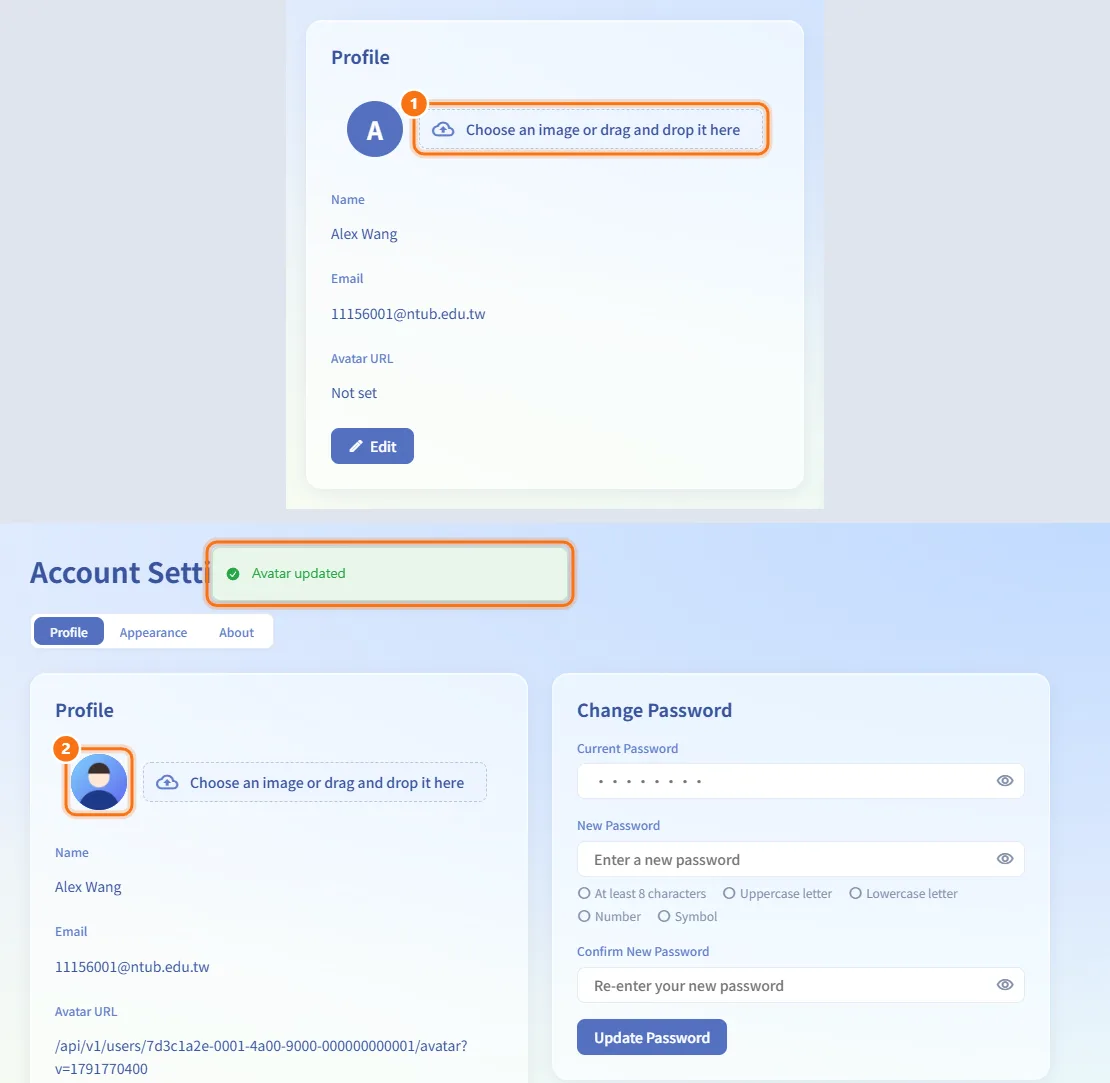
Change your avatar
- On the Profile tab, drop an image onto the upload box next to your avatar, or click the box to choose a file.
- The image is shrunk and uploaded right away; "Avatar updated" confirms it. No Save is needed.
Edit your name, email or avatar URL
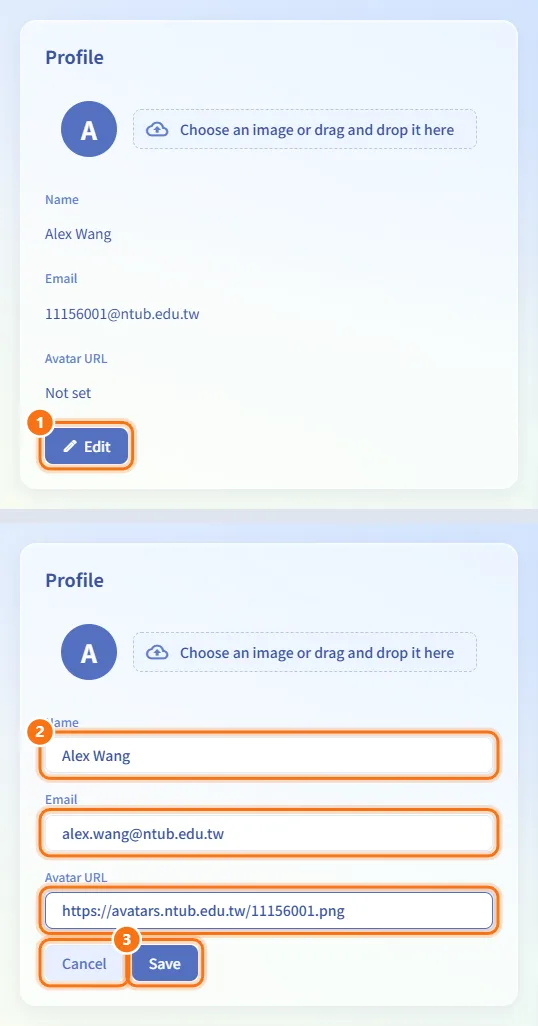
- In the Profile card, click Edit.
- Change Name (up to 30 characters), Email, or Avatar URL (a link starting with
http://orhttps://, or a path starting with/). - Click Save, or Cancel to discard the changes.
If you changed the email, SkyLab sends a verification link to the new address and shows "Waiting for verification at <email>. Your current email is still in use." Open the link from the new inbox to finish the change (see Signing in).
Change your password
This changes the password you use to sign in to SkyLab, not the login password of your machines.
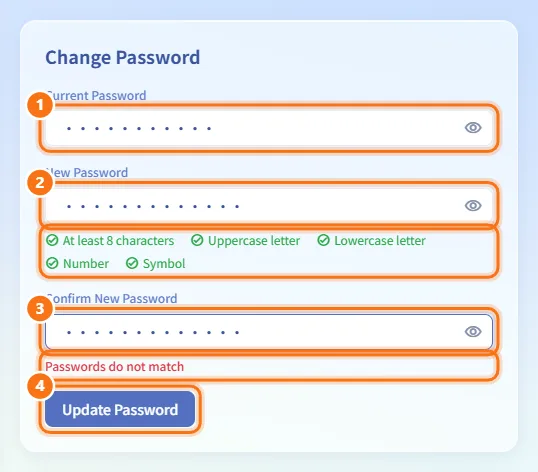
- In Change Password, enter your Current Password.
- Enter a New Password. The checklist under it shows which rules are met.
- Re-enter it in Confirm New Password. "Passwords do not match" appears if the two differ.
- Click Update Password.
After the update, every signed-in session (including this one) ends and you sign in again with the new password.
Turn on two-factor authentication
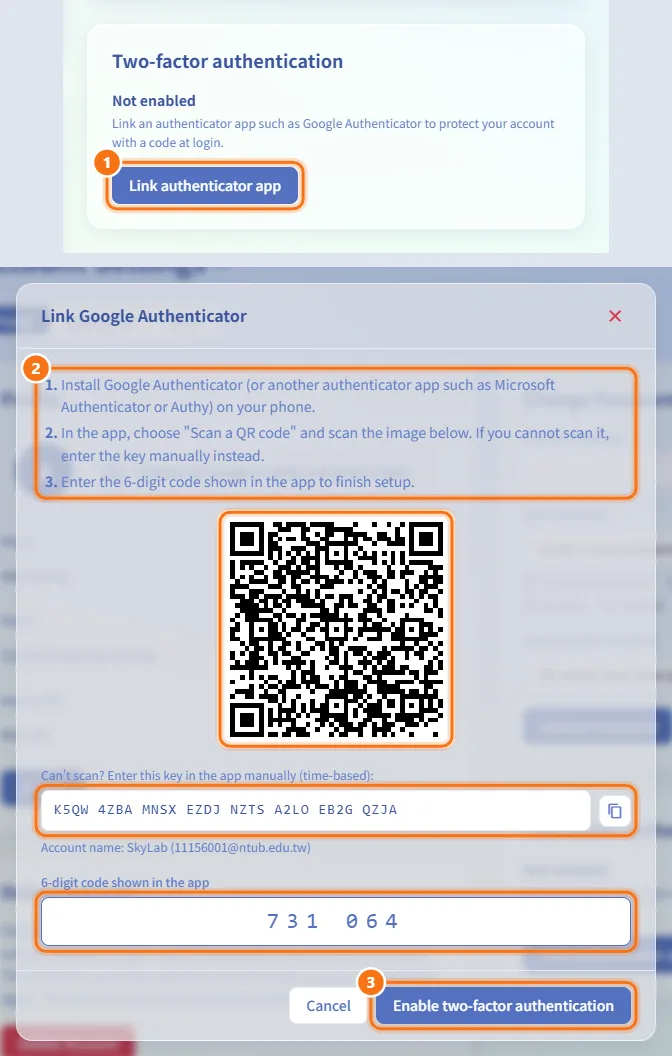
- In Two-factor authentication, click Link authenticator app.
- In the Link Google Authenticator dialog, follow the three steps: install an authenticator app, scan the QR code (or type the key shown under it into the app; the copy button copies it), then enter the 6-digit code from the app.
- Click Enable two-factor authentication.
The card now shows Enabled. From the next sign-in on, SkyLab asks for a 6-digit code after your password.
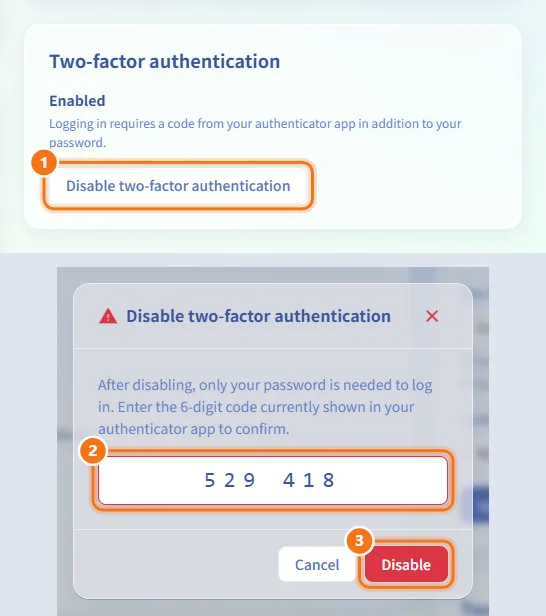
Turn off two-factor authentication
- Click Disable two-factor authentication.
- In the dialog, enter the 6-digit code currently shown in your authenticator app.
- Click Disable.
The button is disabled when an administrator requires two-factor authentication for your account. If you lost your phone, ask an administrator to reset it.
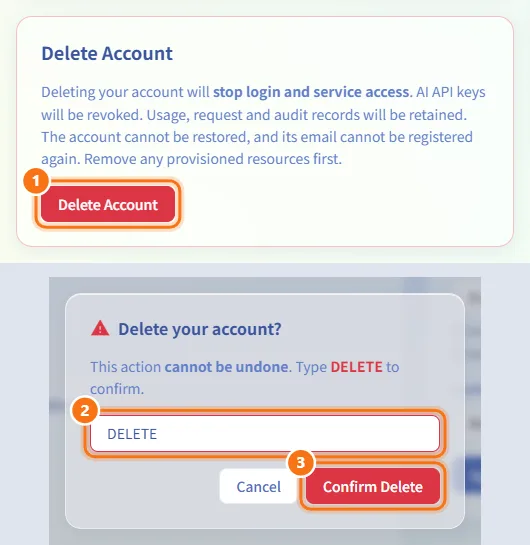
Delete your account
- In Delete Account, click Delete Account.
- In the dialog, type
DELETEexactly as shown. - Click Confirm Delete. You are signed out.
Deleting stops sign-in and service access and revokes your AI API keys. Usage, request and audit records are kept. The account cannot be restored, and its email cannot be registered again.
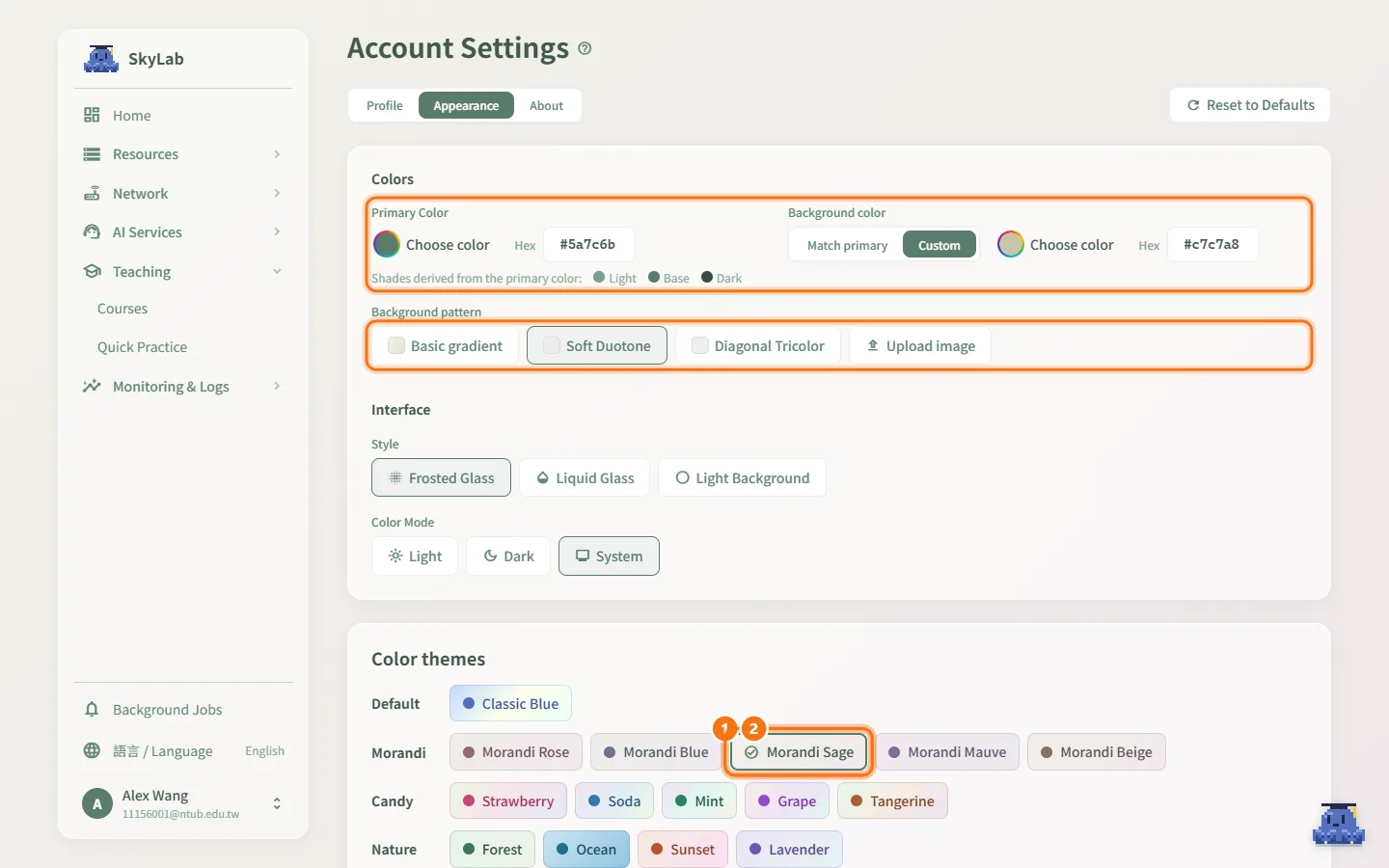
Change colors and background
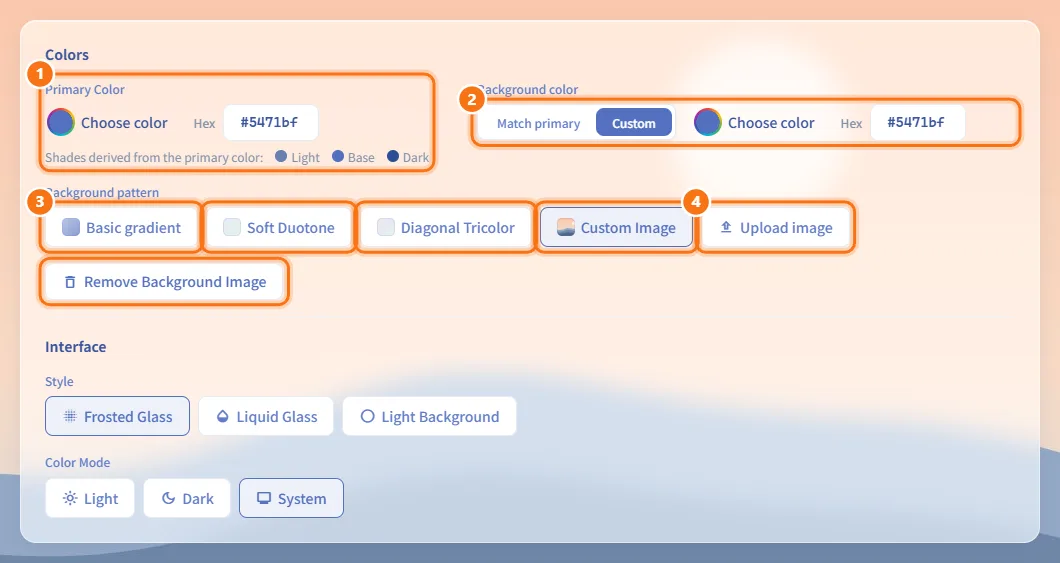
On the Appearance tab, the Colors group:
- Primary Color: pick a color with the color picker or type a color code. The light, base and dark shades derived from it are shown next to it as a preview.
- Background color: choose Match primary, or Custom and pick a color.
- Background pattern: choose Basic gradient, Soft Duotone or Diagonal Tricolor.
- To use your own picture, click Upload image and choose an image file. It becomes the Custom Image pattern. Remove Background Image deletes it again.
Changes apply immediately.
Change the interface style and color mode
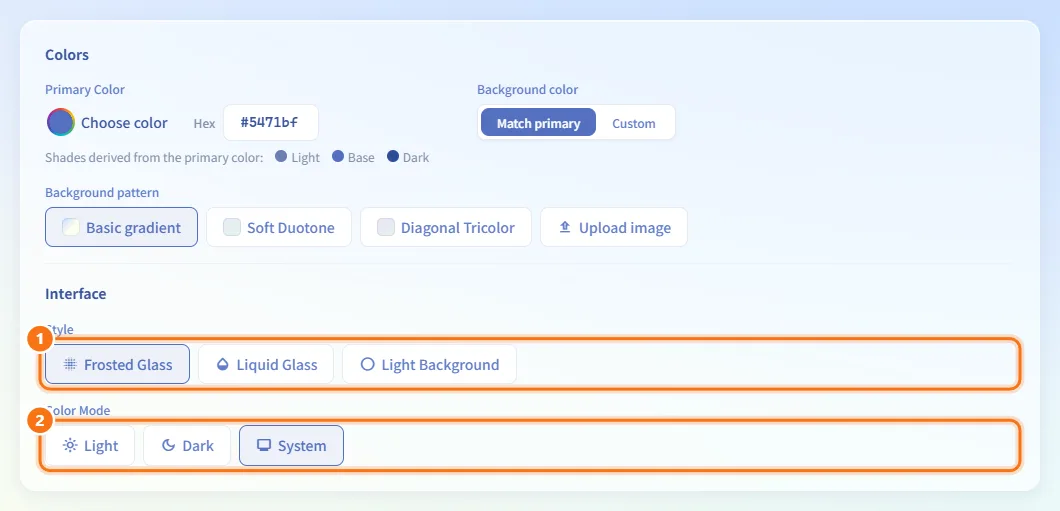
In the Interface group of the Appearance tab:
- Style: Frosted Glass, Liquid Glass, Light Background (only in light mode) or Dark Background (only in dark mode).
- Color Mode: Light, Dark or System (follows your operating system).
Apply a color theme
The Color themes card on the Appearance tab groups ready-made themes into families: Default (Classic Blue), Morandi, Candy, Nature and Calm.
- Click a theme. Its primary color, background color and background pattern are applied together, and the Colors fields above update to match.
- The selected theme shows a check mark. If you change any of its colors afterwards, no theme is selected.
Reset the appearance
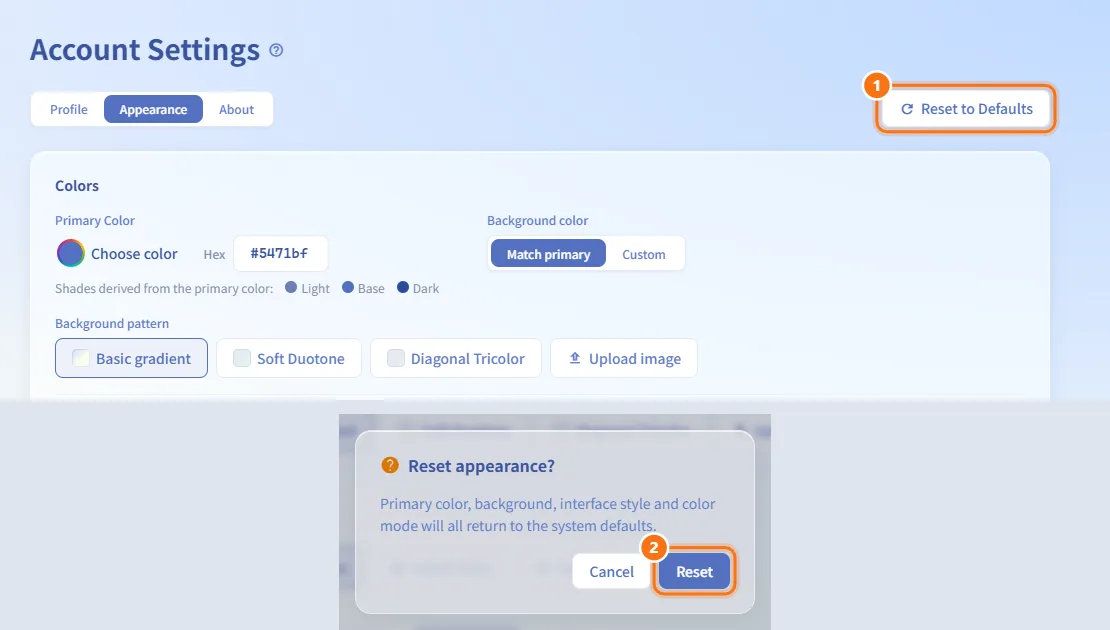
- On the Appearance tab, click Reset to Defaults at the right of the tab bar.
- Confirm Reset. Primary color, background, interface style and color mode return to the system defaults. An uploaded background image is deleted as well and cannot be recovered.
Change the interface language
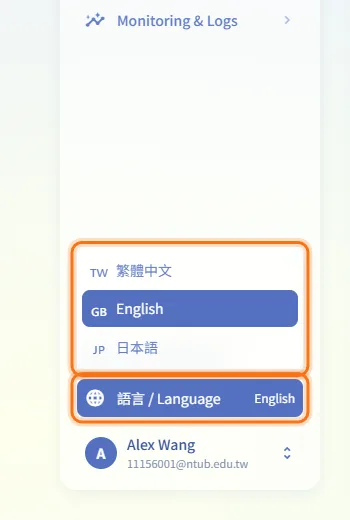
The language is not on this page. Click 語言 / Language at the bottom of the sidebar and choose 繁體中文, English or 日本語.
Check the version and licenses
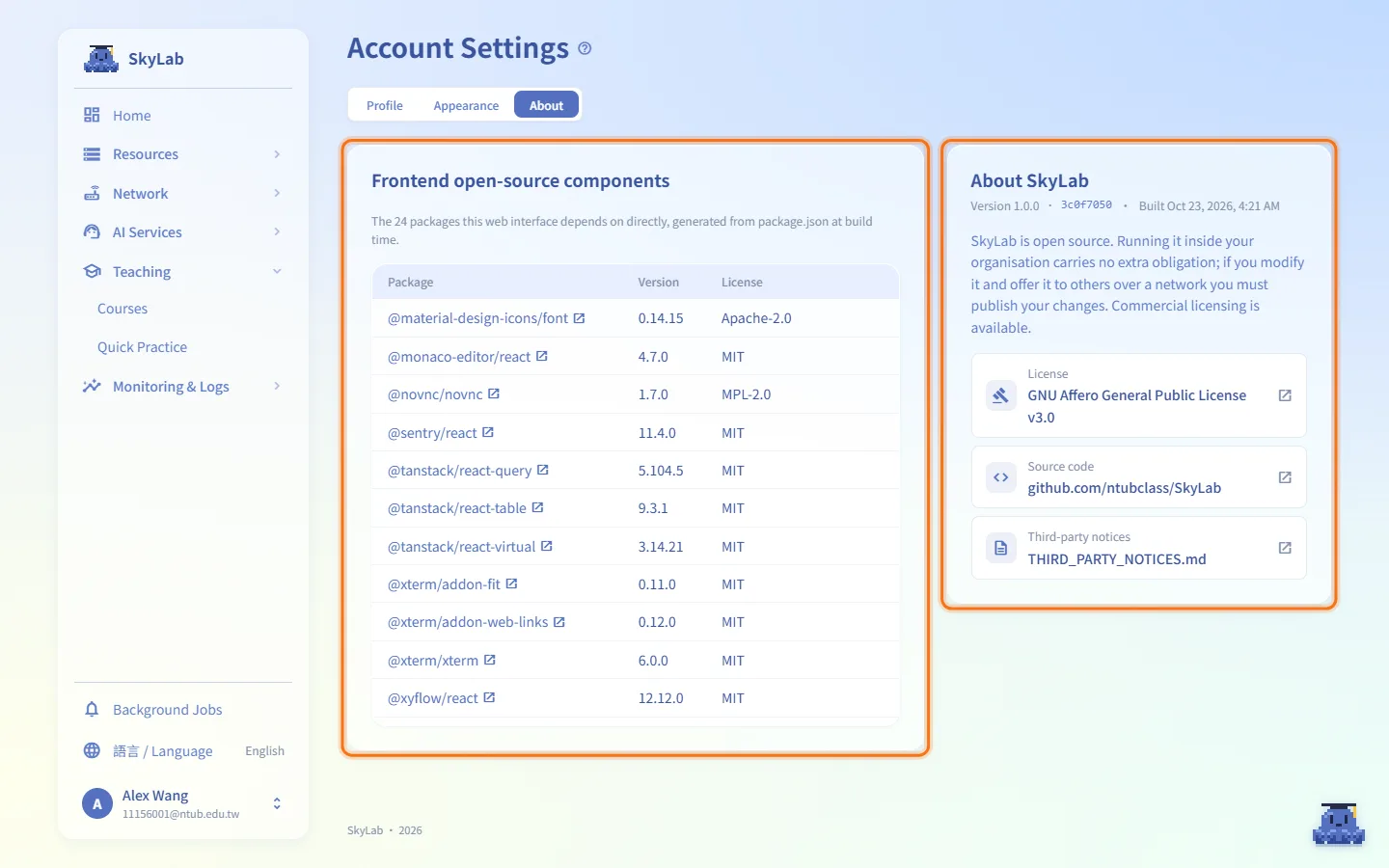
Open the About tab:
- About SkyLab shows the Version, the commit and the Built time, a short note on the license, and links to License (GNU Affero General Public License v3.0), Source code and Third-party notices.
- Frontend open-source components lists the packages the web interface uses directly, with Package, Version and License.
Include the version shown here when you report a problem.
Fields and options
| Field | Meaning | Notes |
|---|---|---|
| Name | Your display name | Up to 30 characters |
| Your sign-in email | Not editable for LDAP or Google accounts; a change needs verification | |
| Avatar URL | Address of your avatar image | http(s)://… or a path starting with / |
| Current Password | Your present SkyLab password | Required to change the password |
| New Password | The new SkyLab password | 8–128 characters with uppercase, lowercase, number and symbol; must differ from the current one |
| Primary Color | Main accent color | Stored in this browser |
| Background color | Match primary or Custom | Stored in this browser |
| Background pattern | Gradient style or your own image | The uploaded image is stored in this browser |
| Style | Frosted Glass, Liquid Glass, Light Background, Dark Background | Light/Dark Background depend on the color mode |
| Color Mode | Light, Dark, System |
Limits and behaviour to know
- Appearance settings (colors, pattern, background image, style, color mode) are saved only in the current browser. On another computer or browser you set them again.
- A very large background image that is still too big after compression is refused; choose a smaller one.
- The avatar upload accepts image files only.
- The email-change link is valid for 1 hour. Until you open it, your old email stays in use.
- Deleting the account is refused while you still own machines (remove them first), and for a teacher who owns classes (ask an administrator to disable the account or reassign the class).
- Changing the password signs you out everywhere.
Related
- Signing in — two-factor sign-in, password reset and the first-time setup tour
- Home — the page you land on after signing in
- My Resources — remove your machines before deleting the account
- User Management — where administrators require or reset two-factor authentication
- AI API — your AI API keys, which are revoked when the account is deleted