
My Resources
My Resources lists every machine you can use: the VMs and containers you requested, machines other people shared with you, your class and course machines, and your quick practice environments. From here you open a machine's console, power it on and off, follow requests that are still being created, and open a machine's detail page. Sidebar: Resources → My Resources. Path: /my-resources.
Who can use it
Every signed-in user: students, teachers and administrators.
- Students see their own machines, machines shared with them, and the class, course and quick practice machines assigned to them.
- Teachers also see the class machines of the students in classes they teach (source Student machine, with the student's name). Teachers and administrators see the VMID under each machine name, and get Convert to template in the power menu of their own personal machines.
- Administrators manage every machine on the platform from Resource Management; this page shows only the machines that concern them personally.
Before you start
- To get a personal machine, submit a request on My Requests. Once it is approved and its time window starts, the machine appears here.
- Class and course machines are created by your teacher; quick practice machines are created from Quick Practice. You do not request them here.
- The list refreshes by itself. While a machine is booting or a request is being created, it checks every few seconds; you do not need to reload the page.
Step by step
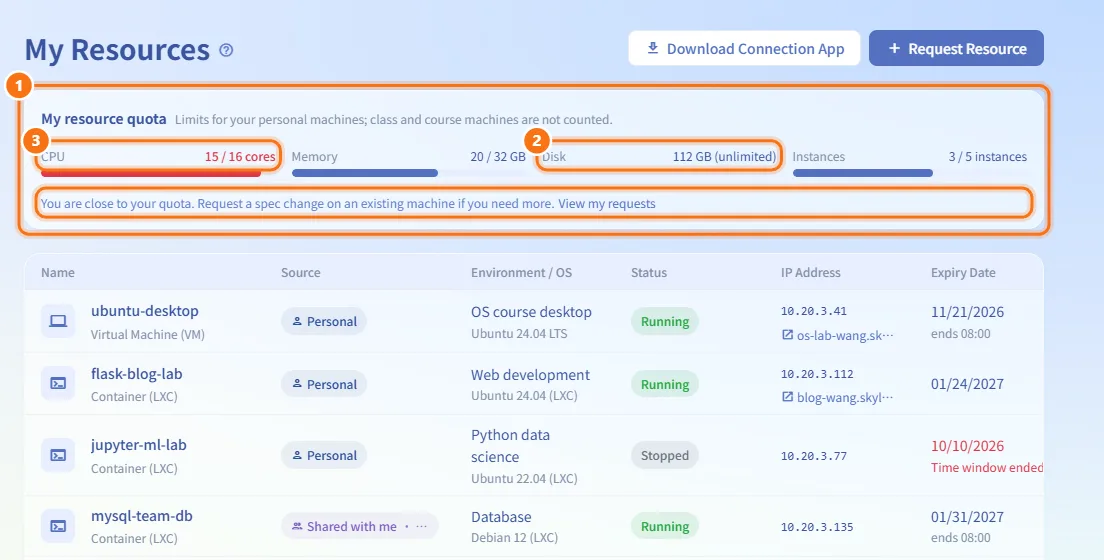
Check your quota
- Look at the My resource quota card at the top. It shows four meters: CPU (cores), Memory (GB), Disk (GB) and Instances.
- Each meter reads "used / limit". When there is no limit (for example for administrators) it shows "(unlimited)".
- When any meter reaches 90% it turns red and a hint appears with a View my requests link. To get more resources, request a spec change on an existing machine or free up a machine you no longer need.
Only personal machines count toward the quota. Class and course machines do not.
Read the machine list
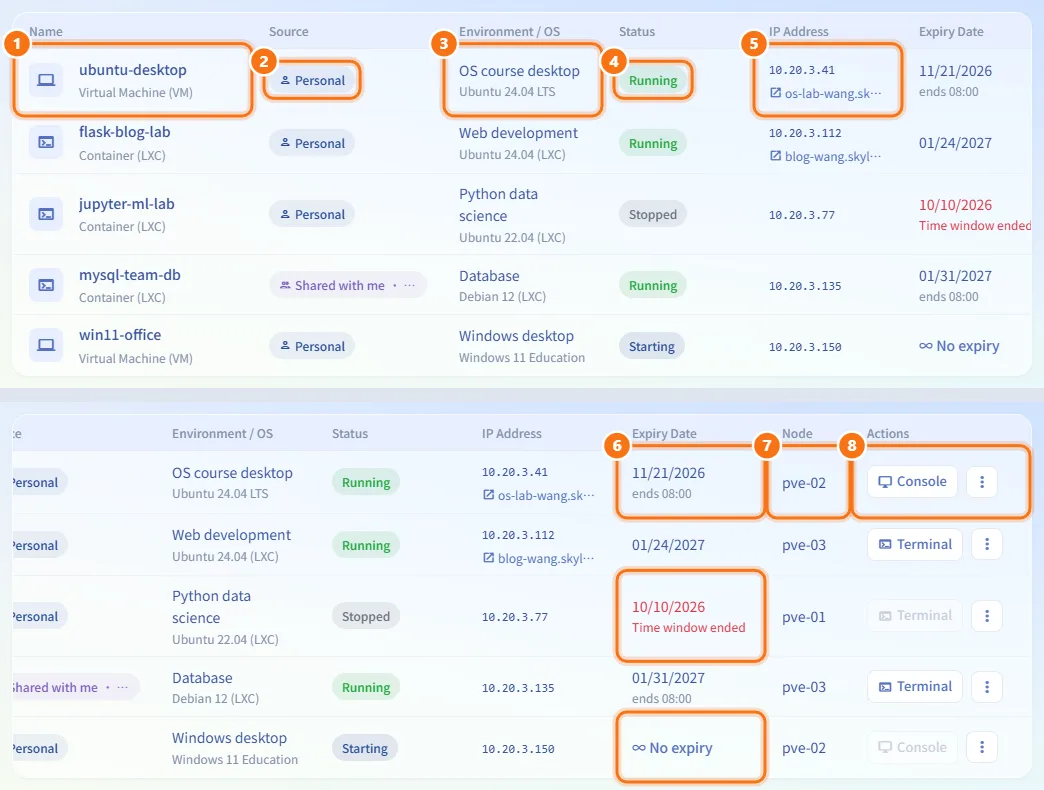
Each row is one machine. The columns are:
- Name, with the type underneath: Virtual Machine (VM) or Container (LXC) (teachers and administrators also see the VMID).
- Source: where the machine comes from (see the table below). Hover over the badge to see who owns it.
- Environment / OS: the environment type and the operating system.
- Status (see the table below).
- IP Address. If the machine has public URLs, they appear under the IP as links that open in a new tab.
- Expiry Date. The small text under the date is the exact cutoff in your local time. A machine without an expiry date but with an approved time window shows the end of the window instead; if that window is over, the date is marked Time window ended. ∞ No expiry means neither applies.
- Node: the server the machine runs on.
- Actions: the console button and the More actions (⋮) menu.
Open a machine's detail page
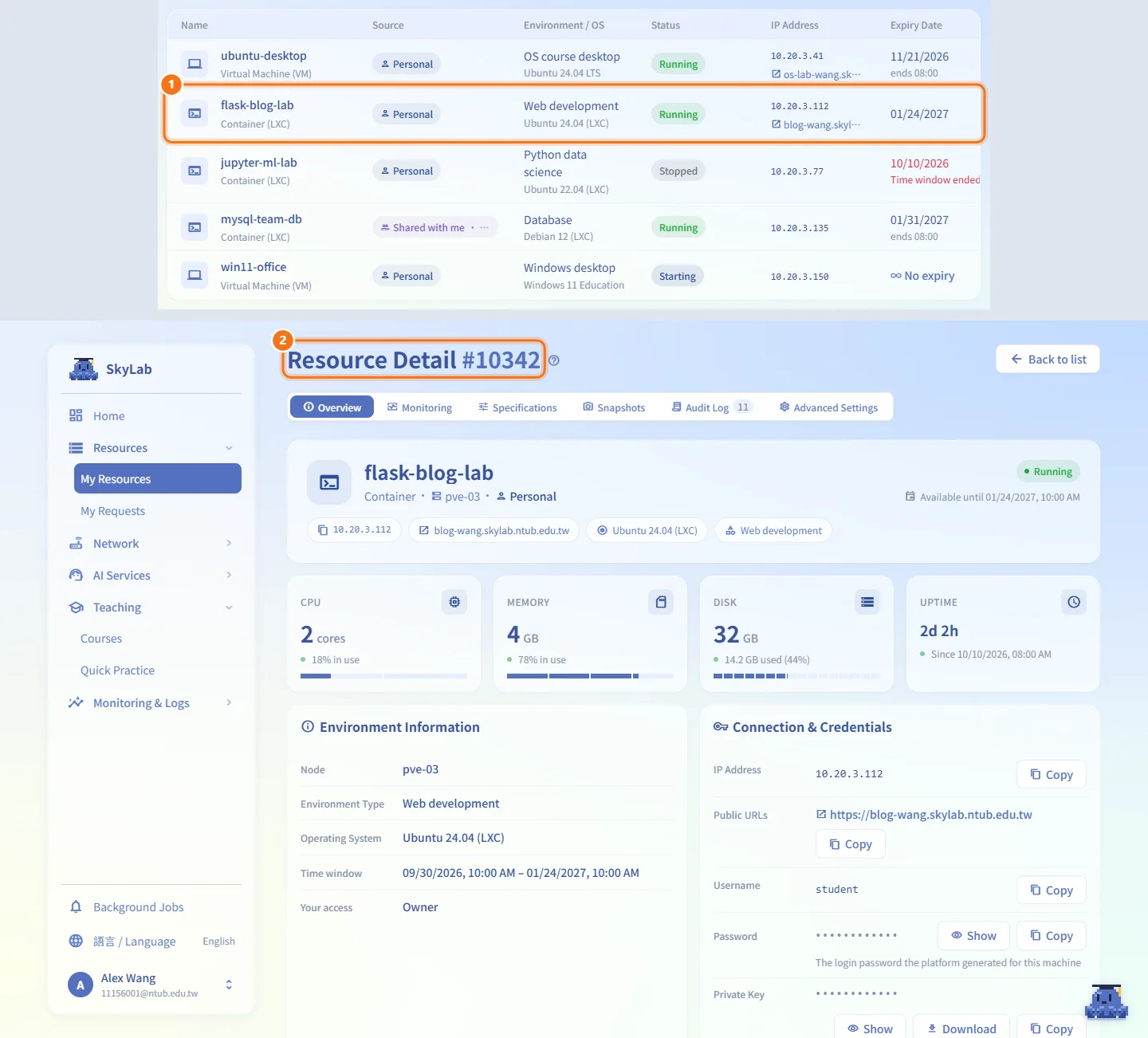
- Click anywhere on the machine's row (not on a button or link).
- The Resource Detail page opens at
/my-resources/<vmid>.
Open the console or terminal
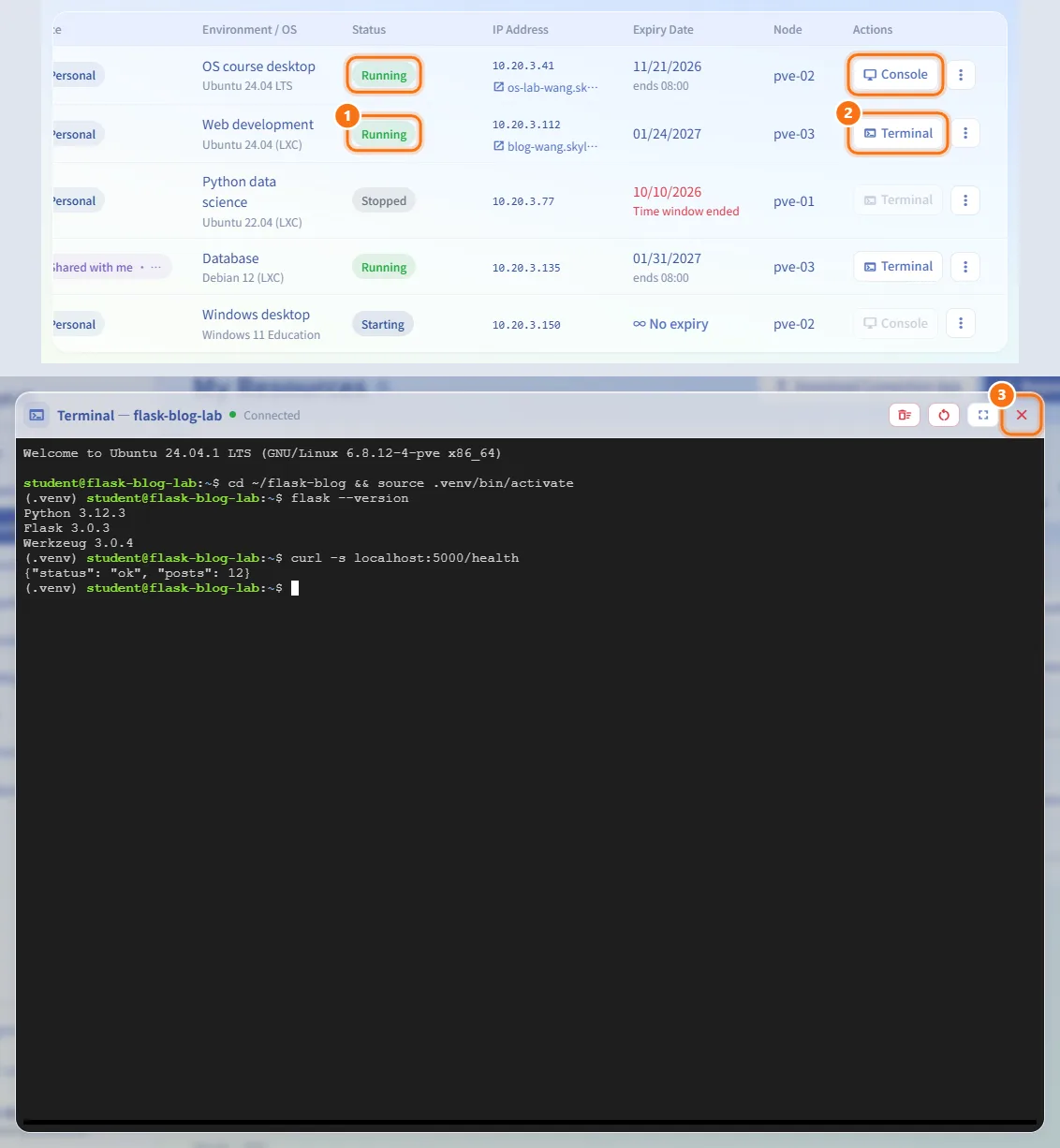
- Wait until the machine shows Running.
- Click Terminal (containers) or Console (VMs) in the Actions column.
- A terminal or a remote desktop window opens over the page. Close it with the × in its title bar.
The button is disabled while the machine is starting ("The console will be available once it finishes booting"), stopped, or outside its approved time window.
Use the VM console
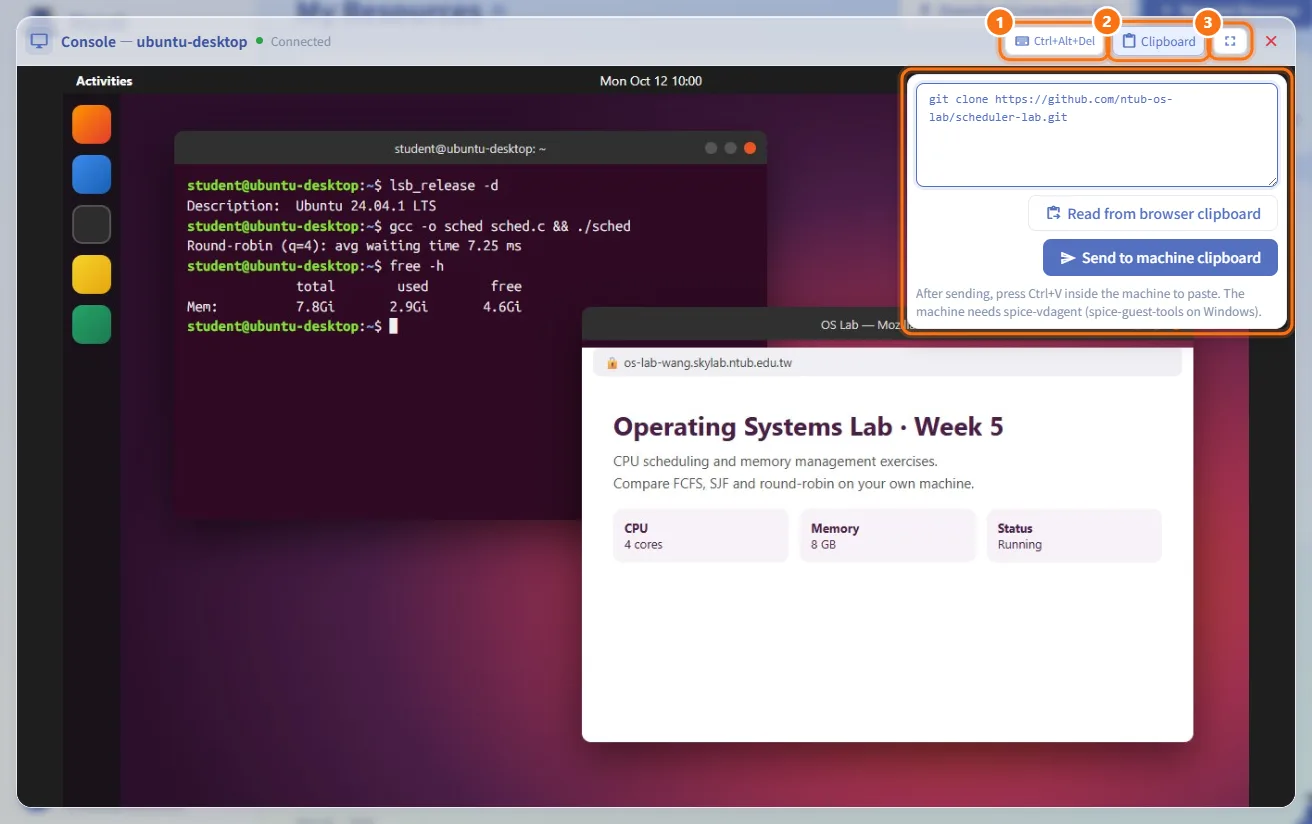
The Console — <name> window shows the VM's screen. Its title bar shows Connecting or Connected. Once connected it offers these buttons:
- Ctrl+Alt+Del: sends the key combination to the VM (for example to reach the Windows sign-in screen).
- Clipboard: opens a panel for pasting text into the VM.
- Type or paste text in the box, or click Read from browser clipboard (works only over HTTPS or on localhost, after the browser allows it).
- Click Send to machine clipboard, then press Ctrl+V inside the VM.
- Text you copy inside the VM appears in the same box.
- The VM needs spice-vdagent installed (spice-guest-tools on Windows). If the panel warns that the VNC clipboard is not enabled, ask an administrator to enable it for the machine.
- The fullscreen icon (tooltip Fullscreen / Exit Fullscreen). Where the browser supports it, fullscreen also sends browser shortcuts such as Ctrl+W and Ctrl+T to the VM; hold Esc to leave fullscreen.
During a class, if the teacher takes over your screen, an overlay reads "The teacher is taking over this screen" and your keyboard and mouse are disabled until the teacher releases it.
Use the container terminal
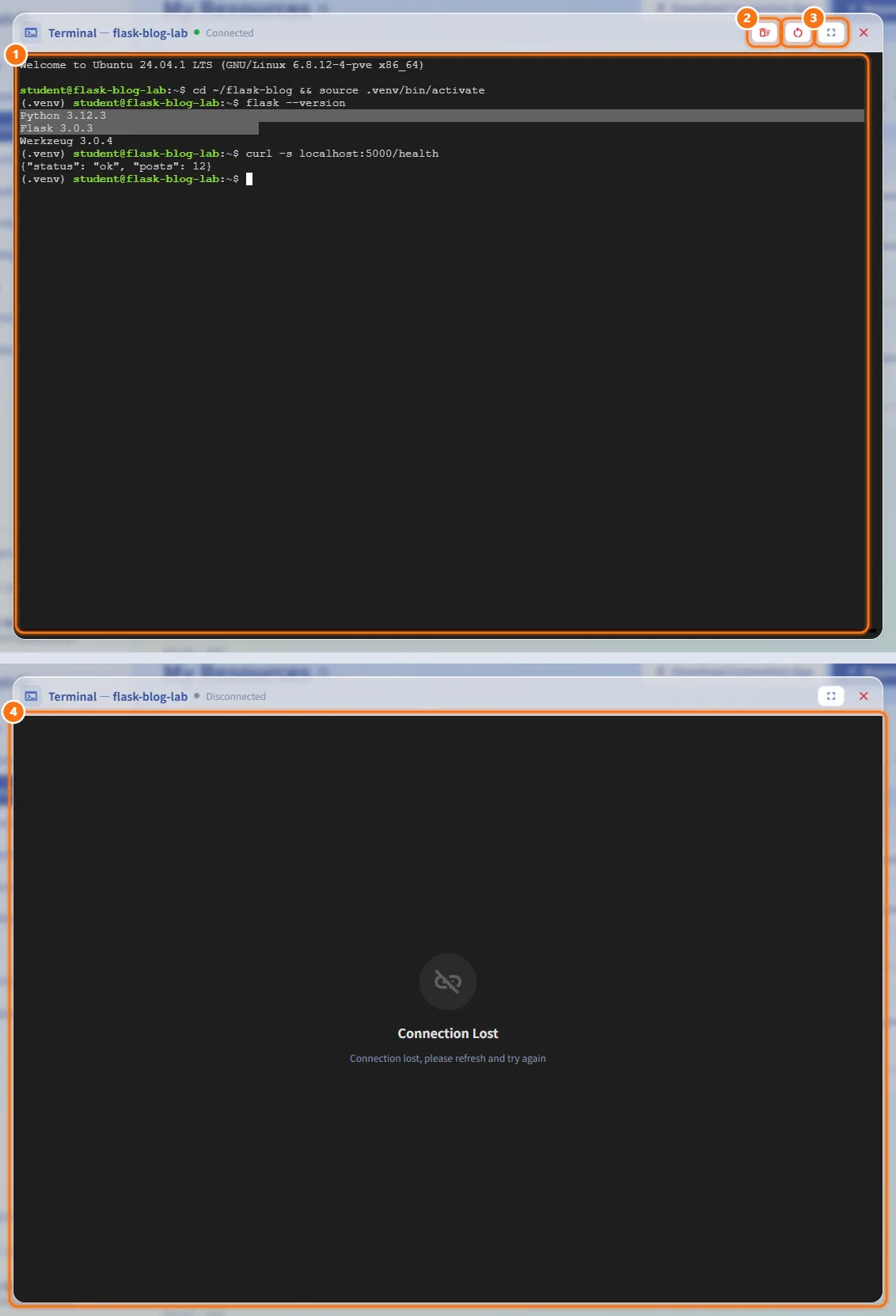
The Terminal — <name> window is a shell inside the container.
- Select text and press Ctrl+Shift+C (or Ctrl+Insert) to copy it. Paste with Ctrl+Shift+V or Shift+Insert.
- The Clear button empties the screen; the Reset button resets the terminal.
- The fullscreen icon works as in the VM console.
- If the connection drops, the window shows Connection Lost. Close it and open the terminal again.
Power a machine on or off
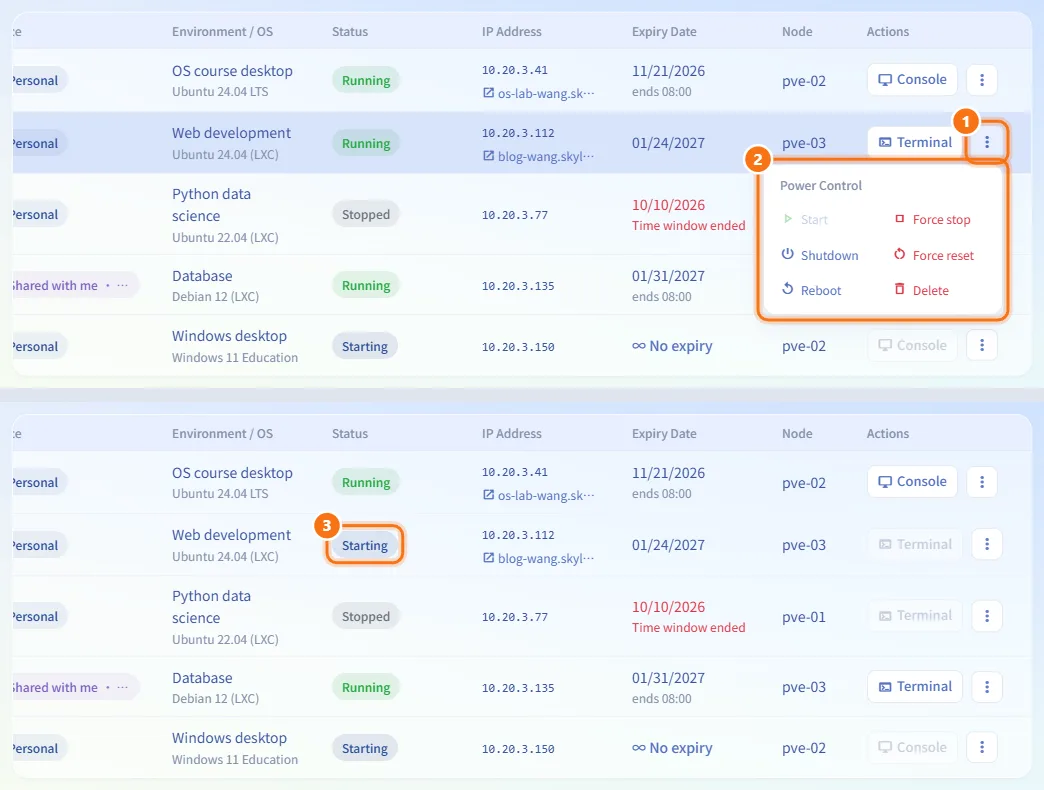
- Click More actions (⋮) on the machine's row. The Power Control menu opens.
- Choose an action:
- Start: available when the machine is stopped or paused.
- Shutdown: asks the operating system to shut down cleanly. Available while running.
- Reboot: restarts the machine cleanly. Available while running.
- Force stop: cuts the power immediately. Available while running or starting (useful when boot hangs).
- Force reset: hard-resets the machine. Available while running.
- The status changes right away; after Start and Reboot the row shows Starting until boot finishes.
Prefer Shutdown and Reboot; the forced actions can lose unsaved data inside the machine.
Delete a machine
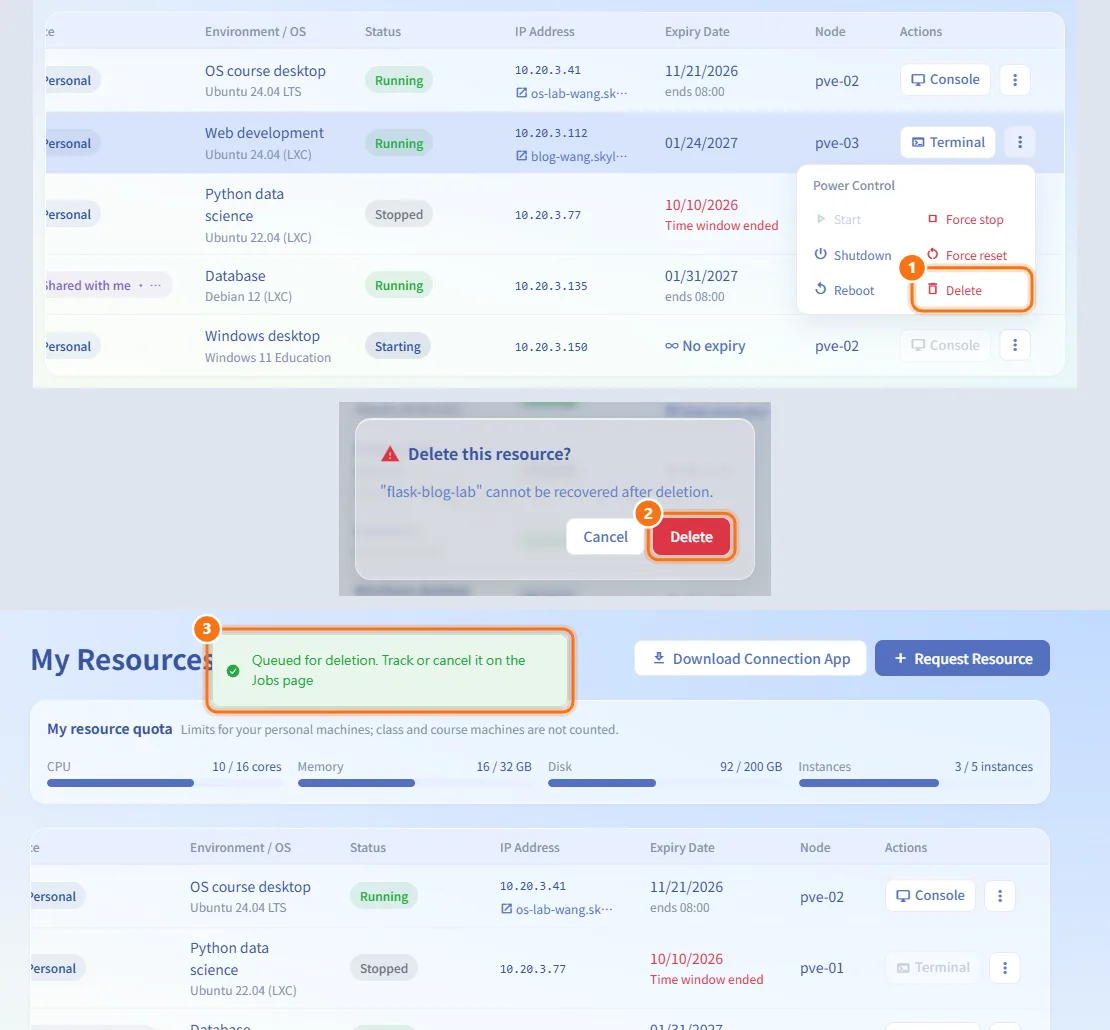
- Open More actions (⋮) and click Delete.
- Confirm in the dialog. Deletion cannot be undone.
- The deletion is queued. You can follow its progress on the Background Jobs page.
Delete is not offered for class machines, for machines shared with you, or for single machines inside a course or quick practice environment.
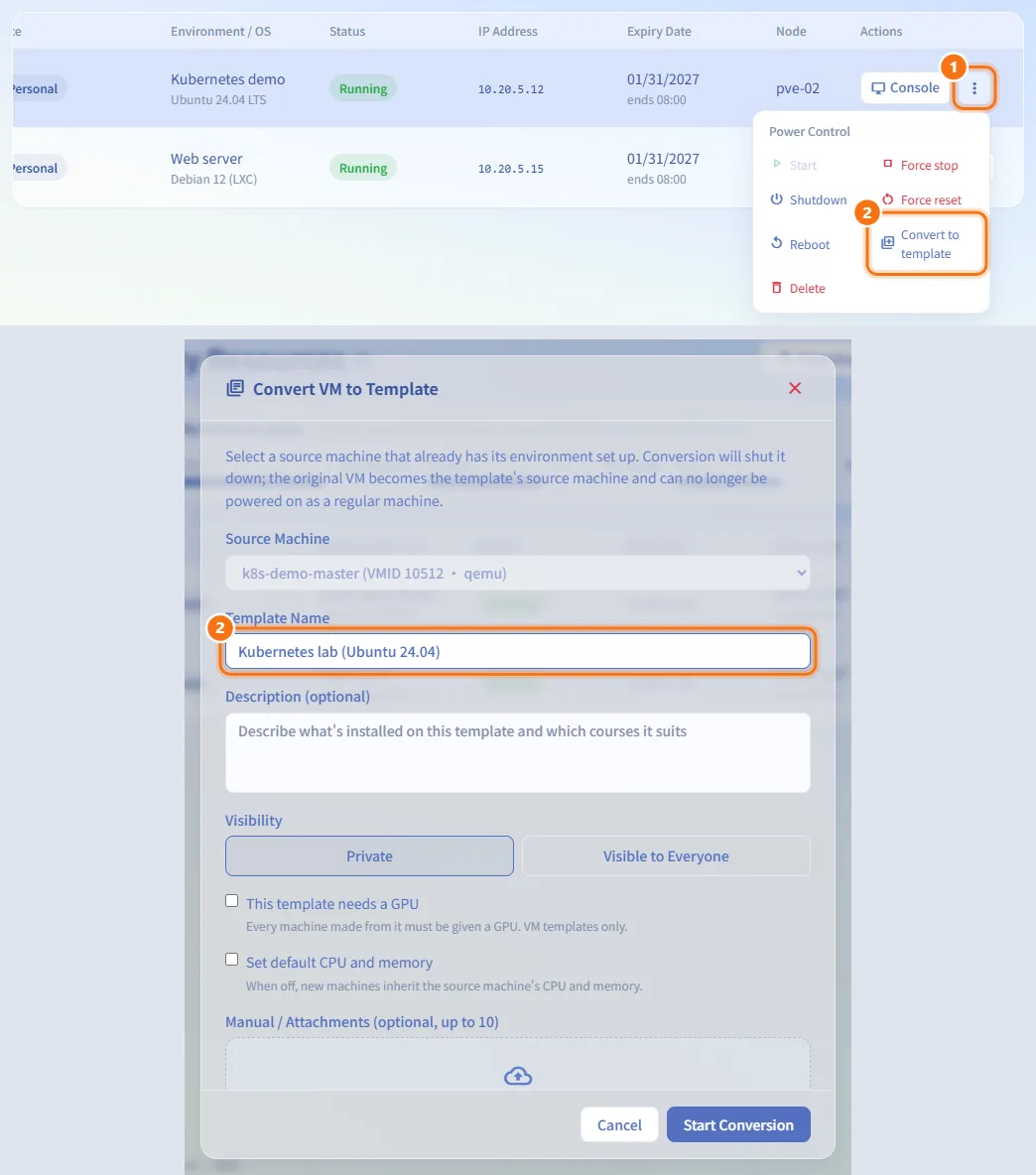
Convert a machine to a template (teachers and administrators)
- Open More actions (⋮) on one of your own personal machines.
- Click Convert to template and fill in the template dialog. See Templates.
Follow a request that is being created
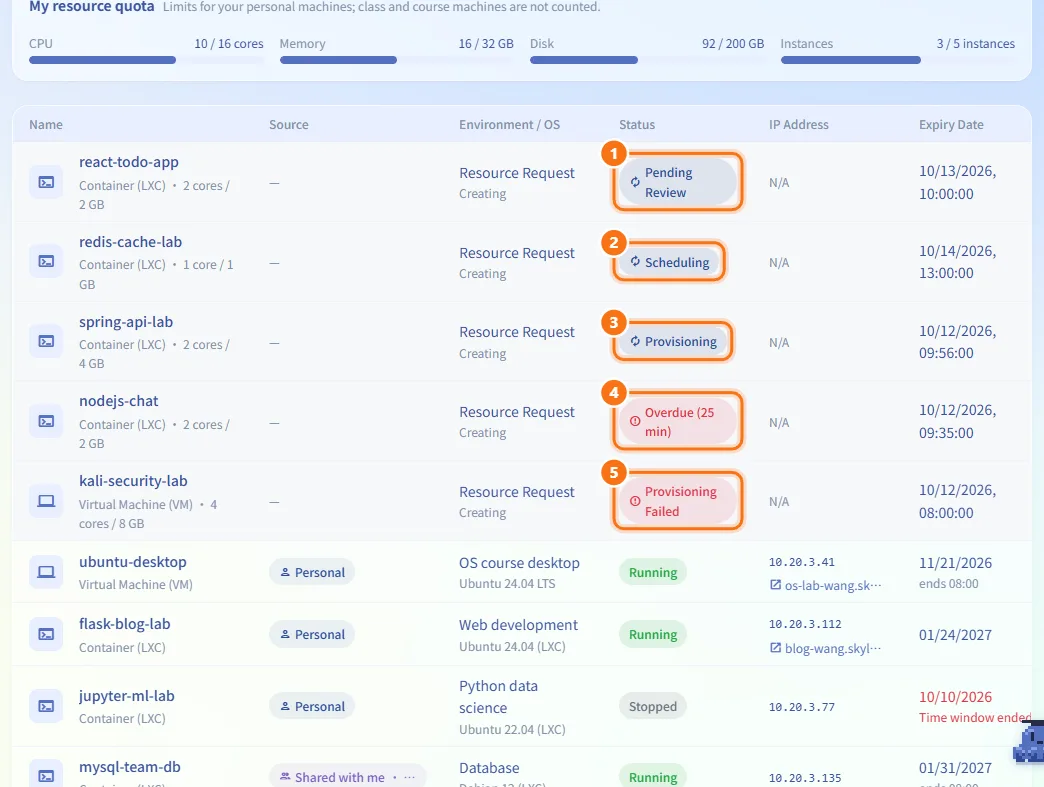
A request you submitted appears as a greyed row with the source Resource Request and the note Creating, until the machine exists. Its status shows where it is:
- Pending Review: an administrator has not reviewed it yet.
- Scheduling: approved, waiting for its start time.
- Provisioning: the machine is being created now.
- Overdue (
<n>min /<n>hr): the start time has passed but creation has not begun. It usually starts on the next scheduler pass; tell an administrator if it stays overdue. - Provisioning Failed: creation failed.
The row shows the requested cores and memory, the start time, and the assigned node (Not yet assigned until there is one). To withdraw the request, click Cancel Request and confirm. You will need a new request if you change your mind.
Retry or remove a machine that failed
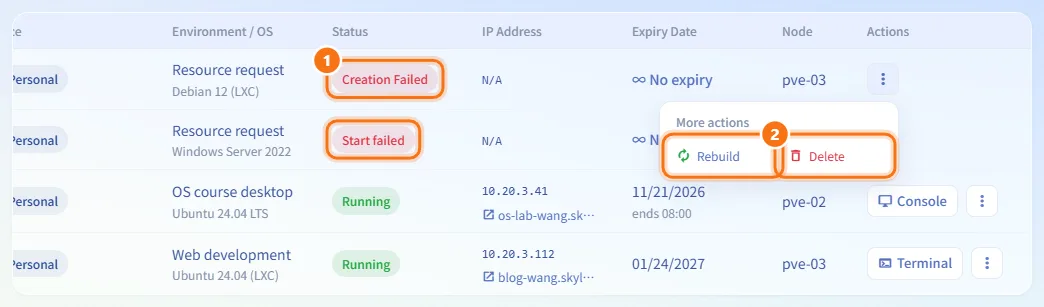
A row with Creation Failed (the machine could not be created) or Start failed (it was created but could not start) has a More actions (⋮) menu with two choices:
- Rebuild (creation failed) or Restart (start failed): tries again.
- Delete: removes the failed machine and cancels its request. Submit a new request if you still need one.
Work with course and quick practice environments
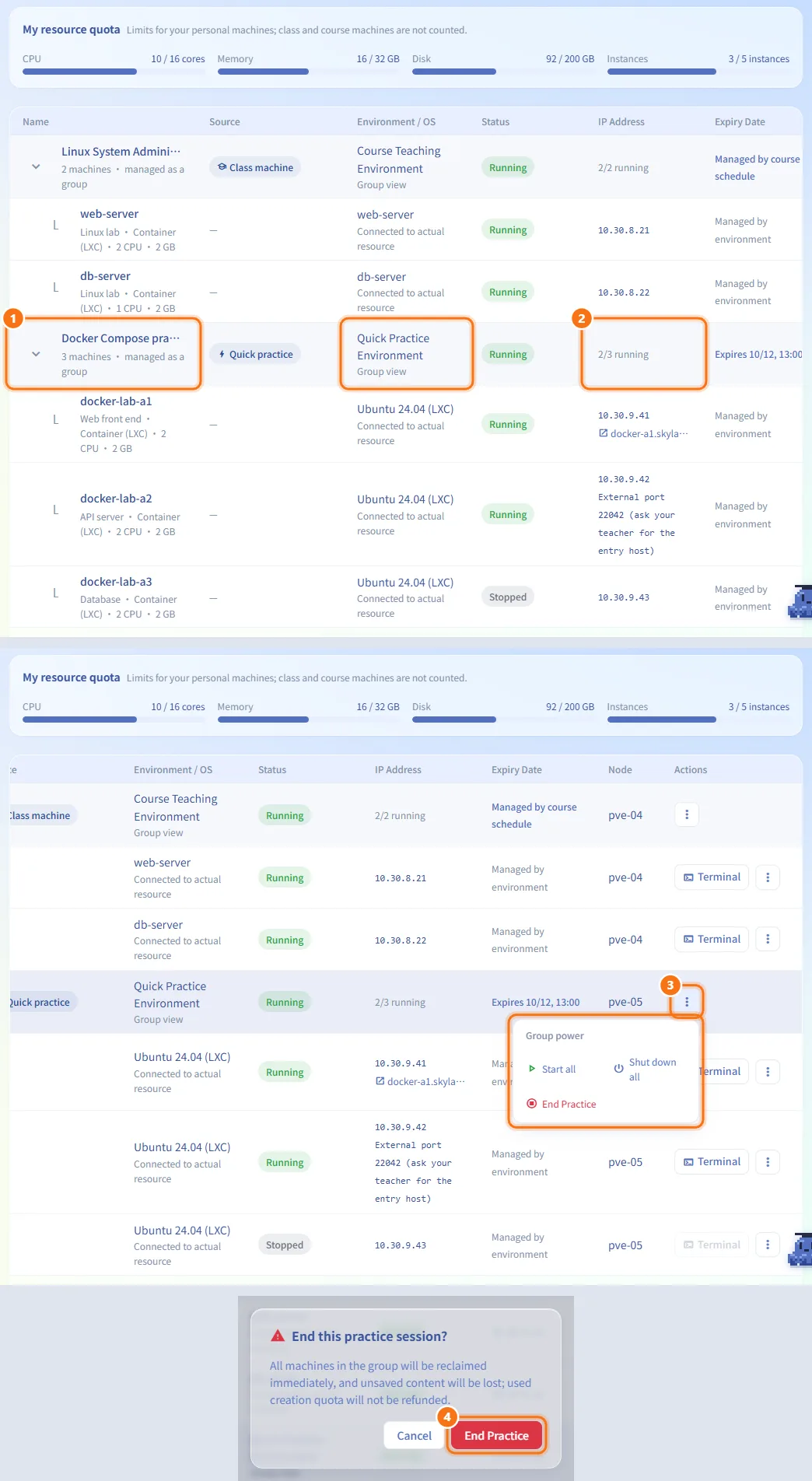
Machines of a course teaching environment or a quick practice environment are grouped under one row.
- Click the group row or its arrow to expand or collapse it. The row shows the number of machines and Course Teaching Environment or Quick Practice Environment.
- The group's IP Address column shows how many machines are running, for example "2/3 running".
- Open the group's ⋮ menu (Group power) to run Start all, Shut down all, or, for quick practice, End Practice.
- End Practice reclaims every machine in the group immediately. Unsaved content is lost, and the creation count you used is not refunded.
Each machine inside a group has its own Terminal / Console button and power menu (no Delete). Its Expiry Date column reads Managed by environment. Its IP column may also list a public URL and external ports; "External port <n> (ask your teacher for the entry host)" means you connect through that port on the entry host your teacher gives you.
Download the connection app
Click Download Connection App at the top right to download the SkyLab Connect desktop client, which connects your computer to your machines through a secure tunnel.

Request a new resource
Click Request Resource at the top right (or in the middle of the page when the list is empty). It opens the request form on My Requests.

Fields and options
| Field | Meaning | Notes |
|---|---|---|
| Source: Personal | A machine you requested yourself | Counts toward your quota |
| Source: Shared with me | Another user shared it with you; the owner's name follows | You can power it on/off and use the console, not change settings |
| Source: Class machine | Assigned to you by a class | Firewall and other settings are managed by the teacher |
| Source: Student machine | A student's class machine, seen by the class's teacher | The teacher can manage it |
| Source: Quick practice | A quick practice machine | Reclaimed automatically when it expires |
| Source: Course lab | A machine from a course lab environment | Managed with its environment |
| Status: Running / Stopped / Paused | Current power state | |
| Status: Starting | Boot is in progress | Console disabled until boot finishes |
| Status: Scheduled / Provisioning | Not created yet / being created | |
| Status: Creation Failed / Start failed | Creation or first boot failed | Use Rebuild, Restart or Delete |
| Status: Deleting / Deleted | Being removed / removed | |
| Status: Preparing to Reclaim / Reclaiming | A practice or course environment is ending | |
| Status: Needs Attention | Part of an environment failed | |
| Status: Unknown Status | The platform could not read the machine's state |
Limits and behaviour to know
- Your personal machines count toward the quota shown at the top. The instance count also includes requests still waiting for review.
- Start is disabled outside the approved time window of a personal request. The menu explains why: "The time window hasn't started yet" or "The time window has ended, so it can't be started". To keep using a machine whose window has ended, request an expiry extension under Advanced Settings › Lifecycle on the detail page, or submit a new request.
- When a time window ends, the machine is shut down but not deleted. When an expiry date passes, the machine is stopped first and then queued for deletion after a grace period set by the administrator (see Resource Policies).
- Machines shared with you, and machines inside environments, cannot be deleted from this page.
- Power actions are refused when you are not allowed to control the machine; in that case the Actions column only repeats the status.
Related
- Resource Detail — everything you can do with one machine
- My Requests — request a new machine and follow its review
- Quick Practice — start a ready-made practice environment
- Background Jobs — follow queued deletions and other background jobs
- Concepts — VMs, containers, quotas and time windows explained