
Courses
The student side of a class: the list of courses you are enrolled in, one course's weekly tasks, progress and class machines, and the page for a single week with check feedback, machines and materials. Sidebar: Teaching → Courses. Path: /courses, /courses/<pathId> and /courses/<pathId>/weeks/<weekId>.
Who can use it
- Students use these pages for every class they belong to.
- Administrators can also open them.
- Teachers do not see Courses in the sidebar and are sent back to the home page if they open the address; they manage classes in Class Management.
Before you start
- There is no sign-up button. You join a course when a teacher adds your account (your email) to the class roster.
- A course appears in your list only once its learning path is published. This happens automatically the first time the class becomes ready for class; a teacher can also publish or unpublish it in Course Management.
- Class machines appear only after the administrator has approved the class and the machines have been built.
Step by step
Find your course
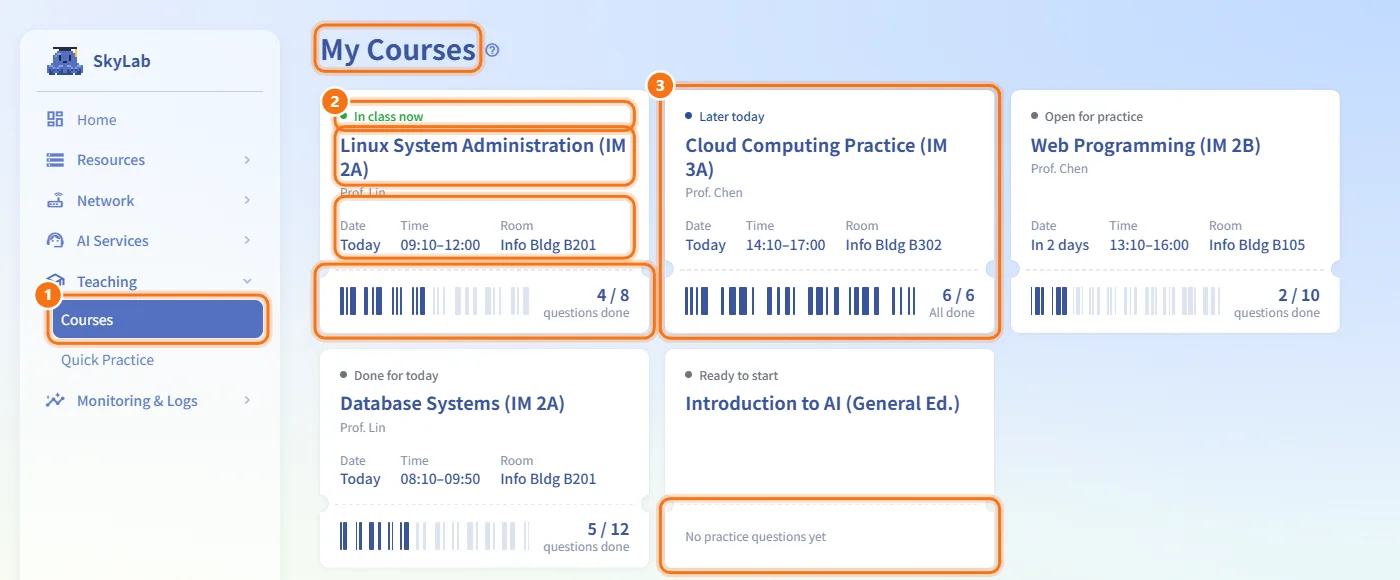
- In the sidebar, open Teaching → Courses. The My Courses page lists one ticket per course.
- Each ticket shows:
- A status label: In class now, Later today, Open for practice, Done for today or Ready to start (no session scheduled).
- The course title and the teacher.
- Date, Time and Room of the next session, when the teacher has set them.
- On the stub, a barcode and a count such as
4 / 8with questions done (or All done). If the teacher has not published any practice questions you see No practice questions yet.
- Click a ticket to open the course.
If you see No courses yet, your teacher has not published a course for a class you belong to.
Read the course page
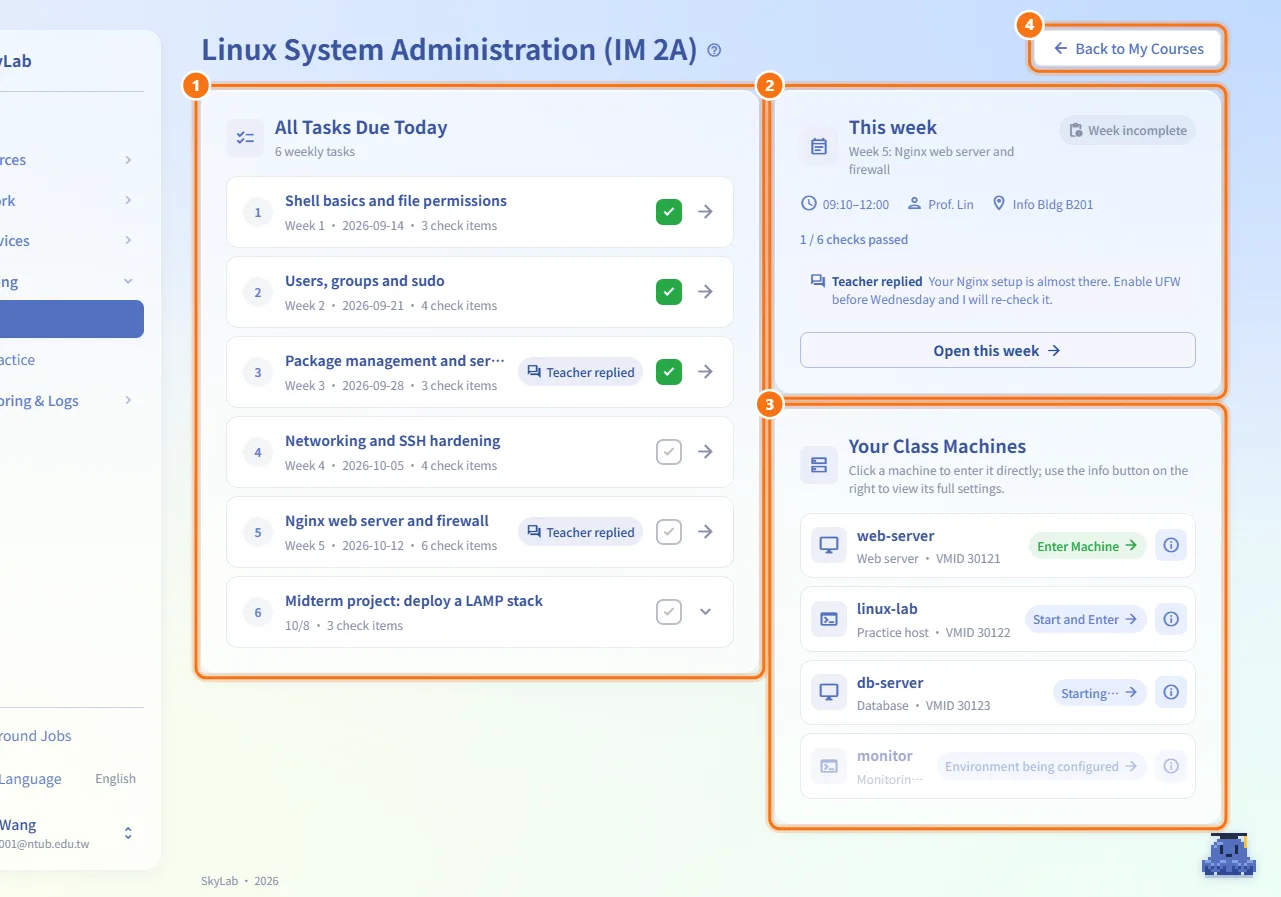
The course page has two columns.
- All Tasks Due Today (left) lists every week of the course and every task published up to today, oldest first. Each row shows the week number, title, date, the number of check items and, when present, a Teacher replied badge.
- This week (right) shows the current week (the last week whose session date is today or earlier; before the term starts, the first week):
- The class time, teacher and location.
- N / M checks passed, or No checks this week.
- The teacher's reply, if any.
- Open this week opens the week page.
- Your Class Machines (right, below) lists the machines of this course.
- Back to My Courses returns to the course list.
Mark a week as done
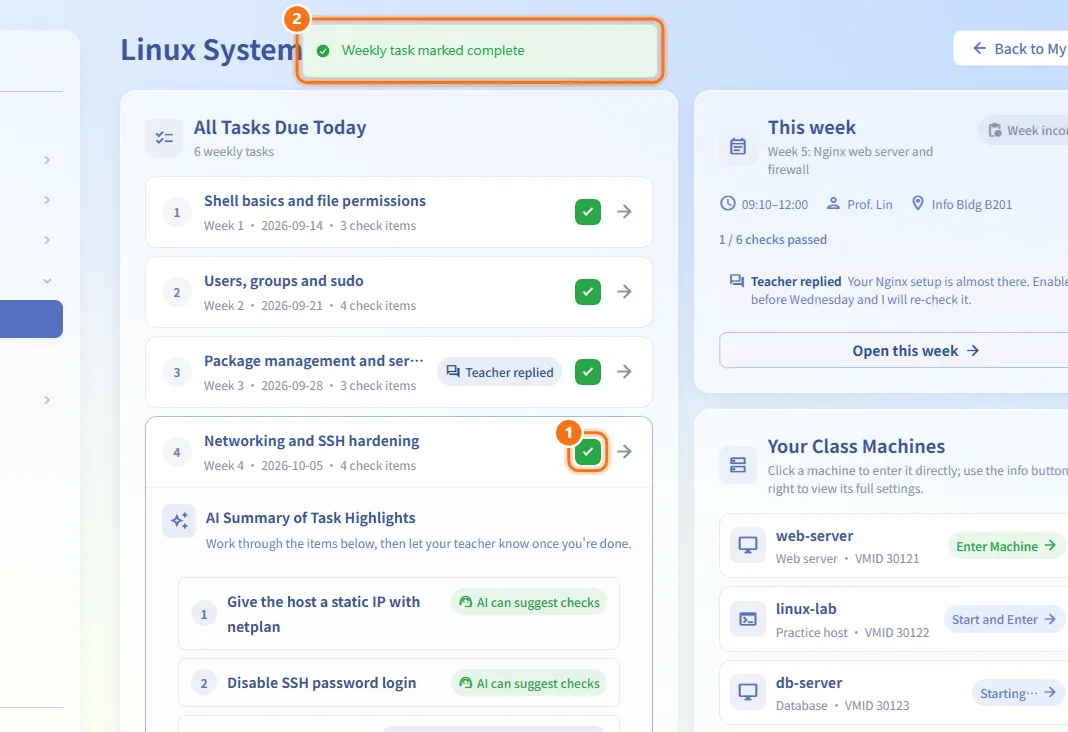
- In All Tasks Due Today, tick the checkbox at the right end of the week row (Mark week done).
- A message confirms Weekly task marked complete. Tick it again to undo it.
Ticking only tells your teacher you have finished; it does not start an AI check and does not change the checks passed count. The checkbox appears only on weeks that have tasks to complete.
Read an AI task's requirements
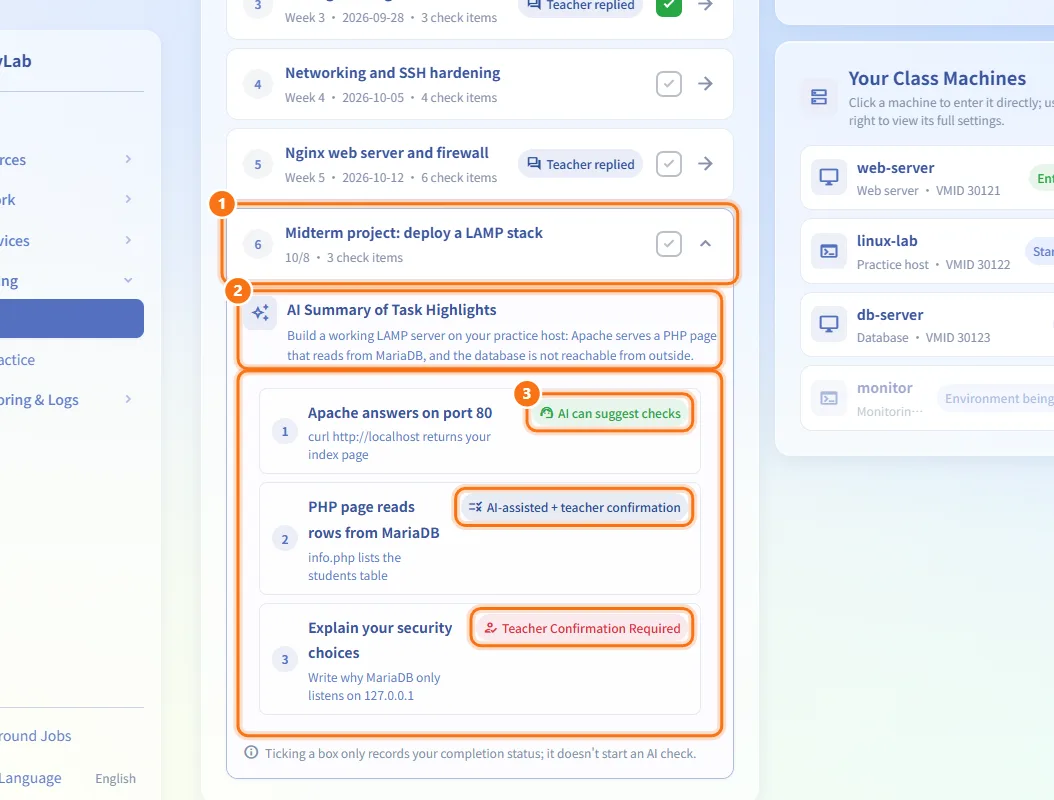
Some tasks are not attached to a week. Their rows expand in place instead of opening a week page.
- Click the row to expand it.
- Read the AI Summary of Task Highlights and the numbered check items.
- Each item has a badge that tells you how it will be checked: AI can suggest checks, AI-assisted + teacher confirmation or Teacher Confirmation Required.
Enter a class machine
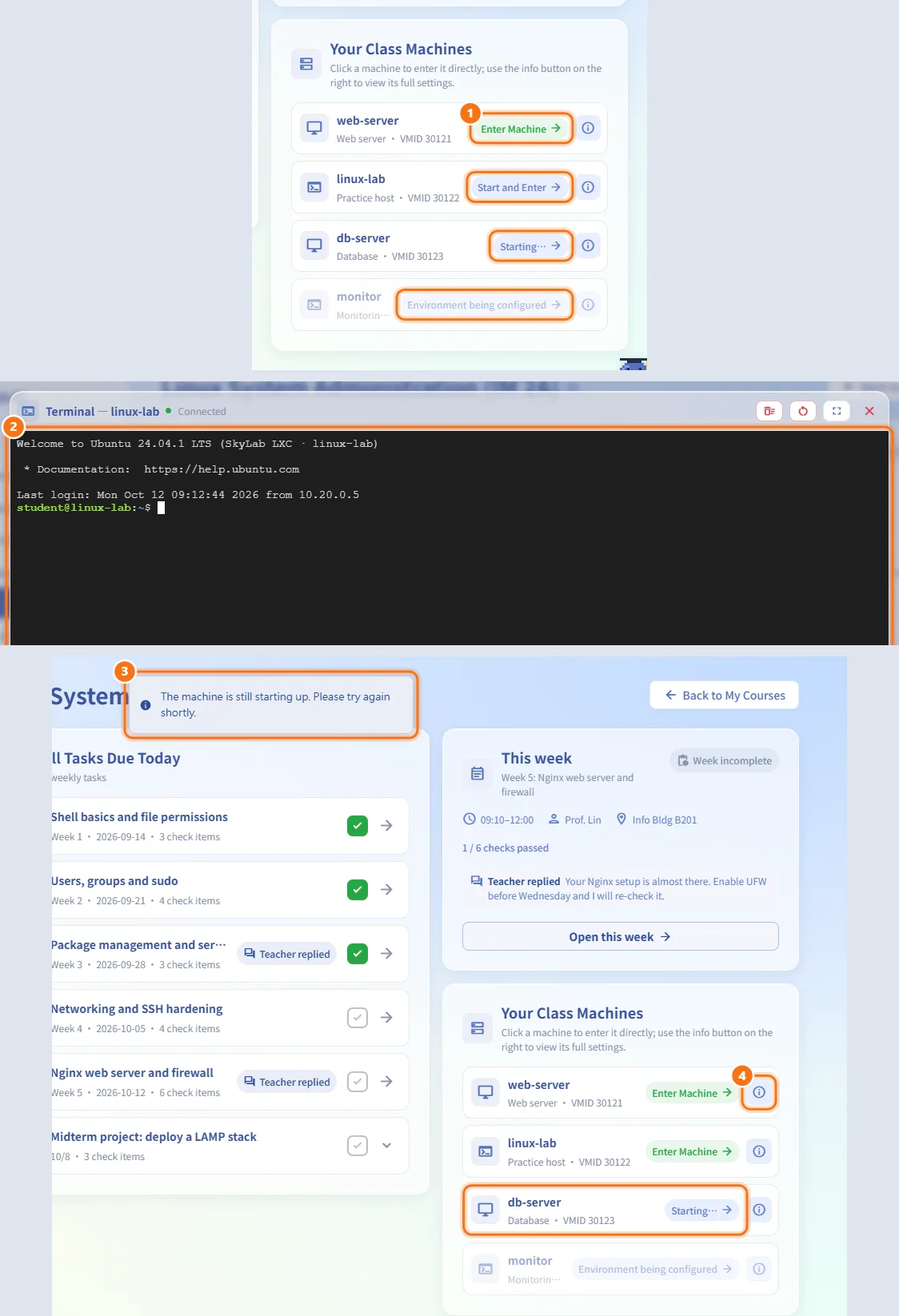
- In Your Class Machines, click the machine card. The label on the right tells you what will happen:
- Enter Machine — the machine is running.
- Start and Enter — the machine is off; it is started first.
- Starting… — the machine is booting.
- Environment being configured — the machine has not been built yet (Not configured yet).
- If the machine was off, SkyLab starts it and waits for it to finish booting. When it is running, a terminal opens for a container (LXC) and a console opens for a virtual machine.
- If it is still booting after about 90 seconds you see The machine is still starting up. Please try again shortly. Click the card again later.
- Click the info button next to a card to open the machine's full page in My Resources.
Open a week
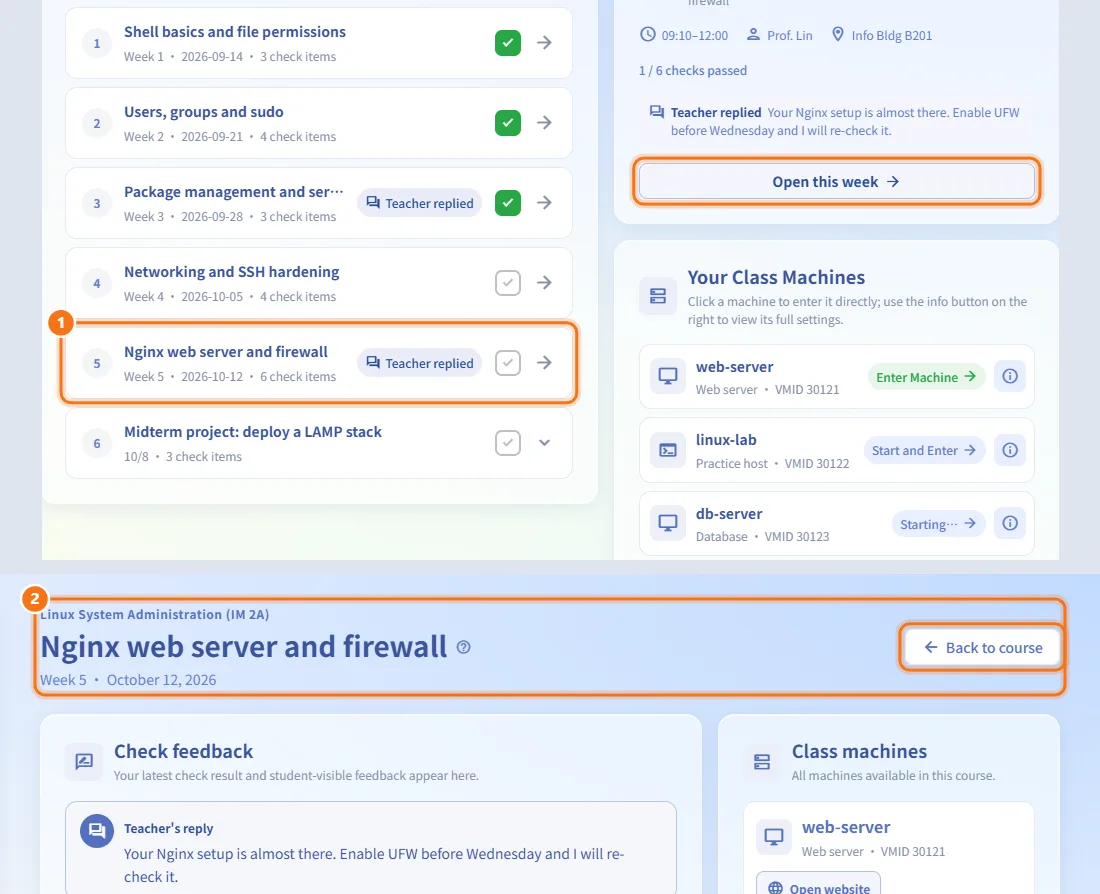
- Click a week row in All Tasks Due Today, or Open this week in This week.
- The header shows the course name, the week title, the week number and the date. Back to course returns to the course page.
Read check feedback
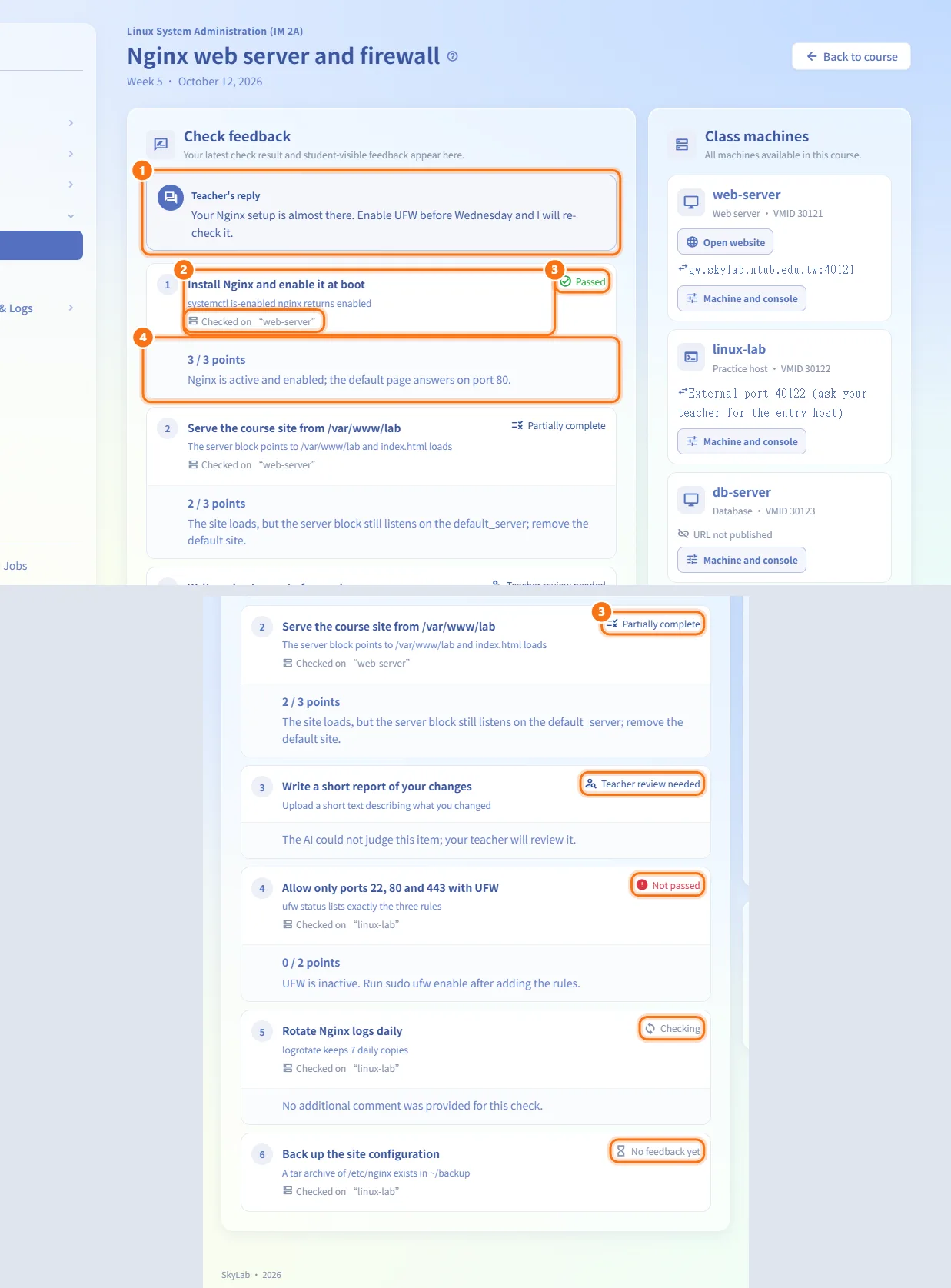
The Check feedback panel shows your latest result for each checkpoint of the week.
- At the top, Teacher's reply shows the teacher's note for this week (one reply per week; a new reply replaces the old one).
- Each checkpoint shows its title, description and, for multi-machine environments, Checked on "
<machine>". - The status on the right is one of No feedback yet, Waiting, Checking, Passed, Partially complete, Teacher review needed, Not passed, Cancelled or Environment problem, check again later.
- Below the status you see the score (for example
3 / 3 points) and the comment.
Opening the page only shows results; it does not run a check again.
Use the machines and materials of a week
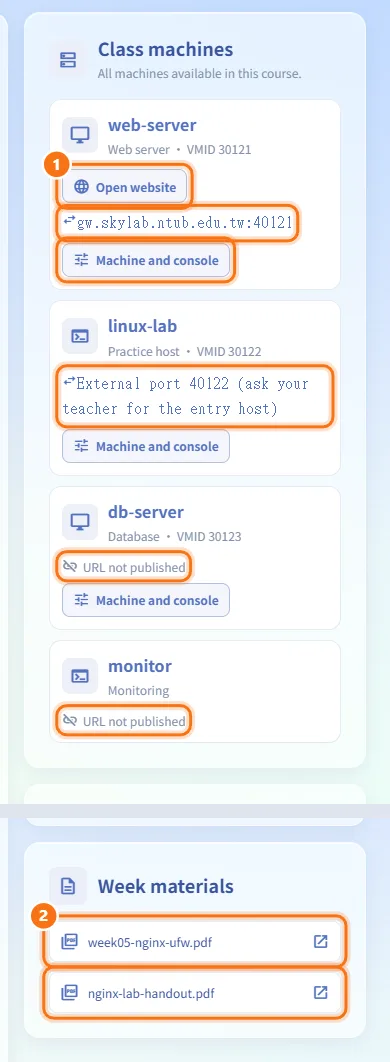
- Class machines lists all machines available in the course, with role and VMID.
- Open website opens a service the teacher published at a URL.
- A
host:portentry is an external port forwarded into the machine (hover it to see the inner port). If only the port is known you see External port N (ask your teacher for the entry host). - URL not published means the machine has no public URL or port.
- Machine and console opens the machine's page in My Resources.
- Week materials lists the files for the week. Click a file to open it in a new tab.
Fields and options
| Field | Meaning | Notes |
|---|---|---|
| Ticket status | Where the course is today | In class now, Later today, Open for practice, Done for today, Ready to start |
| Questions done | Practice questions you completed out of the total | Shown on the ticket stub |
| Check items | Number of items in the week's tasks | Shown on each week row |
| Checks passed | Checkpoints of the current week that passed | Moves only after a check runs |
| Machine label | What clicking the machine will do | Enter Machine, Start and Enter, Starting…, Environment being configured |
Limits and behaviour to know
- Only tasks published up to today are listed; future tasks stay hidden until their publish date.
- If some information cannot be loaded you see Latest information is temporarily unavailable; you can still go to Courses or My Resources.
- If a week has not been published or was changed you see Week not found.
- You cannot start or stop a class machine by hand from the course page; clicking the card starts it if needed. Scheduled boot and shutdown around class time are set by the teacher.
- During the page's guided tour, a dashed course marked Safe demo is added. It only demonstrates the layout; nothing is saved and no machine is started.
Related
- Home — today's classes and reminders
- Resource detail — the full page of a class machine
- Quick Practice — practice environments outside a class
- Class workspace — where teachers publish weekly content and run checks