
Signing in
How to get into SkyLab: signing in with a password, a campus (LDAP) account or Google, the two-factor step, resetting a forgotten password, registering a new account, and the screens that can appear right after you sign in (the service check, forced two-factor setup and the first-time setup tour). The sign-in page is not in the sidebar. Path: /login.
Who can use it
Everyone. The page itself needs no account; what you see on it depends on how the platform is configured:
- Email sign-in (username and password) is always shown.
- A Campus Account tab appears next to Email only when an administrator has enabled LDAP.
- A Google sign-in button appears below an or divider only when the deployment has a Google client ID configured.
- Don't have an account? Sign up now appears only when self-registration is enabled.
- An "I am human" check (Cloudflare Turnstile) appears above the Log in button only when an administrator has configured it.
After sign-in, the service check screen looks different for administrators (real service names and error details) and for students and teachers (a short checklist in plain words).
Before you start
- You need an account: one an administrator created for you, an LDAP campus account (when LDAP is enabled), a Google account (already registered in SkyLab, or created at the first Google sign-in when Google sign-up is enabled), or one you registered yourself.
- If your account requires two-factor authentication, keep the phone with your authenticator app at hand.
Step by step
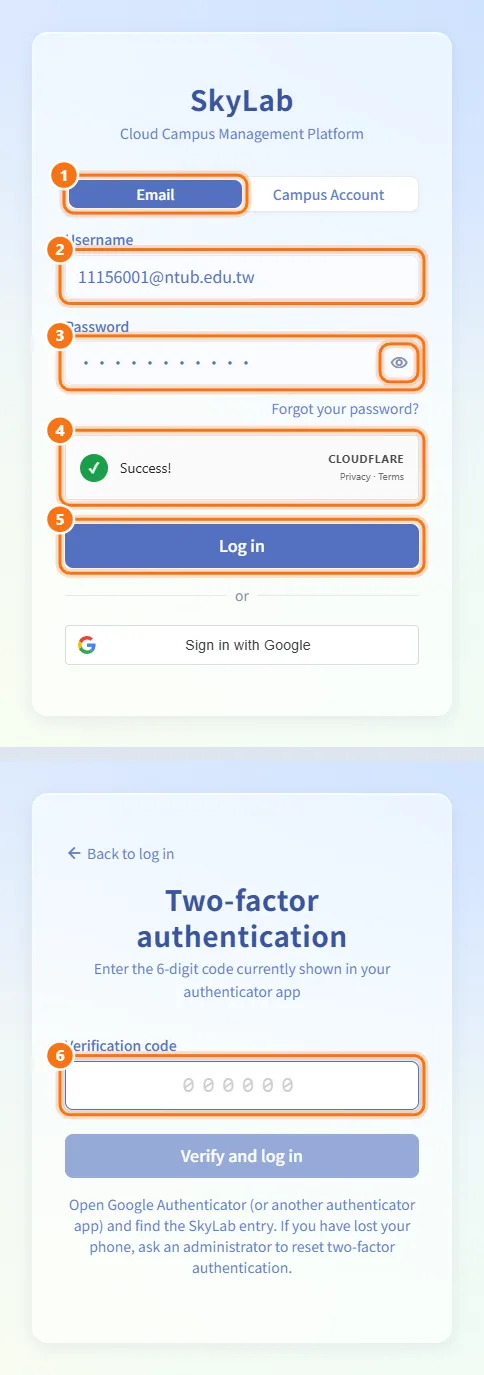
Sign in with email and password
- Open
/login. If LDAP is enabled, make sure the Email tab is selected. - In Username, enter your username (your email address).
- In Password, enter your password. The eye icon in the field shows or hides what you typed.
- If an "I am human" box is shown, complete it. Log in stays disabled until it is done.
- Click Log in.
- If your account has two-factor authentication, continue with Enter the two-factor code. Otherwise you go straight to the service check.
Sign in with a campus account (LDAP)
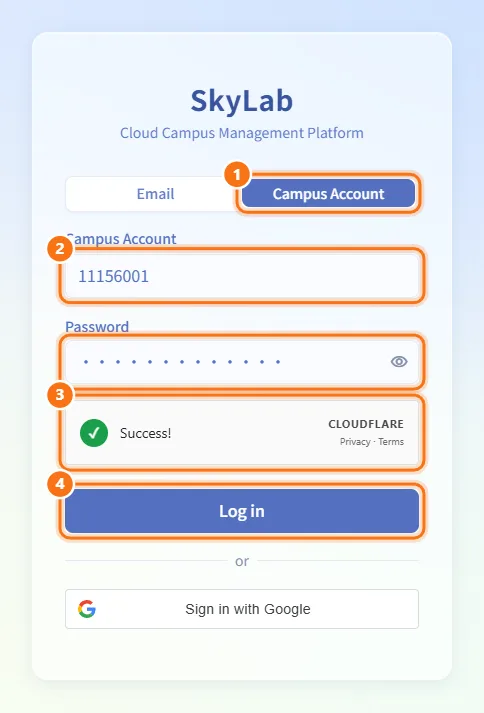
- Select the Campus Account tab.
- Enter your student ID or staff account in Campus Account and your campus password in Password.
- Complete the "I am human" box if it is shown.
- Click Log in.
Sign in with Google
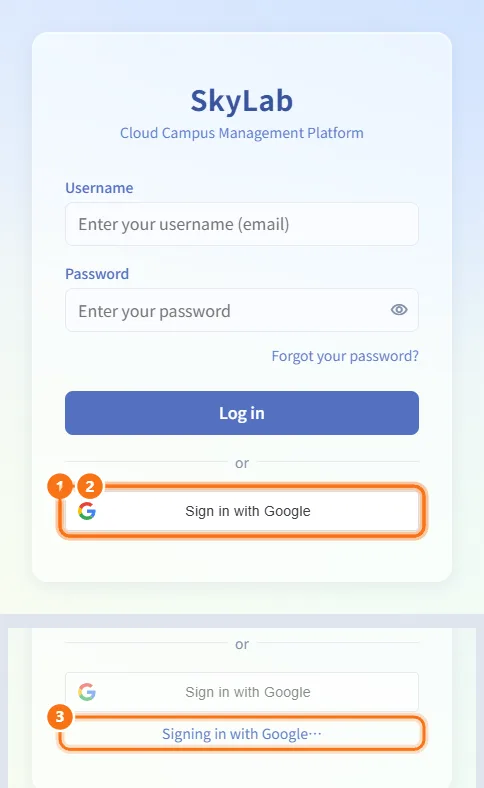
- Click the Google sign-in button under or.
- Choose your Google account in the pop-up window.
- While SkyLab checks the account, Signing in with Google… is shown under the button.
If the Google address has no SkyLab account yet, the first sign-in creates one when an administrator has enabled Google sign-up; otherwise the page says the account is not registered and asks you to create an account first. If the account has not been activated (for example it is still waiting for administrator approval), the page tells you to wait for approval.
Enter the two-factor code
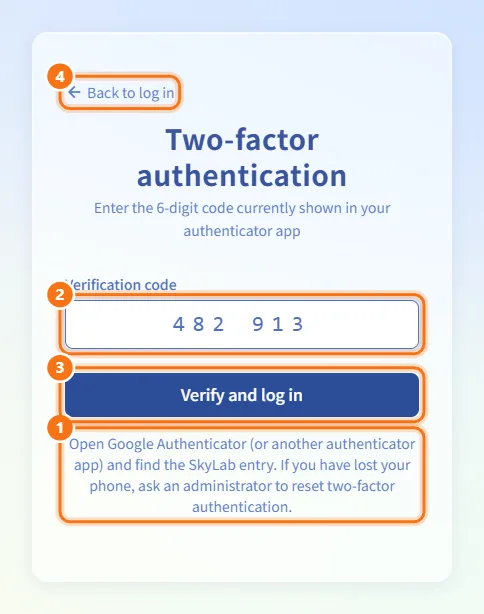
When your account has two-factor authentication enabled, a Two-factor authentication step follows the first sign-in step (password, campus account or Google).
- Open your authenticator app (Google Authenticator or another one) and find the SkyLab entry.
- Type the 6-digit code into Verification code. Spaces are ignored.
- Click Verify and log in. The button stays disabled until all 6 digits are entered.
- To start over, click Back to log in.
If you have lost your phone, ask an administrator to reset two-factor authentication for your account.
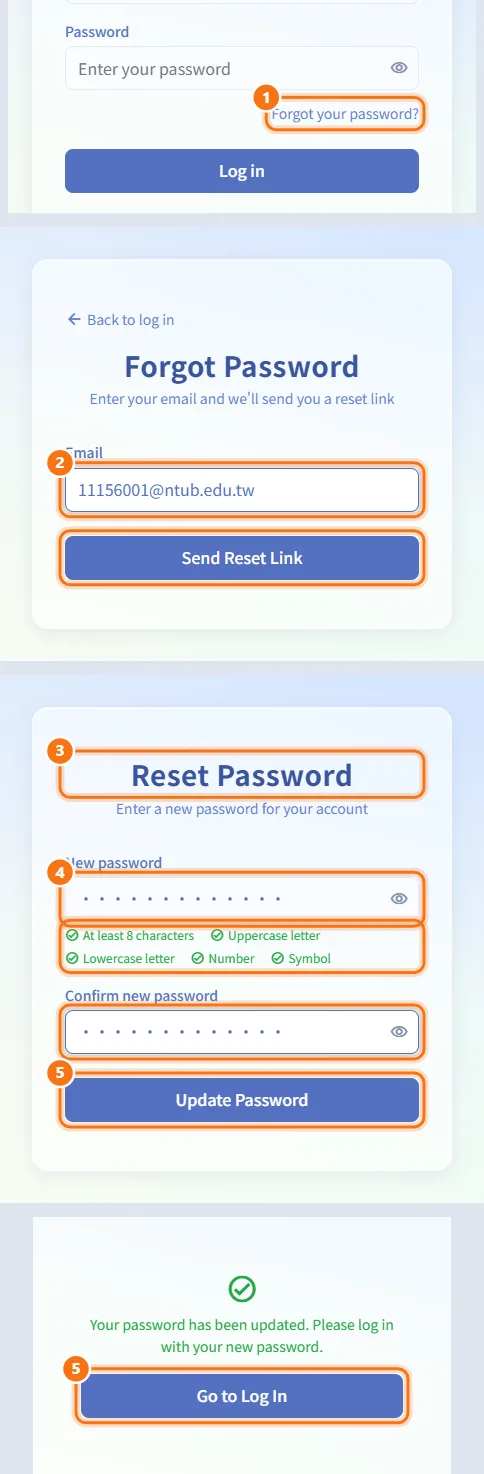
Reset a forgotten password
- On the sign-in form, click Forgot your password?
- Enter your Email and click Send Reset Link.
- Open the email and click the link. It brings you back to SkyLab on the Reset Password form.
- Enter a New password that meets every rule in the checklist under the field, and enter it again in Confirm new password.
- Click Update Password, then Go to Log In and sign in with the new password.
The reset link also works if you are currently signed in. If the link has expired, the page tells you to request a new one.
Register a new account
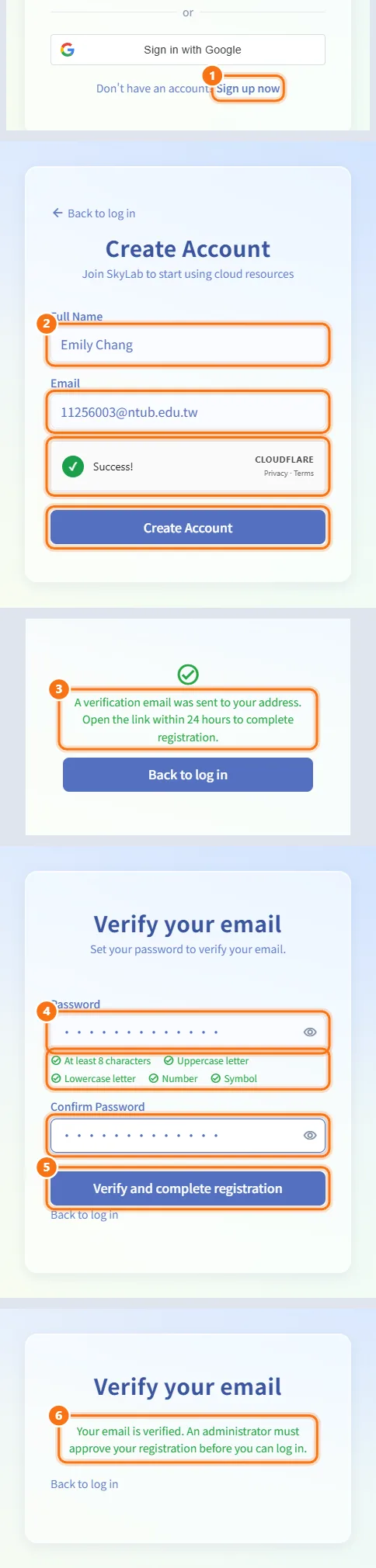
Only available when Sign up now is shown under the sign-in form.
- Click Sign up now.
- Enter your Full Name and Email, complete the "I am human" box if shown, and click Create Account.
- Open the verification email and click the link within 24 hours.
- On Verify your email, set a Password that meets every rule and repeat it in Confirm Password.
- Click Verify and complete registration.
- Depending on the platform's registration policy, you can either sign in right away, or you see a message that an administrator must approve your registration first.
If the verification link is invalid or expired, register again with the same email to get a new link.
Confirm a new email address
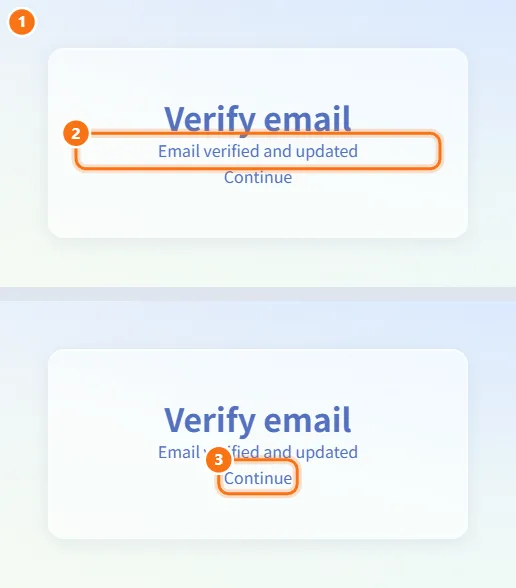
When you change your email in Account Settings, SkyLab sends a link to the new address.
- Open the email at the new address and click the link.
- The Verify email page shows whether the change worked.
- Click Continue to return to Account Settings (or to the sign-in page if you are signed out).
Authorize the SkyLab Connect desktop app
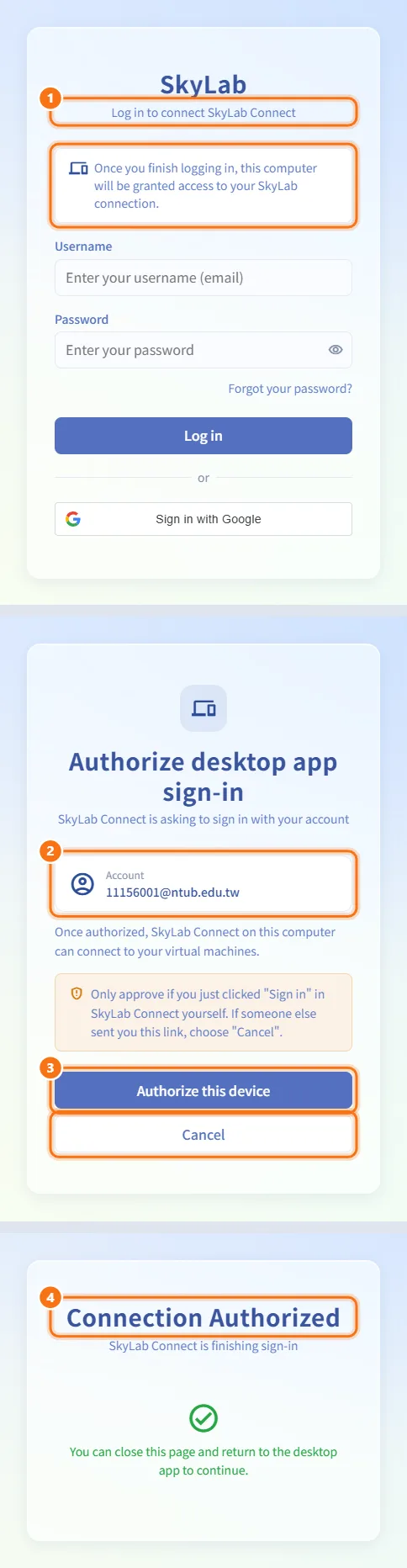
When you click sign-in in the SkyLab Connect desktop app, it opens the SkyLab sign-in page in your browser.
- If you are not signed in yet, the page says Log in to connect SkyLab Connect. Sign in as usual.
- On Authorize desktop app sign-in, check the account shown under Account.
- Click Authorize this device only if you started the sign-in from SkyLab Connect yourself. If someone else sent you the link, click Cancel.
- When Connection Authorized appears, close the page and go back to the desktop app.
If authorization fails (for example the link expired), go back to SkyLab Connect and sign in again to get a new link.
Get through the service check after signing in
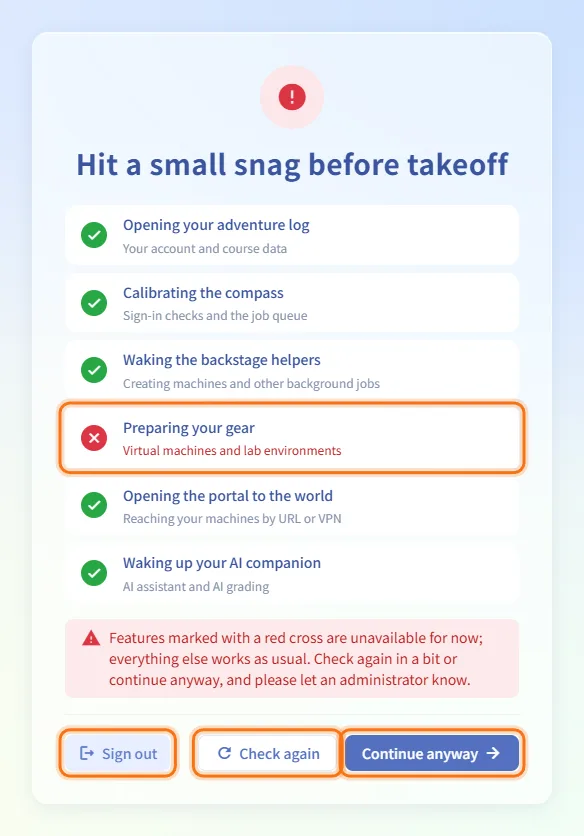
Every time you sign in, SkyLab checks the services it depends on before showing the system: the database, Redis, the background worker, Proxmox VE, the gateway and the AI gateway.
- Students and teachers see a checklist ("Opening your adventure log", "Preparing your gear" and so on), each with a one-line hint of the features it covers. If everything passes, you enter SkyLab automatically.
- If something fails, the failing items get a red cross. You can click Check again, Sign out, or Continue anyway. Features marked with a cross may not work for now; please let an administrator know.
- Administrators see the real service names, their status (Healthy, Failing, Not configured) and details such as latency. On failure they can Check again, Open Resource Monitoring or Skip and continue.
Set up two-factor authentication when it is required
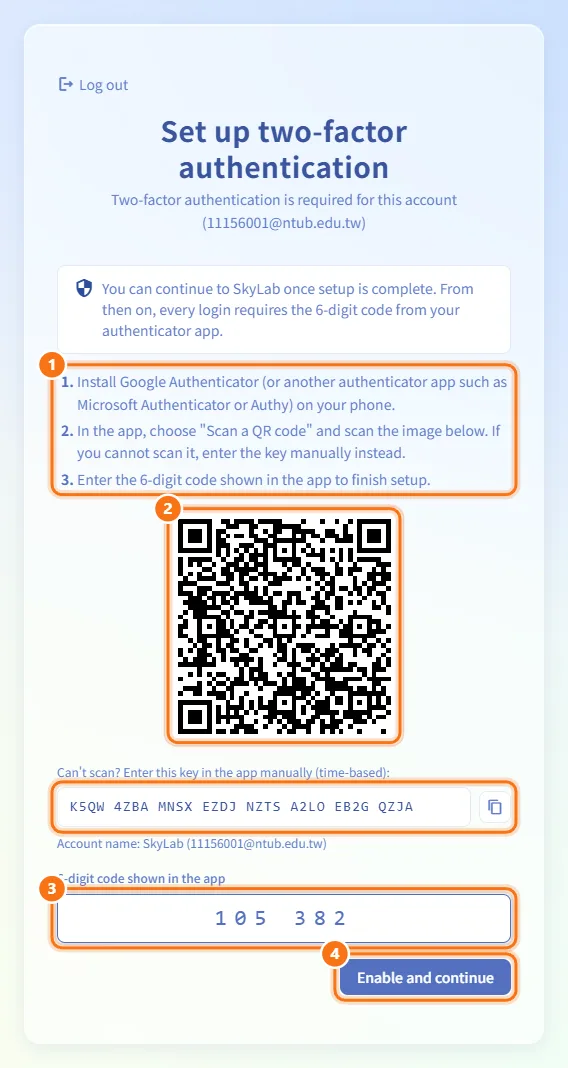
If an administrator requires two-factor authentication for your account and you have not set it up, you only see the Set up two-factor authentication screen after signing in.
- Install an authenticator app on your phone (Google Authenticator, Microsoft Authenticator, Authy or similar).
- Scan the QR code shown on the page. If you cannot scan it, type the key shown under the QR code into the app manually (the copy button copies it).
- Enter the 6-digit code shown in the app.
- Click Enable and continue. You are taken into SkyLab.
To leave without setting it up, click Log out at the top left.
Complete the first-time setup tour
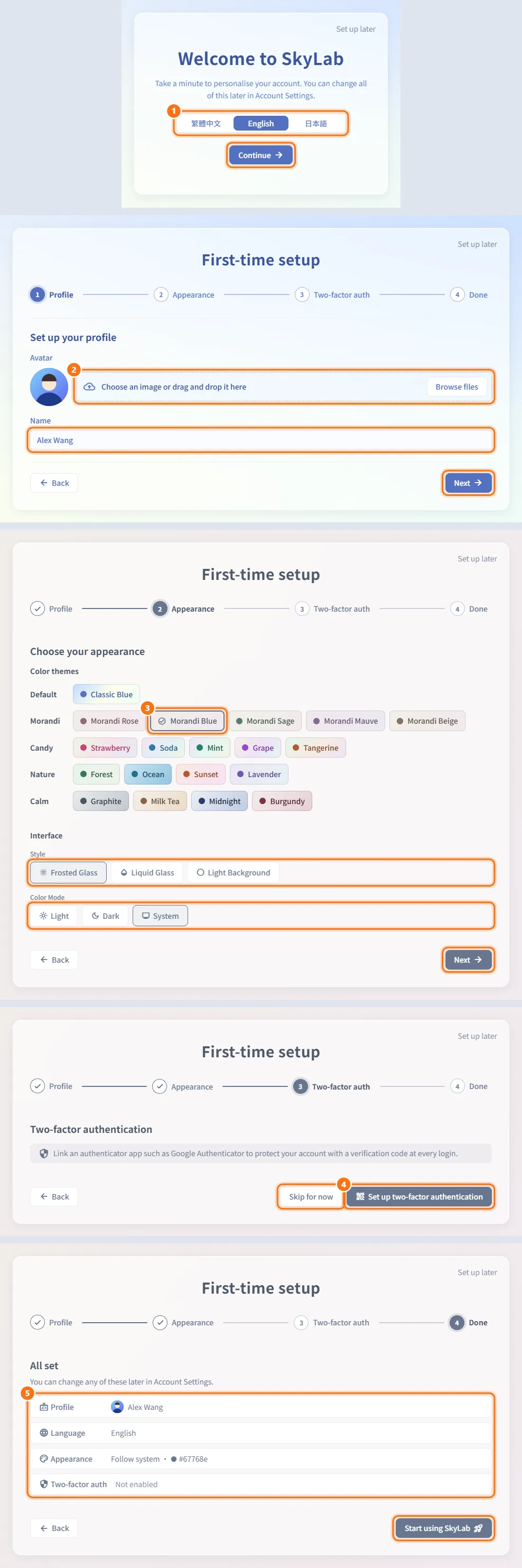
The first time you sign in, a short setup tour appears before the main pages.
- Welcome to SkyLab: choose the interface language and click Continue.
- Profile: optionally drop or choose an image for your Avatar, and enter your Name (up to 30 characters). Click Next.
- Appearance: pick a color theme and the interface style and color mode (Light, Dark or Follow system). Click Next.
- Two-factor auth: click Set up two-factor authentication to link an authenticator app now, or Skip for now.
- Done: review the summary of your profile, language, appearance and two-factor status, then click Start using SkyLab.
Set up later in the top right corner closes the tour at any step. Either way the tour does not appear again; everything in it can be changed later in Account Settings.
Fields and options
| Field | Meaning | Notes |
|---|---|---|
| Username | Your SkyLab username, which is your email address | Email tab |
| Campus Account | Student ID or staff account | Only when LDAP is enabled |
| Password | Your SkyLab or campus password | Not checked against the complexity rules at sign-in |
| Verification code | 6-digit code from your authenticator app | Two-factor step |
| Email (forgot password) | The address registered in SkyLab | The reset link is sent there |
| New password / Password | The password you are setting | Must meet the rules below |
| Full Name, Email (registration) | Your name and the address to verify | The password is set after verifying the email |
Password rules for setting or resetting a SkyLab password (the checklist under the field turns each rule green as you meet it):
| Rule | Requirement |
|---|---|
| Length | 8 to 128 characters |
| Uppercase letter | At least one A–Z |
| Lowercase letter | At least one a–z |
| Number | At least one 0–9 |
| Symbol | At least one character that is not a letter, digit or space |
Limits and behaviour to know
- Sign-in attempts are rate-limited per account (10 per minute by default) and per network address. After too many attempts you have to wait a minute before trying again.
- In the two-factor step, after three wrong codes the step becomes invalid and you are sent back to sign in with your password again; five wrong codes within 15 minutes lock two-factor sign-in for that account for 15 minutes. The two-factor step itself expires after 5 minutes; if it does, you are returned to the sign-in form.
- If your phone's clock is wrong, codes will be rejected. Check the time on your phone first.
- Password reset emails are limited to three per address per minute. The reset link is valid for a limited time (48 hours by default).
- The registration verification link is valid for 24 hours. The link for confirming a new email address is valid for 1 hour.
- Old passwords that do not meet the current rules still work for signing in; the rules apply the next time you change the password.
- The service check never blocks you: students and teachers can continue with a warning, and administrators can skip it.
Related
- Home — the page you land on after signing in
- Account Settings — change your password, email, two-factor authentication and appearance later
- User Management — where administrators require two-factor authentication, reset it and approve registrations
- LDAP — enabling campus account sign-in
- Registration and Google login — how self-registration and Google sign-in are configured
- SkyLab Connect architecture — what the desktop app does after you authorize it