
AI API
Request your own API key and call the campus AI models from your own code with any OpenAI-compatible client, or chat with them right in the browser. Sidebar: AI Services → AI API. Path: /ai-api.
Who can use it
Every signed-in user: students, teachers and administrators. Each person only sees their own keys, requests and usage. The only difference between roles is the key validity periods you can request (see Fields and options).
Before you start
- A key is only issued after an administrator approves your request. Plan for the review time.
- Keys start with
ccai_. Treat a key like a password: do not paste it into assignments, screenshots or public repositories.
Step by step
Request a key
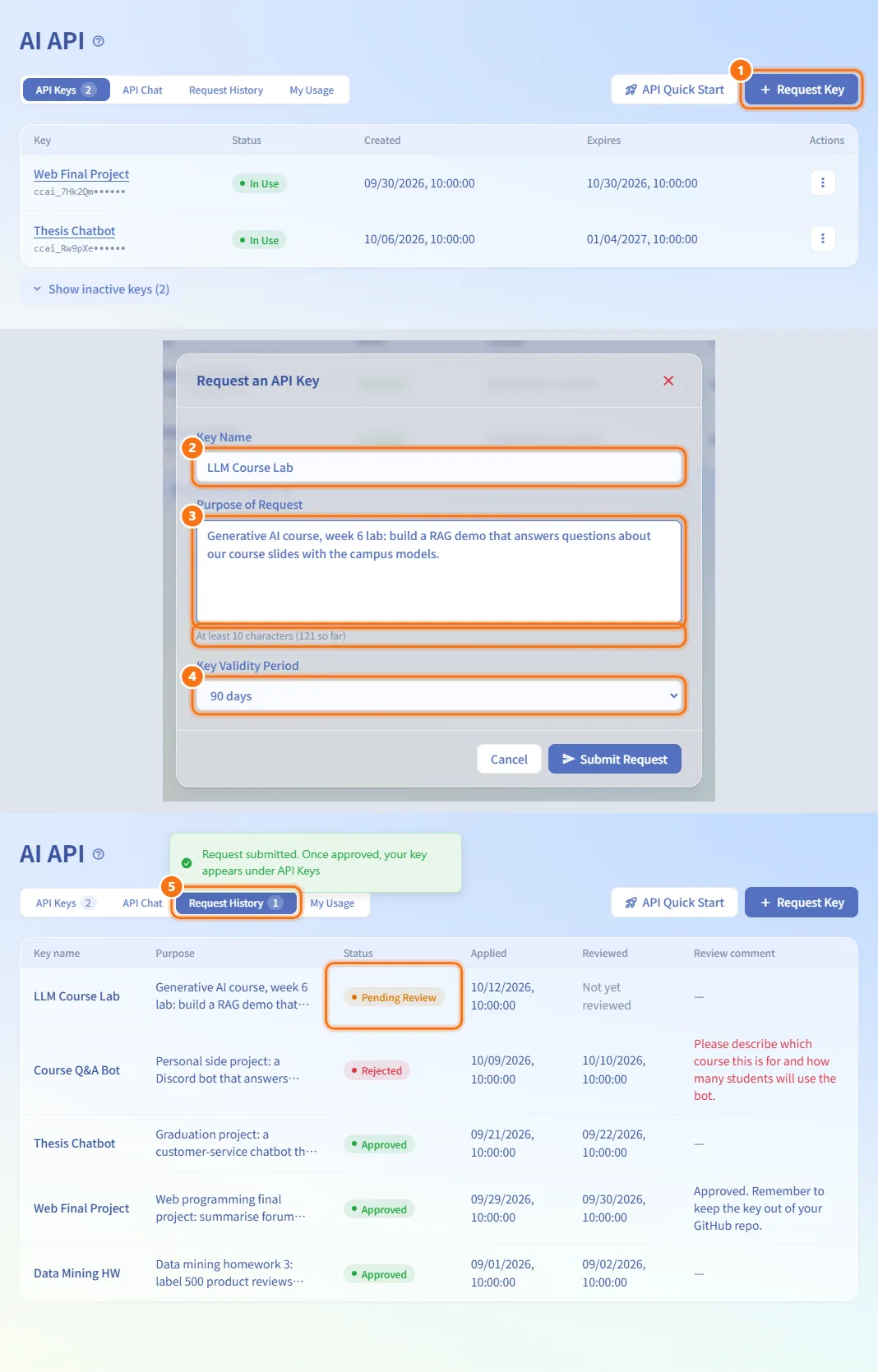
- Click Request Key (top right, or in the middle of an empty tab).
- Enter a Key Name, for example the course or project name. It is only a label for you and can be renamed later.
- Describe the Purpose of Request in at least 10 characters: which course or project, and what you will build. The reviewer reads this.
- Choose the Key Validity Period.
- Click Submit Request. The dialog closes and the Request History tab opens, where the request shows Pending Review.
Wait for approval
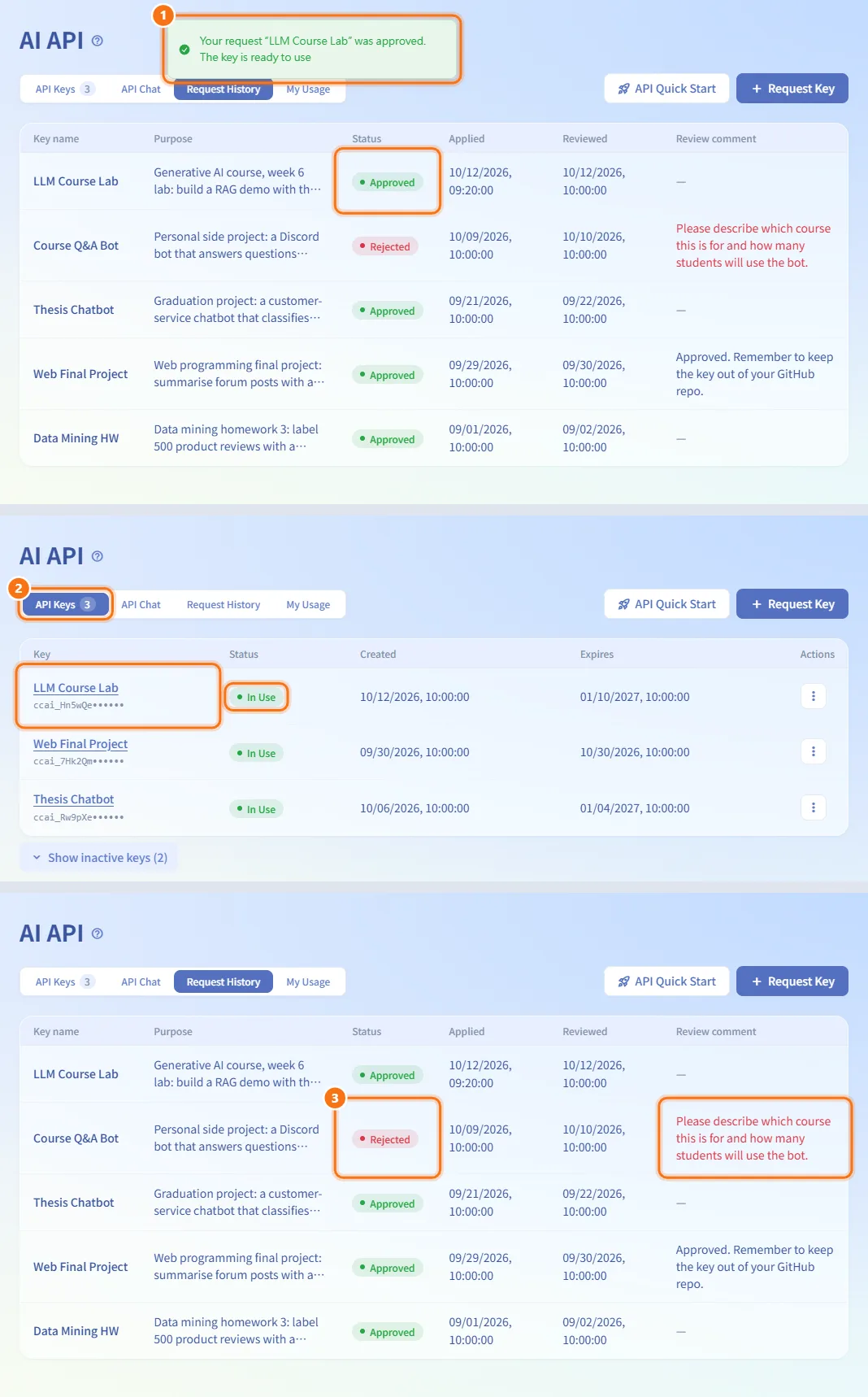
- Keep the page open, or come back later. While a request is pending, the page refreshes itself and pops up a message when it is approved or rejected.
- Approved: the key appears in the API Keys tab with the status In Use. The validity period counts from the moment of approval.
- Rejected: read the Review comment in Request History, adjust the purpose and submit a new request.
View and copy your key
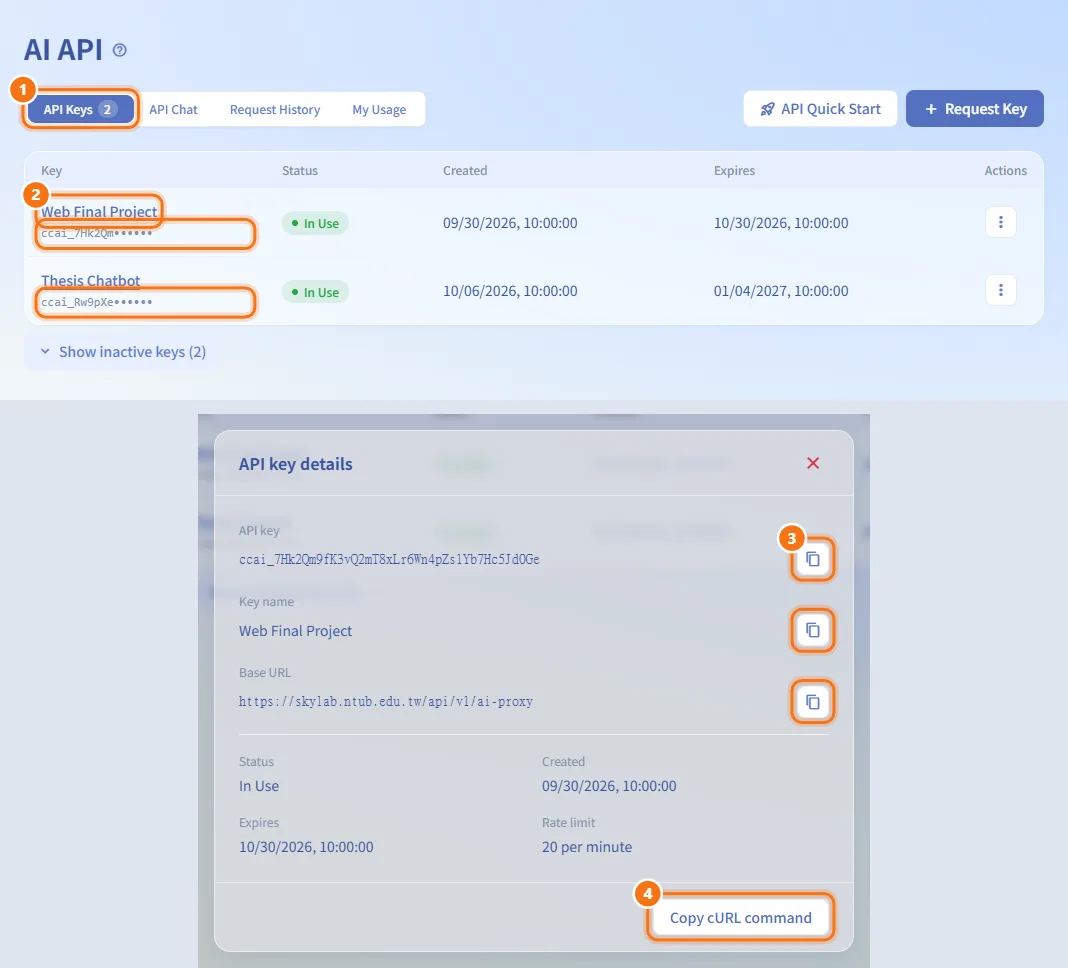
- Open the API Keys tab. The list shows only the start of each key.
- Click the underlined key name to open API key details.
- Use the copy buttons next to API key, Key name and Base URL.
- Copy cURL command copies a ready-to-run command that lists the available models with your key filled in. Run it in a terminal to check that the key works.
The details also show the Status, Created, Expires and Rate limit (requests per minute) of the key. The full key is only shown for keys that are In Use.
Make your first call with API Quick Start
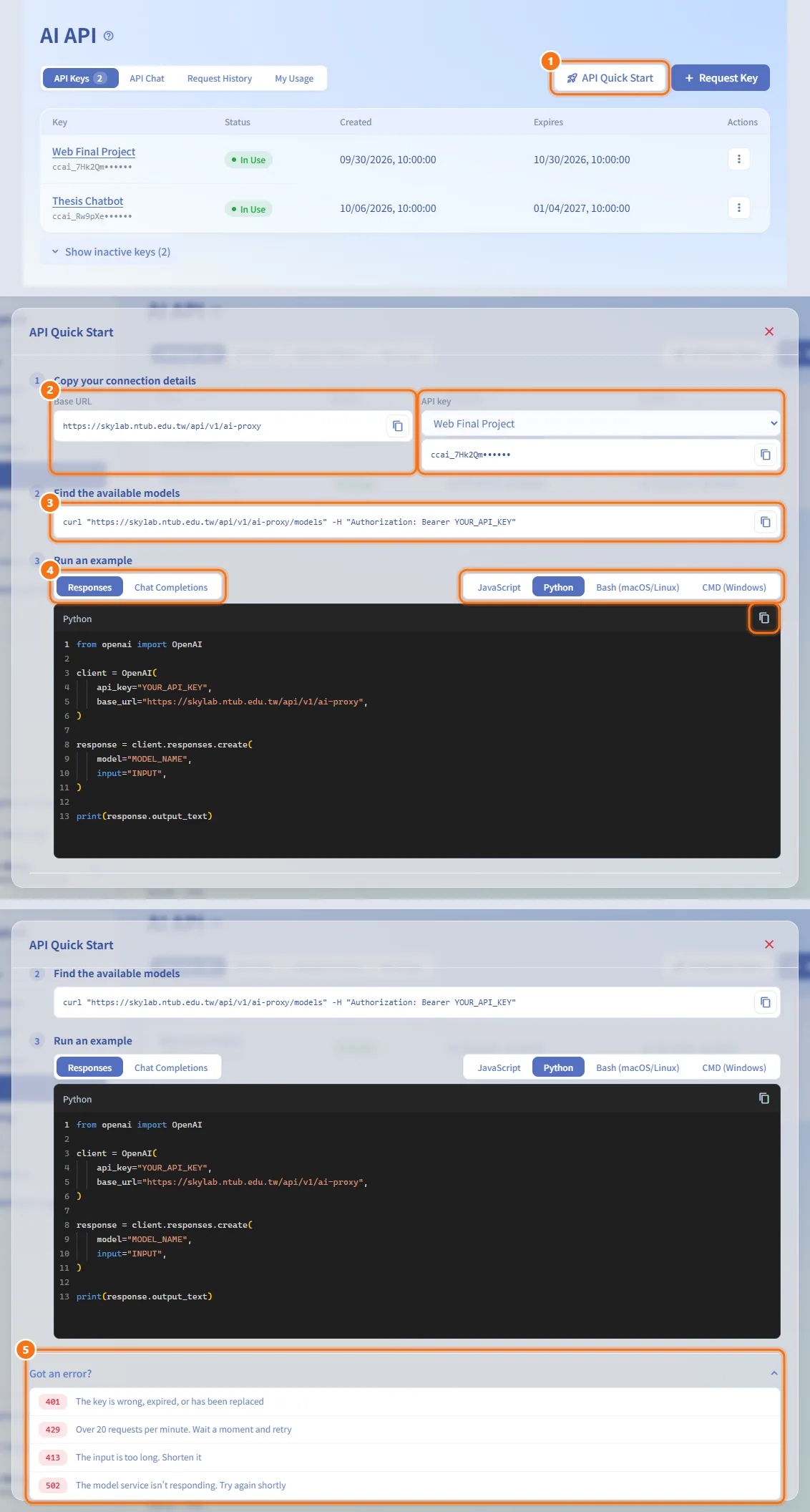
- Click API Quick Start.
- Copy your connection details: copy the Base URL and the API key. If you have more than one usable key, choose one first.
- Find the available models: copy the command and run it. The
idof each model in the reply is the model name to use in your code. - Run an example: choose the API type (Responses or Chat Completions) and the language (JavaScript, Python, Bash (macOS/Linux) or CMD (Windows)), copy the code, then replace
YOUR_API_KEY,MODEL_NAMEandINPUT. - If a call fails, open Got an error? at the bottom for the meaning of 401, 429, 413 and 502.
The Base URL ends with /api/v1/ai-proxy. The examples use the official OpenAI SDKs, so any OpenAI-compatible tool works with the same Base URL and key. More curl examples are in the AI API user manual.
Chat with a model in the browser
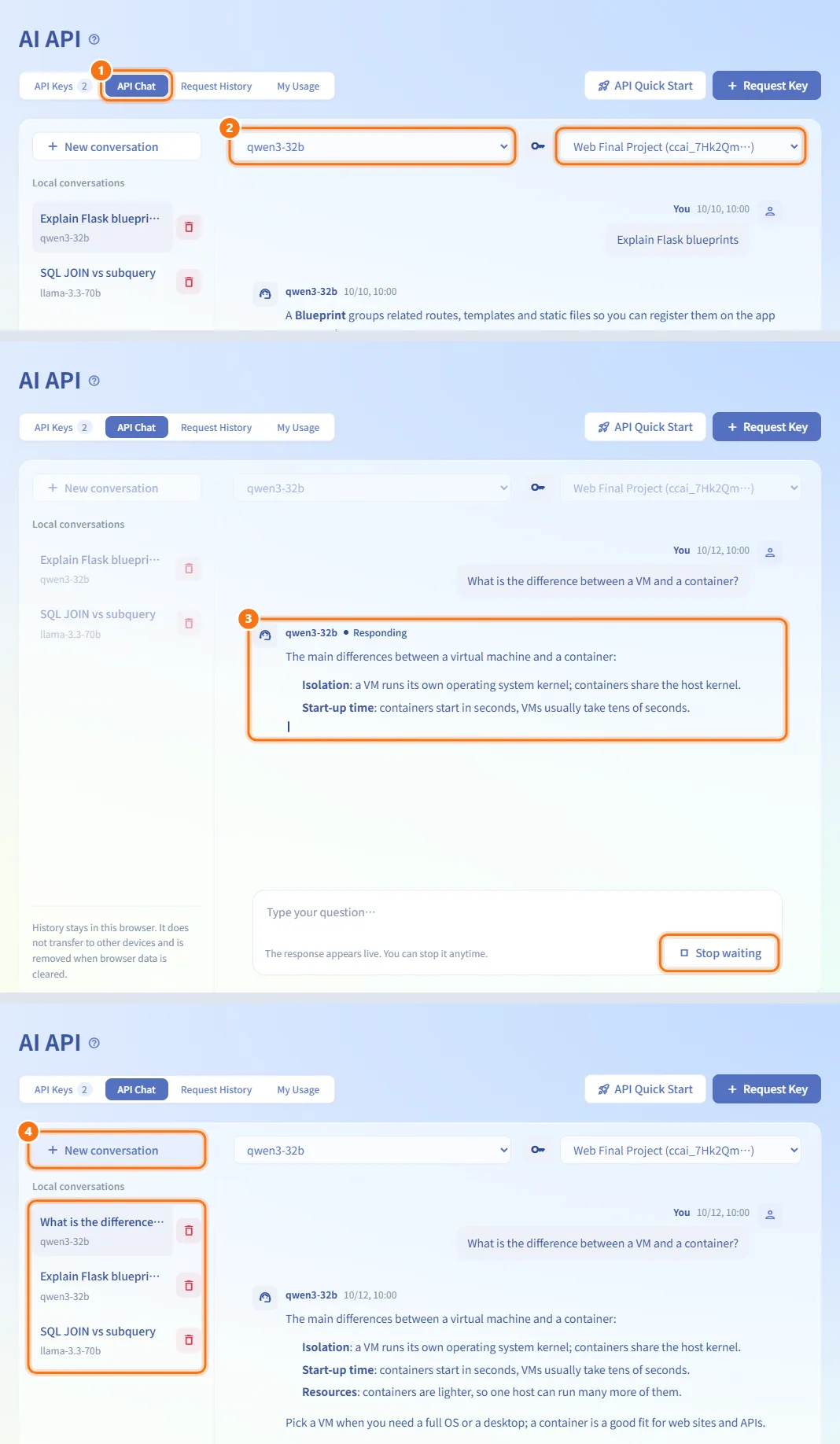
- Open the API Chat tab. It uses your own usable keys.
- Choose a model. If you have more than one usable key, you can also choose the key.
- Type a question and press Enter (Shift + Enter for a new line), or click Send. The reply appears as it is generated; click Stop waiting to stop it.
- Click New conversation to start over. Previous conversations are listed under Local conversations; click one to reopen it, or the delete icon to remove it.
If you have no usable key, the tab shows a Campus API key field where you can paste a key and click Use key.
Conversations are stored only in this browser. They do not move to other devices and are lost when you clear the browser data. Calls made here count toward your usage like any other call.
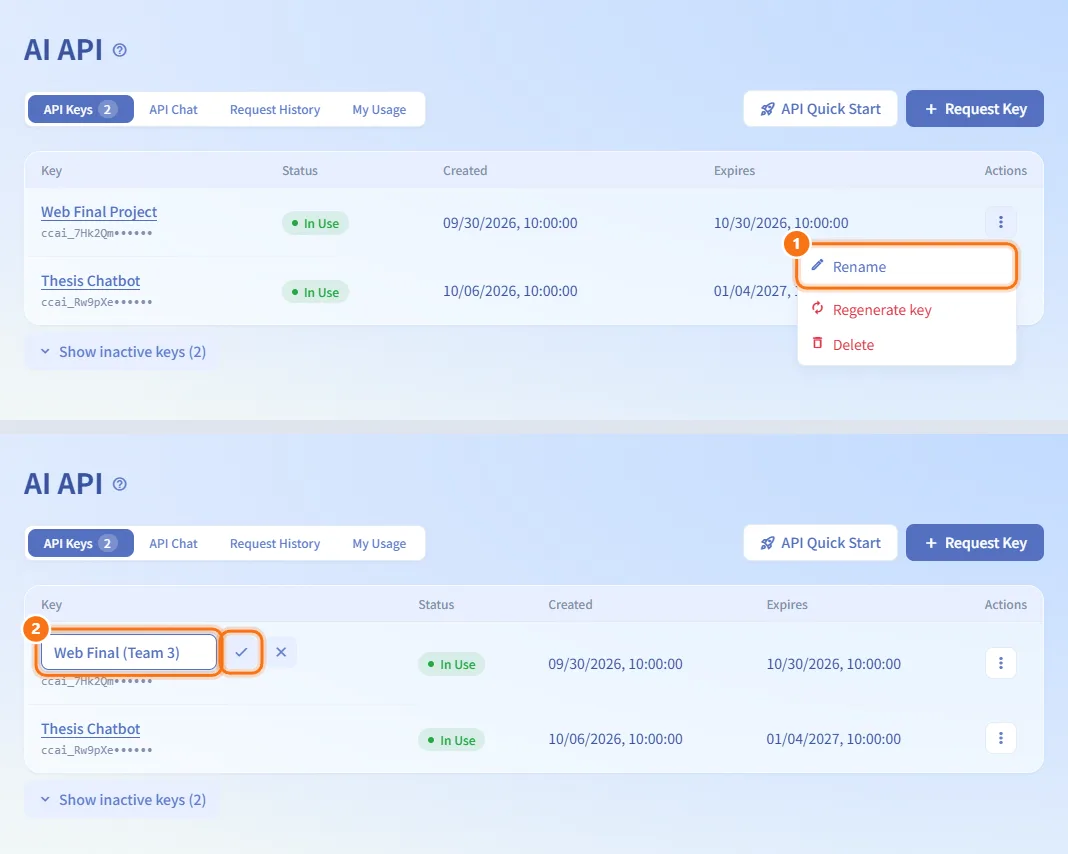
Rename a key
- In API Keys, open the ⋮ menu of the key and choose Rename.
- Type the new name and press Enter (or click the check mark). Press Esc to cancel.
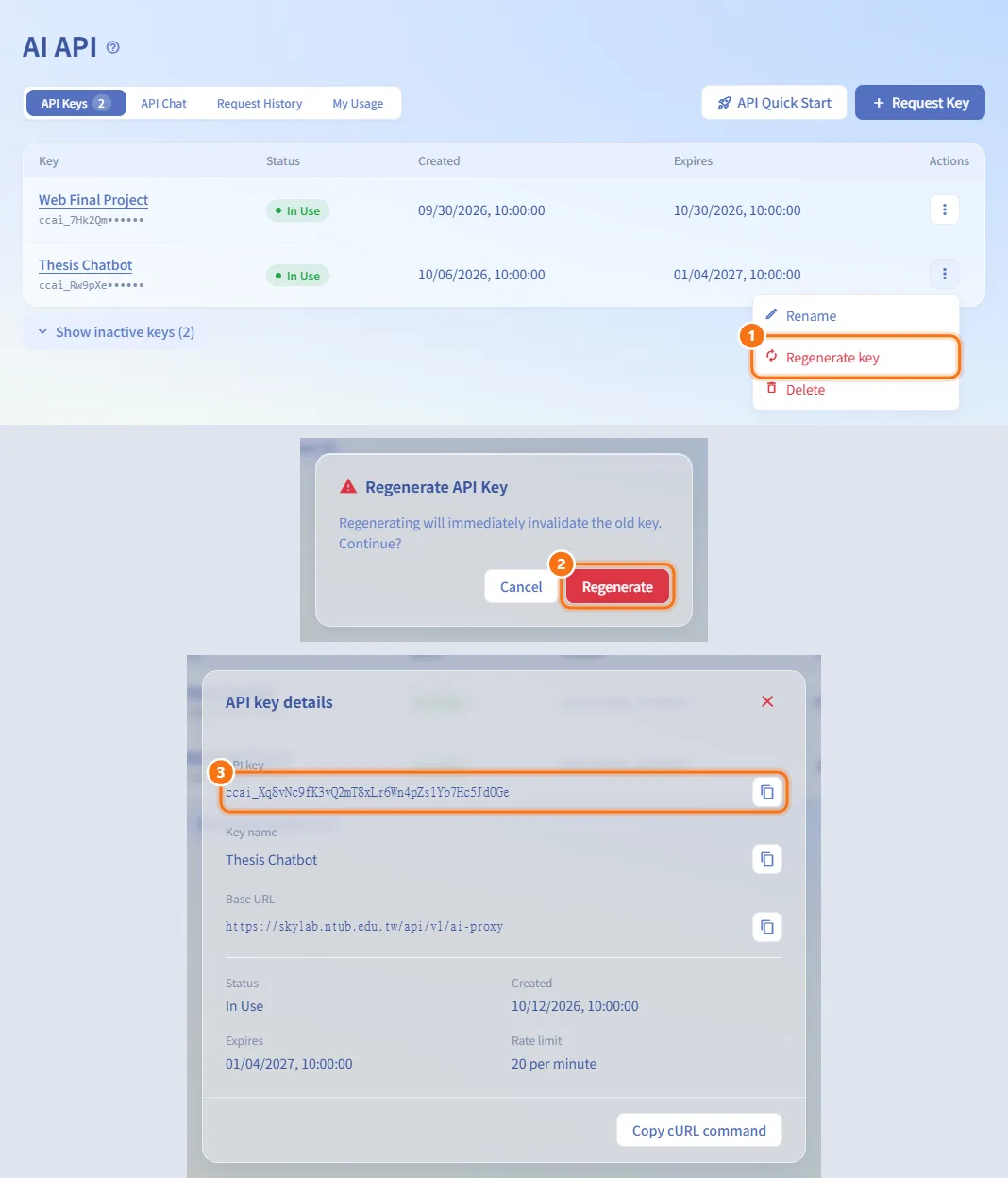
Regenerate a key
- Open the ⋮ menu and choose Regenerate key.
- Confirm with Regenerate. The old key stops working immediately.
- The details dialog opens with the new key. Update your programs with it.
The new key keeps the same name, rate limit and expiry date. An expired key cannot be regenerated; submit a new request instead.
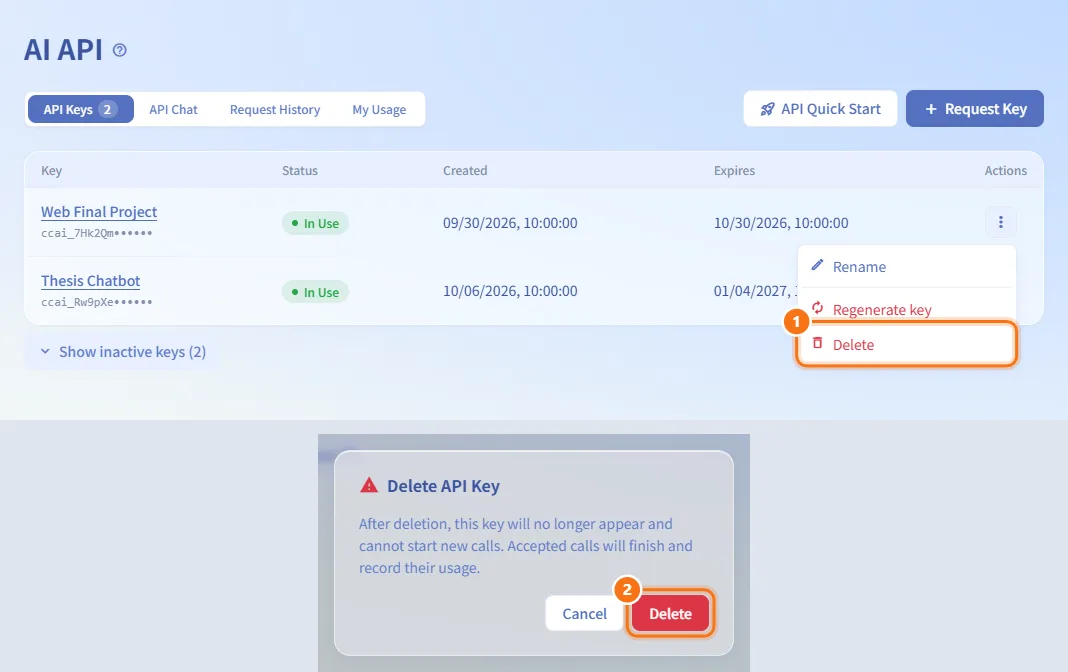
Delete a key
- Open the ⋮ menu and choose Delete.
- Confirm with Delete.
The key disappears from your list and new calls with it fail at once. Calls already accepted finish and their usage is recorded.
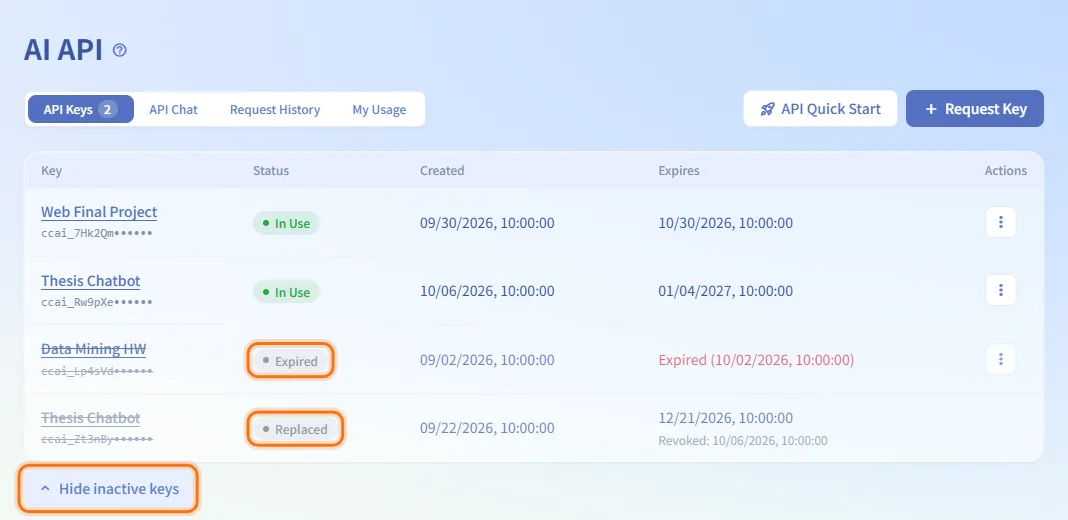
See inactive keys
Keys that no longer work are hidden below the table. Click Show inactive keys (n) to list them, and Hide inactive keys to collapse them again.
Check your usage
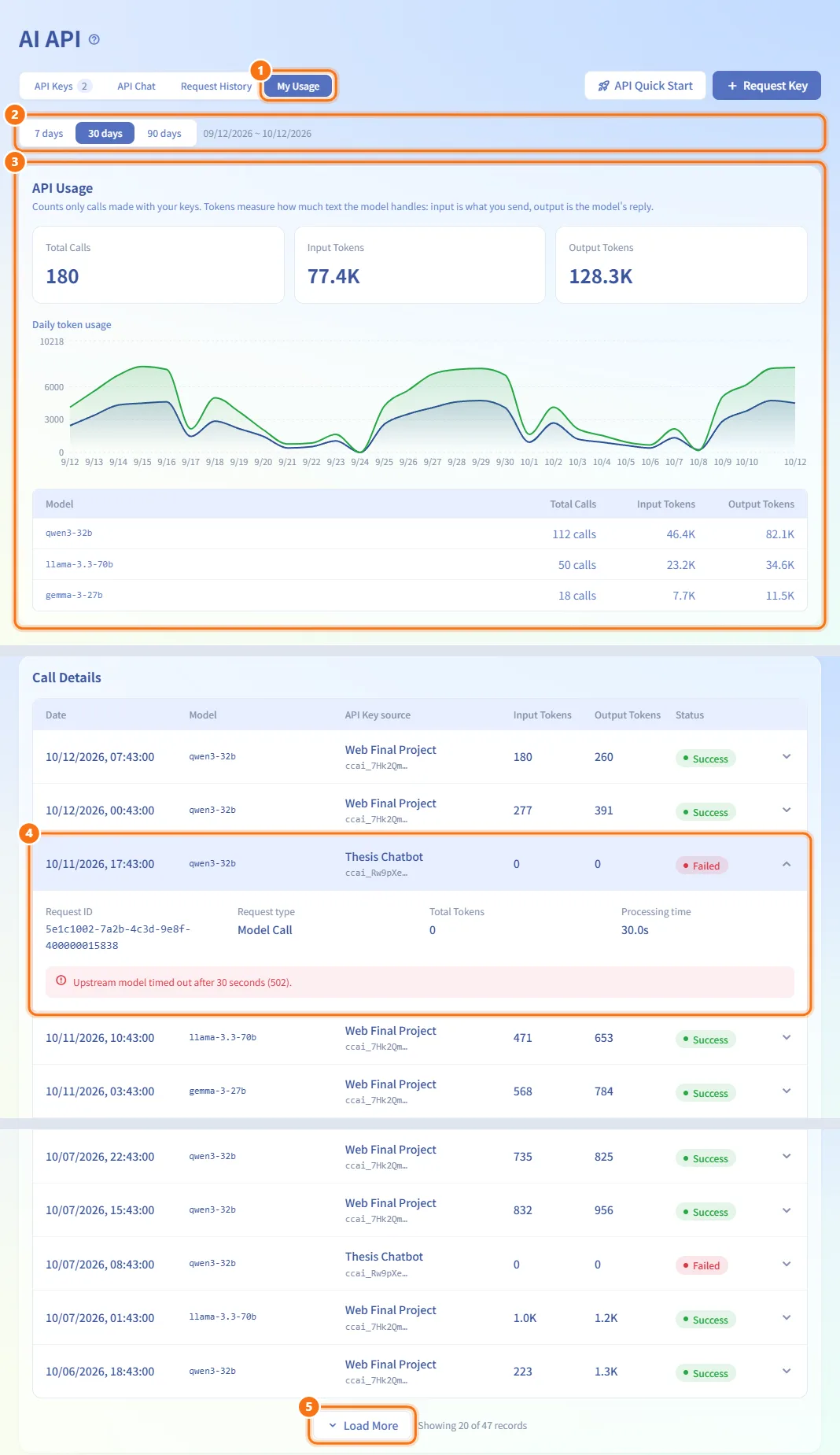
- Open the My Usage tab.
- Choose 7 days, 30 days or 90 days. The dates covered are shown next to the switch.
- API Usage shows Total Calls, Input Tokens and Output Tokens, a daily token chart, and a breakdown by model.
- Call Details lists every call, newest first: Date, Model, API Key source, Input Tokens, Output Tokens and Status. Click a row to see the Request ID, Request type, Total Tokens, Processing time and any error message.
- Click Load More to load 20 more calls.
Only calls made with your own keys are counted.
Fields and options
| Field | Meaning | Notes |
|---|---|---|
| Key Name | A label to tell your keys apart | Required, up to 20 characters. Can be renamed later |
| Purpose of Request | What you will use the key for; shown to the reviewer | 10 to 2000 characters |
| Key Validity Period | How long the key works after approval | Students: 1 day, 7 days, 30 days (default) or 90 days. Teachers and administrators: 1 day, 7 days, 30 days or Never expires (default) |
Key statuses in API Keys:
| Status | Meaning |
|---|---|
| In Use | The key works |
| Expired | The validity period has passed; submit a new request |
| Replaced | The key was regenerated and the new key replaced it |
| Disabled | The key was revoked and cannot start new calls |
Request statuses in Request History: Pending Review, Approved, Rejected.
Limits and behaviour to know
- You can have at most 3 requests waiting for review at the same time.
- Each key has a per-minute rate limit, shown in the key details (20 requests per minute by default). Going over it returns 429; wait a moment and try again.
- A request that is too large returns 413. A model that does not respond returns 502.
- When a key expires it stops working and cannot be regenerated. The request record is kept.
- The tab counter on API Keys shows the number of usable keys; the counter on Request History shows the number of pending requests.
- Administrators can see that your key exists and when it was last used, but they cannot read the full key.
Related
- AI API user manual — curl examples, error codes and SDK usage
- AI API review — how administrators review requests
- Key Management — how administrators manage issued keys