
Teaching Environments
A teaching environment is the set of 1 to 3 machines each student gets, plus the connections between them and the services they publish. Publishing locks the version; class provisioning and quick practice then give every student their own copy. Sidebar: Teaching → Teaching Environments. Path: /course-template-management, the editor at /course-template-management/new and /course-template-management/<id>.
Who can use it
- Teachers see and edit the environments they created.
- Administrators see and edit every environment.
- Students do not see this page; they use a published environment through a class or Quick Practice.
Before you start
- Each machine comes from either a ready machine template (see Templates) or a base image (a VM image or an LXC image).
- To publish a service at a URL, an administrator must have set up a public domain (see Domain Management). Without one, only an external port is available.
- For the full multi-machine workflow, read the Multi-machine environment SOP.
Step by step
Browse the list
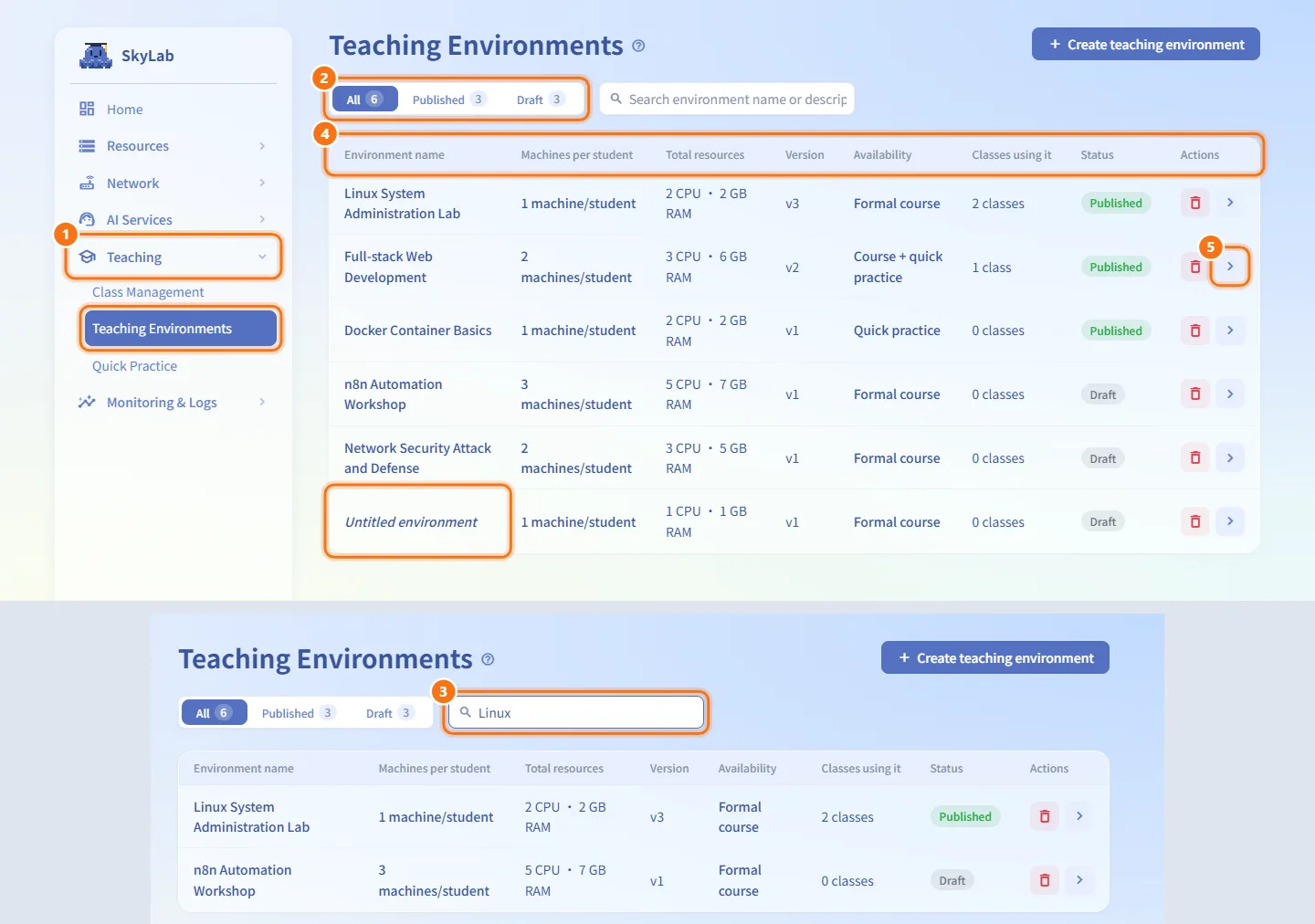
- Open Teaching → Teaching Environments.
- Use All, Published and Draft to filter by status; the number on each is the count.
- Type in Search environment name or description to filter by text.
- Each row shows Environment name, Machines per student, Total resources (CPU and RAM), Version, Availability (Formal course, Quick practice or Course + quick practice), Classes using it and Status. A draft without a name is listed as Untitled environment.
- Click a row, or the arrow at its end, to open it in the editor.
Create an environment
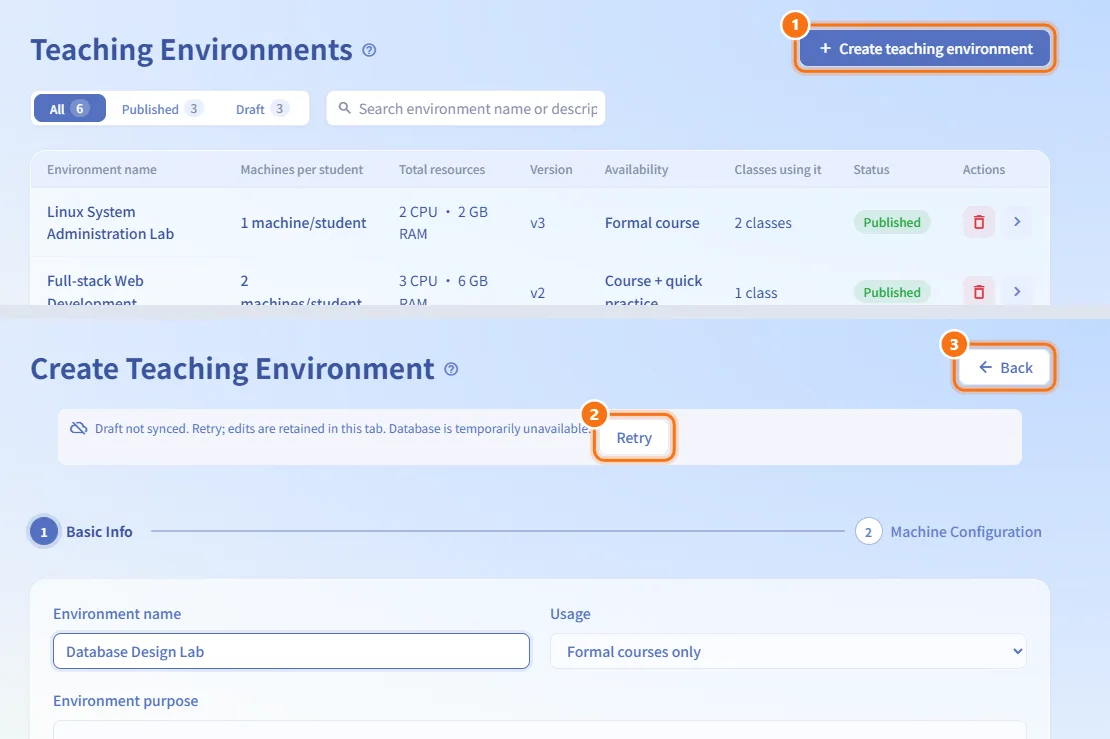
- Click Create teaching environment. The editor opens with two steps: Basic Info and Machine Configuration.
- Every change to a draft is saved automatically, so you can stop and come back later. If syncing fails, Draft not synced. Retry; edits are retained in this tab. appears with a Retry button.
- Back returns to the list.
Fill in the basic info
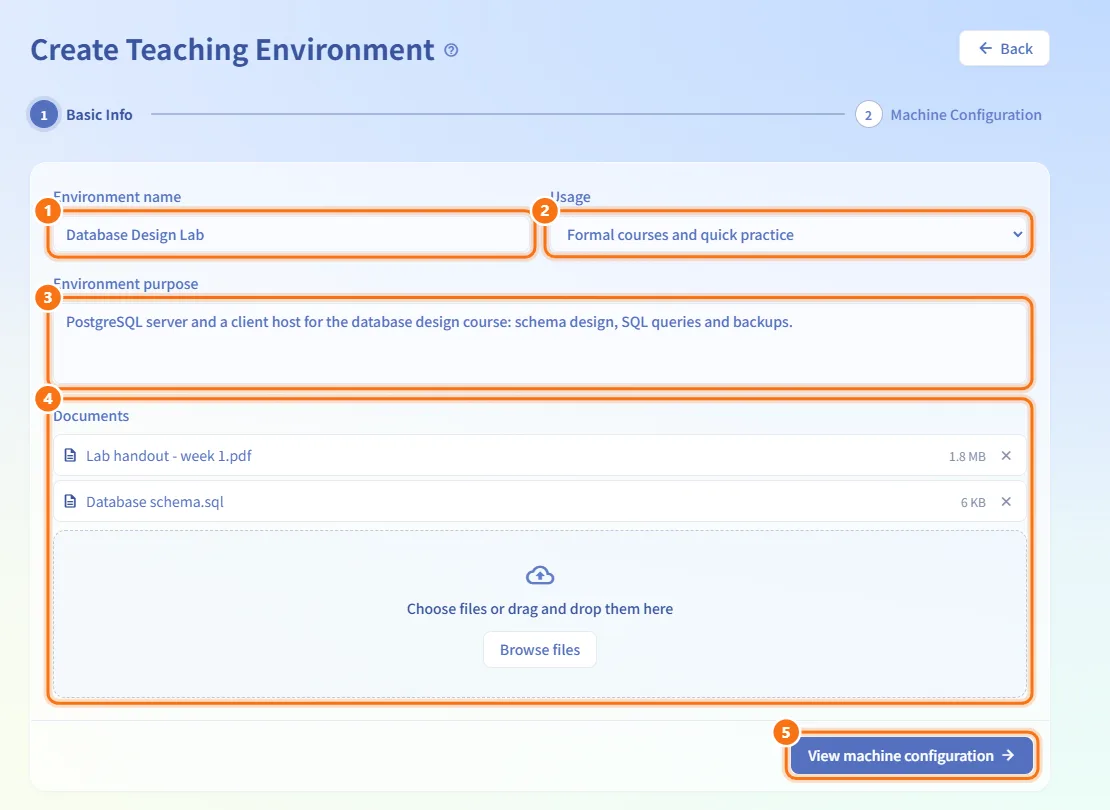
- Enter the Environment name. This is the name teachers see when they choose an environment for a class. A draft can leave it blank, but publishing is blocked until it is filled in.
- Choose the Usage:
- Formal courses only — offered when setting up a class.
- Quick practice only — offered on the Quick Practice page.
- Formal courses and quick practice — offered in both places.
- Describe the Environment purpose.
- Under Documents, drop or choose one or more files. Uploads and deletions take effect immediately. A brand-new environment accepts uploads only after its first autosave has created it (Documents can be uploaded once the environment exists.). Click a file name to download it; click × to remove it after confirming.
- Click View machine configuration to go to the next step.
Add machines
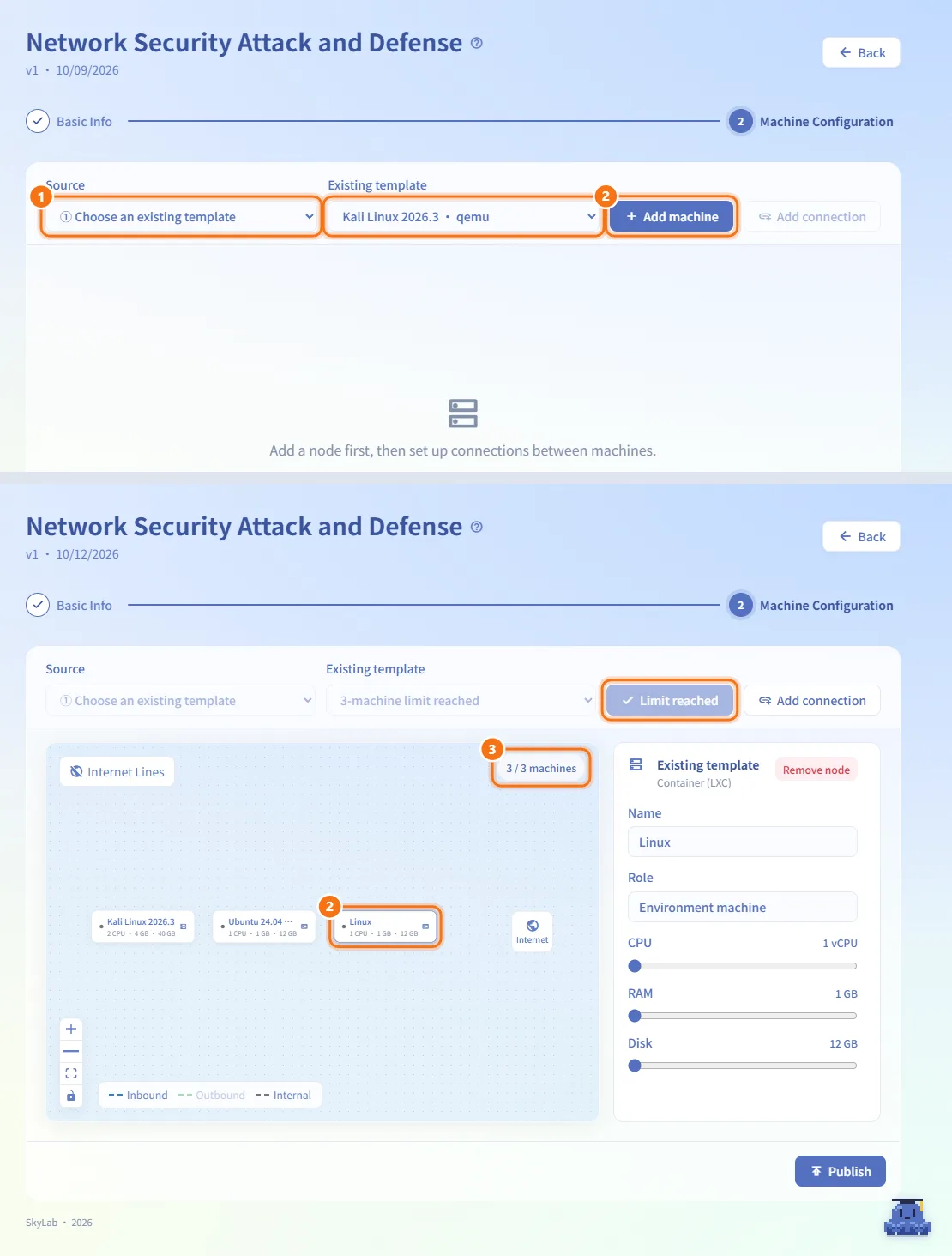
- In Machine Configuration, choose the Source:
- ① Choose an existing template — pick a ready machine template under Existing template.
- ② Add a new VM/LXC spec — pick the Machine type (VM or LXC) and a Base image.
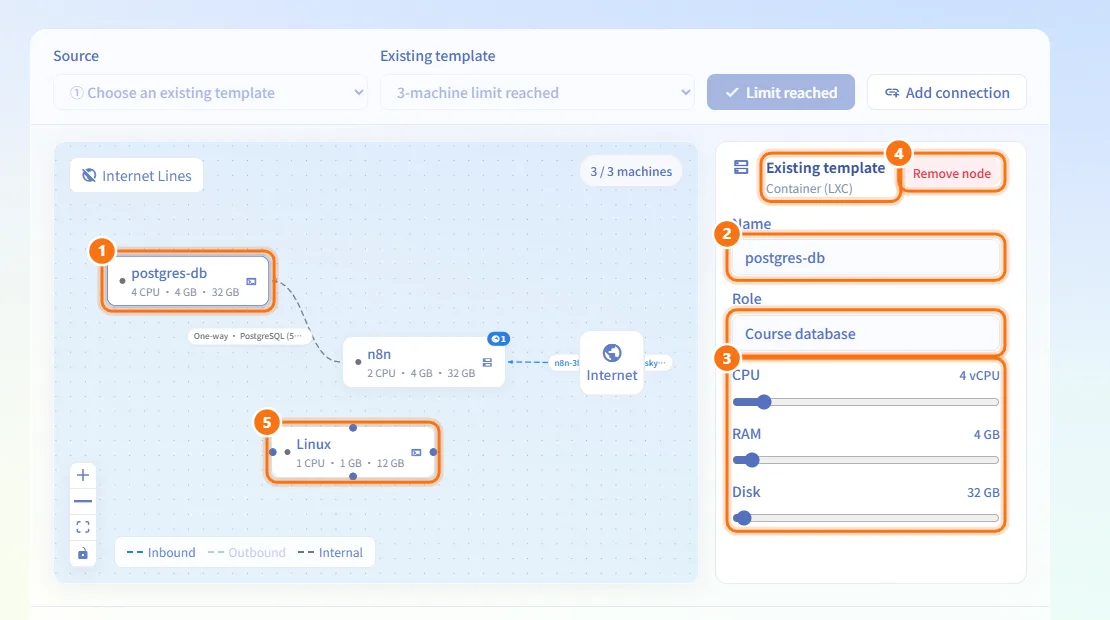
- Click Add machine. The machine appears on the topology map and is selected.
- Repeat for up to 3 machines; the map shows N / 3 machines. At the limit the button reads Limit reached.
If no template is ready, a notice tells you whether templates are still processing or failed, and suggests ② Add a new VM/LXC spec instead.
Edit a machine
- Click a machine on the map. The panel on the right shows its source and type.
- Change the Name and Role.
- Drag the CPU, RAM and Disk sliders. Disk can only grow beyond the size of its source.
- Remove node removes the machine together with its connections and published services.
- Drag machines on the map to arrange them; positions are saved with the draft.
Connect machines
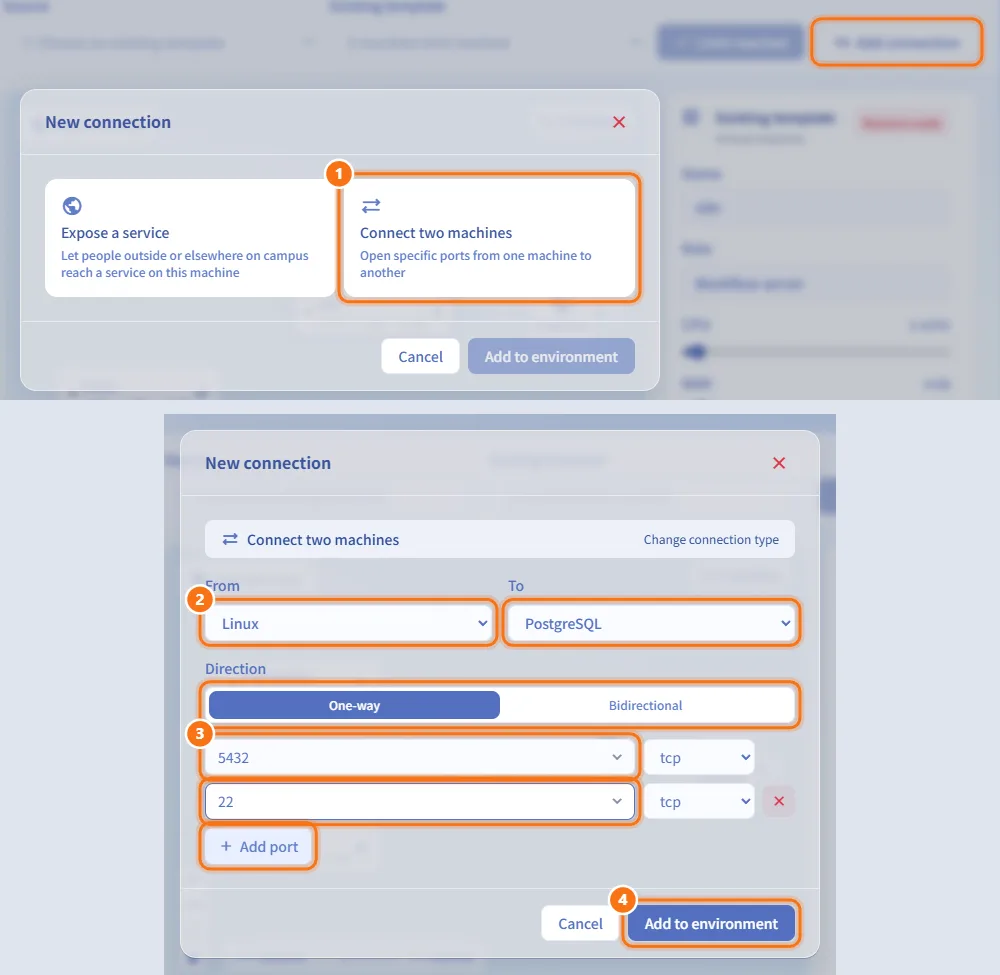
- Drag a line from one machine to another, or click Add connection and choose Connect two machines.
- Choose From and To, and the Direction: One-way or Bidirectional.
- Enter one or more ports with their protocol (Add port adds a row).
- Click Add to environment.
Internet access is open for every machine by default, so you do not add it. Click Internet Lines on the map to show or hide those outbound lines.
Publish a service
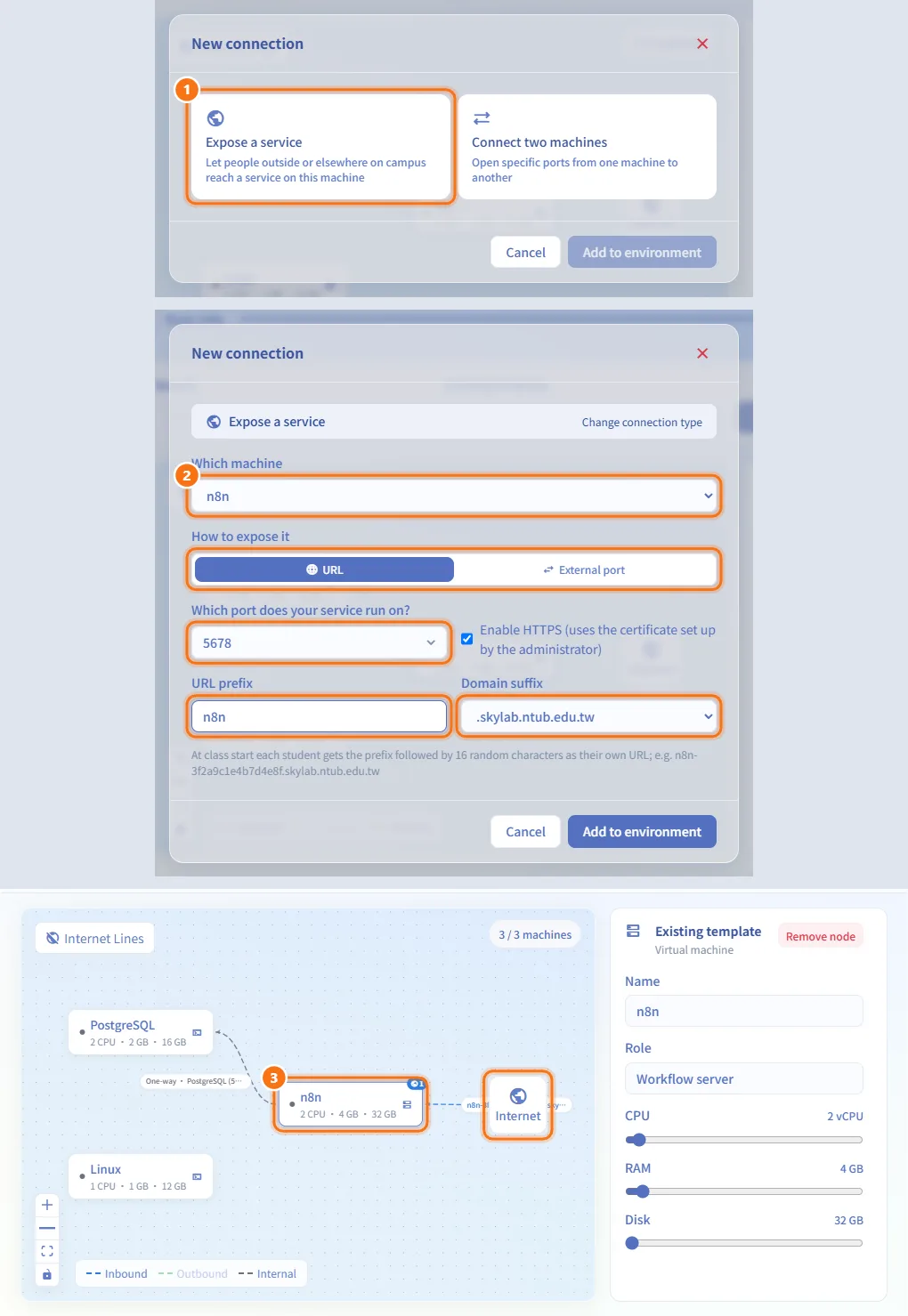
- Drag a line from a machine to the Internet node, or click Add connection and choose Expose a service.
- Pick Which machine, then How to expose it:
- URL — enter Which port does your service run on?, tick Enable HTTPS (uses the certificate set up by the administrator) if wanted, type a URL prefix and choose the Domain suffix. At class start every student gets the prefix followed by
-and 16 random characters as their own address. - External port — enter the internal port(s) and protocol (TCP or UDP). Each student gets an external port assigned at class start.
- URL — enter Which port does your service run on?, tick Enable HTTPS (uses the certificate set up by the administrator) if wanted, type a URL prefix and choose the Domain suffix. At class start every student gets the prefix followed by
- Click Add to environment. The service appears as an inbound line from the Internet node, and the machine shows a badge with the number of published services.
Review or delete a connection
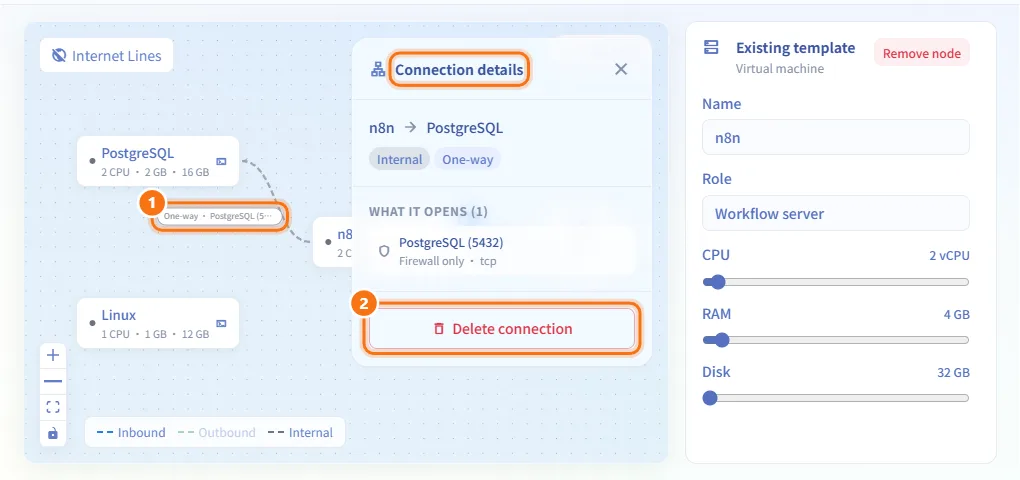
- Click a line on the map. A detail panel explains what it opens and in which direction.
- Delete it from the panel. Lines cannot be edited; delete and draw them again.
Publish the environment
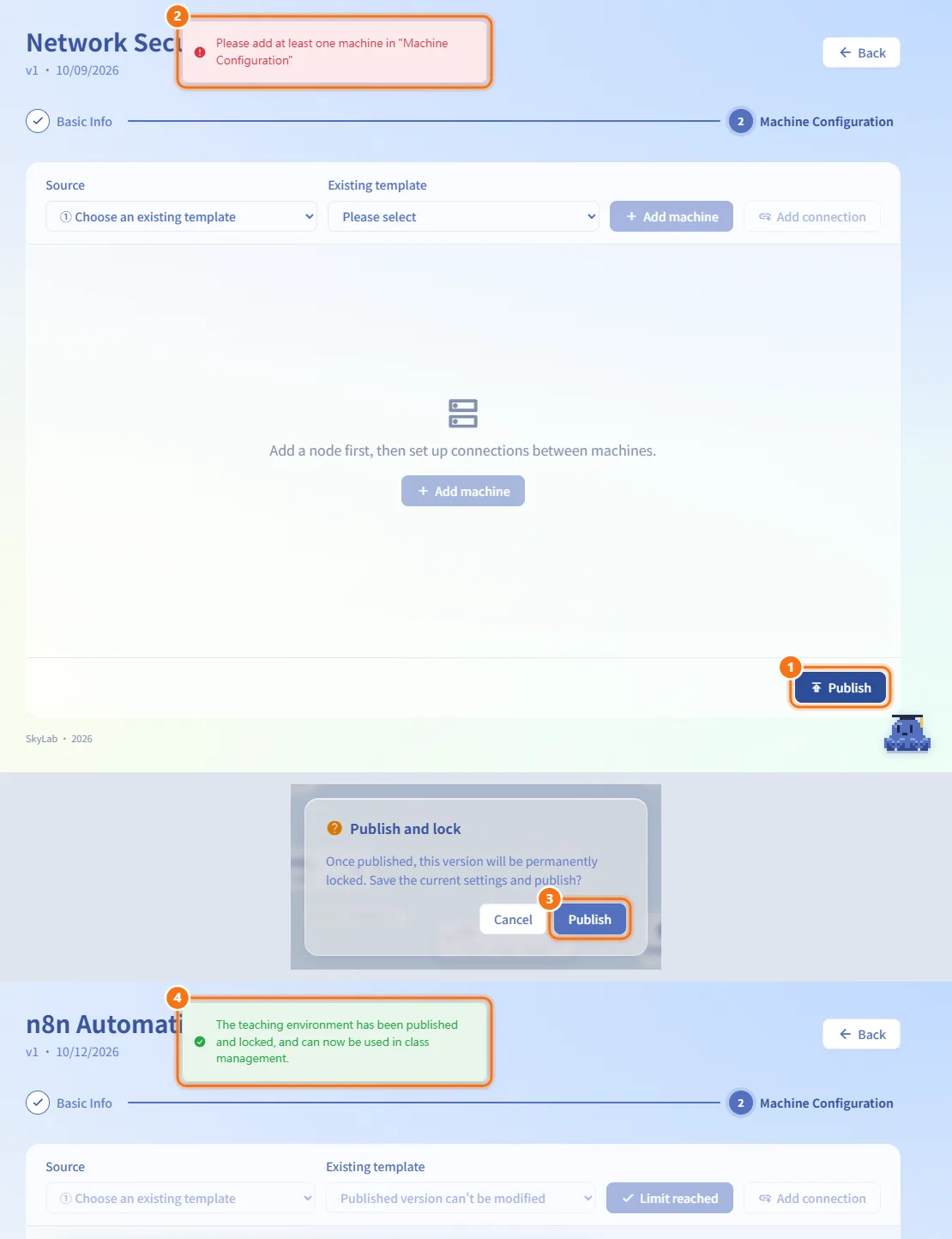
- On Machine Configuration, click Publish.
- SkyLab checks the name, the number of machines and the connection ports. If something is missing, it takes you to the field or tab and explains why.
- Confirm Publish and lock. The version is locked for good.
- A message tells you where the environment can now be used (class management, quick practice, or both).
If you came here from class setup (a note reads Class draft saved.), publishing takes you back to the class setup with the new environment selected.
Change a published environment
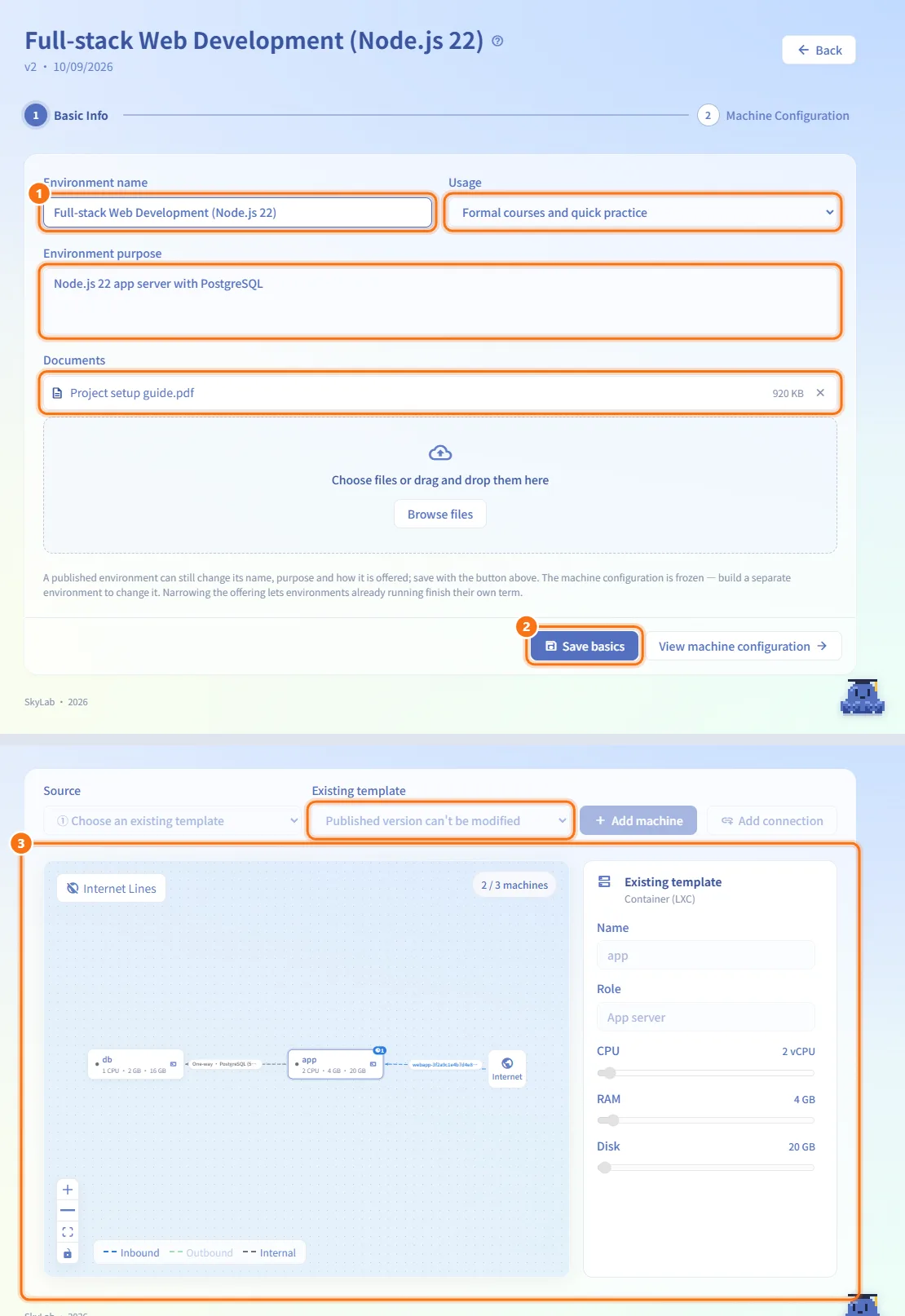
- Open the environment. Basic Info still lets you change the Environment name, Usage and Environment purpose, and manage Documents.
- Click Save basics to send the changes. Published environments are not saved automatically.
- View machine configuration shows the frozen map read-only. To change machines, create a separate environment.
Delete an environment
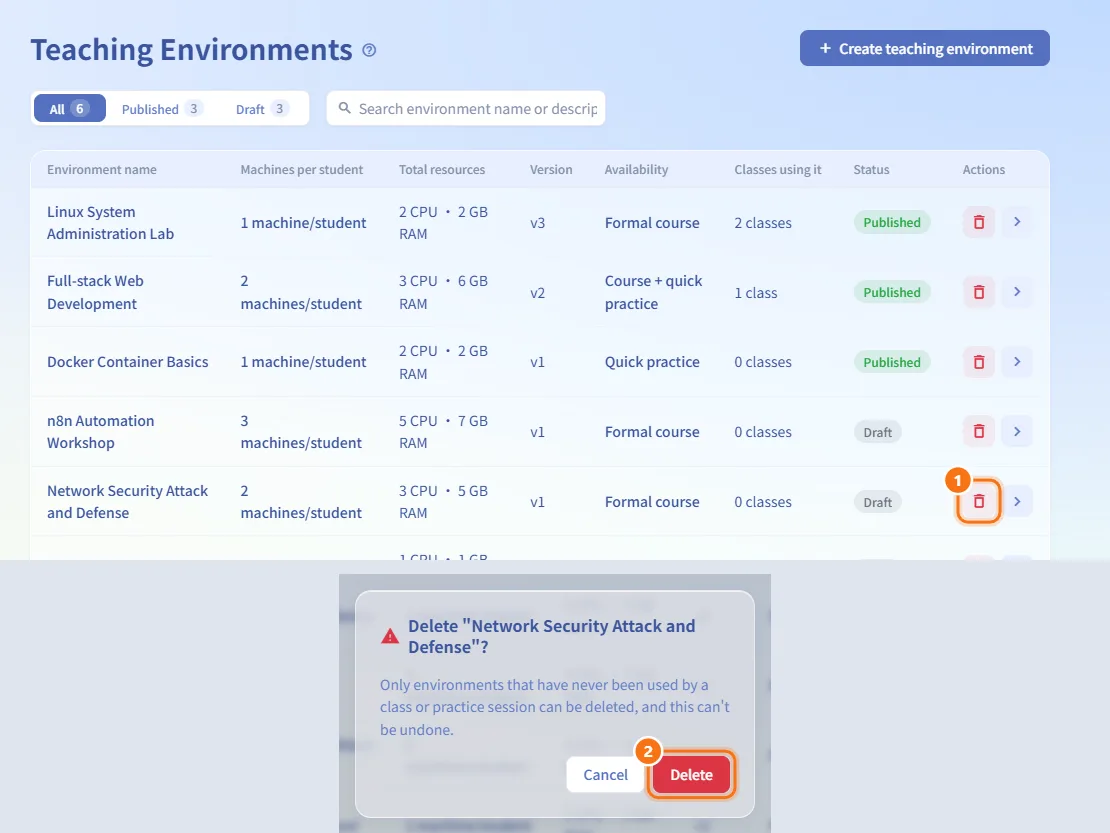
- Click the trash icon at the end of the row.
- Confirm Delete "
<name>"?. Only environments that have never been used by a class or practice session can be deleted, and this cannot be undone.
Fields and options
| Field | Meaning | Notes |
|---|---|---|
| Environment name | Name shown when choosing an environment | Required to publish, up to 255 characters |
| Usage | Where the published environment is offered | Formal courses only, Quick practice only, Formal courses and quick practice |
| Environment purpose | Description | Up to 2000 characters |
| Documents | Files attached to the environment | Several at once, up to 50 MB each |
| Source | Where a machine comes from | ① Choose an existing template or ② Add a new VM/LXC spec |
| CPU | vCPU per machine | 1–32 (more if the template already has more) |
| RAM | Memory per machine | 1–64 GB (more if the template already has more) |
| Disk | Disk per machine | LXC from 1 GB, VM from 10 GB, up to 1000 GB; never below the source size |
| Direction | Machine-to-machine access | One-way or Bidirectional |
| URL prefix | Start of each student's service address | Lowercase letters, digits and hyphens; must not start or end with a hyphen; up to 40 characters |
Limits and behaviour to know
- 1 to 3 machines per student; at most 6 machine-to-machine connections and 6 published services per environment.
- Every connection needs a port; portless protocols such as ICMP are not supported.
- A connection already covered by another one (a bidirectional line includes the reverse direction) is rejected.
- The same port on the same machine can be published only once.
- The same URL prefix can be used more than once, because each student's address gets its own random part.
- Only drafts can change machines and connections. A published version is frozen; classes keep the version they were created with.
- If you leave the editor by accident (sidebar, refresh), your unsaved edits are restored next time (Restored your unsaved edits).
Related
- Multi-machine environment SOP — end-to-end guide for multi-machine teaching environments
- Class setup — choose a published environment for a class
- Quick Practice — where quick-practice environments are offered
- Templates — machine templates used as sources
- Firewall — the same connection model for running machines