
Templates
A template is a read-only master image made from a machine whose software and settings are already in place. You can clone new machines with the same environment from it, and students can pick it when they request a machine. Sidebar: Resources → Templates. Path: /templates.
Who can use it
- Teachers and administrators can open this page. A student who opens
/templatesis sent to the new request form on My Requests instead. - Teachers see the templates they own (in any status) plus the templates other people set to "Visible to Everyone".
- Administrators see every template.
- Only the owner of a template or an administrator can edit it, manage its attachments, run an update cycle, retry a failed conversion or delete it. Anyone who can see a Ready template can clone it.
- Students do not use this page. They see the templates that are Ready and "Visible to Everyone" in the resource settings of the request form, and their request goes through review.
Before you start
- Prepare a source machine (VM or LXC) with everything installed and configured. Creating the template shuts this machine down and it stops being a regular machine, so finish your work on it first.
- Teachers can only use their own machines as a source. Administrators can pick any machine.
- If you want the platform to set login passwords on machines made from a VM template, install cloud-init in the VM (cloudbase-init on Windows) and give it a cloud-init drive in PVE. See Password and cloud-init.
Step by step
Create a template from a VM
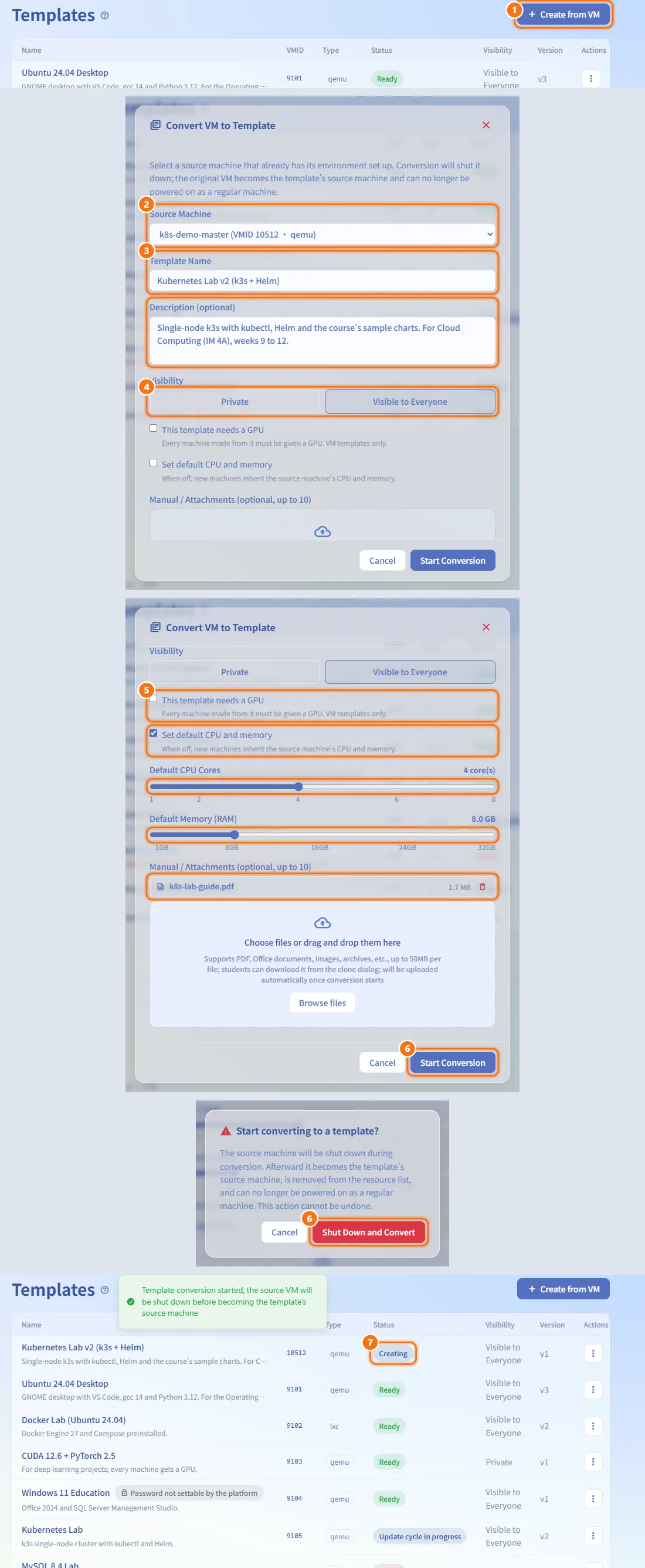
- Click Create from VM (top right, or in the middle of the page when you have no templates yet).
- In Convert VM to Template, choose the Source Machine. Each machine is listed with its name, VMID and type.
- Enter a Template Name and, optionally, a Description of what is installed and which courses it suits.
- Choose the Visibility: Private (only you) or Visible to Everyone (other teachers can clone it and students can choose it in the request form).
- Optional: tick This template needs a GPU (VM templates only), tick Set default CPU and memory and set the sliders, and drop files into Manual / Attachments.
- Click Start Conversion, read the warning and click Shut Down and Convert.
- The template appears with the status Creating. The page refreshes by itself; when the status turns Ready the template can be used.
What the conversion does: the source machine is shut down, any GPU passed through to it is detached, and it is protected on PVE so it cannot be deleted by accident. Nothing is converted into a PVE template: the machine stays on PVE as a powered-off, protected machine, and SkyLab records it as a template. It is removed from your resource list, and its IP address and port forwarding rules are released. The disk size and whether the platform can set passwords are detected at the same time.
Clone machines from a template
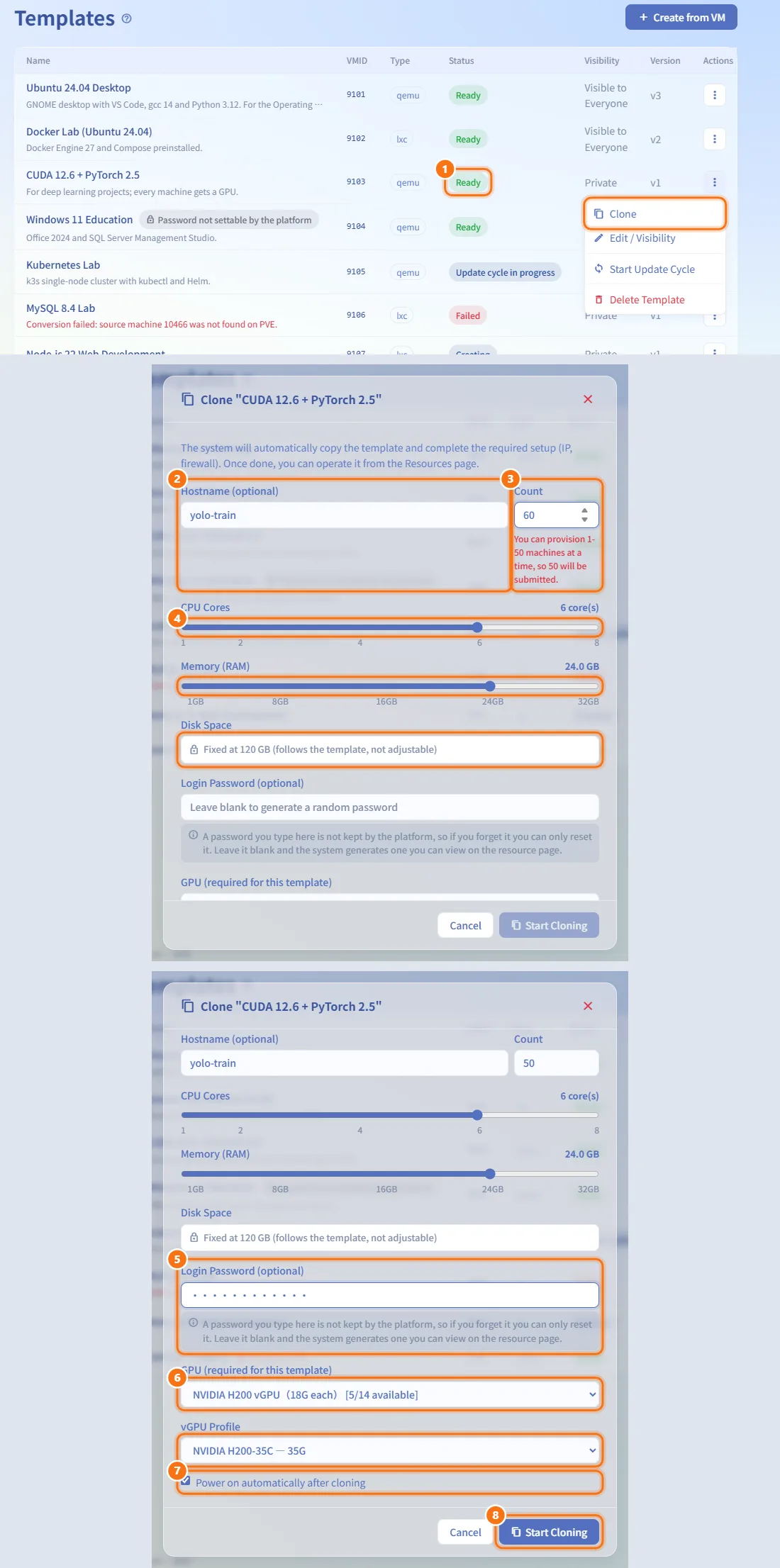
- Open the ⋯ menu of a Ready template and choose Clone.
- Optional: enter a Hostname. If you leave it empty, the template name is used. When you clone more than one machine, a sequence number (
-01,-02, …) is added. - Set the Count (1 to 50 machines at a time). A value outside this range is corrected, and the dialog tells you how many machines will be submitted.
- Adjust CPU Cores and Memory (RAM). The sliders start at the template's defaults. Disk Space follows the template and cannot be changed.
- Optional: type a Login Password (8 to 64 characters). Leave it empty to have the system generate a random password that you can view on the resource page. A password you type is not kept by the platform; if you forget it you can only reset it. If the platform cannot set passwords for this template, the field is replaced by a note and the clones keep the template's own account and password.
- If the template needs a GPU, choose a GPU and, when the card offers them, a vGPU Profile. Only GPUs on the same cluster as the template are listed; full GPUs and profiles without enough memory cannot be selected.
- Leave Power on automatically after cloning ticked, or untick it.
- Click Start Cloning. Each machine becomes a background job whose progress you can follow on Background Jobs; the machines appear in My Resources when they are ready.
Edit a template or change its visibility
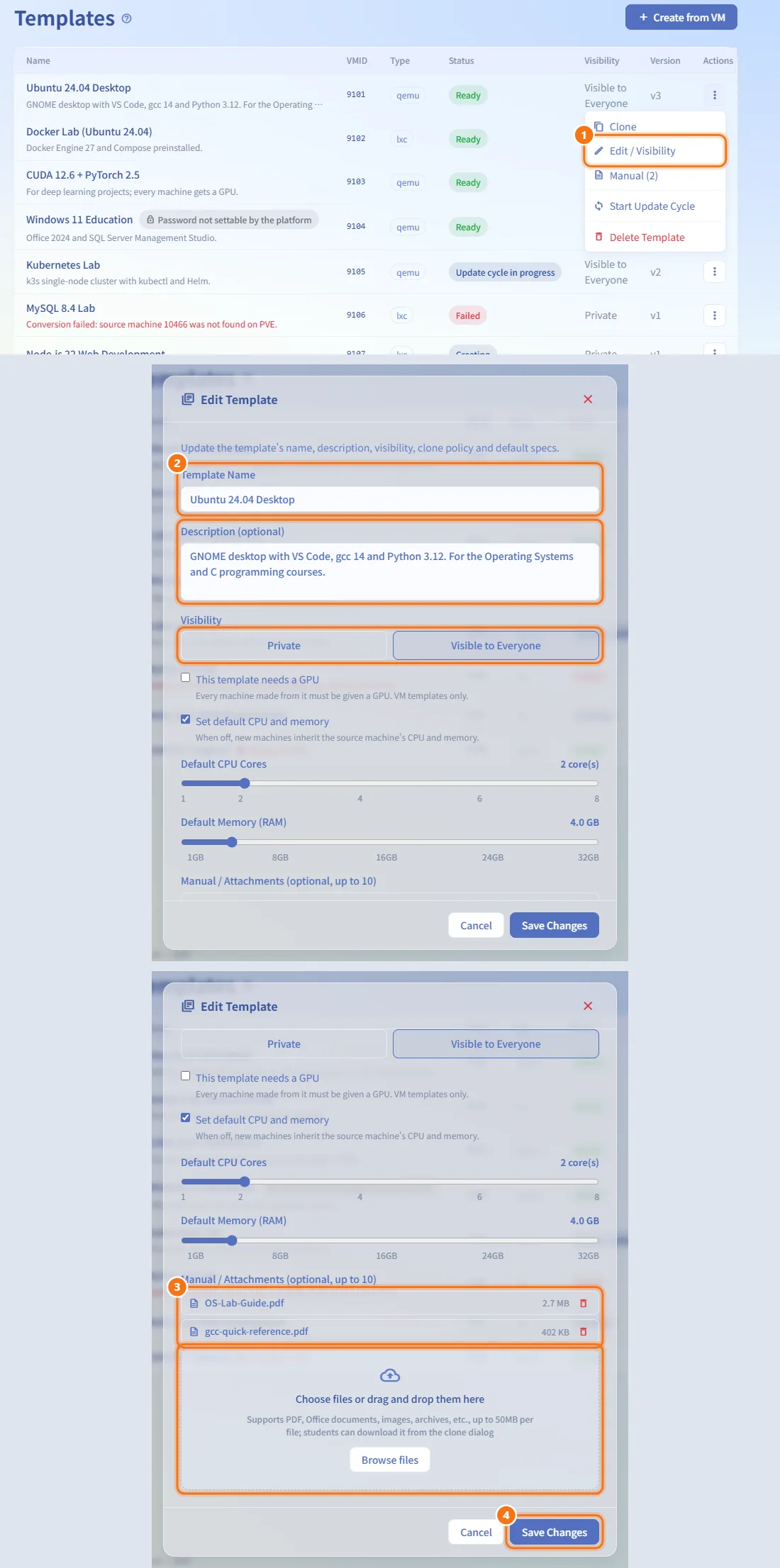
- Open the ⋯ menu and choose Edit / Visibility.
- Change the name, description, visibility, GPU requirement or default CPU and memory.
- Upload or remove attachments. In this dialog uploads and removals take effect immediately.
- Click Save Changes.
Setting the visibility to Private removes the template from the request form; machines already made from it are not affected.
Read or download a template's manual
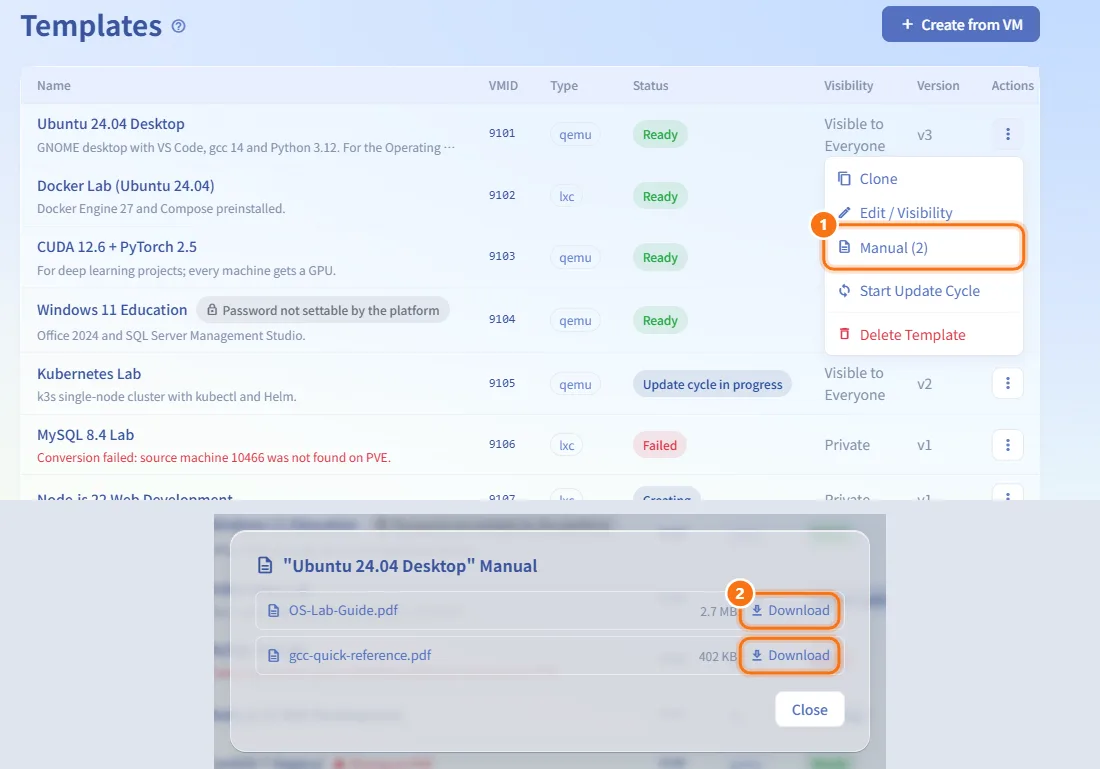
- When a template has attachments, its ⋯ menu shows Manual (n).
- Choose it and click Download next to a file.
People who own a machine cloned from the template can also download these files from that machine's Overview tab, even if the template later becomes private.
Update a template with an update cycle
A template is read-only. To change what is installed in it:
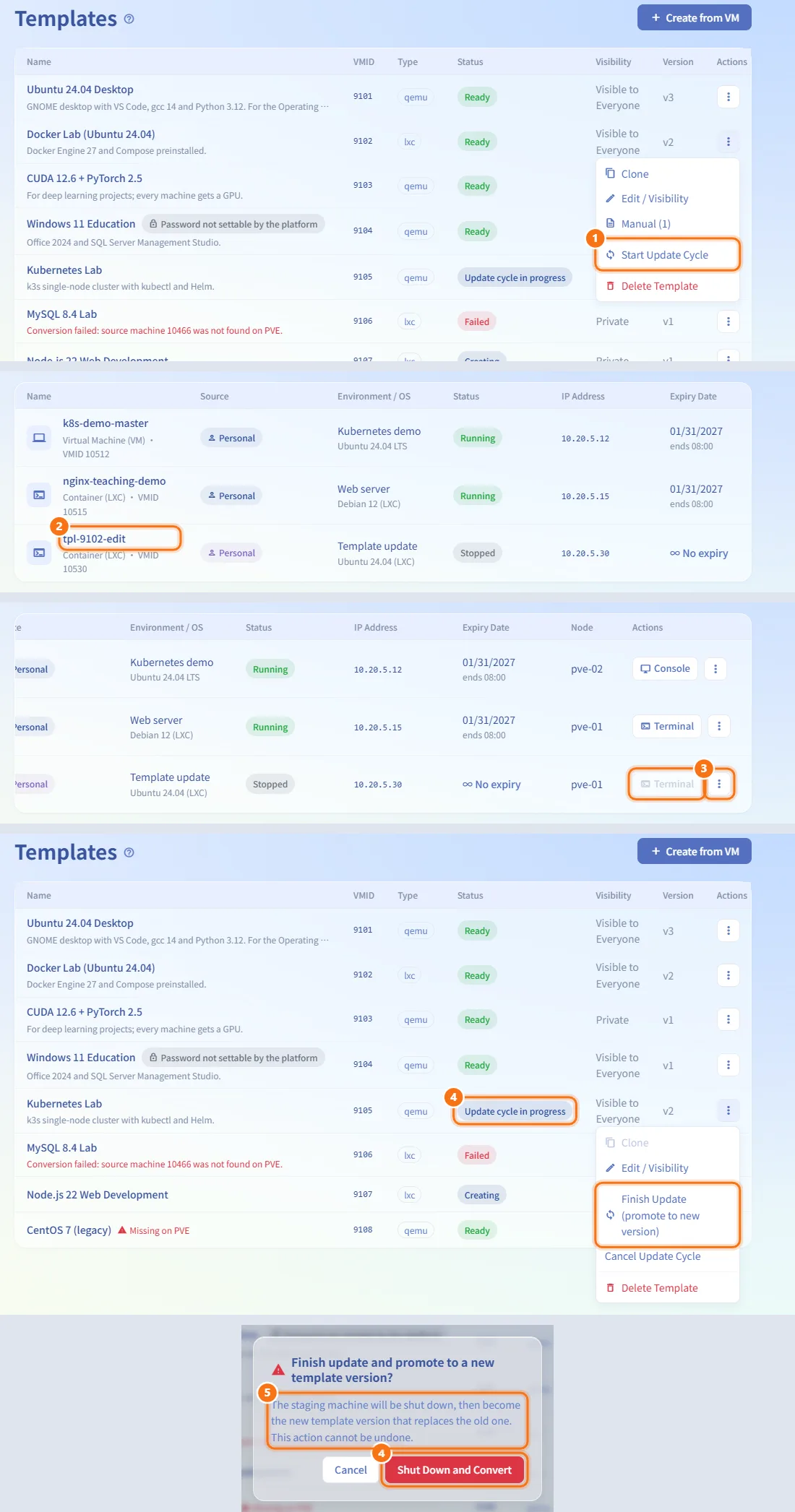
- Open the ⋯ menu of a Ready template and choose Start Update Cycle. The status changes to Update cycle in progress.
- The system makes a full copy of the template, a temporary staging machine named
tpl-<vmid>-edit, and adds it to your resource list. Wait until it appears there. - Power on the staging machine, open its console and make your changes.
- Come back to Templates, open the ⋯ menu and choose Finish Update (promote to new version). Confirm with Shut Down and Convert.
- The staging machine is shut down and protected and becomes the new version of the template (its VMID becomes the template's VMID); the version number goes up by one and the old version is deleted. Requests that chose this template and have not been provisioned yet move to the new version. Machines already cloned from the old version keep working.
To abandon your changes, choose Cancel Update Cycle. The staging machine is deleted and the template returns to Ready with its old content.
Retry a failed conversion
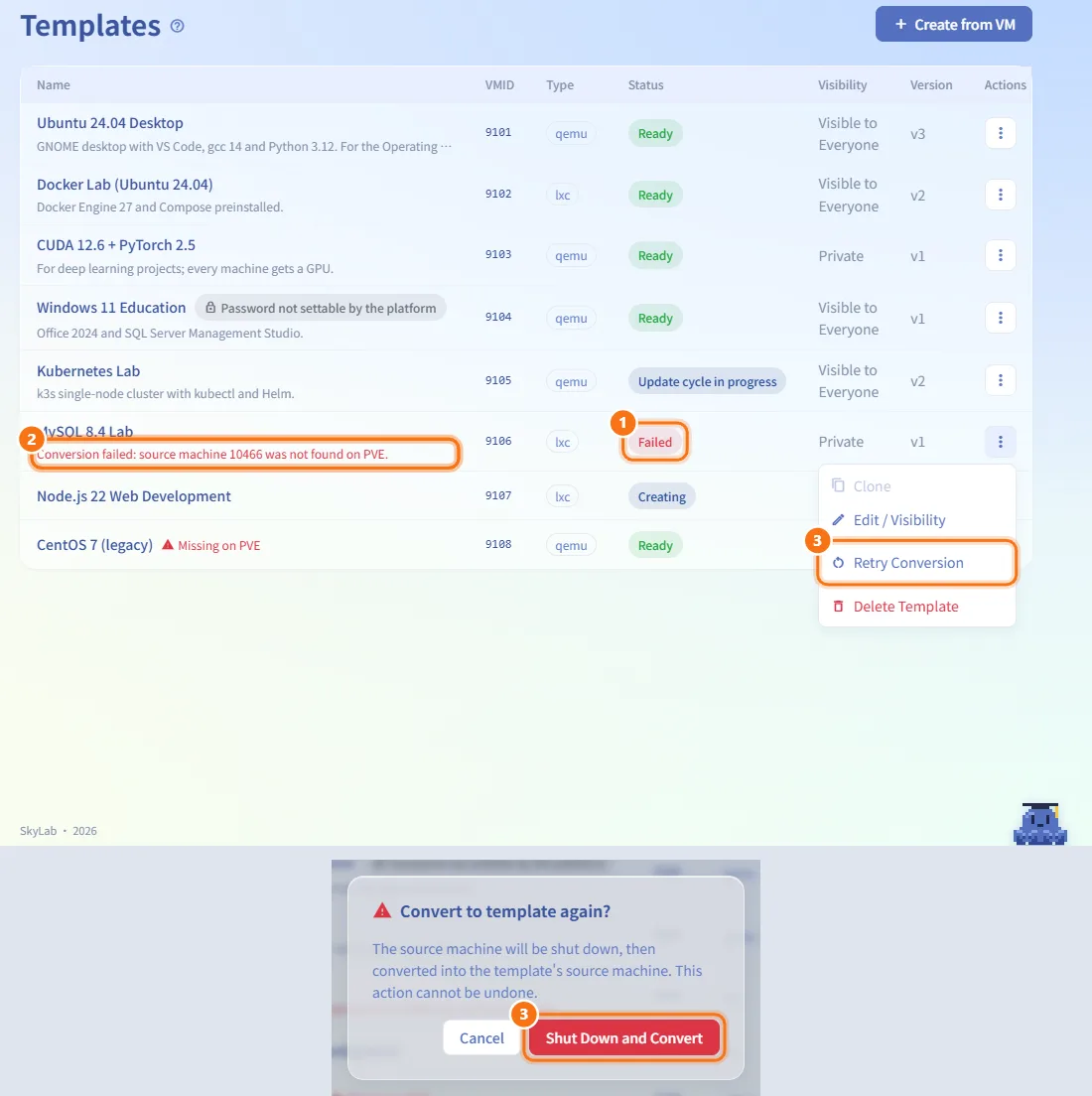
- When the status is Failed, the reason is shown under the template name.
- Fix the cause (for example, make sure the source machine still exists on PVE).
- Open the ⋯ menu, choose Retry Conversion and confirm with Shut Down and Convert.
Delete a template
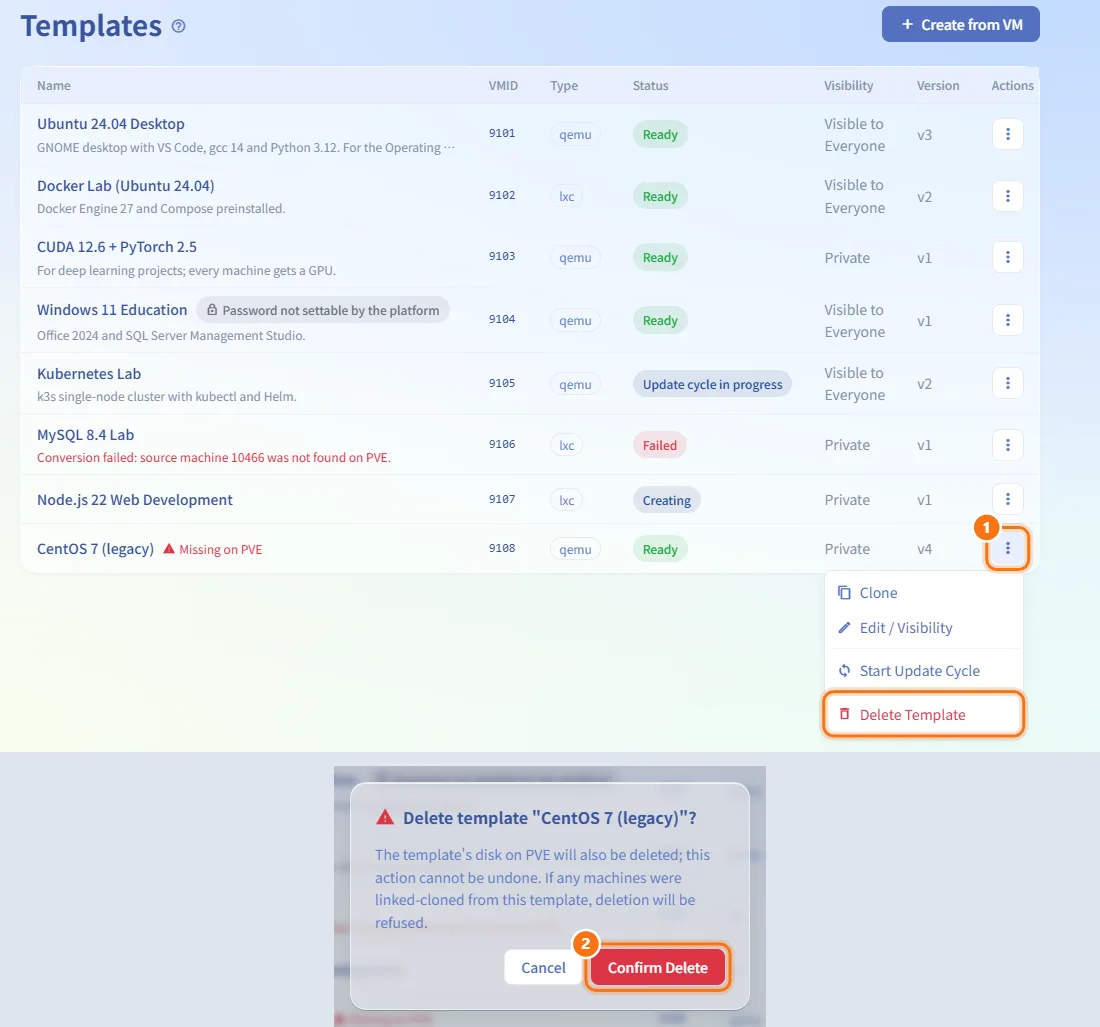
- Open the ⋯ menu and choose Delete Template.
- Click Confirm Delete. The deletion runs as a background job.
The template's machine on PVE is deleted together with its disk, and the attachments are removed. This cannot be undone. The system refuses the deletion while:
- an update cycle is in progress;
- any machine cloned from the template still exists (the message lists their VMIDs);
- a pending or approved request that chose this template has not been provisioned yet;
- a batch provisioning job that uses the template has not finished;
- a teaching environment (including drafts and retired versions) uses the template as a source.
Remove or finish those first, then try again.
Fields and options
| Field | Meaning | Notes |
|---|---|---|
| Source Machine | The prepared VM or LXC to turn into a template | Only when creating. Teachers see their own machines; administrators see all |
| Template Name | Name shown in lists and in the request form | Required, up to 255 characters |
| Description | What is installed and what the template is for | Optional, up to 1000 characters |
| Visibility | Private or Visible to Everyone | Visible to Everyone lets other teachers clone it and students choose it in the request form |
| This template needs a GPU | Every machine made from the template must be given a GPU | VM templates only; disabled for LXC |
| Set default CPU and memory | Default specs for new machines | 1 to 8 cores; 0.5 to 32 GB in 0.5 GB steps. When off, new machines inherit the source machine's CPU and memory |
| Manual / Attachments | Files for the people who use the template | Up to 10 files, 50 MB each: PDF, Markdown, text, Word, PowerPoint, Excel, OpenDocument, ZIP, PNG, JPG, WebP, GIF, MP4. When creating, files are uploaded after the conversion starts |
| Hostname | Name of the cloned machine | Clone only. Optional, up to 63 characters |
| Count | Number of machines to clone | Clone only. 1 to 50 |
| Login Password | Password written into the cloned machines | Clone only. Optional, 8 to 64 characters. Not shown when the platform cannot set passwords |
| GPU / vGPU Profile | GPU given to each clone | Clone only; shown when the template needs a GPU |
| Power on automatically after cloning | Start the machines when cloning finishes | Clone only. On by default |
The list columns are Name, VMID (the ID on PVE), Type (qemu for a VM, lxc for a container), Status, Visibility, Version (goes up by one each time an update cycle is finished) and Actions.
Password and cloud-init
When a template is created, and again when an update cycle is finished, SkyLab checks whether it can write login passwords into machines made from it:
- LXC templates: always yes.
- VM templates: only when the VM has a cloud-init drive in PVE and cloud-init (cloudbase-init on Windows) is installed inside the guest.
If it cannot, the template shows the label Password not settable by the platform. The template still works: machines cloned or requested from it keep the account and password that were inside the template, so you need to tell users what they are. To lift the label, install cloud-init in the template through an update cycle; the check runs again when you finish the update.
Windows templates use cloudbase-init, which sets the password of the fixed account Admin. A password you type for a Windows machine must meet the Windows complexity rules: it must contain at least three of the character types uppercase letters, lowercase letters, digits, symbols and other letters, and must not contain the account name Admin. Otherwise the request is refused, because Windows would reject the password and nobody could log in. Passwords generated by the system already meet these rules.
Limits and behaviour to know
- Only Ready templates can be cloned; Clone is greyed out in other states.
- Missing on PVE next to the name means PVE can no longer find the template's machine; it may have been deleted by hand. Clones and requests from it will fail.
- Cloning is checked against your resource quota, using the specs that will actually be created (the template's defaults when you do not change them).
- A GPU can only be given to clones of a VM template, and only from the cluster where the template lives.
- While a template is Creating or Update cycle in progress, the list refreshes every few seconds; otherwise every 30 seconds.
- Do not delete the staging machine yourself during an update cycle. If it is gone, Finish Update is refused; use Cancel Update Cycle instead.
- If finishing an update fails, the template stays in Update cycle in progress with the error under its name. You can try Finish Update again or cancel the cycle.
- If the old version cannot be deleted when an update finishes, the template still becomes Ready on the new version, and a warning appears under its name.
Related
- My Requests — where students choose a template when they request a machine
- My Resources — where cloned machines and the update-cycle staging machine appear
- Resource detail — console, login password and the template manual of a machine
- Background Jobs — progress of conversions, clones and deletions
- GPU Management — the GPUs that GPU templates can use
- Teaching Environments — environments that use templates as sources