
Class workspace
The class workspace is where a teacher runs one class from set-up to the last session: the roster, the teaching environment, weekly content, provisioning, live monitoring of student machines and, once the class is active, AI Check. Sidebar: Teaching → Class Management, then open a class. Path: /class-management/<classId> and /class-management/<classId>/<section>.
Who can use it
- Teachers can open the workspace of the classes they own.
- Administrators can open any class.
- Students cannot open this page; they see the published weeks of their classes on their own course page.
The page header shows the term and location, the class name, and a line with the number of students, the number of sessions and the weekly class time. The tabs under the header depend on the class status:
| Class status | Tabs |
|---|---|
| Being set up, waiting for review, provisioning, partly failed, archived | A step bar: Class Overview, Add Students, Teaching Environment, Weekly Content. A check mark means the step is set (students added, environment applied, at least one week has a topic). |
| Active (passed review and every machine built) | Plain tabs: Class Overview, Add Students, Teaching Environment, Weekly Content, Class Monitoring, AI Check. |
Opening an active class from the class list (without a section in the address) takes you straight to Class Monitoring; other classes open on Class Overview. Each tab has its own address (/overview, /students, /machines, /weekly, /progress, /ai), so a refresh or bookmark returns to the same tab.
Before you start
- Create the class first in Class setup; the workspace opens for an existing class.
- Students must already have registered accounts with the student role.
- At least one published course environment must exist (see Teaching Environments), or you create one from the Teaching Environment tab.
Step by step
Read the class overview
- Open the Class Overview tab.
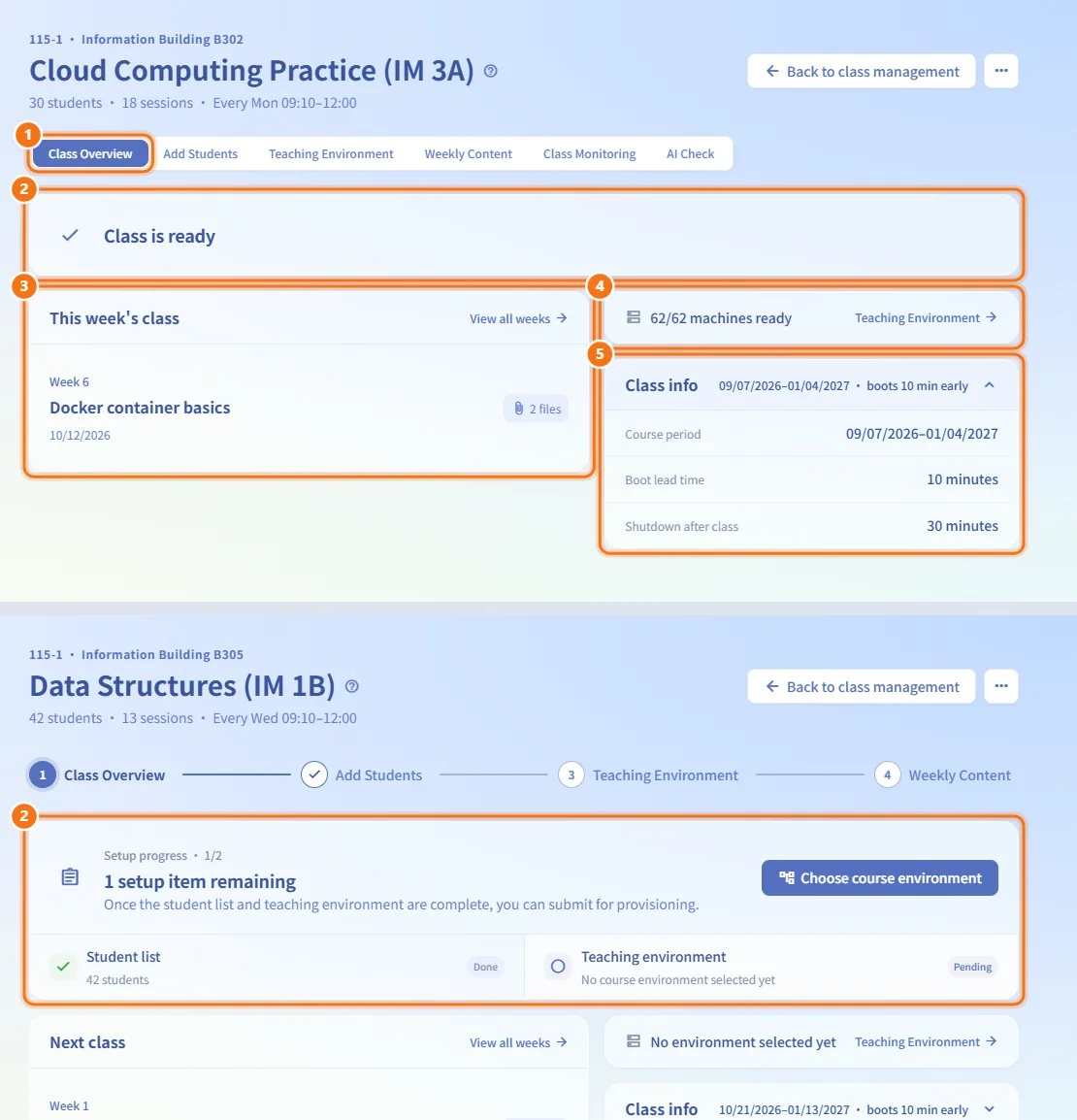
- The status card at the top tells you where the class is and what to do next:
- N setup items remaining — the checklist below it shows Student list and Teaching environment as Done or Pending. The button takes you to the missing step (Add students or Choose course environment).
- Waiting for provisioning review — settings are locked and an administrator must approve the build.
- Building the environment for the whole class — the page refreshes the build progress on its own; each provisioning job shows its status and how many machines succeeded or failed.
- Some machines or network settings failed — see Recover from a partly failed build.
- Class is ready — the class is active.
- Class has ended — the class is archived.
- The This week's class (or Next class, Current week, Last week) card shows the week number, topic, date and file count. View all weeks opens Weekly Content.
- The machine row shows either how many machines will be provisioned (before submission) or how many are ready (after). Click it to open Teaching Environment.
- Expand Class info to see the Course period, the Boot lead time before class and the Shutdown after class grace period.
Edit the class and schedule
Available only while the class is still being set up (before you submit for provisioning).
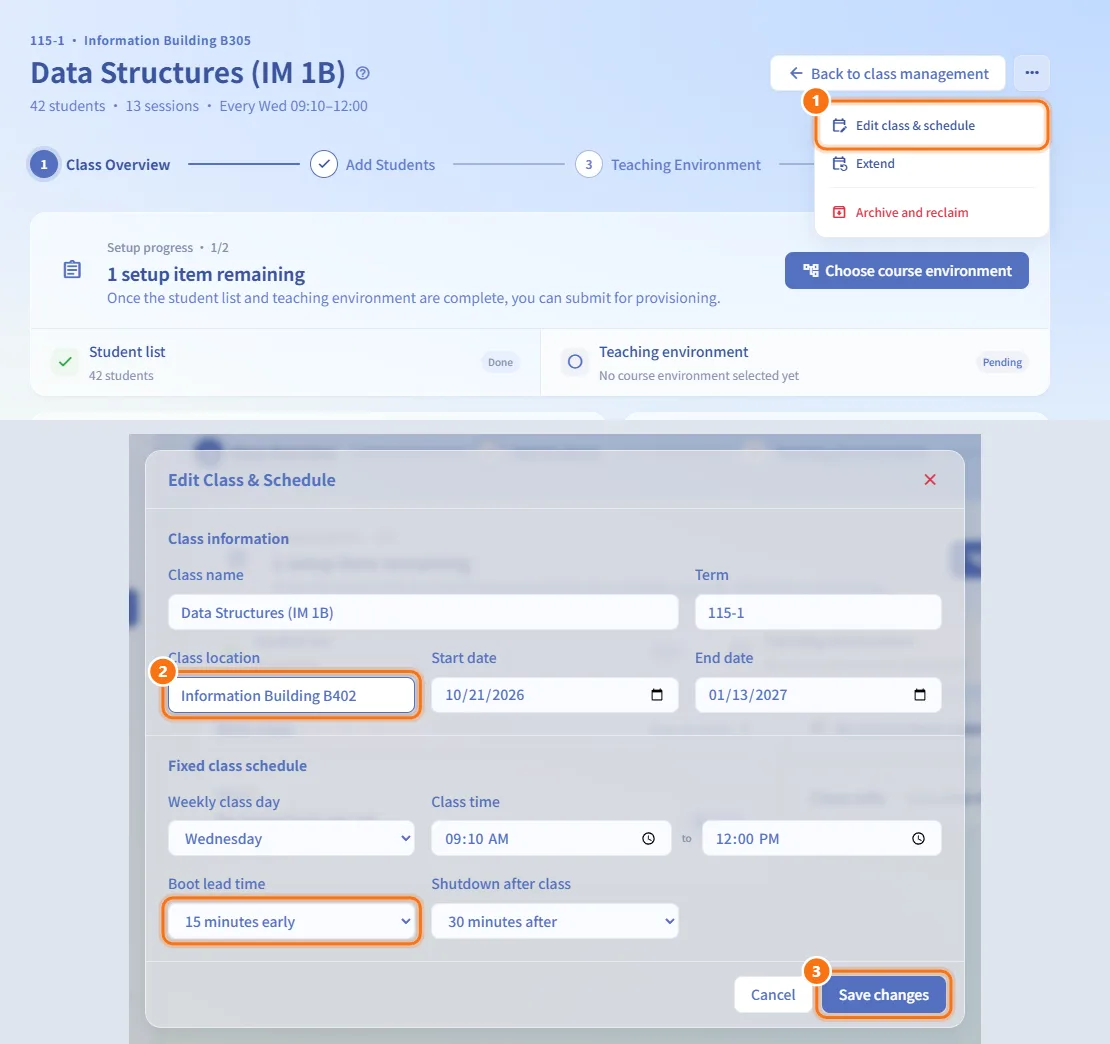
- Click the ⋯ button at the top right and choose Edit class & schedule.
- Change the class information (Class name, Term, Class location, Start date, End date) or the Fixed class schedule (Weekly class day, Class time, Boot lead time, Shutdown after class).
- Click Save changes.
Add students
The roster can only be changed while the class is being set up. After you submit for provisioning, the Import CSV, Import from group and Add students buttons are disabled.
To paste email addresses:
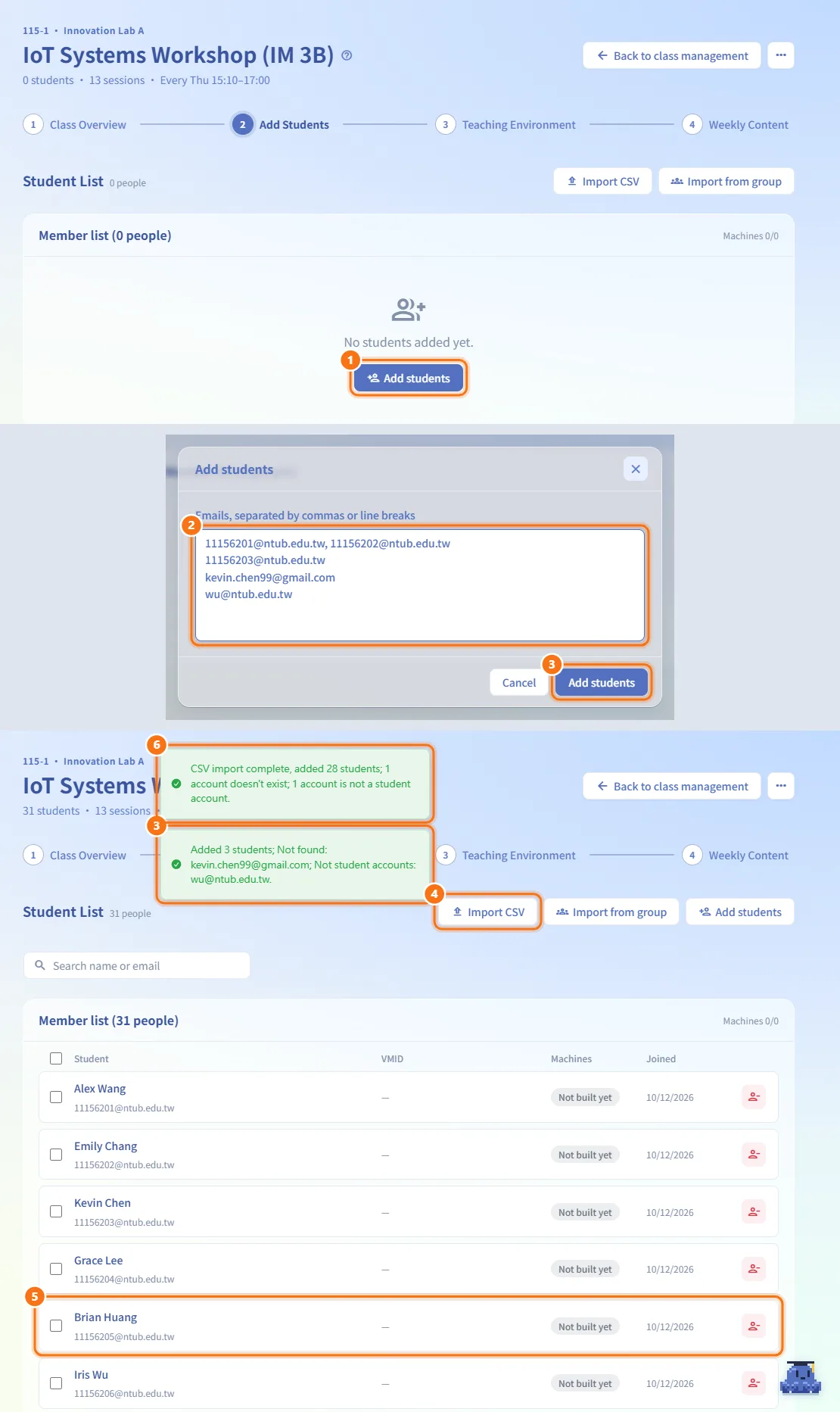
- Open Add Students and click Add students (when the roster is empty, the button is in the middle of the list).
- Enter the emails, separated by commas or line breaks.
- Click Add students. A notice reports how many students were added, which accounts were not found, and which accounts are not student accounts.
To import a CSV file:
- Click Import CSV and choose a
.csvfile. - The first column of each row is read as an email or a student ID. A bare student ID gets the school's email domain appended; a header row named
email,學號or帳號is skipped. - A notice reports how many were added and how many accounts don't exist or aren't student accounts.
Import students from a group
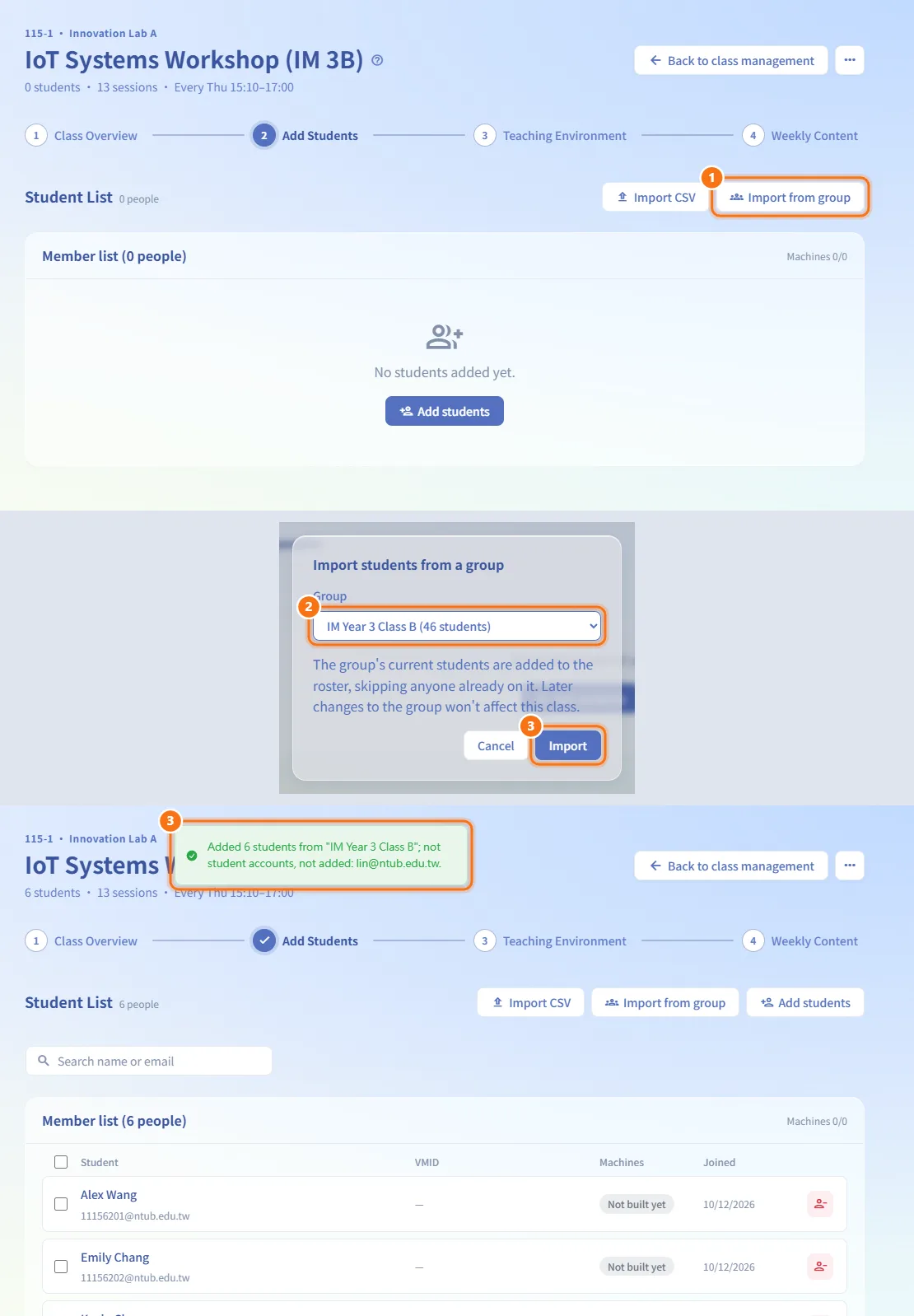
- Click Import from group.
- Choose a group an administrator has set up (for example one school class); the menu shows how many students each group has.
- Click Import. The group's current students are added and anyone already on the roster is skipped. Teacher or administrator accounts in the group are listed in the notice and not added.
The import copies the group as it is now: later changes to the group, or deleting it, do not change this class.
Find and remove students
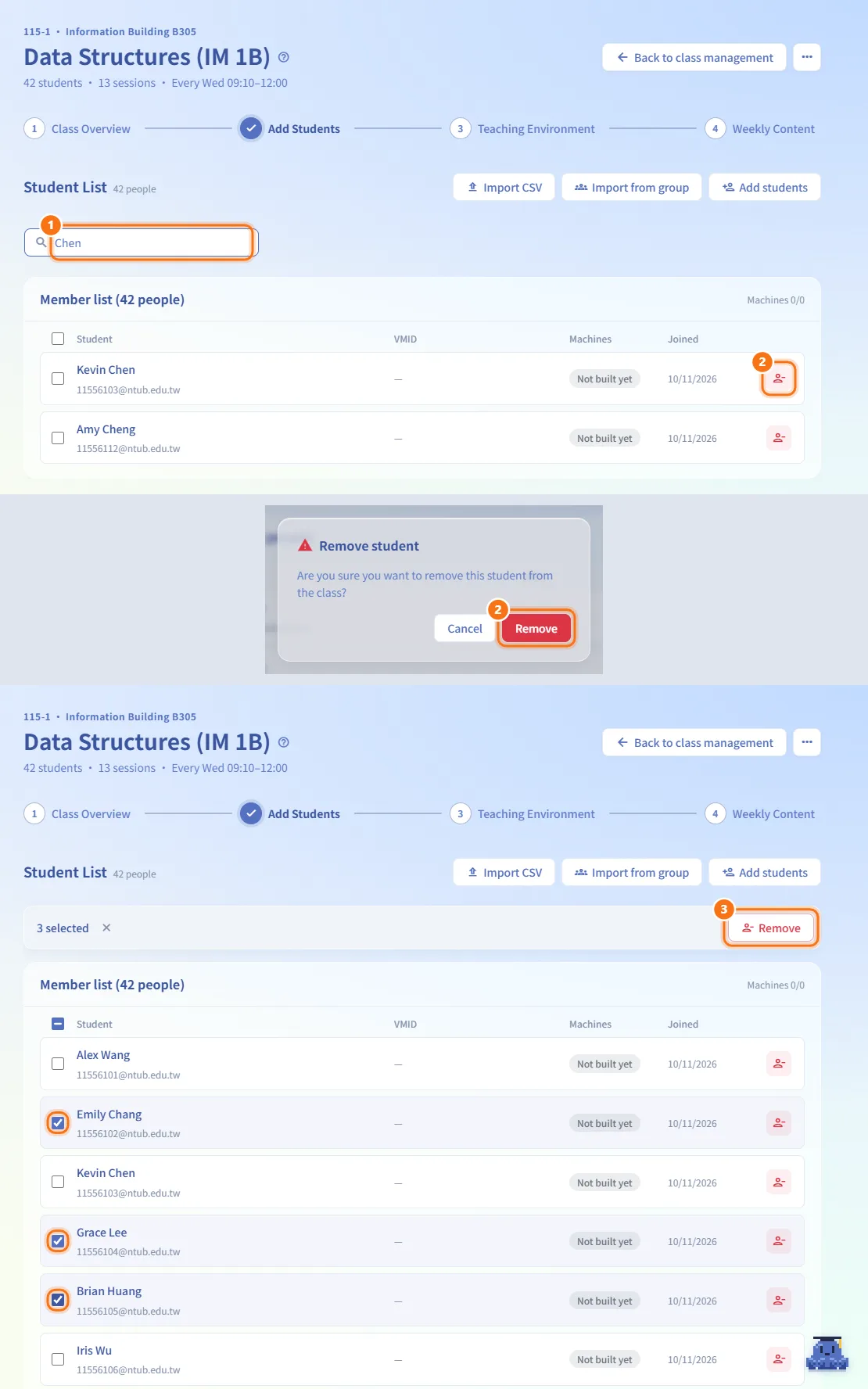
- Type a name or email in the search box above the list to filter it.
- To remove one student, click the remove button at the right of the row and confirm.
- To remove several, tick their check boxes (or the box in the header to select every visible row). The search bar turns into a batch bar; click Remove and confirm. If some removals fail, the failed students stay selected so you can retry.
Each row shows the student, the VMID of their class machines, the Machines column (how many of their machines are ready, or Not built yet) and the Joined date.
Choose the teaching environment
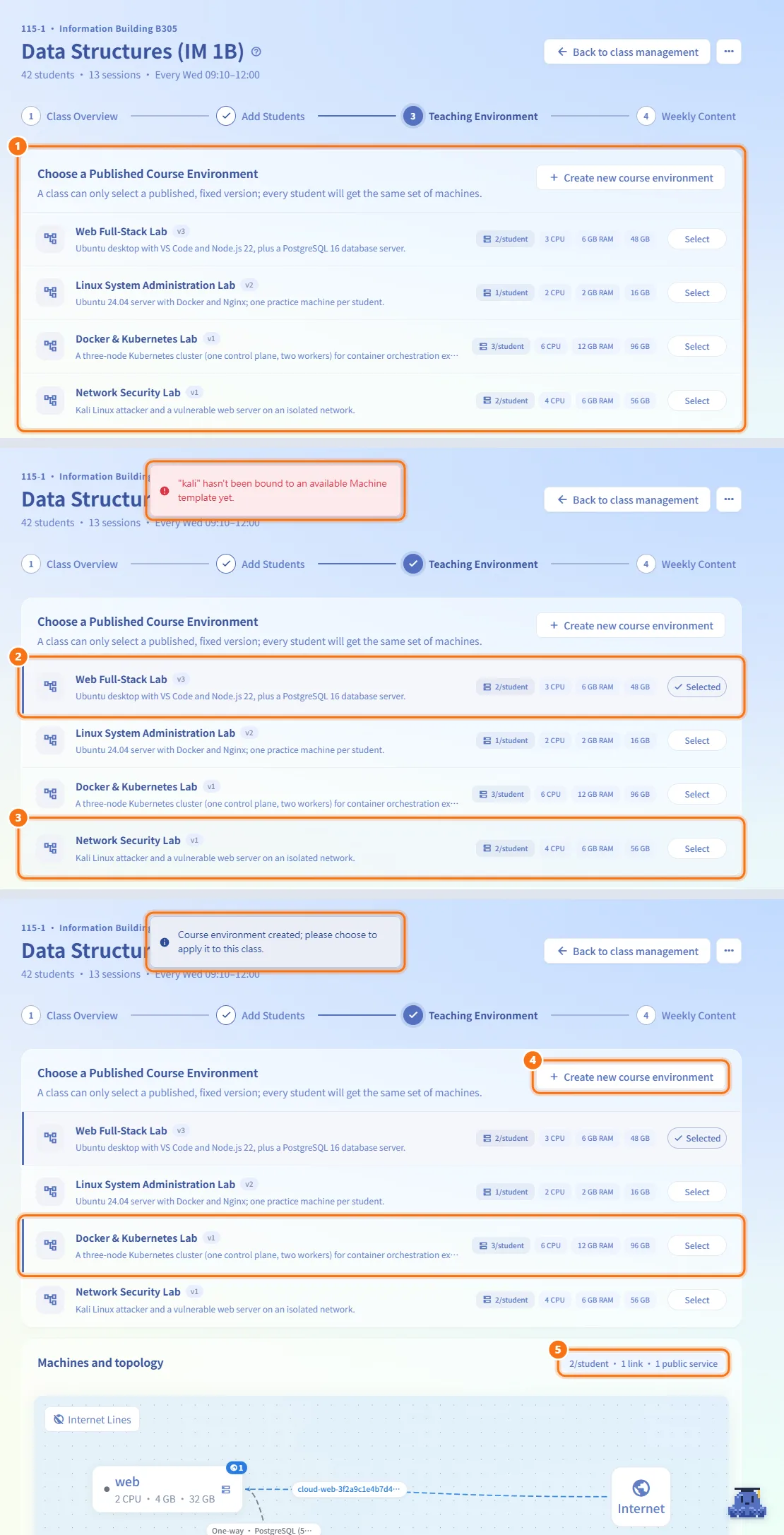
- Open Teaching Environment. While the class is being set up, the Choose a Published Course Environment card lists every published course environment.
- Click a card to apply it. Every student gets the same set of machines.
- If an environment contains a machine that is not yet bound to an available machine template or base image, it cannot be applied and a message names the machine.
- If none fits, click Create new course environment. The course environment editor opens; after you publish, you return here with the new environment marked as suggested. Click it to apply.
- Below the cards, the Machines and topology card shows how many machines each student gets, the number of links between machines and the number of public services.
Read the applied environment
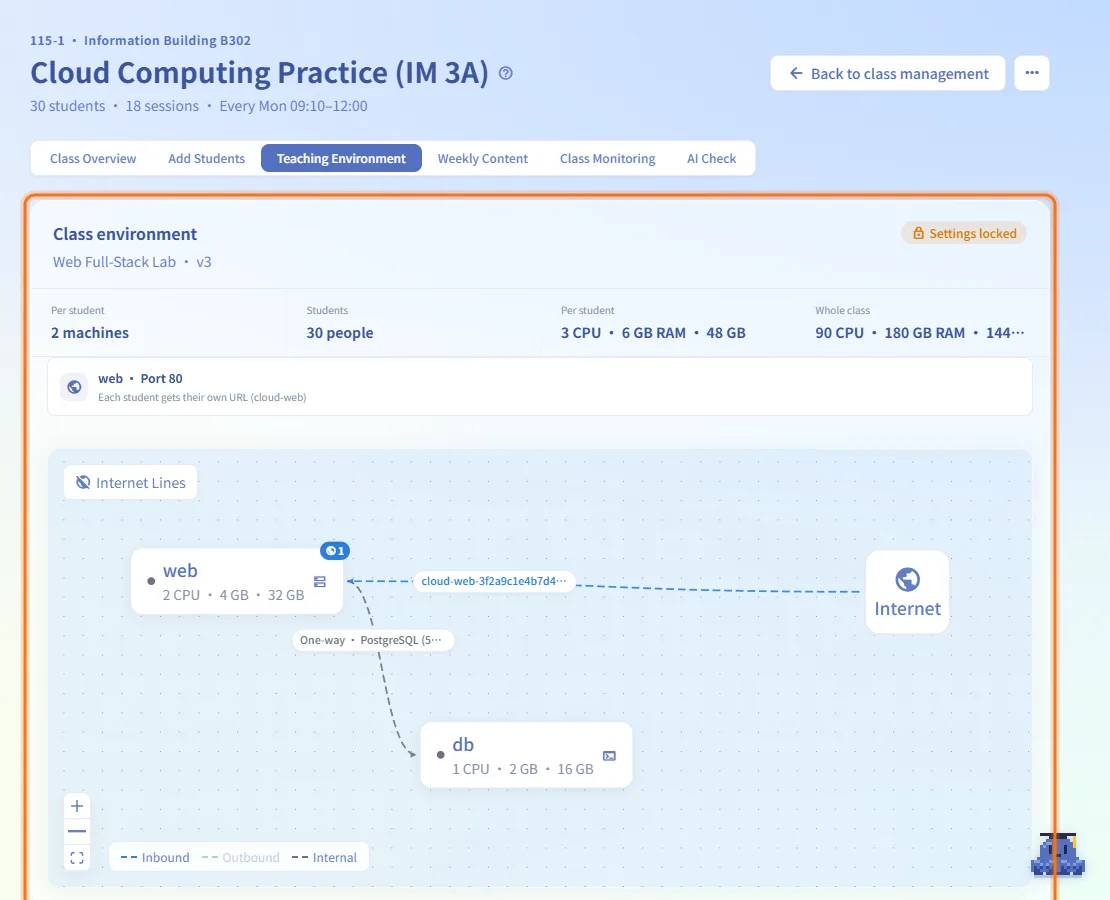
After you submit for provisioning, the environment is locked (Settings locked) and the tab shows:
- Per student (machine count), Students, the CPU, memory and disk Per student, and the same for the Whole class — the whole-class figure is what the course will consume.
- The public services the environment declares. Each student gets their own URL or their own external port, and sees the connection details on the course page once the class starts.
- A read-only topology canvas. Click a line to see its port details; click Internet Lines at the top left to show each machine's outbound internet connection. The legend shows Inbound, Outbound and Internal lines.
Submit for provisioning
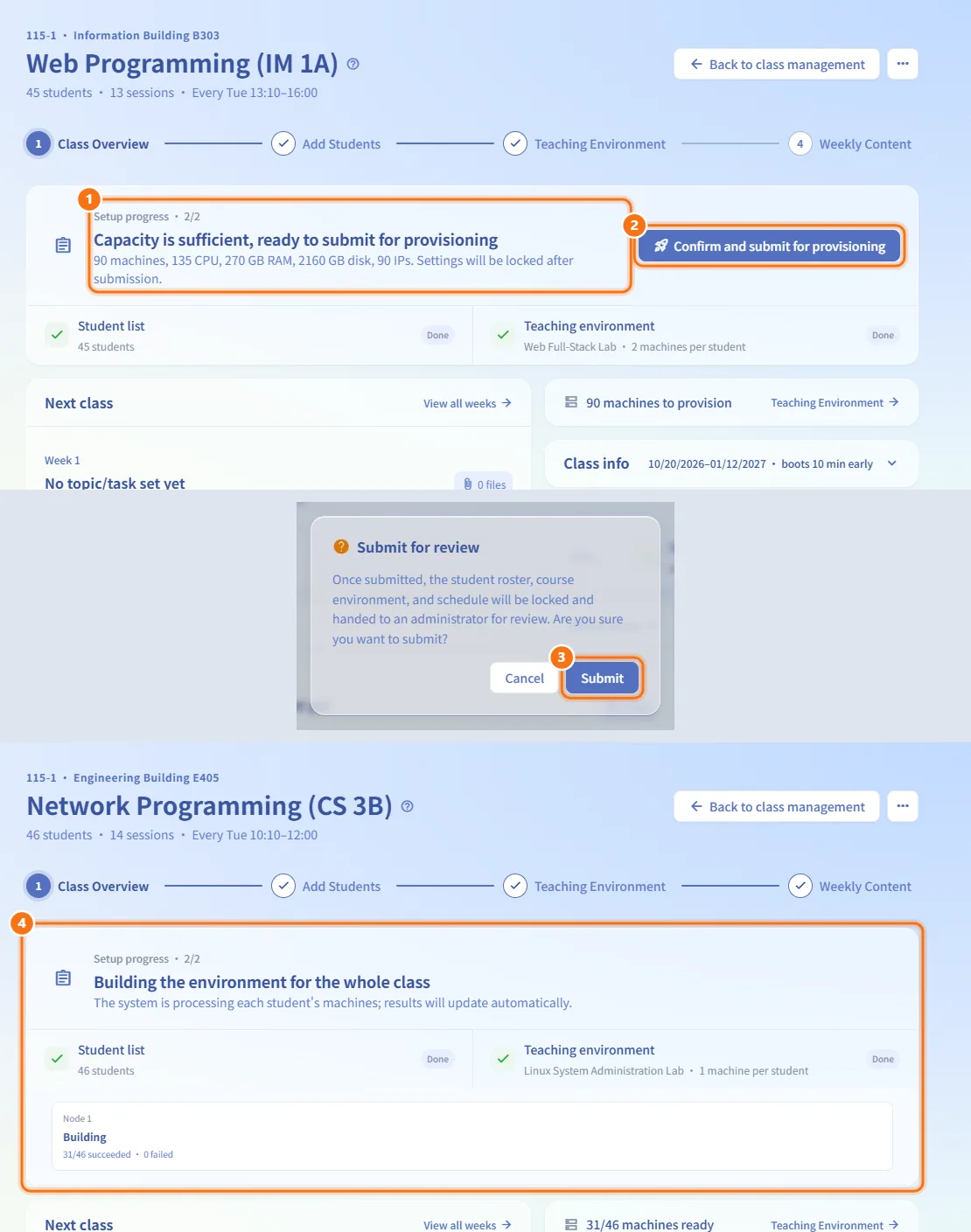
- Make sure the roster and the teaching environment are set. The status card runs a capacity check and shows the machines, CPU, memory, disk and IP addresses the class needs.
- If the check passes, click Confirm and submit for provisioning. If it does not pass, the card lists the issues and the button stays disabled.
- Confirm Submit for review. The roster, course environment and schedule are locked and the request goes to an administrator (see Class Review).
- After approval, the class shows Building the environment for the whole class until every machine is built.
Recover from a partly failed build
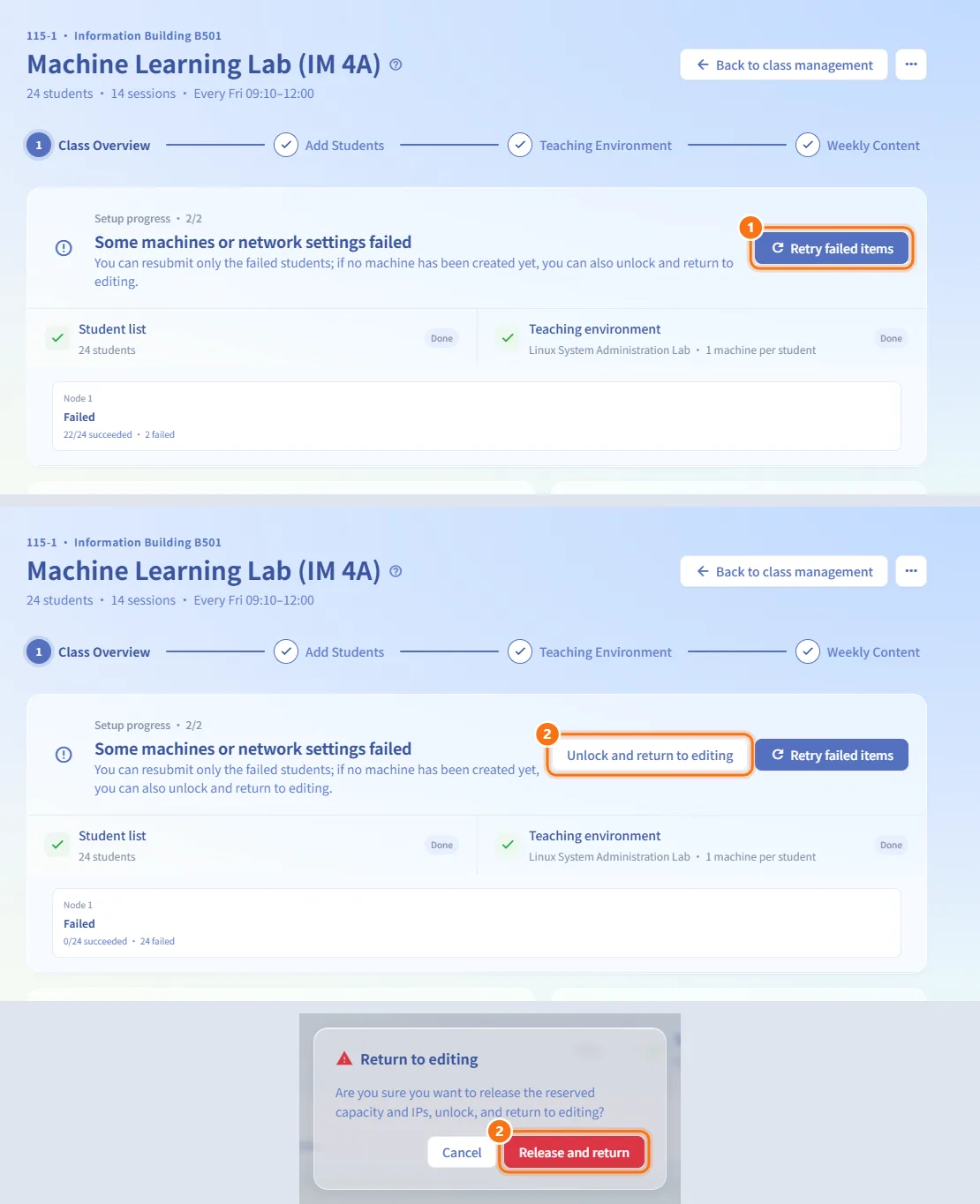
When the status card says Some machines or network settings failed:
- Click Retry failed items to resubmit only the students whose machines aren't complete. If the retry finishes the class, it becomes active.
- If no machine was created at all, you can instead click Unlock and return to editing and confirm Release and return. Reserved capacity and IP addresses are released and you can change the students, environment or schedule and submit again.
Edit weekly content
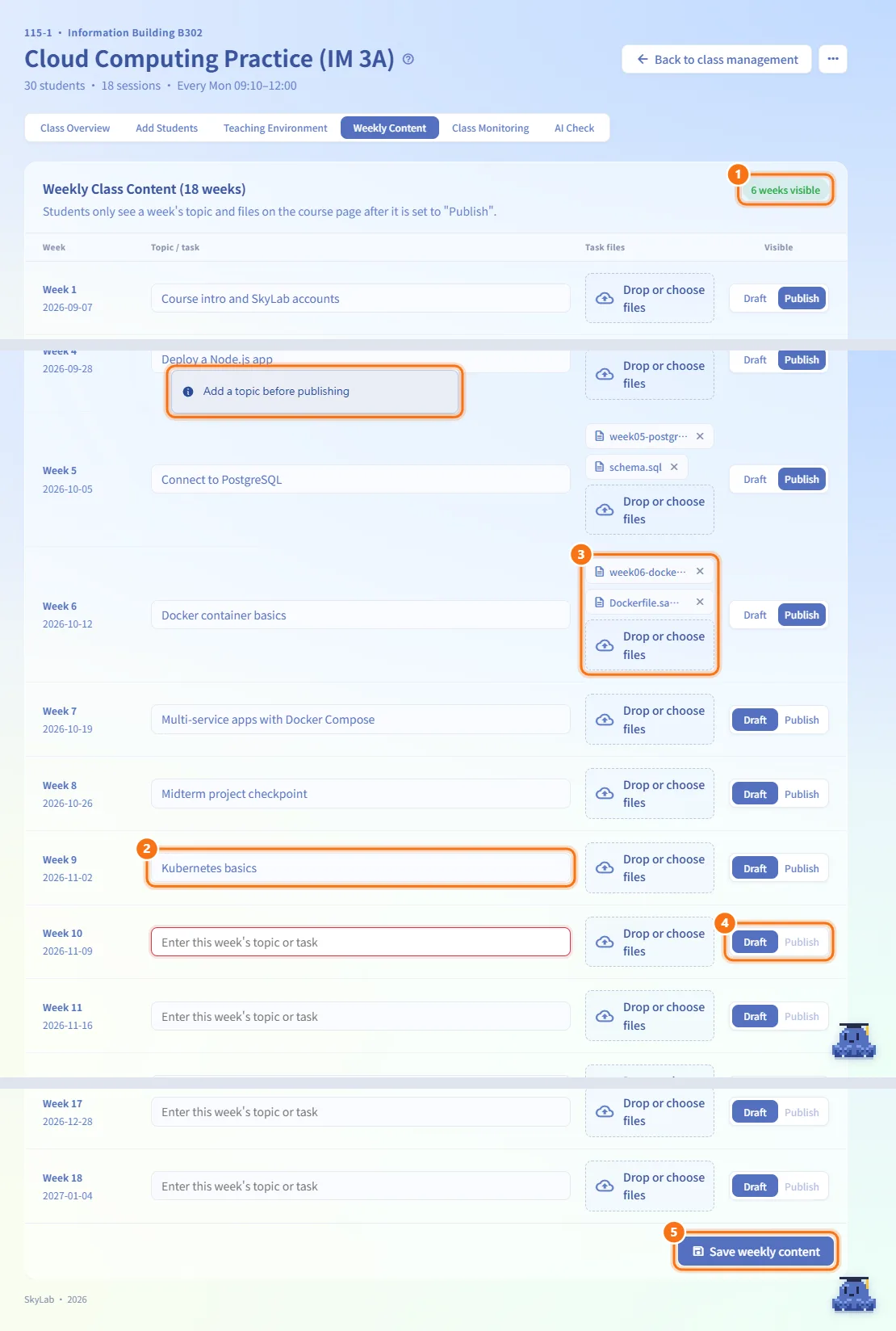
- Open Weekly Content. Every class session from the schedule is one row; the top right shows how many weeks students can currently see.
- Type the Topic / task for the week. This is the title students see on the course page.
- Drag files into Task files or click to choose them. Each file is saved to the server as soon as its upload finishes. Click × next to a file name to delete it immediately.
- Switch the week between Draft and Publish. Students only see a published week's topic and files. If the topic is empty when you click Publish, the topic field is highlighted and you are asked to add one first.
- Click Save weekly content. Topics and publishing status are stored only when you save; leaving without saving loses them (uploaded files are already stored).
Monitor the class
Class Monitoring is available only when the class is active. Before that, the tab shows a locked notice.
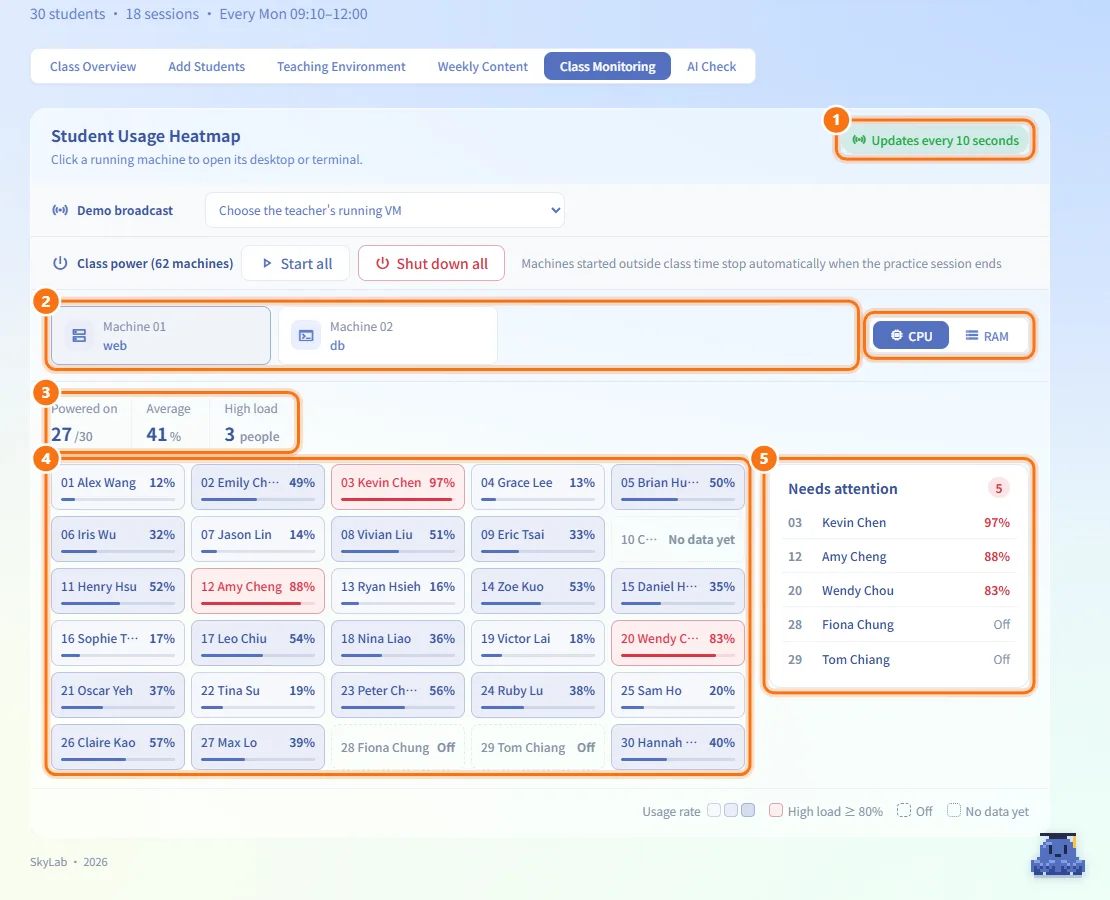
- The Student Usage Heatmap updates every 10 seconds. The badge at the top right shows Updates every 10 seconds, Loading live data or Update failed.
- If each student has several machines, choose the machine on the left (Machine 01, Machine 02, ...). Switch the metric between CPU and RAM on the right.
- The summary shows how many machines are Powered on, the Average usage and how many students are under High load.
- Each tile is one student (seat number and name). Darker means busier; light red is high load (80% or more); a dashed border means powered off; a dotted border means no data yet. Hover a tile to see the email, machine and value.
- The Needs attention list shows students under high load (highest first) and students whose machine is off while others are on. If every machine is off, it shows a single note instead.
Open a student's machine
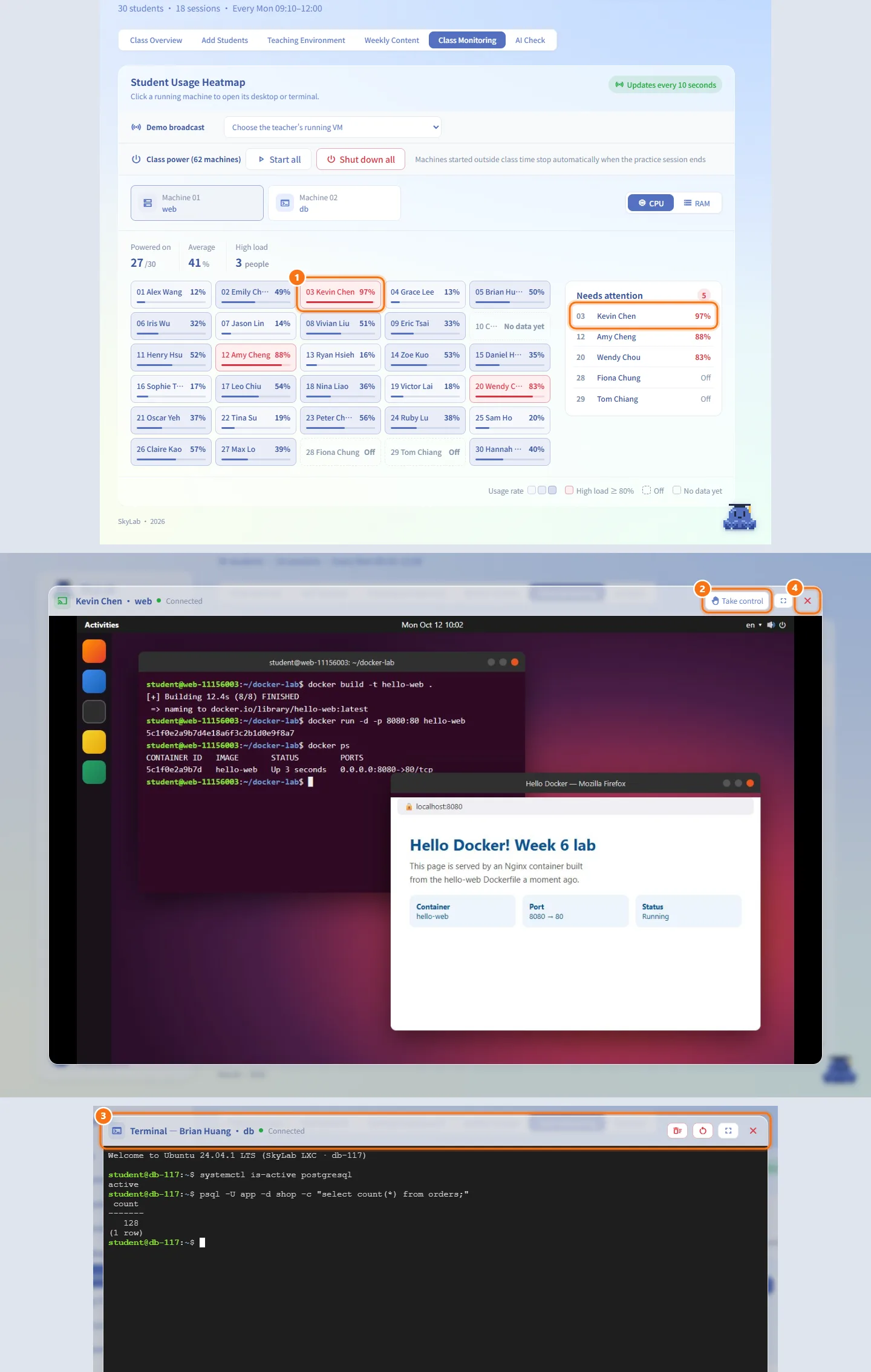
- In the heatmap or the Needs attention list, click a running student machine.
- For a VM, a live view of the student's desktop opens. Click Take control to use the keyboard and mouse on the student's screen, and Release control to give it back. Use Fullscreen if needed.
- For an LXC container, a terminal to the container opens.
- Close the window when you are done; control is released automatically when the view closes.
Broadcast a demo to the class
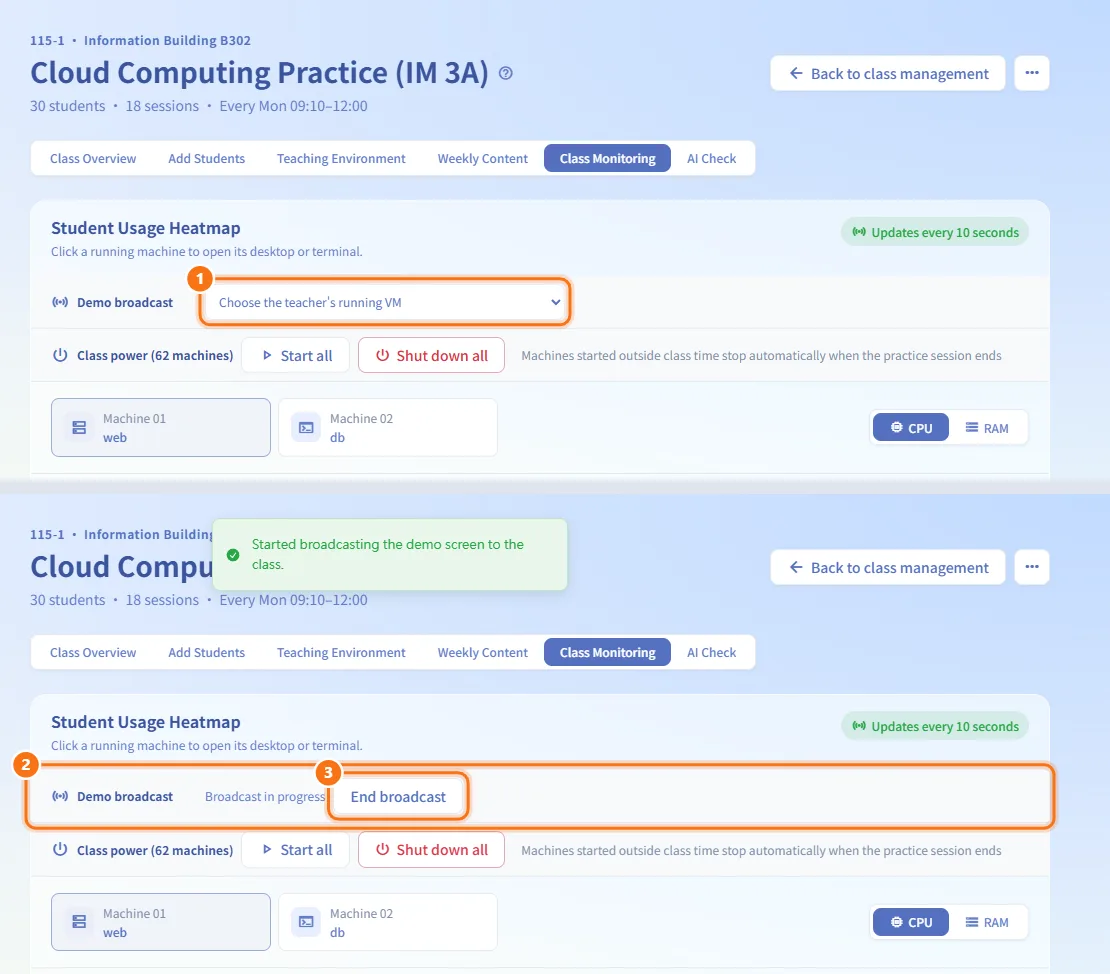
- In Demo broadcast, pick one of your own running VMs from the drop-down. If none is running, the drop-down says no VM is available.
- The VM's screen is broadcast to the class. The broadcast continues while you switch to other tabs.
- Click End broadcast to stop it.
Start or shut down the whole class
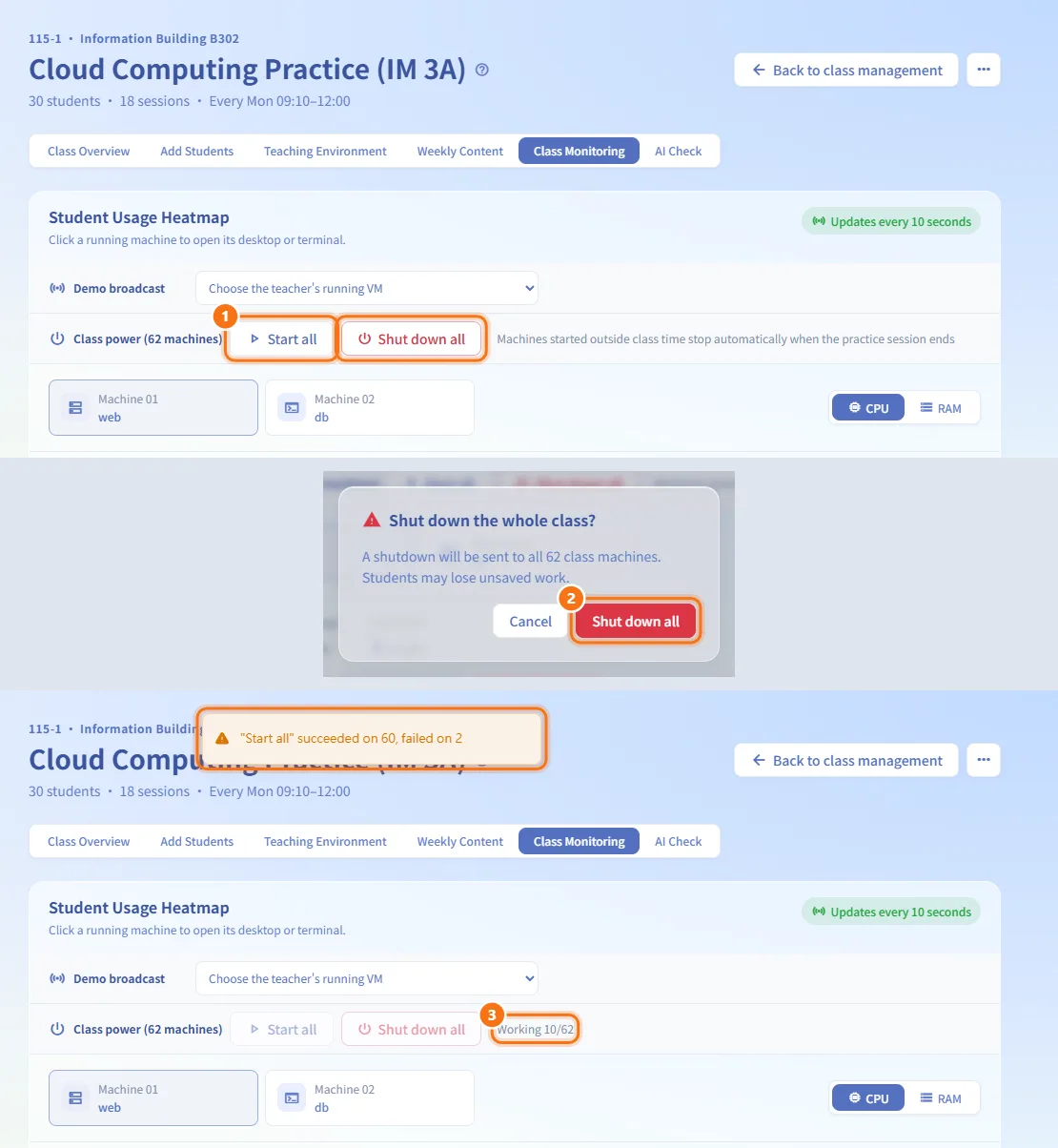
- In Class power, click Start all or Shut down all. The count includes every class machine, including your own teacher set.
- Shut down all asks for confirmation first, because students may lose unsaved work.
- The commands are sent in batches; progress is shown next to the buttons, and a notice reports how many succeeded or failed.
Extend the class
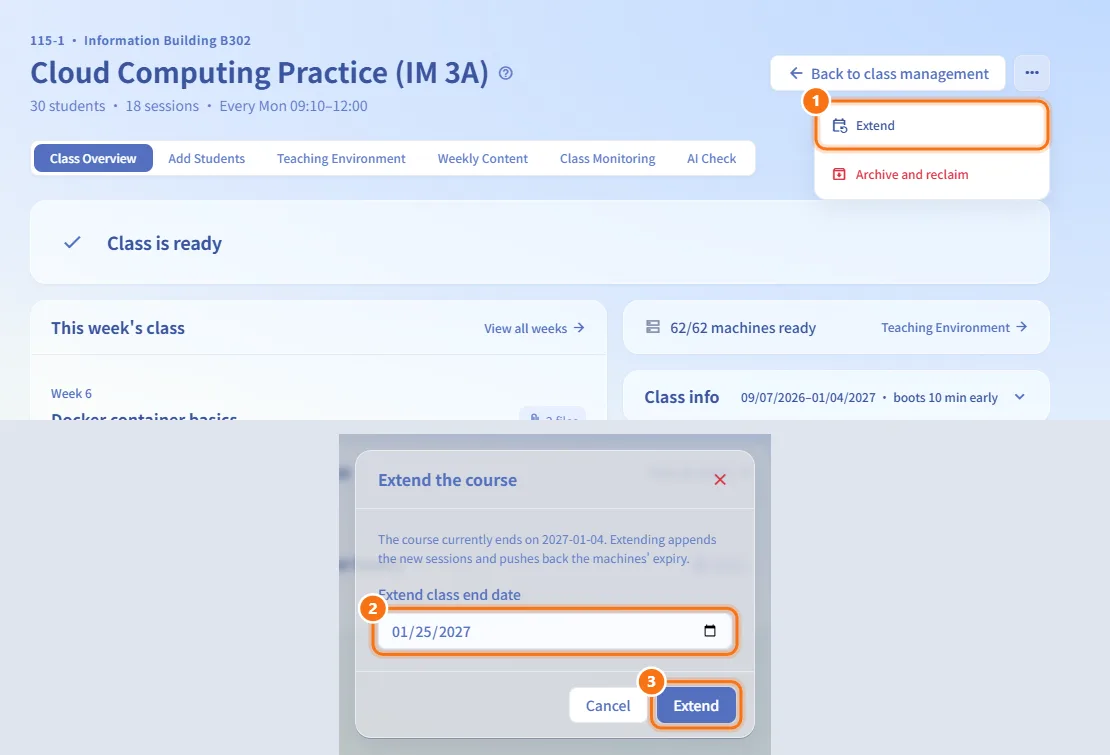
- Click ⋯ → Extend.
- In Extend the course, pick a new Extend class end date later than the current end date.
- Click Extend. New sessions are added to the schedule and the machines' expiry dates are pushed back to the new end date.
Archive the class and reclaim machines
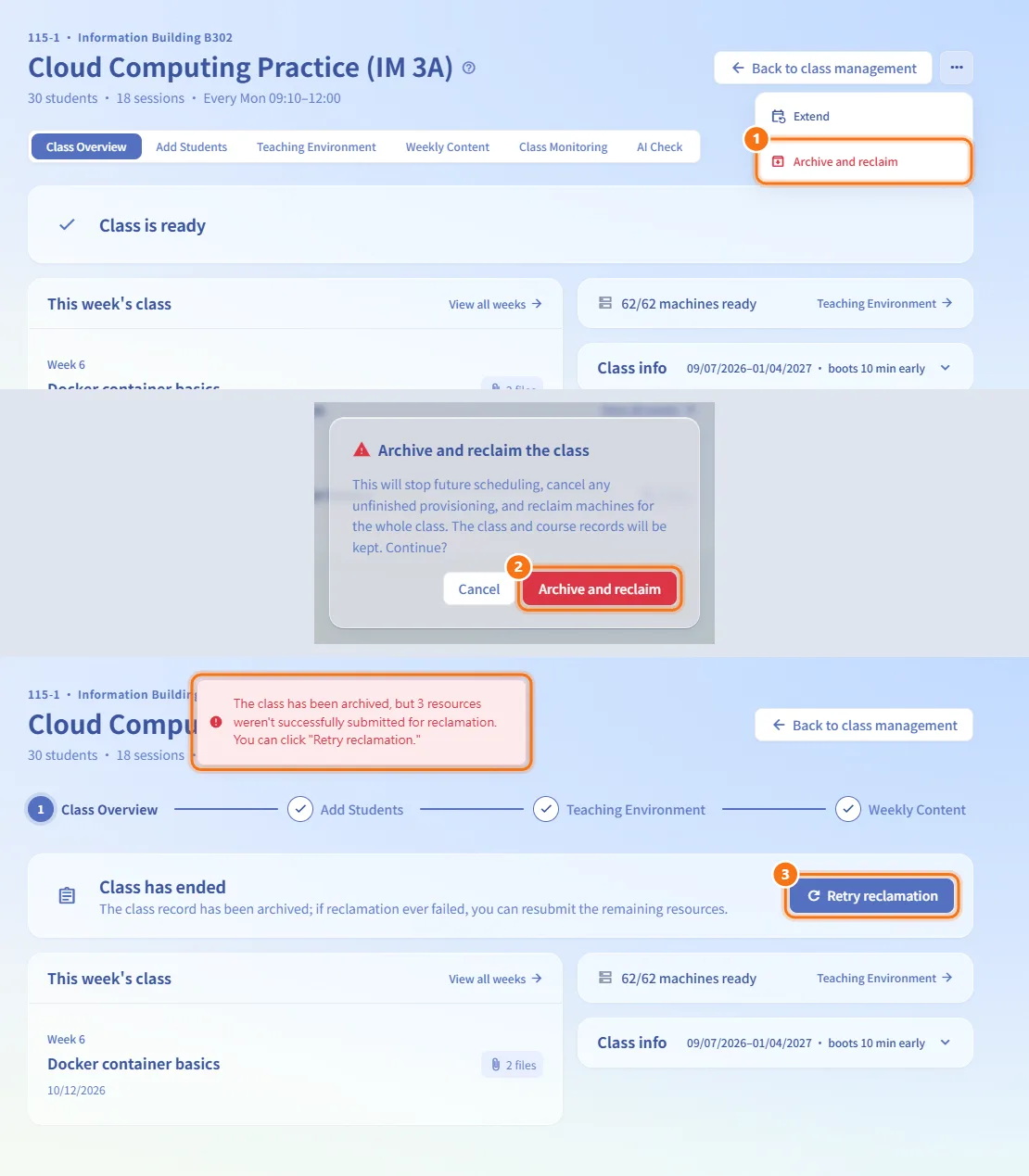
- Click ⋯ → Archive and reclaim.
- Confirm. Future scheduling stops, unfinished provisioning is cancelled and every machine in the class is reclaimed. The class and course records are kept.
- If some resources could not be submitted for reclamation, the status card shows Retry reclamation. Click it to resubmit the remaining resources.
After archiving, Weekly Content becomes read-only and the ⋯ menu disappears.
Fields and options
| Field | Meaning | Notes |
|---|---|---|
| Boot lead time | How early the class machines start before class | Options: Boot on time, 5, 10, 15 or 30 minutes early |
| Shutdown after class | Grace period before machines shut down after class | Options: At class end, 10, 30 or 60 minutes after |
| Emails (Add students) | Student emails, separated by commas or line breaks | Only registered student accounts are added |
| CSV file | First column: email or student ID | Maximum 1 MB; UTF-8 or Big5 |
| Group (Import from group) | A group set up by an administrator | Only its student accounts are added |
| Topic / task | Title of the week shown to students | Required before a week can be published |
| Task files | Files attached to the week | Up to 100 MB per file |
| Draft / Publish | Whether students can see the week | Saved with Save weekly content |
| Extend class end date | New end date | Must be later than the current end date |
Limits and behaviour to know
- Students can be added or removed only while the class is being set up. Submitting for provisioning locks the roster, the environment and the schedule.
- Edit class & schedule is only in the menu before you submit for provisioning; Extend and Archive and reclaim are available until the class is archived.
- The course period (start to end, including extensions) can be at most 104 weeks.
- Class Monitoring and AI Check open only after the class passes review and every student's machines are built.
- Start all and Shut down all work only while the class is active. Machines started outside class time shut down automatically when the practice time is up.
- While a class is waiting for review or provisioning, the page refreshes itself every few seconds.
- A live view of a student's machine is closed on the server when you close the window or leave the page.
Related
- Class Management — the list of your classes
- Class setup — create a new class
- Teaching Environments — build and publish the course environment a class uses
- AI Check — the class's AI Check tab
- Class Review — where administrators approve class provisioning
- Courses — what students see for their classes
- Multi-machine environment SOP — designing multi-machine teaching environments