
My Requests
My Requests is where you ask for a personal VM or container and follow every request you have made: its review, its creation, and the spec change and expiry extension requests for your existing machines. Sidebar: Resources → My Requests. Path: /my-requests.
Who can use it
Every signed-in user. The form differs slightly by role:
- Students always submit a scheduled request with a start and end time, and every request is reviewed by an administrator.
- Teachers and administrators also choose a Request Mode: Scheduled Mode (reviewed like a student's) or Immediate Mode, which is approved automatically and starts creating the machine right after you submit. They also see VM templates and container templates in the operating system list, and the VMID of created machines.
- Only administrators see the View error log icon on failed requests.
Class and course machines are assigned by your teacher; you do not request them here.
Before you start
- Check your remaining quota on My Resources. The form will not let you ask for more than what is left, and the number of machines includes requests still waiting for review. Administrators have no quota.
- Have a short reason ready (at least 10 characters) that tells the reviewer what the machine is for.
- If you are unsure what to ask for, open the AI assistant at the bottom right and describe your goal. It can fill the form for you; you still review every field and enter the username and password yourself.
Step by step
Open the request form
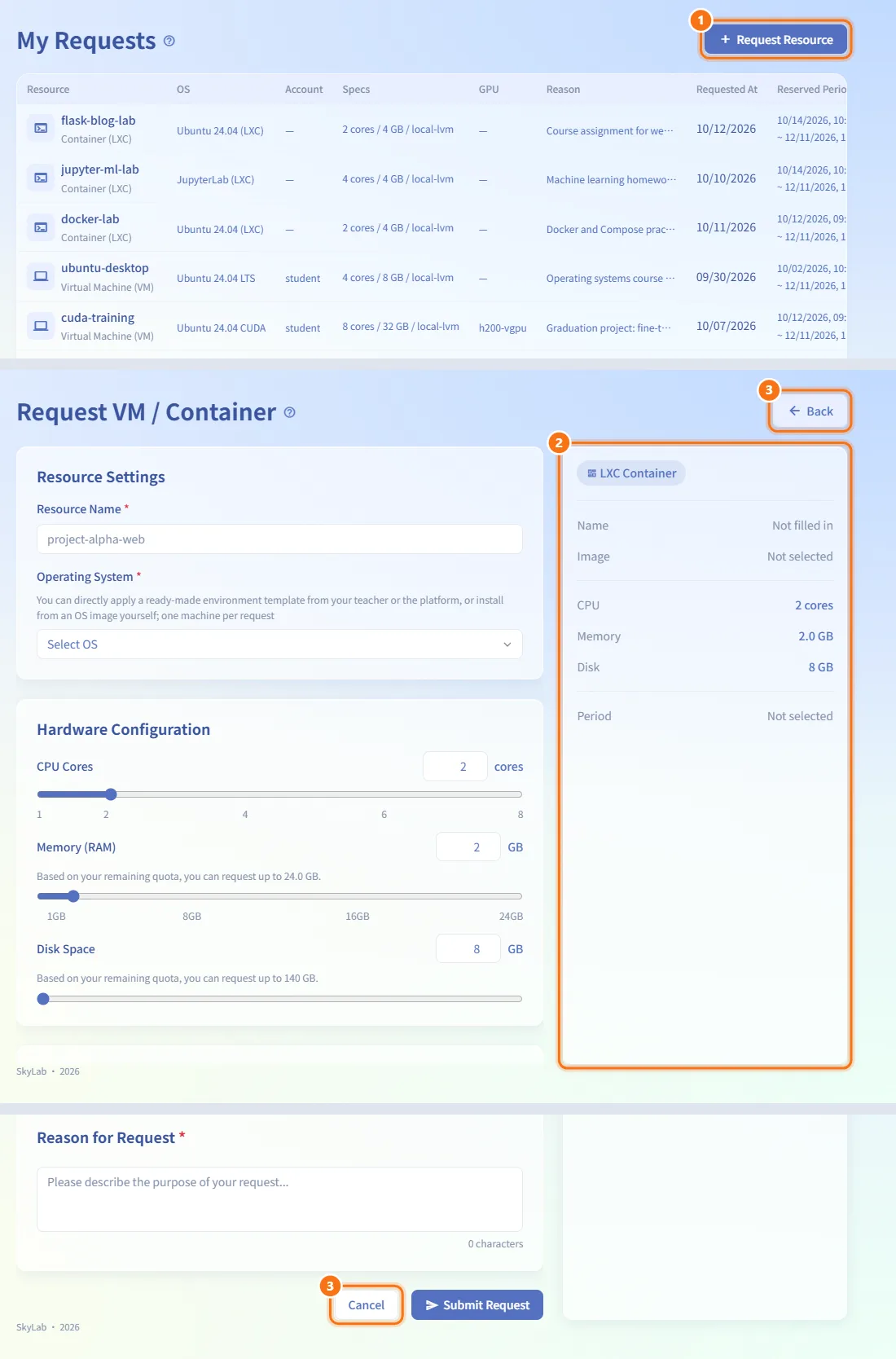
- Click Request Resource at the top right (or Request Now when you have no requests yet). Request Resource on My Resources opens the same form.
- The Request VM / Container form opens, with a summary card on the right that updates as you fill it.
- To leave without submitting, click Back or Cancel.
Name the machine and choose an operating system
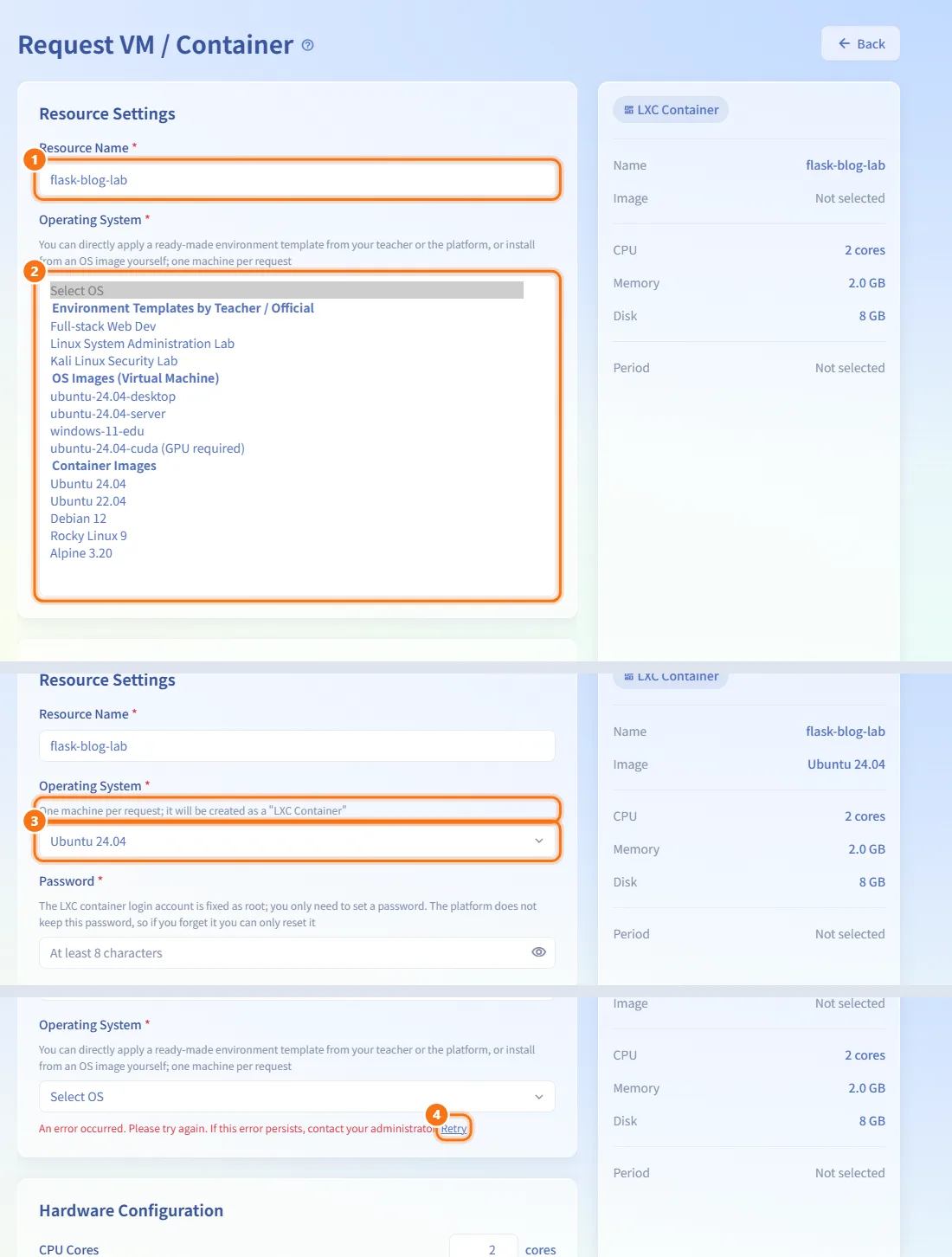
- Enter a Resource Name. Only lowercase letters, digits and hyphens are allowed, and it cannot start or end with a hyphen; other characters are turned into hyphens when you leave the field (up to 63 characters).
- Open Operating System and pick one entry. The list is grouped:
- Environment Templates by Teacher / Official (students only): ready-made environments; once created they are ready to use. The hint under the field shows the template's description and recommended specs.
- OS Images (Virtual Machine) (teachers and administrators see VM Templates): a VM with a fresh operating system.
- Container Templates (Clone): teachers and administrators only.
- Container Images: an LXC container with a fresh operating system.
- Your choice decides whether a Virtual Machine or an LXC Container is created ("One machine per request; it will be created as …"). Entries marked (GPU required) need a GPU.
- If the list fails to load, click Retry under the field.
Before you pick an operating system, the platform suggests VM or container from your reason and specs; once you pick one, the operating system decides.
Set the login account and password
The fields appear after you choose an operating system.
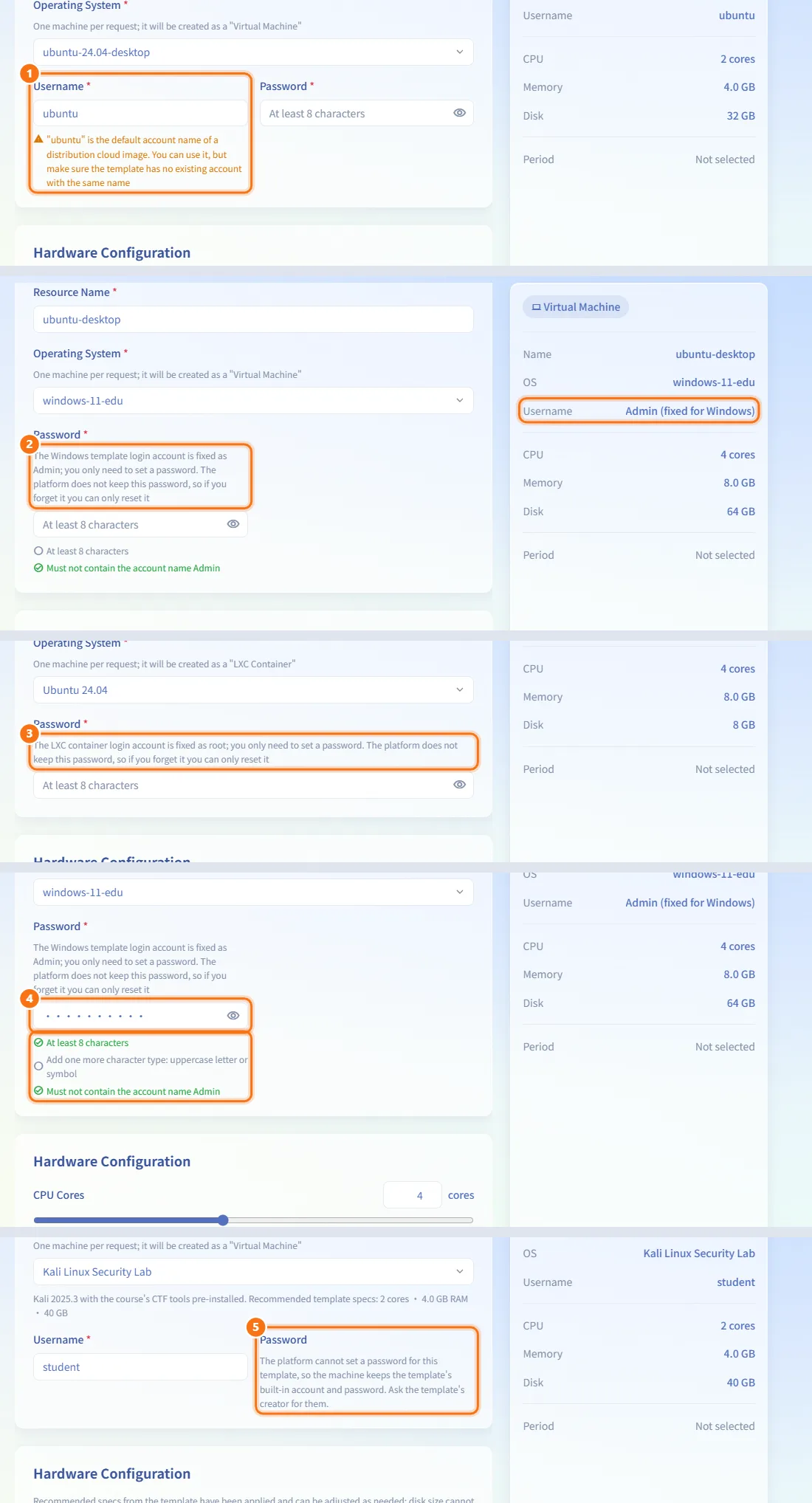
- VM (Linux): enter a Username (for example
student). It is checked against the naming rules as you type; errors block the request, warnings are only advice. - VM (Windows): there is no username field. The account is always Admin.
- Container: there is no username field. The account is always root.
- Enter a Password (at least 8 characters). For Windows, a checklist shows the extra rules: at least 8 characters, at least three of uppercase letters, lowercase letters, numbers and symbols, and it must not contain "Admin".
- If the template cannot have its password set by the platform, the form says so and asks for no password: the machine keeps the template's built-in account and password, which you get from the template's creator.
The platform does not keep the password you choose. If you forget it, you can only reset it from the machine's detail page.
Choose CPU, memory and disk
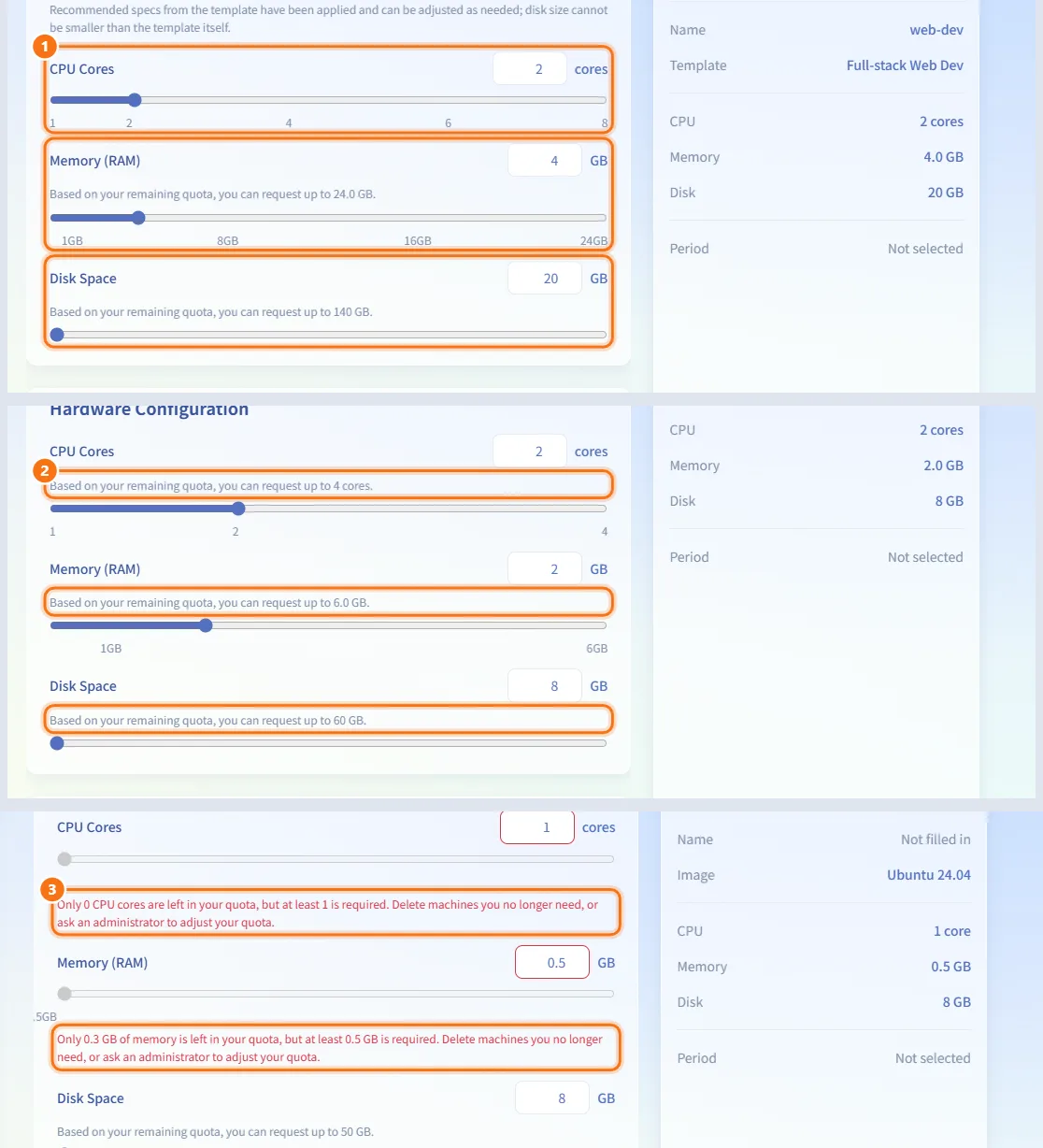
- Under Hardware Configuration, set CPU Cores, Memory (RAM) and Disk Space with the sliders or the number boxes. A template fills in its recommended specs first.
- When your remaining quota is the limit, the hint reads "Based on your remaining quota, you can request up to …". The sliders cannot go further.
- If your quota cannot cover even the minimum, a red message explains which part is short. Free up a machine or ask an administrator to adjust your quota.
Choose a GPU (when required)
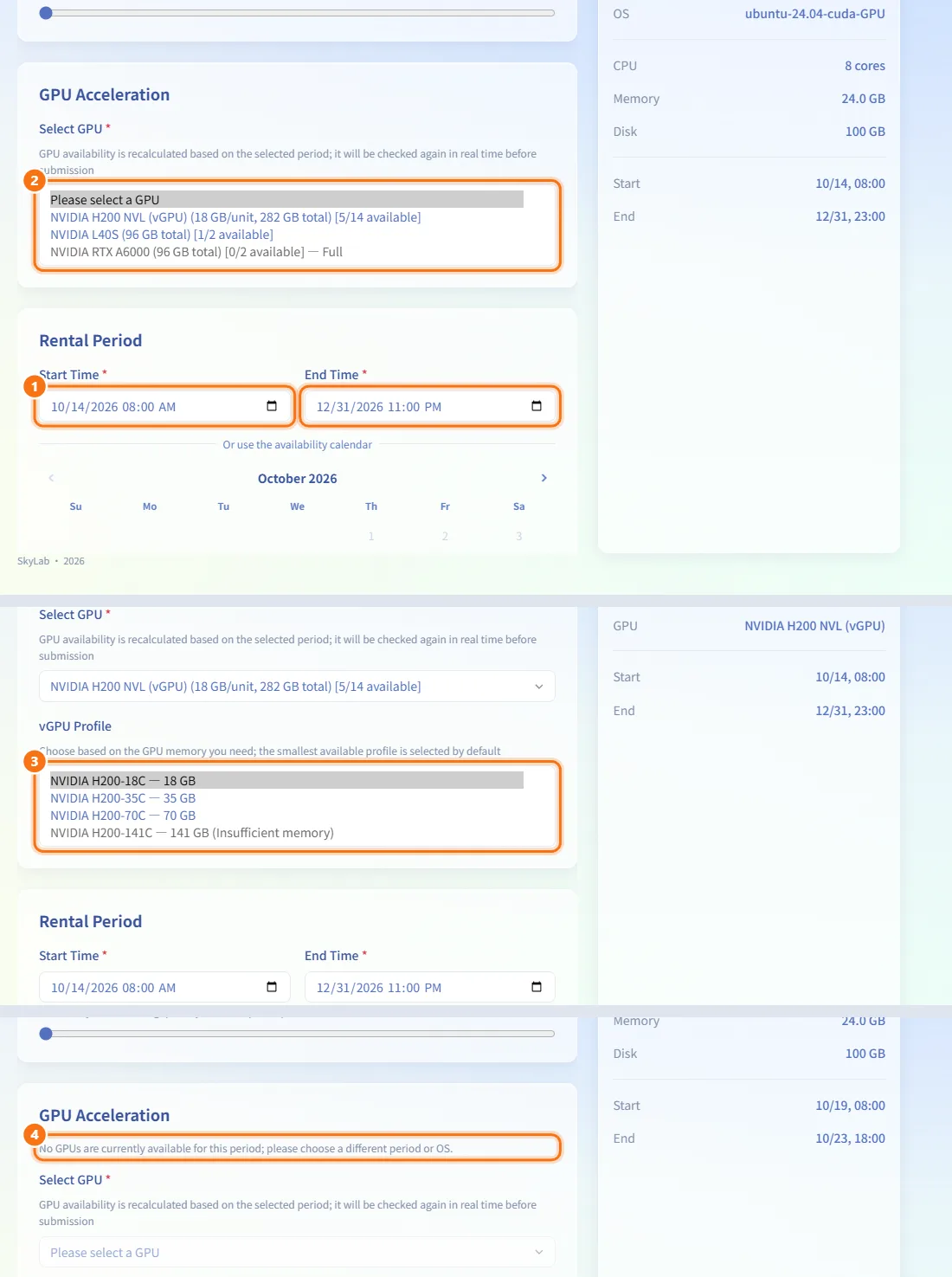
The GPU Acceleration section appears only for a VM whose operating system is marked (GPU required) or whose template requires a GPU.
- Choose the rental period first; GPU availability is calculated for that period.
- Pick a GPU under Select GPU. Each entry shows its memory and "[available/total available]"; full GPUs cannot be selected.
- If the GPU offers several sizes, pick a vGPU Profile. The smallest one that can be created is selected by default.
- If no GPU is free in that period, choose another period or operating system.
Set the rental period
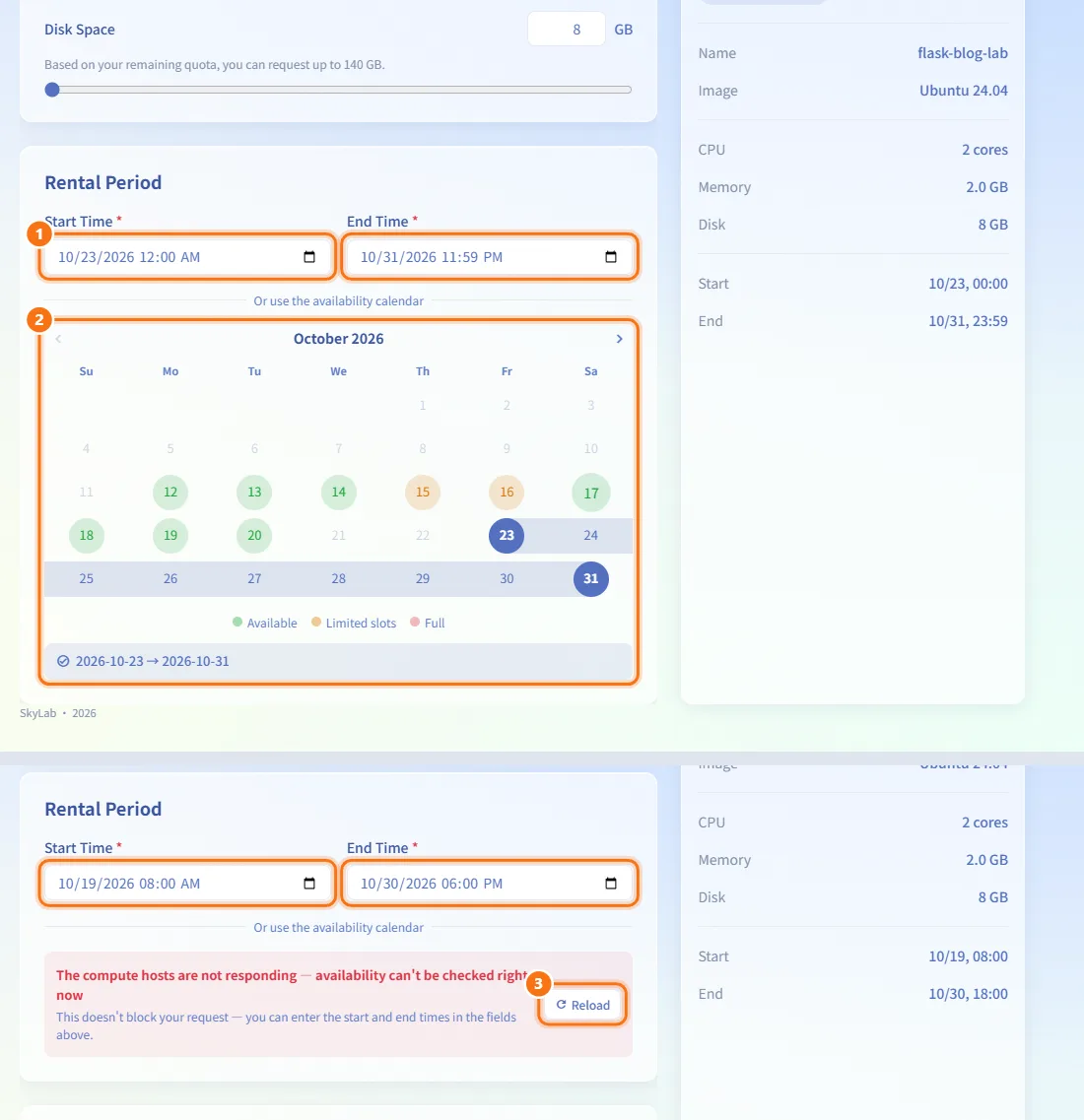
- Under Rental Period, enter a Start Time and an End Time, both within the next three months.
- Or use the availability calendar below the fields: it marks days as Available, Limited slots or Full for the specs you chose. Click a date to pick a single day, then click another date to extend the range.
- If the calendar cannot load, you can still type the times in the fields.
Teachers and administrators in Immediate Mode see Immediate Mode Settings instead: no start time, and either No end date or an End Time.
Explain the reason and submit
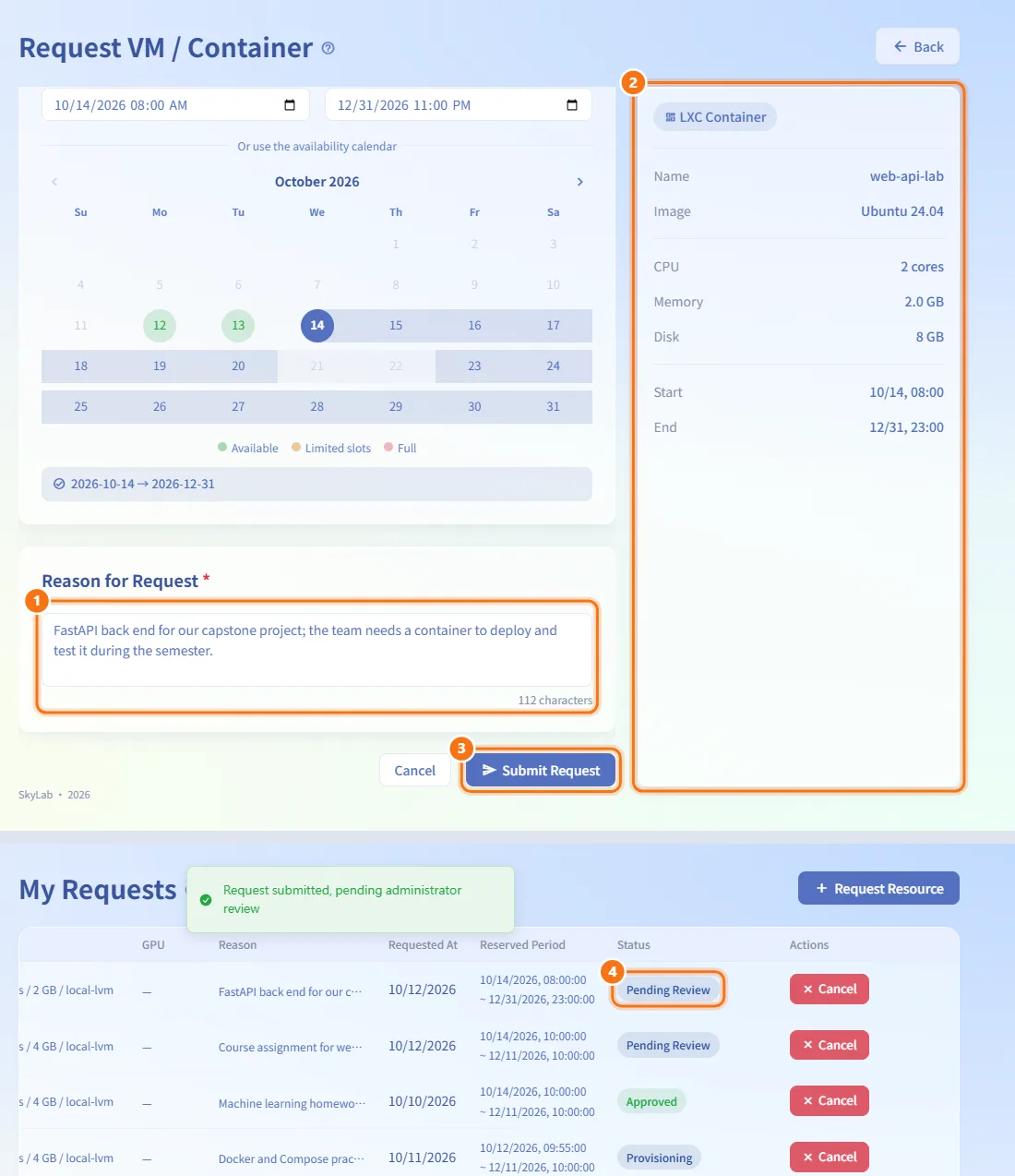
- Under Reason for Request, describe what the machine is for (at least 10 characters). The character count is shown below the box.
- Check the summary card on the right: type, name, operating system, username, cores, memory, disk and period.
- Click Submit Request. Before sending, the platform checks again that the GPU is still free and that the period has enough capacity; if not, a message asks you to choose another period or adjust the specs.
- You return to the list, where the request shows Pending Review.
Follow a request
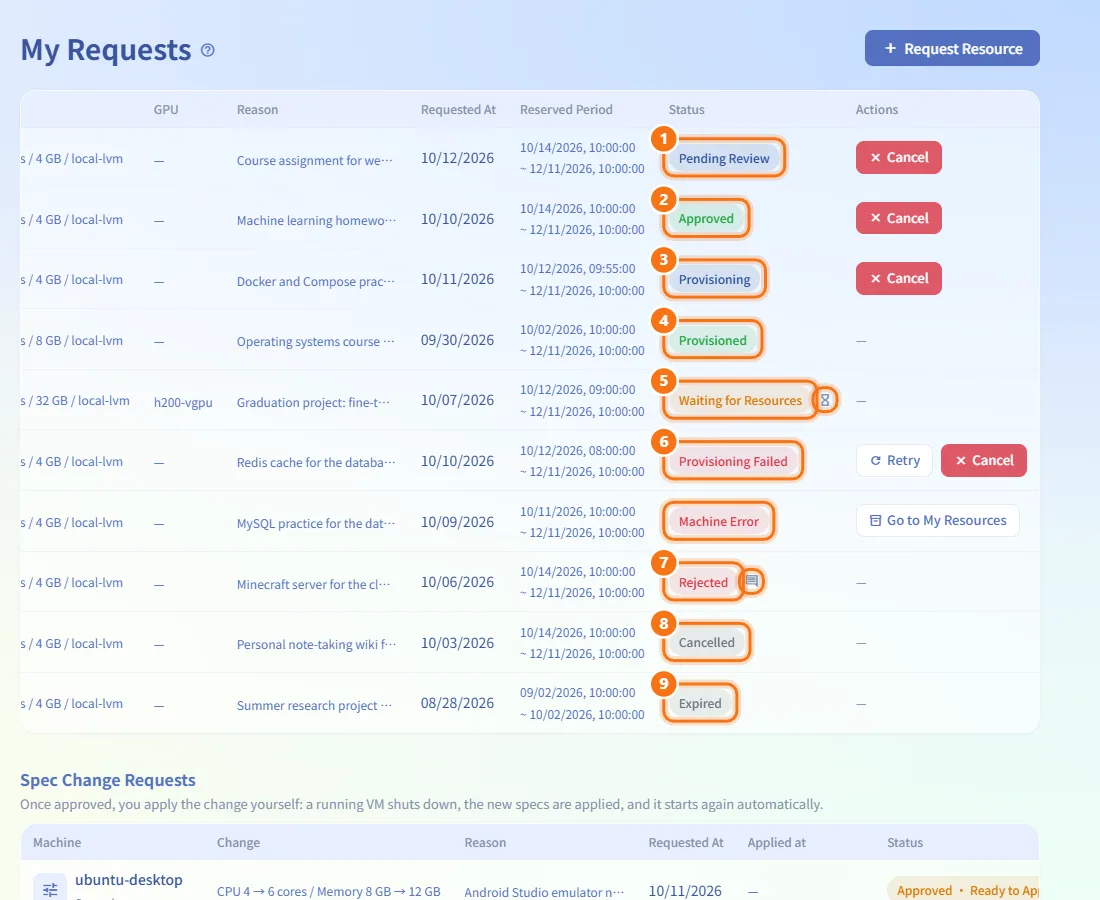
The table lists every request with Resource, OS, Account, Specs, GPU, Reason, Requested At, Reserved Period, Status and Actions. It refreshes by itself.
- Pending Review: waiting for an administrator.
- Approved: approved; the machine will be created when the period starts.
- Provisioning: the machine is being created.
- Provisioned: the machine exists. Use it from My Resources.
- Waiting for Resources: the machine exists but cannot start yet (for example, not enough GPU memory). The platform keeps trying; hover over the hourglass icon to read why.
- Provisioning Failed / Machine Error: see "Retry a failed creation" below.
- Rejected: hover over the comment icon next to the status to read the reviewer's note.
- Cancelled: you (or the system) cancelled it.
- Expired: the period ended before the request was approved or before a machine was created.
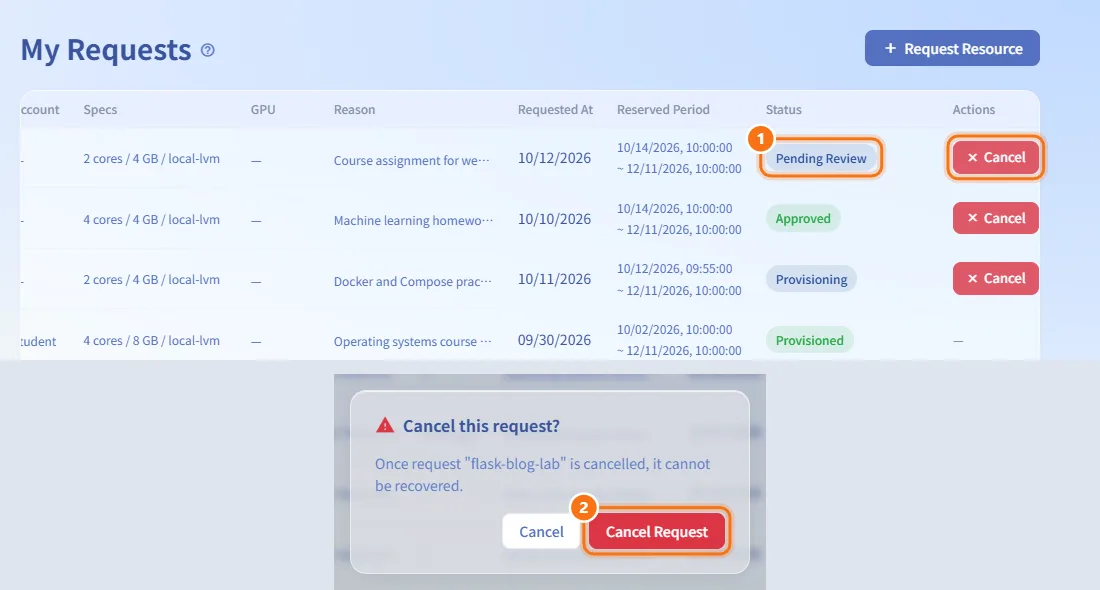
Cancel a request
- Click Cancel in the Actions column.
- Confirm Cancel Request. A cancelled request cannot be recovered.
You can cancel while a request is pending, or approved but not yet created. Once the machine exists, delete the machine on My Resources instead; that also closes the request.
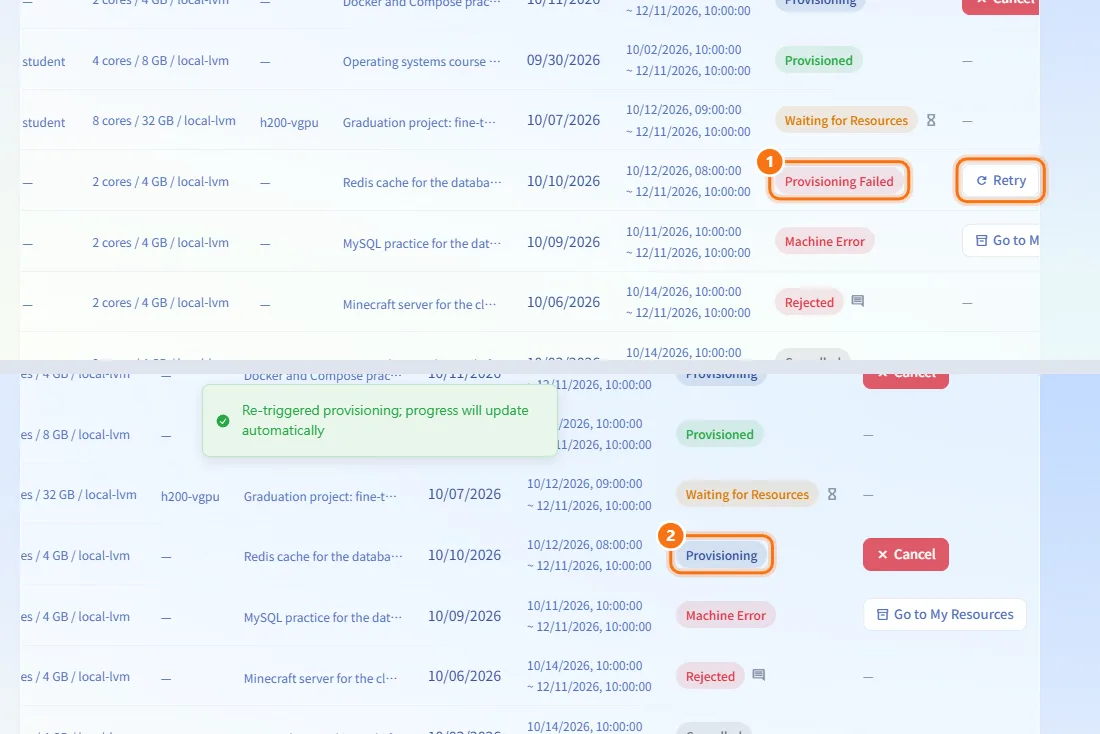
Retry a failed creation
- A request showing Provisioning Failed has a Retry button.
- Click it; creation starts again and the status updates by itself.
If the status is Machine Error, the machine was created but something went wrong afterwards. Retry is not possible: click Go to My Resources and start or delete the machine there.
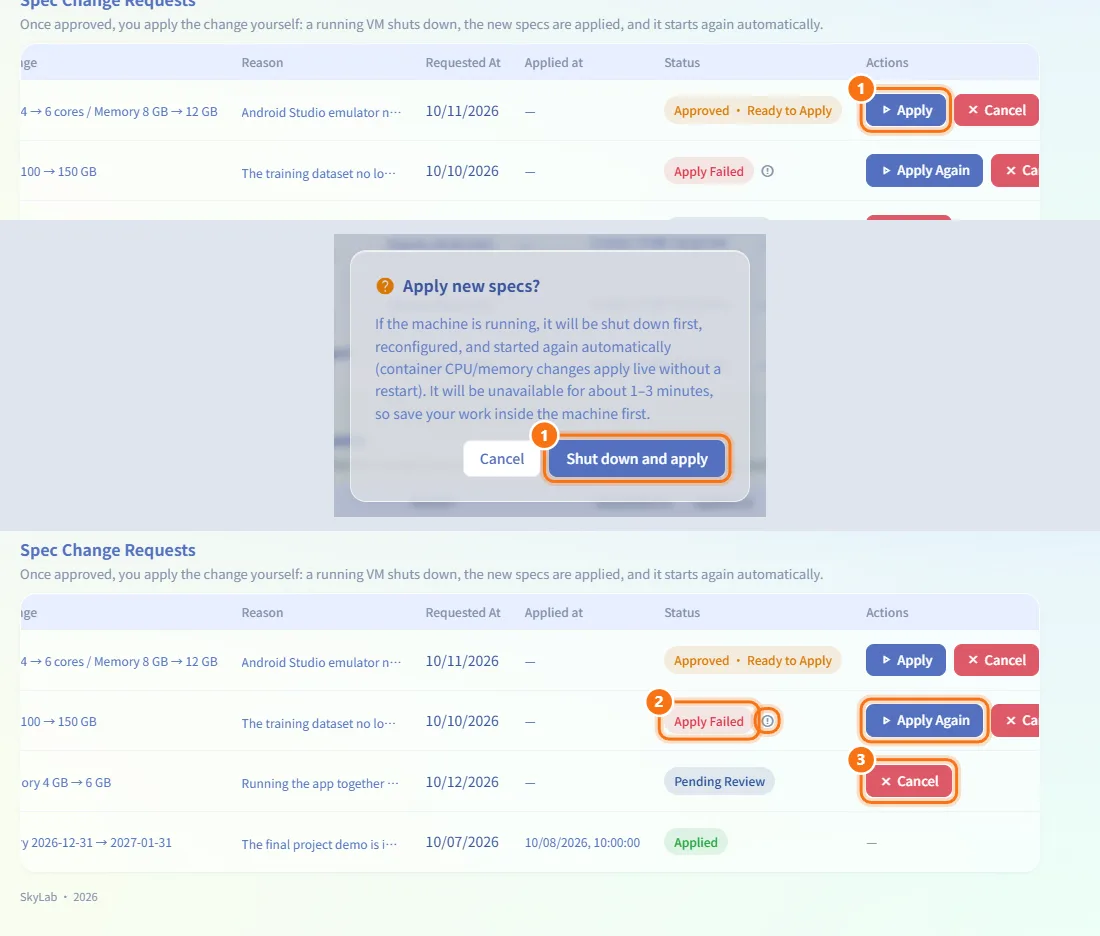
Apply or cancel a spec change
When you have spec change or expiry extension requests, a second table, Spec Change Requests, lists them with Machine, Change (for example "CPU 2 → 4 cores" or "Expiry … → …"), Reason, Requested At, Applied at, Status and Actions.
- When a spec change shows Approved · Ready to Apply, click Apply and confirm Shut down and apply. A running VM shuts down, gets the new specs and starts again (about 1–3 minutes); container CPU and memory change live.
- If it shows Apply Failed or Apply Interrupted, hover over the icon to read why, then click Apply Again.
- Click Cancel to withdraw a request that is pending or approved but not applied yet.
An approved expiry extension takes effect immediately and shows Applied. If the machine was deleted, its open request is cancelled automatically (the info icon says so).
Fields and options
| Field | Meaning | Notes |
|---|---|---|
| Request Mode | Scheduled Mode or Immediate Mode | Teachers and administrators only; students are always scheduled |
| Resource Name | The machine's hostname | Required; lowercase letters, digits, hyphens; up to 63 characters |
| Operating System | Template or image to build from | Required; decides VM or container |
| Username | Linux VM login account | Required for Linux VMs; follows the naming rules. Windows uses Admin, containers use root |
| Password | Login password you choose | Required unless the template keeps its own; 8–128 characters; Windows rules on Windows |
| CPU Cores | Number of cores | 1–8, capped by remaining quota |
| Memory (RAM) | Memory in GB | 0.5–32 GB in 0.5 GB steps, capped by remaining quota |
| Disk Space | Disk in GB | Container from 8 GB, VM from 20 GB (or the template's own size), up to 500 GB, capped by remaining quota |
| Select GPU / vGPU Profile | GPU for the period | Only when the operating system or template requires a GPU |
| Start Time / End Time | Rental period | Required in Scheduled Mode; within the next three months; end after start |
| No end date | Immediate request without an end | Immediate Mode only |
| Reason for Request | Purpose for the reviewer | Required; at least 10 characters |
Limits and behaviour to know
- Scheduled requests are always reviewed by an administrator. Teachers' and administrators' Immediate Mode requests are approved automatically and created at once.
- When an approved request's start time arrives, the platform creates the machine and starts it; on My Resources it appears first as a Scheduling / Provisioning row.
- When the end time passes, the machine is shut down and cannot be started again, but it is not deleted. To keep using it, request an extension on the machine's detail page (Advanced Settings › Lifecycle) or submit a new request.
- A request still pending, or approved but never created, when its period ends becomes Expired.
- Requests whose machine was deleted or converted to a template are no longer listed.
- You can submit at most 20 requests per minute.
Related
- My Resources — use the machines your requests created
- Resource Detail — request spec changes and extensions, reset a forgotten password
- Request Review — how administrators review requests
- Quick Practice — ready-made practice environments with no review
- Concepts — VMs, containers, quotas and time windows