
LDAP
The LDAP page configures sign-in with LDAP or Active Directory accounts. Once enabled, the login page gains a "Campus Account" tab where users sign in with their school directory username and password. Sidebar: Admin Settings → LDAP. Path: /ldap.
Who can use it
Administrators only.
Before you start
- The address of the directory server (
ldap://orldaps://). - A service account (Bind DN and password) that is allowed to search for users.
- The Base DN under which user entries live, and the attribute users type as their username (for example
sAMAccountNamein Active Directory oruidin OpenLDAP). - Optionally, the DNs of the groups whose members should become teachers or administrators.
- For
ldaps://or StartTLS with a self-signed certificate or a private campus CA, the CA must be configured on the server first (LDAP_CA_CERT_FILE); see LDAP / Active Directory over TLS in the deployment guide.
Step by step
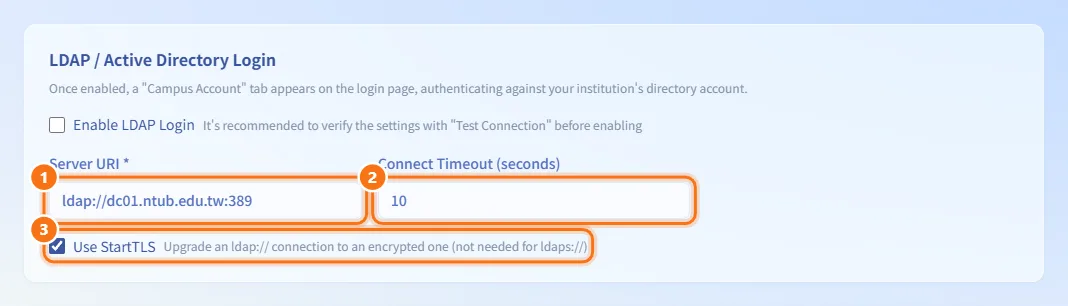
Set the server address
- In the LDAP / Active Directory Login card, enter **Server URI *** (for example
ldap://dc.example.edu:389or anldaps://address). - Adjust Connect Timeout (seconds) if needed.
- With an
ldap://address, tick Use StartTLS to encrypt the connection; anldaps://address does not need it.
Set the service account and user search
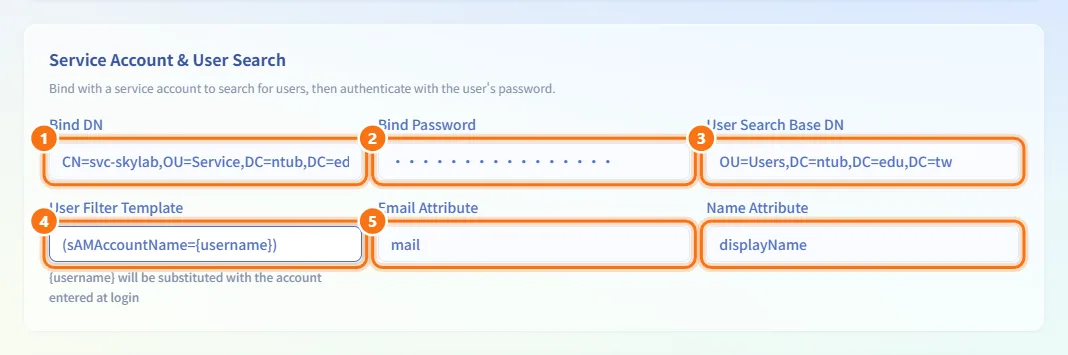
- In the Service Account & User Search card, enter Bind DN (for example
CN=svc-skylab,OU=Service,DC=example,DC=edu). - Enter Bind Password. When a password is already stored, the field shows "Configured (leave blank to keep unchanged)"; leave it blank to keep it.
- Enter User Search Base DN (for example
OU=Users,DC=example,DC=edu). - Enter User Filter Template, such as
(sAMAccountName={username})or(uid={username}).{username}is replaced with the username typed at sign-in. - Enter Email Attribute (for example
mail) and Name Attribute (for exampledisplayName).
The platform first binds to the directory with the service account, searches for the user under the Base DN with the filter, and then verifies the password the user entered.
Set account creation and role mapping
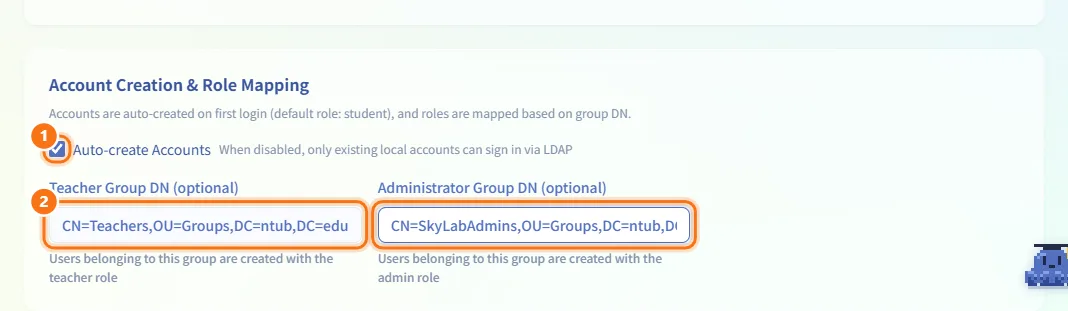
- In the Account Creation & Role Mapping card, tick Auto-create Accounts if people should get an account automatically on their first LDAP sign-in.
- Optionally enter Teacher Group DN (optional) and Administrator Group DN (optional).
New accounts are students by default. Members of the teacher group become teachers, and members of the administrator group become administrators (the administrator group wins if a user is in both). Group DNs are compared in full, ignoring case.
Test the settings
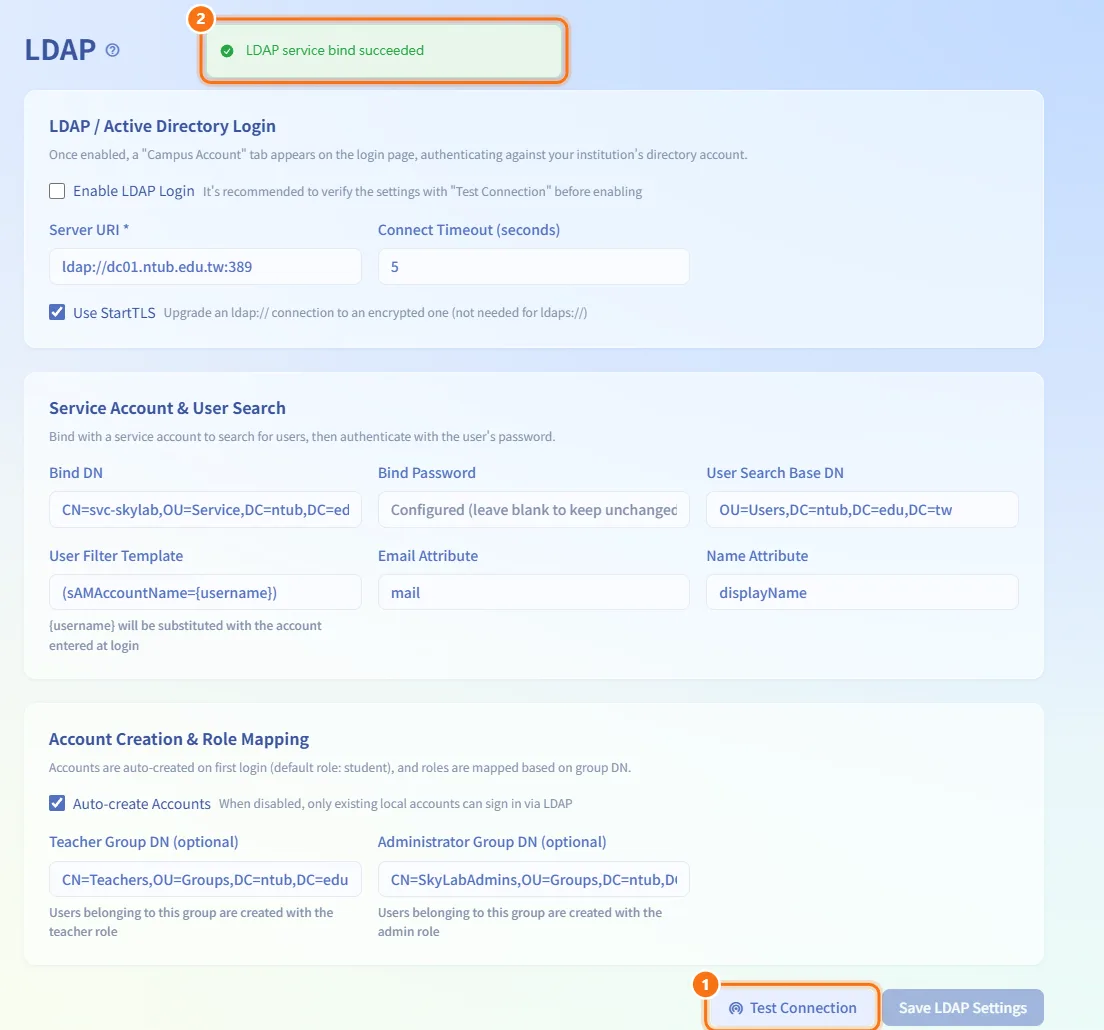
- Click Test Connection.
- A notice reports whether the service account could bind to the directory.
The test uses the values currently in the form, including unsaved changes, and saves nothing.
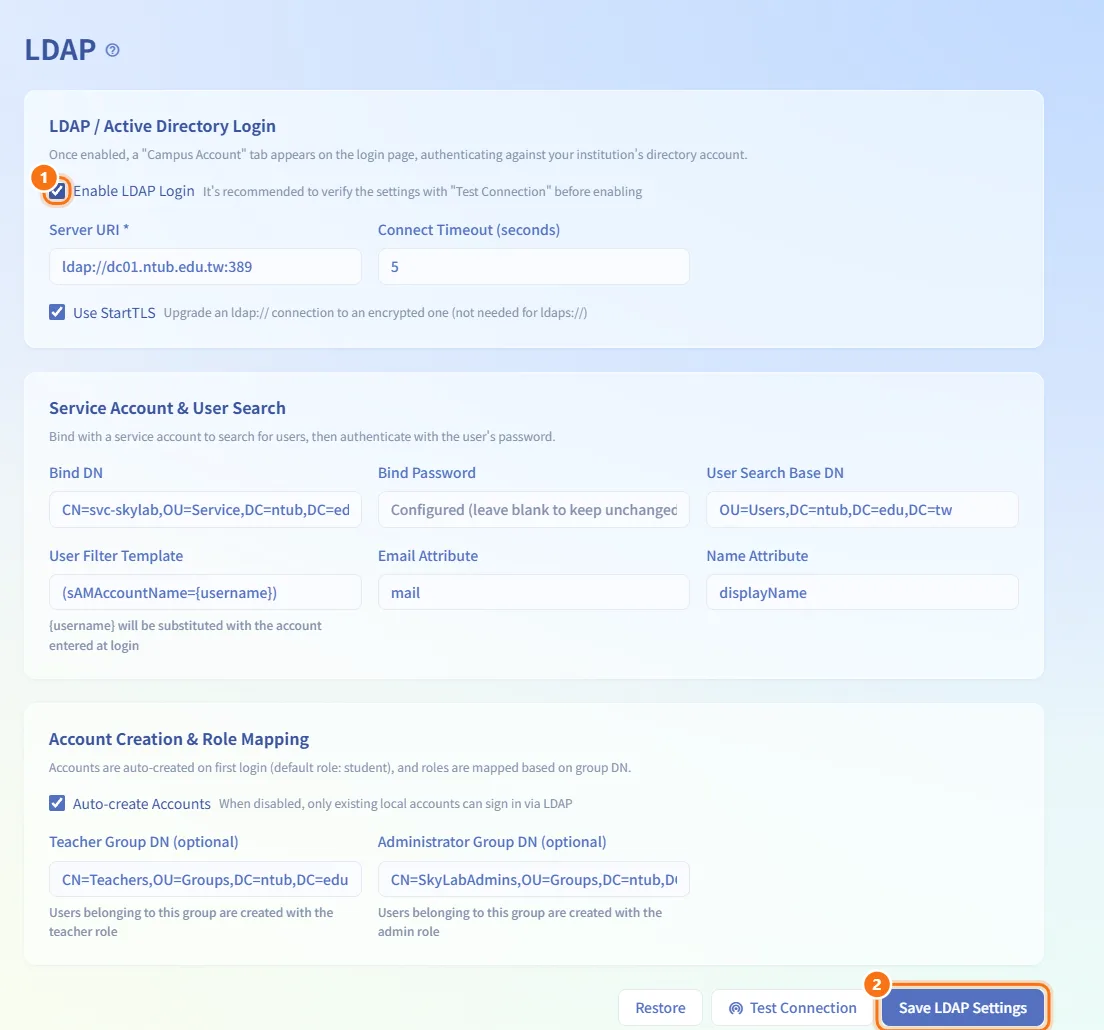
Enable LDAP sign-in
- After a successful test, tick Enable LDAP Login in the first card.
- Click Save LDAP Settings.
Discard unsaved changes
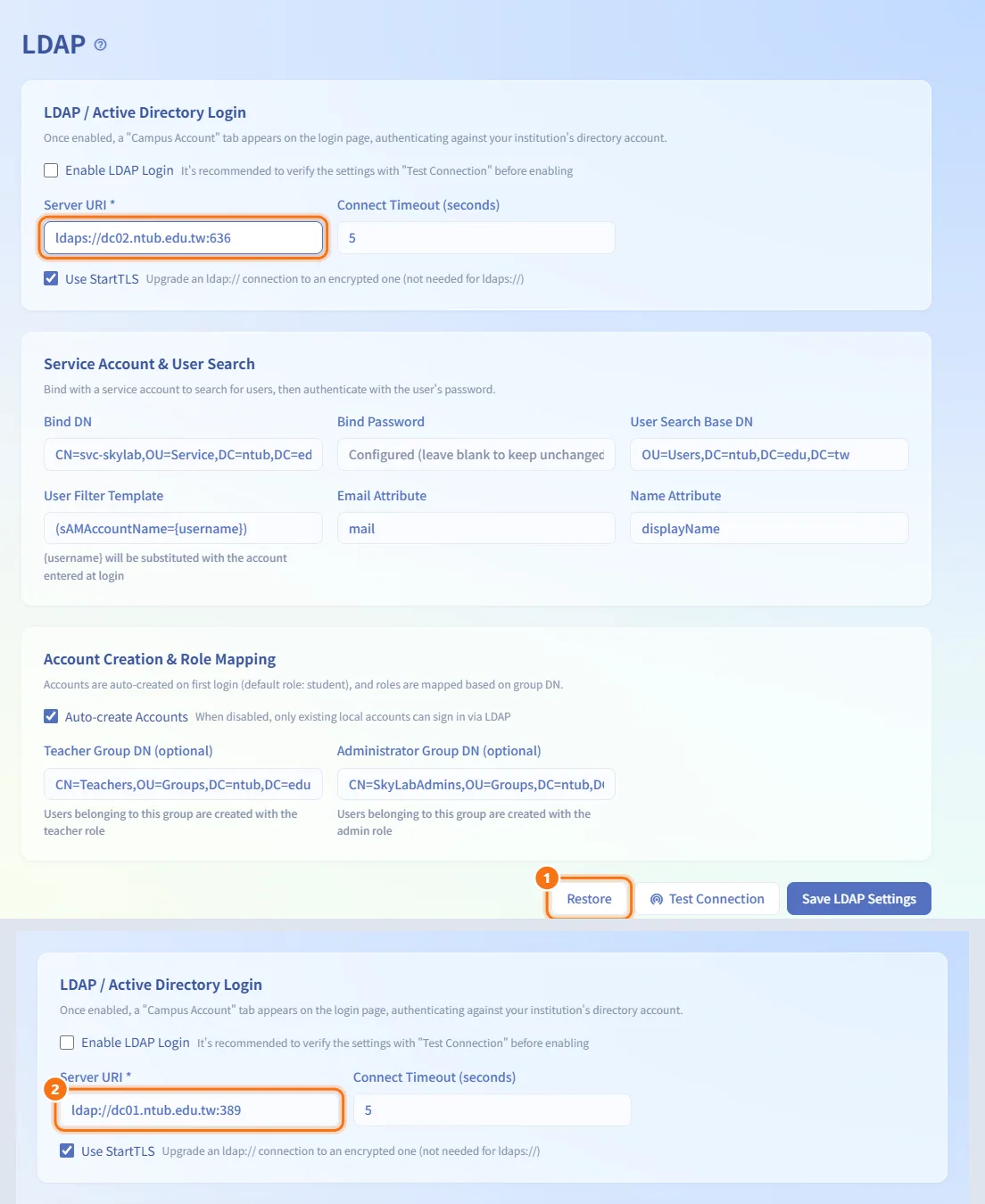
- Click Restore (shown only when something has changed).
- The form returns to the last saved values.
If you leave the page with unsaved changes, you are asked to confirm first.
Fields and options
| Field | Meaning | Notes |
|---|---|---|
| Enable LDAP Login | Shows the "Campus Account" tab on the login page | Testing first is recommended |
| Server URI * | Directory server address | Required, up to 255 characters |
| Connect Timeout (seconds) | How long to wait for the server | 1–60 |
| Use StartTLS | Upgrade an ldap:// connection to an encrypted one | Not needed for ldaps:// |
| Bind DN | Service account used for searching | Up to 512 characters |
| Bind Password | Password of the service account | Blank keeps the stored one; never shown again after saving |
| User Search Base DN | Where user entries are searched | Up to 512 characters |
| User Filter Template | Filter that finds the user | {username} is replaced with the typed username; up to 512 characters |
| Email Attribute | Attribute holding the user's email | Up to 64 characters; must return a valid email |
| Name Attribute | Attribute holding the display name | Up to 64 characters |
| Auto-create Accounts | Create an account on first LDAP sign-in | When off, only existing local accounts can sign in via LDAP |
| Teacher Group DN (optional) | Group whose members become teachers | Up to 512 characters |
| Administrator Group DN (optional) | Group whose members become administrators | Up to 512 characters |
Limits and behaviour to know
- If you change Server URI or Bind DN, you must type the Bind Password again; both saving and testing are refused otherwise.
ldaps://and StartTLS always verify the server certificate and its hostname: the host in the Server URI must appear in the certificate's subjectAltName. A private CA must be configured on the server; see the Deployment guide.- LDAP accounts get their role from their groups again at every LDAP sign-in, so a role changed by hand on User Management is overwritten. If no administrator group is set, accounts that are already administrators are not demoted.
- When someone signs in through LDAP with the same email as an existing local account, that account becomes an LDAP account and its password is managed by the directory from then on.
- LDAP accounts have no local password: on User Management they carry an LDAP tag and their password field is locked.
- If the email attribute returns something that is not a valid email address, the sign-in is refused; check Email Attribute.
- Accounts with two-factor authentication still need their authenticator code after the directory password.
- A disabled account cannot sign in through LDAP either.
Related
- User Management — LDAP accounts, roles and disabling accounts
- Login — the "Campus Account" tab users see
- Audit Log — LDAP sign-in failures and settings changes are recorded
- Deployment guide — LDAP / Active Directory over TLS and
LDAP_CA_CERT_FILE