
Resource Detail
The detail page gathers everything about one machine: its status and login details, live and historical usage, spec changes, snapshots or backups, the operation history, and advanced settings such as lifecycle, firewall, boot options, login credentials and sharing. Open it by clicking a machine's row on My Resources. Path: /my-resources/<vmid>.
Who can use it
Anyone who can see the machine on My Resources. What you see depends on your relation to the machine (shown as Your access on the Overview tab):
| Your access | Tabs you see | What you can change |
|---|---|---|
| Owner (your personal machine) | All tabs | Everything described on this page |
| Shared with you | Overview, Monitoring, Advanced Settings | Nothing; a notice says you can start, stop and use the console but not change settings. Credentials are not shown, and Advanced Settings shows only the lifecycle |
| Class member (your class machine) | All tabs | Settings managed by the teacher are read-only or hidden; specs are fixed and the expiry cannot be extended |
| Class teacher | All tabs | Manages the students' class machines |
| Administrator | All tabs | Applies spec changes directly instead of requesting them. Administrators usually open this page from Resource Management, at /resource-mgmt/<vmid> |
The VMID is shown only to teachers and administrators.
Before you start
- Power actions (start, shut down, reboot), the console and deletion are on the My Resources list, not on this page.
- Many actions run in the background. Their progress is visible on the Background Jobs page.
Step by step
Move between tabs
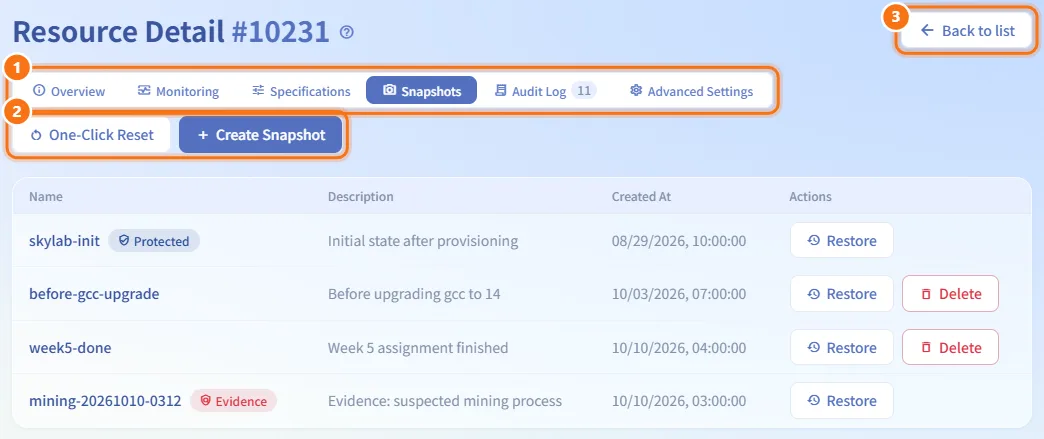
- Use the tab bar under the title: Overview, Monitoring, Specifications, Snapshots or Backups, Audit Log, Advanced Settings.
- Some tabs place their buttons (time range, Create Snapshot, Create Backup) at the right end of the tab bar.
- Back to list at the top right returns to My Resources.
Read the Overview
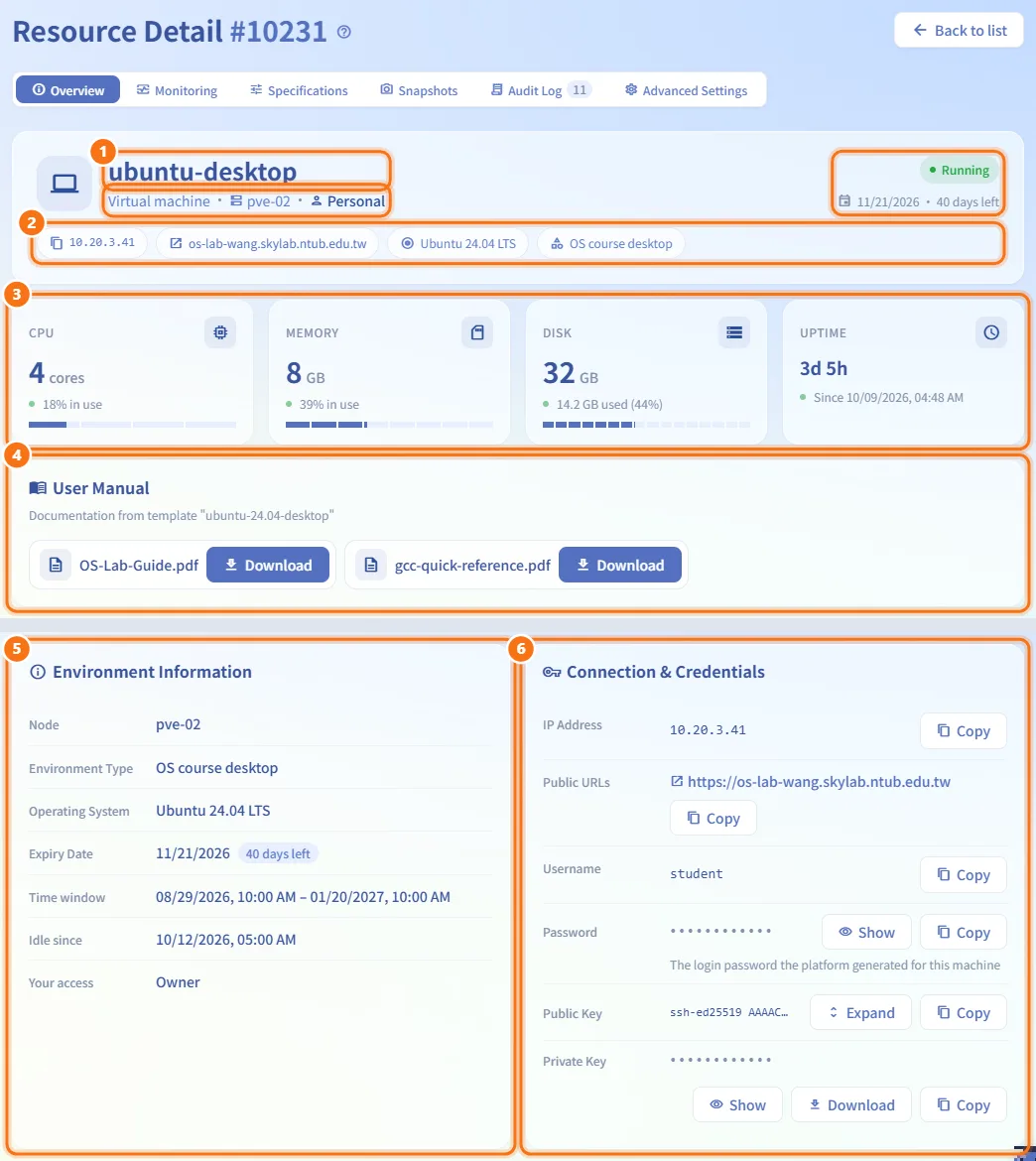
- The top card shows the machine's name, type, node, source badge, status (Running, Stopped or Paused) and the expiry: the date and how many days are left (red within 7 days), Expires today, Expired
<n>days ago, or No expiry. A machine whose deadline comes from an approved time window shows Available until<date>instead, with Not started or Ended when it is outside the window. - Under it, chips show the IP address (click to copy), public URLs, the operating system and the environment type.
- Four metric cards show CPU, memory, disk and Uptime. While the machine runs they show live usage, refreshed every 10 seconds; when it is stopped they show the allocated size.
- User Manual appears when the machine was cloned from a template with attached documents. Click Download on a file.
- Environment Information lists the node, environment type, operating system, expiry date, Time window, Auto shutdown (with the reason), Idle since, Scheduled deletion and Your access.
- Connection & Credentials lists the IP address and public URLs (each with Copy) and, for everyone except shared users, the login details below.
Find the login username and password
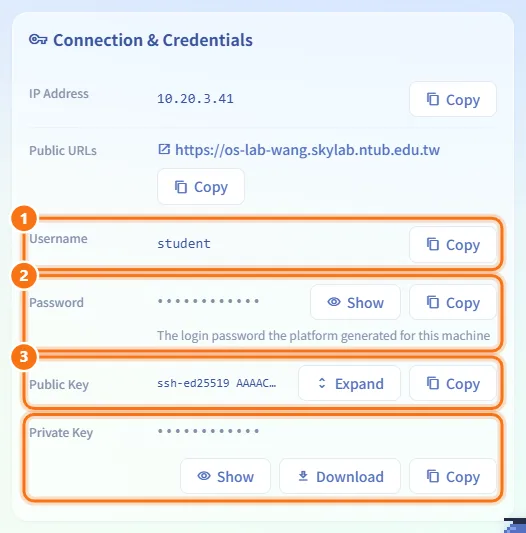
In Connection & Credentials on the Overview tab:
- Username is the account to sign in with. Click Copy to copy it. If it says Set by the template, the account comes from the template (Admin for Windows templates; for other templates ask the template's creator).
- Password depends on who set it:
- A password the platform generated (for example after a reset where you let the system choose) is masked. Click Show to reveal it and Copy to copy it.
- Set by you: you chose the password yourself. The platform keeps only a hash, so it can never show it. If you forget it, reset it under Advanced Settings › Login credentials.
- Takes effect after first boot / Shown after first boot: the password is written to the machine the first time it boots.
- Template password: the machine uses the password built into its template; ask your instructor or the template's creator.
- Not on record: the platform has no password for this machine; reset it if you need one.
- Public Key (click Expand to see it whole) and Private Key (masked; Show, Download, Copy) are the platform key pair for SSH, when the machine has one.
Watch usage on the Monitoring tab
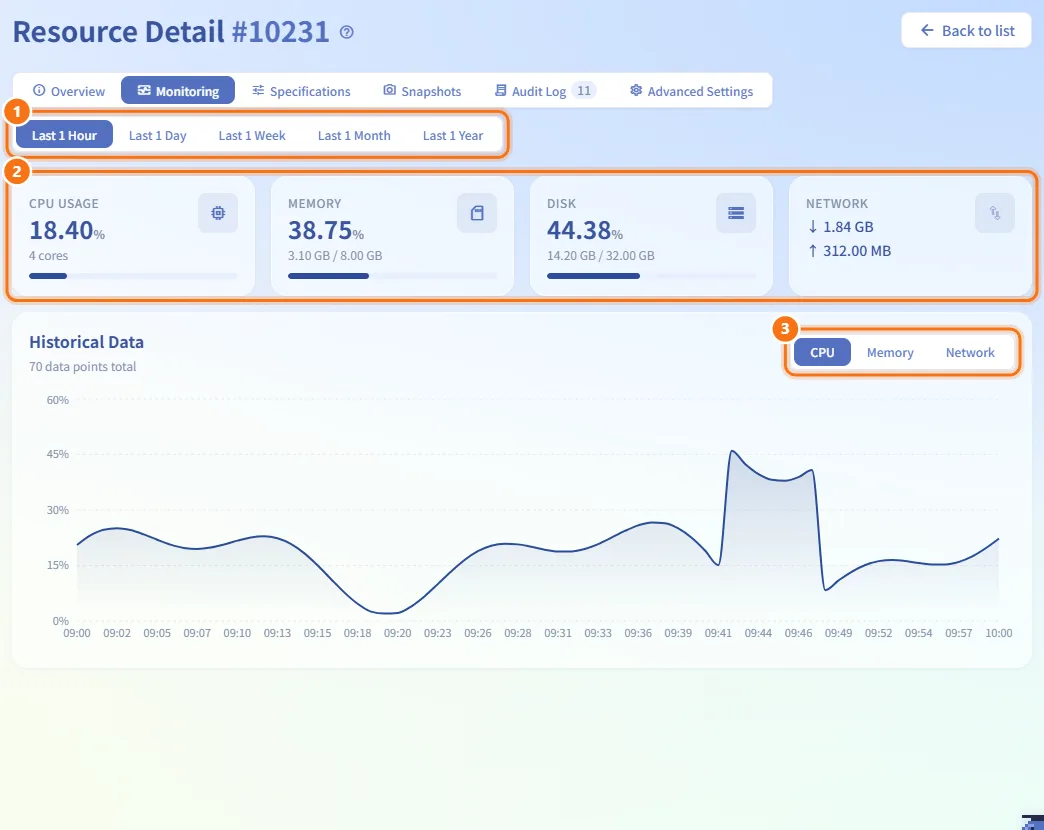
- Choose a time range at the right of the tab bar: Last 1 Hour, Last 1 Day, Last 1 Week, Last 1 Month or Last 1 Year.
- The cards at the top show CPU Usage, memory, disk and network.
- Under Historical Data, switch the chart between CPU, memory and network (download and upload).
Request a spec change
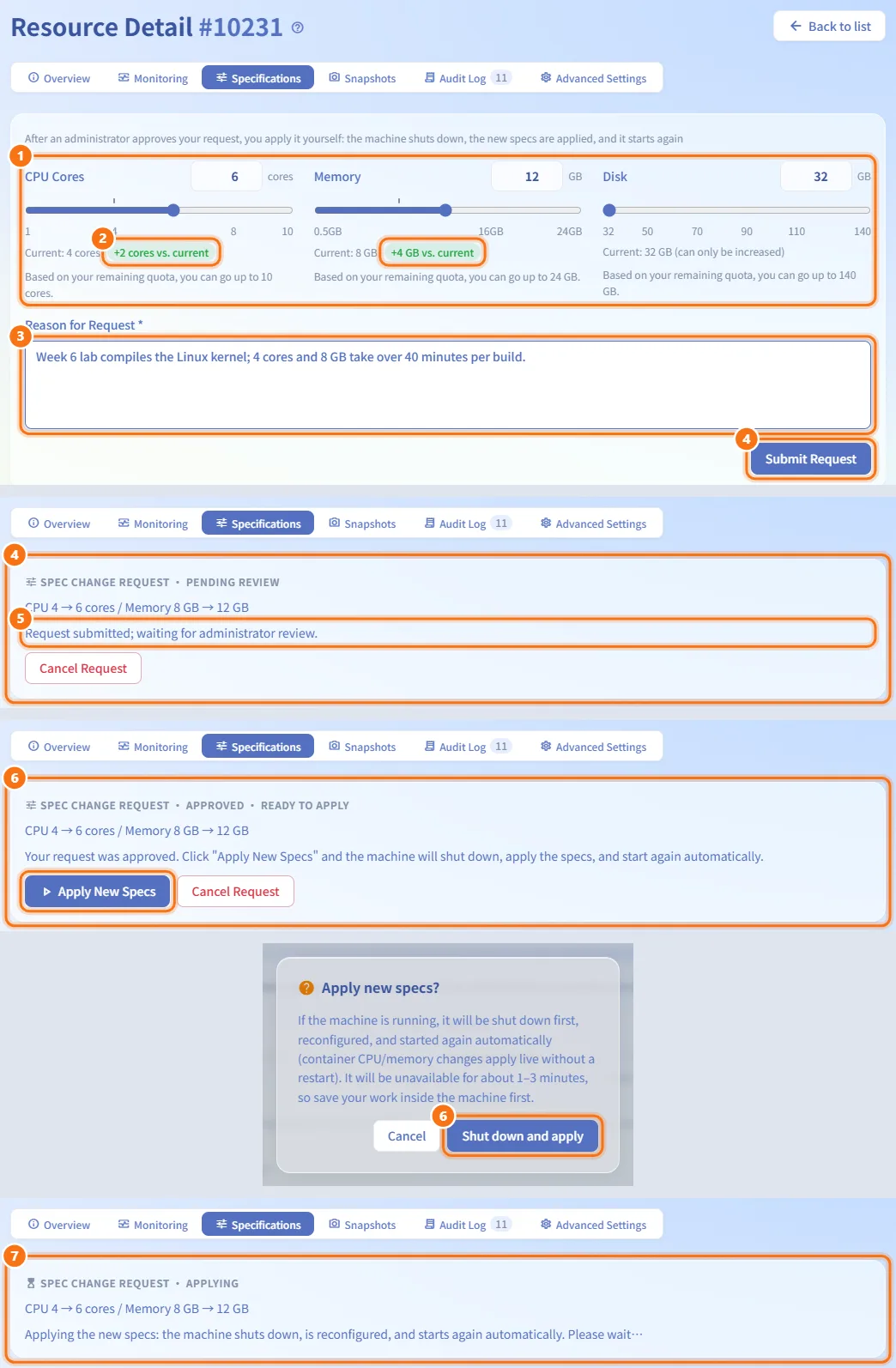
- Open Specifications. The card shows the current CPU cores, memory and disk, each with a slider and a number box; a marker on each slider shows the current value.
- Move the sliders or type values. Below each slider you see the change compared with the current value.
- Fill in Reason for Request (at least 10 characters).
- Click Submit Request. A notice "Spec change request · Pending Review" appears and the form locks until the request is finished or cancelled.
- An administrator reviews it on Request Review.
- When the notice turns to "Approved · Ready to Apply", click Apply New Specs and confirm Shut down and apply. A running VM is shut down, reconfigured and started again (about 1–3 minutes). Container CPU and memory changes apply live without a restart. Save your work inside the machine first.
- While the change is being applied the notice reads Applying and updates by itself.
If the apply fails or is interrupted by a service restart, the notice shows the reason and an Apply Again button. Cancel Request withdraws a request that is pending, ready, or failed. You can also apply or cancel from My Requests.
Administrators see Apply Changes instead: the change is applied at once without a request (a running VM needs a reboot before CPU and memory changes take effect).
Take and restore snapshots
The Snapshots tab appears only when the storage holding the machine's disks supports snapshots.
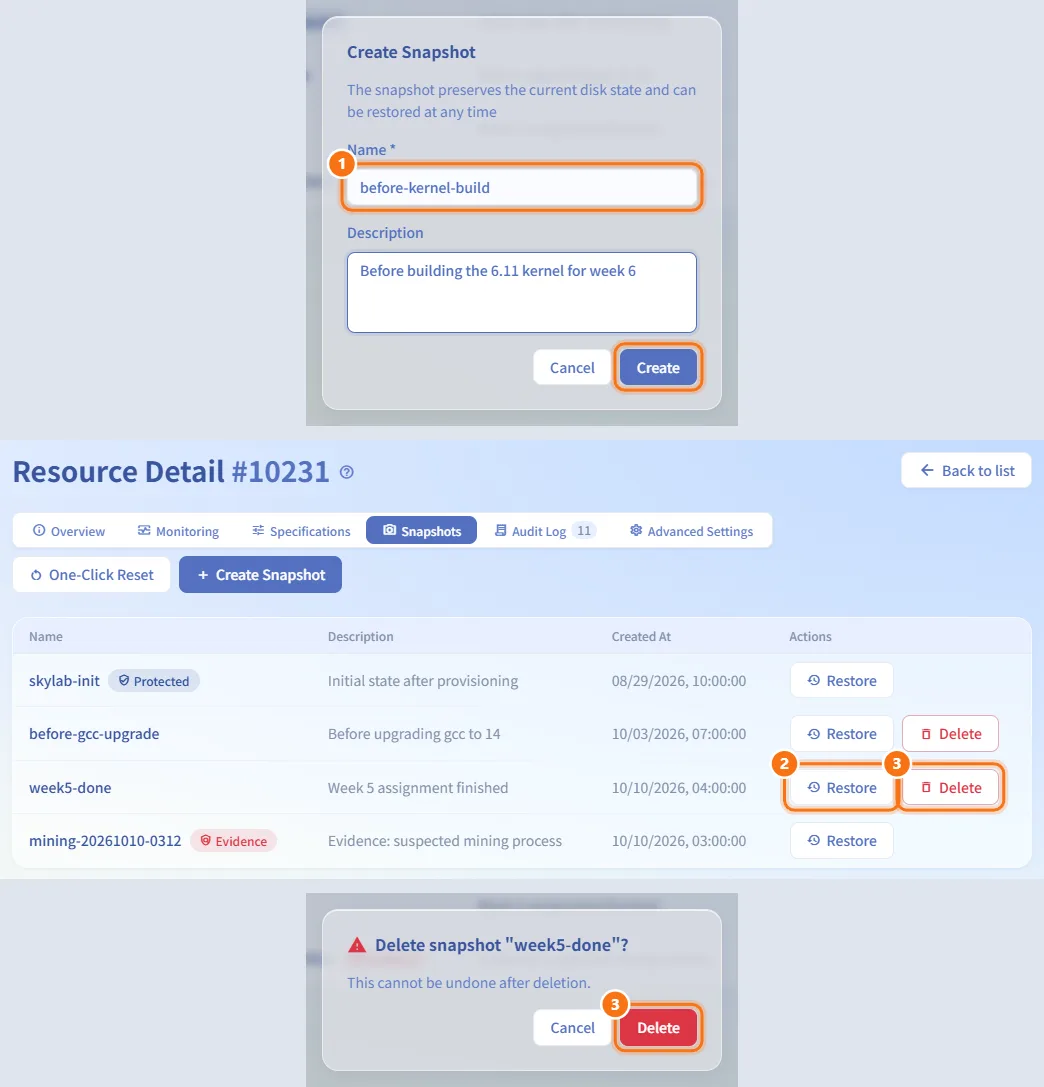
- Click Create Snapshot. Enter a Name (required, up to 40 characters) and an optional Description, then click Create.
- To go back to a snapshot, click Restore on its row and confirm. Changes made after that snapshot are lost.
- To remove one, click Delete and confirm. This cannot be undone.
Badges on the list:
- Protected: the initial snapshot
skylab-init, used by one-click reset. Only an administrator can delete it. - Evidence: a snapshot taken automatically when suspected mining was detected. Only an administrator can delete it, and it does not count toward your snapshot limit.
Reset the machine to its initial state
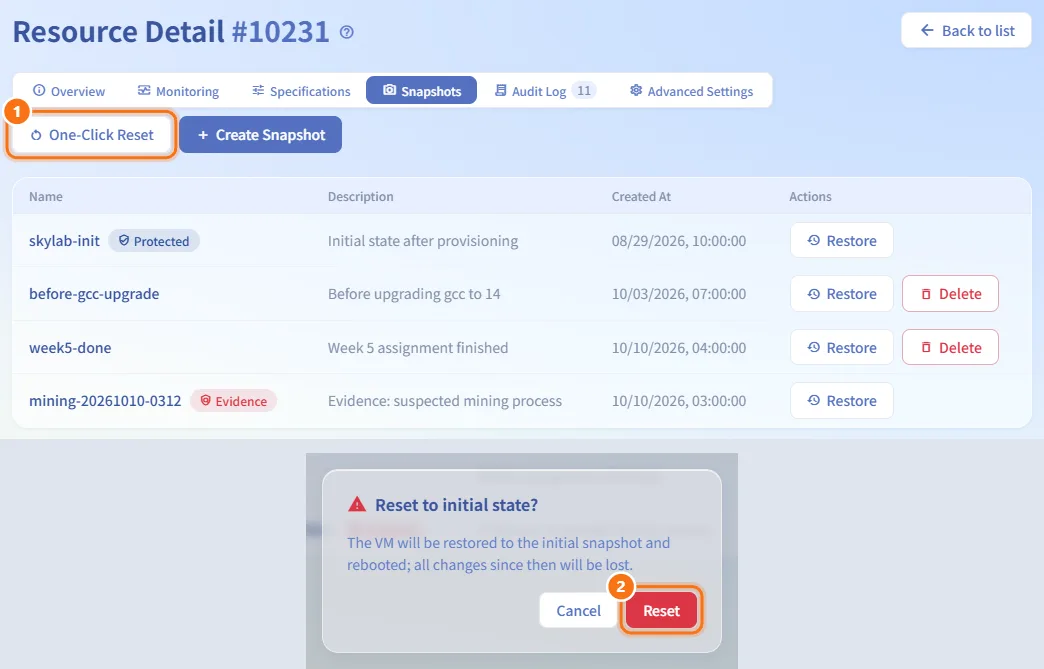
- On the Snapshots tab, click One-Click Reset at the right of the tab bar.
- Confirm Reset. The machine is restored to the initial snapshot and rebooted; every change since then is lost. The reset runs in the background.
One-Click Reset is disabled when the machine has no initial snapshot. Teachers and administrators can create one with Create Initial Snapshot.
Back up and restore (when snapshots are not available)
When the machine's storage cannot take snapshots and the cluster has a backup storage configured, a Backups tab replaces Snapshots.
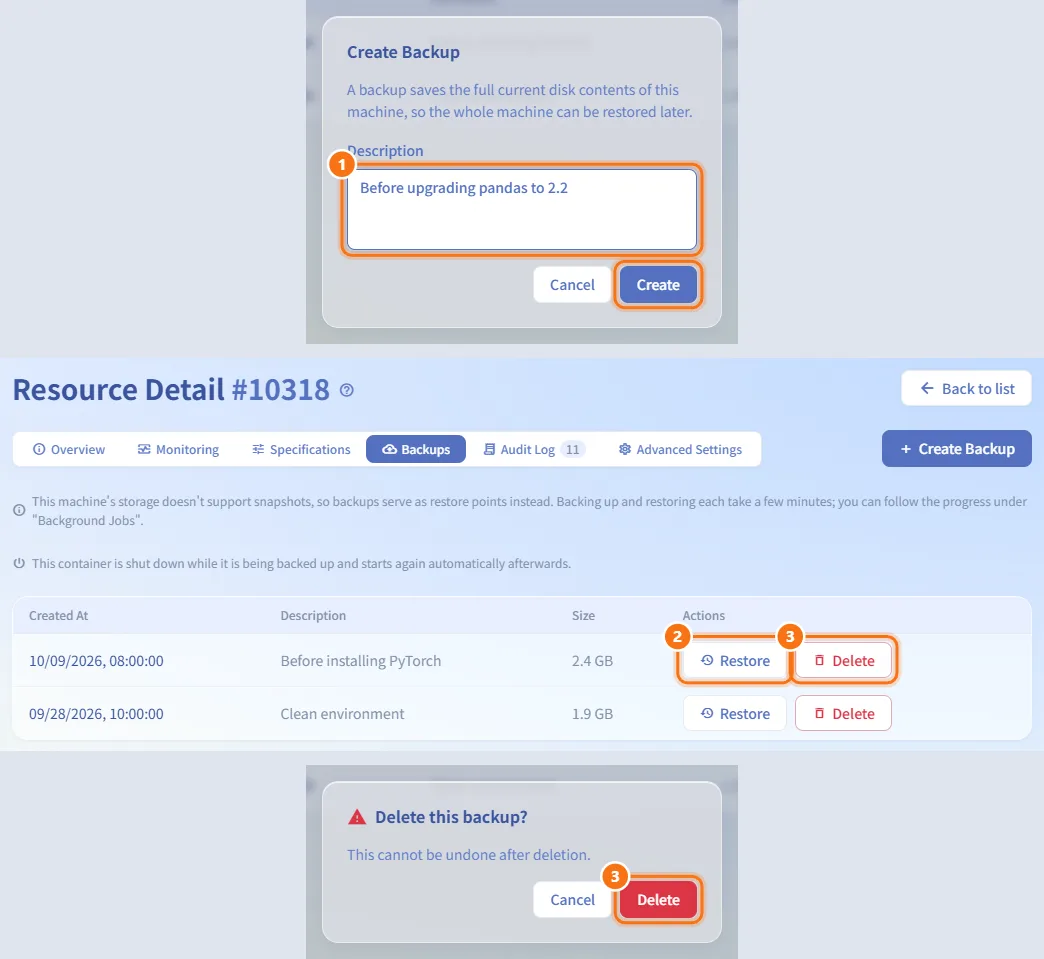
- Click Create Backup, add an optional Description (up to 120 characters), and click Create. A backup saves the machine's whole disk contents and takes a few minutes. A container is shut down during its backup and started again afterwards.
- To restore, click Restore on a backup and confirm. The machine is shut down and fully restored to that point; all later changes are lost, and the machine is unavailable for a few minutes.
- To remove a backup, click Delete and confirm.
While a backup or restore runs, a notice says so and the buttons are disabled; the list refreshes when it finishes. Create Backup is disabled once you reach your backup limit ("Backup limit (<n>) reached; delete an old backup first").
Review the Audit Log
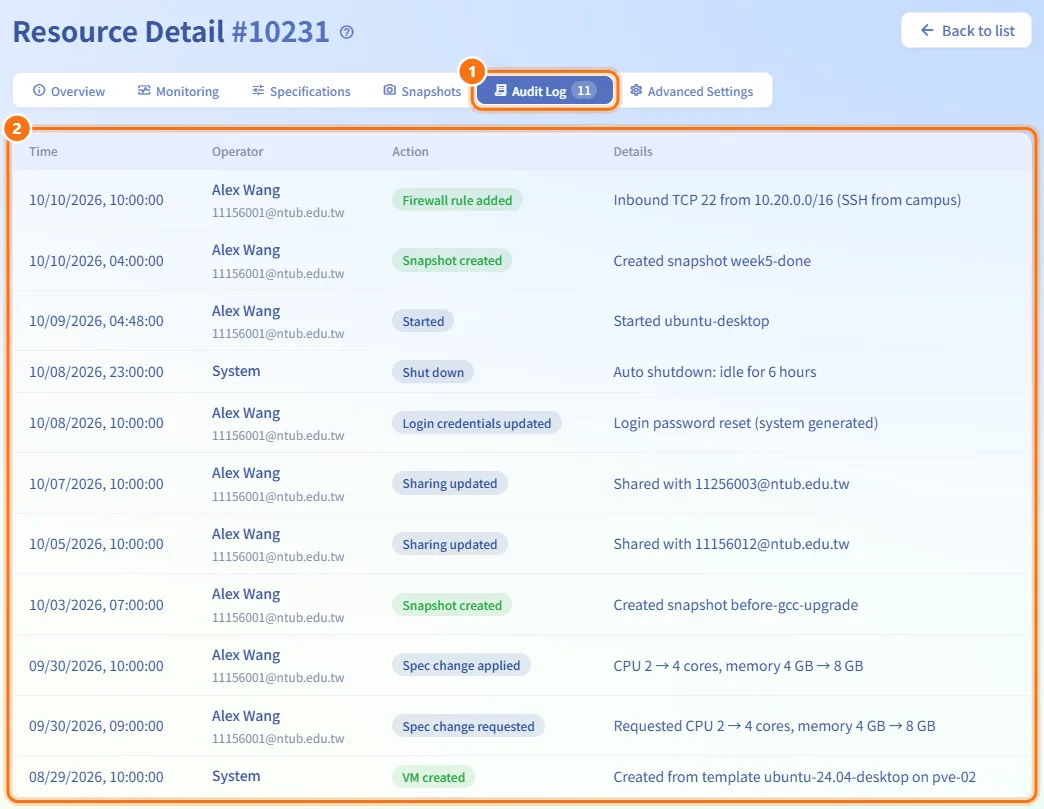
- Open Audit Log. The number on the tab is the total count of records for this machine.
- The table lists the latest 100 records with Time, Operator (System for automatic actions), Action and Details: power actions, spec changes, snapshots and backups, firewall changes, credential updates, sharing and transfers, and more.
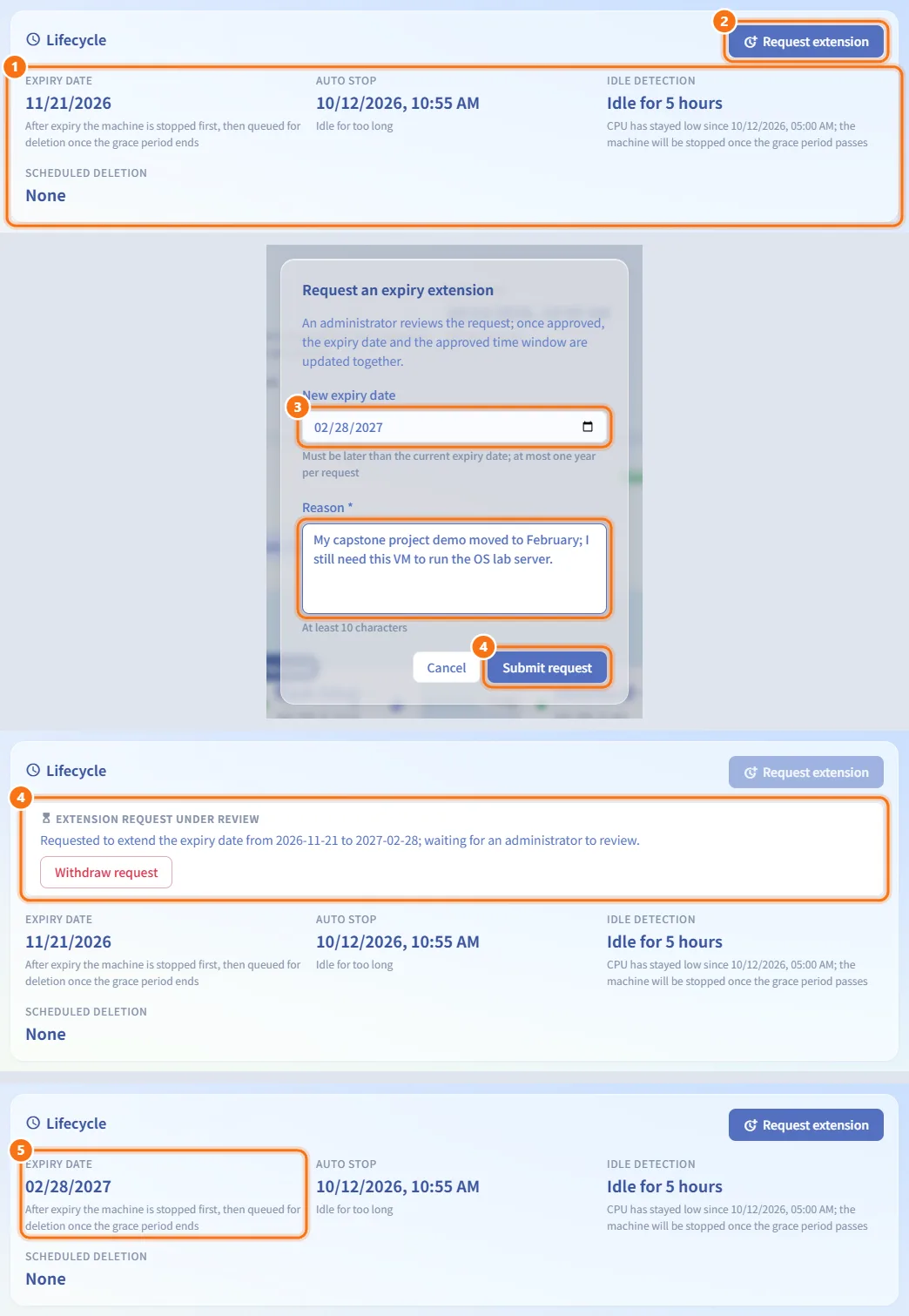
Request an expiry extension
- Open Advanced Settings. The Lifecycle card shows Expiry date, Auto stop (with the reason), Idle detection (only while running) and Scheduled deletion.
- Click Request extension.
- Pick a New expiry date (later than the current one, at most one year from today) and write a Reason (at least 10 characters).
- Click Submit request. The card shows "Extension request under review" with Withdraw request.
- When an administrator approves it, the expiry date and the approved time window of your request are both extended at once; no further action is needed.
The button appears only when the machine has an expiry date or a time window, and not for class machines. The extension is refused if the new period overlaps another approved GPU reservation.
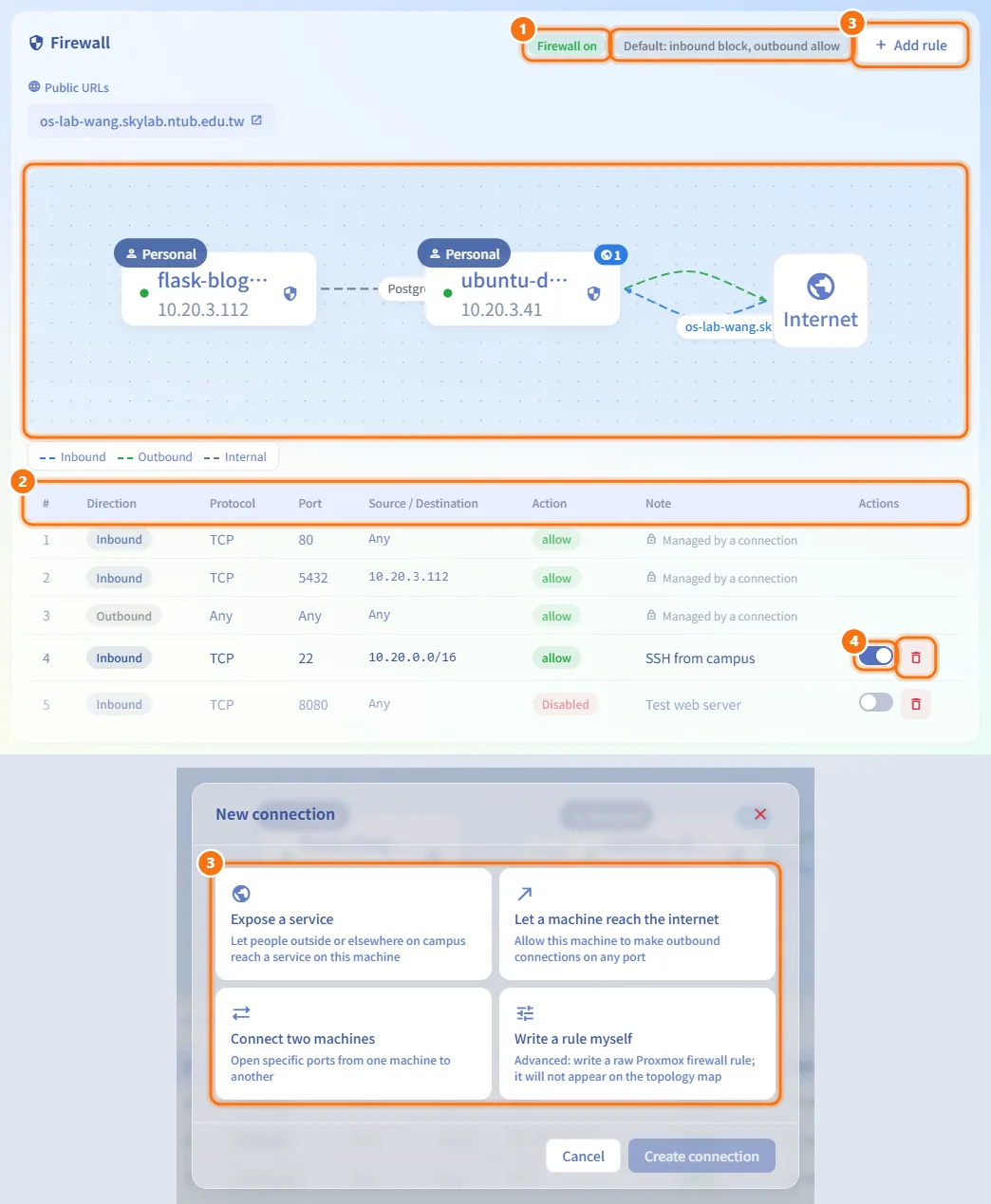
Manage the machine's firewall
- In Advanced Settings, the Firewall card shows whether the firewall is on, the default policy (for example "Default: inbound block, outbound allow"), the machine's public URLs, a small topology map and the rule table.
- Each rule shows Direction (Inbound / Outbound), Protocol, Port, Source / Destination, Action and Note.
- Click Add rule to open the connection dialog. Choose Expose a service (by URL, external port or firewall only), Let a machine reach the internet, Connect two machines, or Write a rule myself (a raw Proxmox rule; this one is preselected).
- On your own rules, use the Enabled switch to turn a rule off or on, or the delete icon to remove it.
Rules marked Managed by a connection (lock icon) are created by connections and cannot be edited here; change them through the connection. See Firewall for the full rules model.
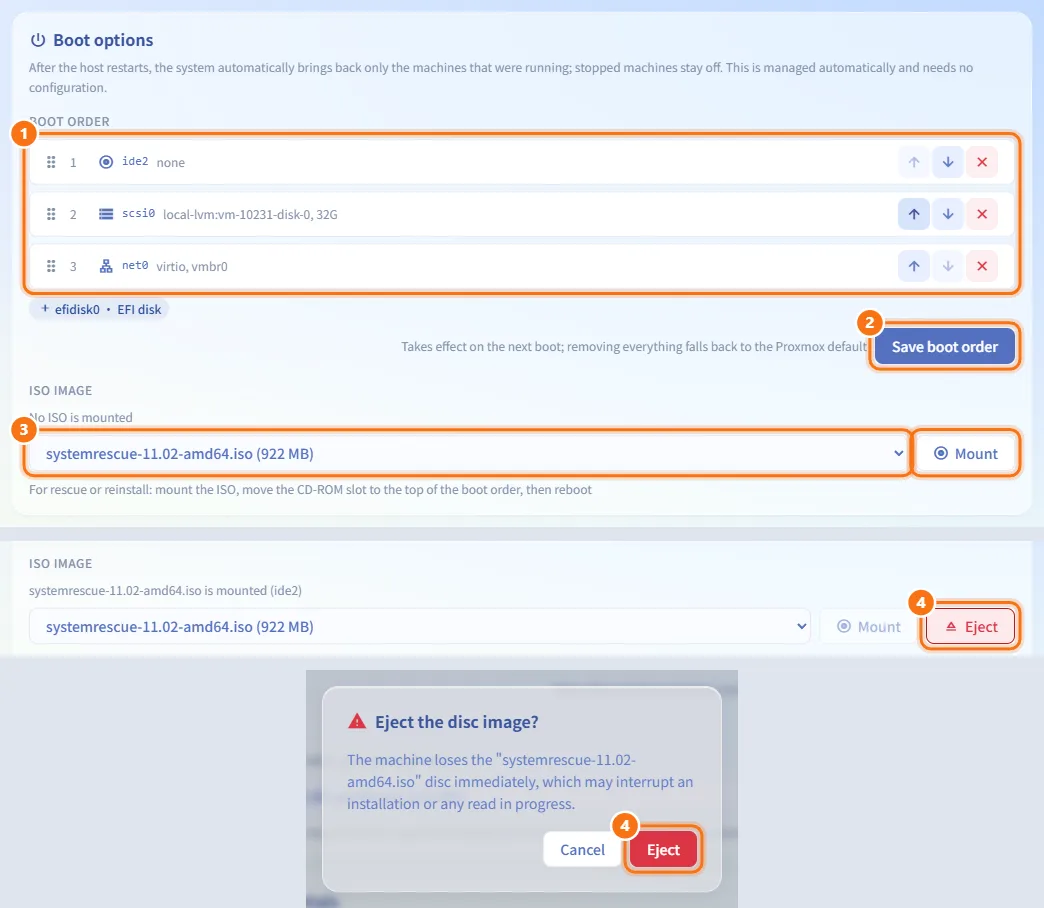
Change boot options (VMs only)
- In Advanced Settings › Boot options, the Boot order list shows the devices the VM boots from. Drag them, or use the up/down arrows, to reorder; remove a device or add one from the chips below.
- Click Save boot order. It takes effect on the next boot; removing everything falls back to the Proxmox default.
- Under ISO image, pick an image from Select an ISO… and click Mount. To boot from it, move the CD-ROM slot to the top of the boot order and reboot.
- Click Eject and confirm to remove the disc.
After a host restart, only machines that were running are started again automatically; this needs no setting.
Reset the login password
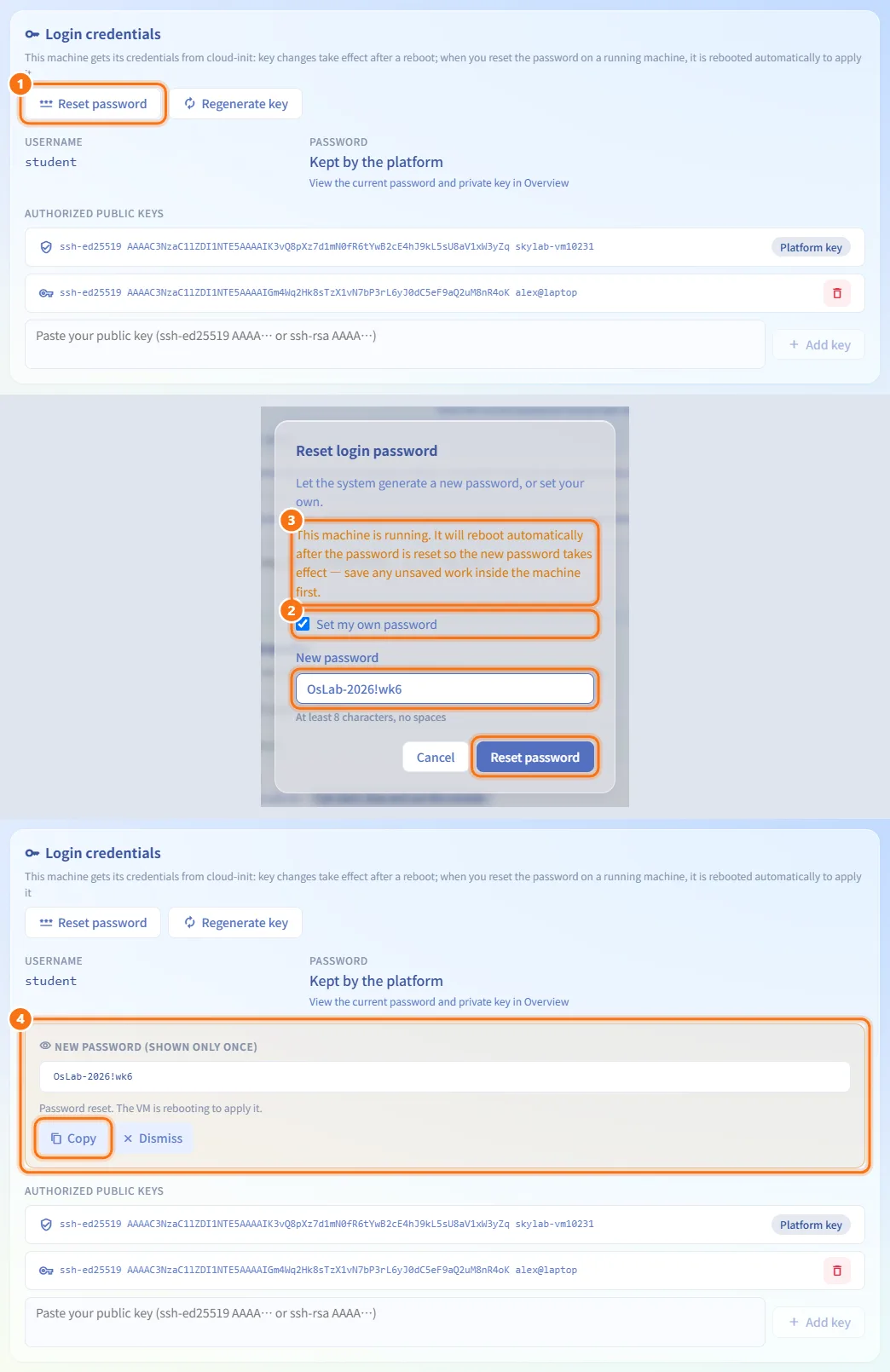
- In Advanced Settings › Login credentials, click Reset password.
- Leave Set my own password unticked to let the system generate one, or tick it and type a New password (at least 8 characters, no spaces; Windows machines also show the Windows rules).
- Click Reset password. A running VM reboots automatically to apply it; save your work first.
- The new password is shown once, with Copy. A system-generated password stays visible on the Overview tab; a password you chose is not kept and cannot be shown again.
Containers must be running to change credentials ("start it first").
Manage SSH keys
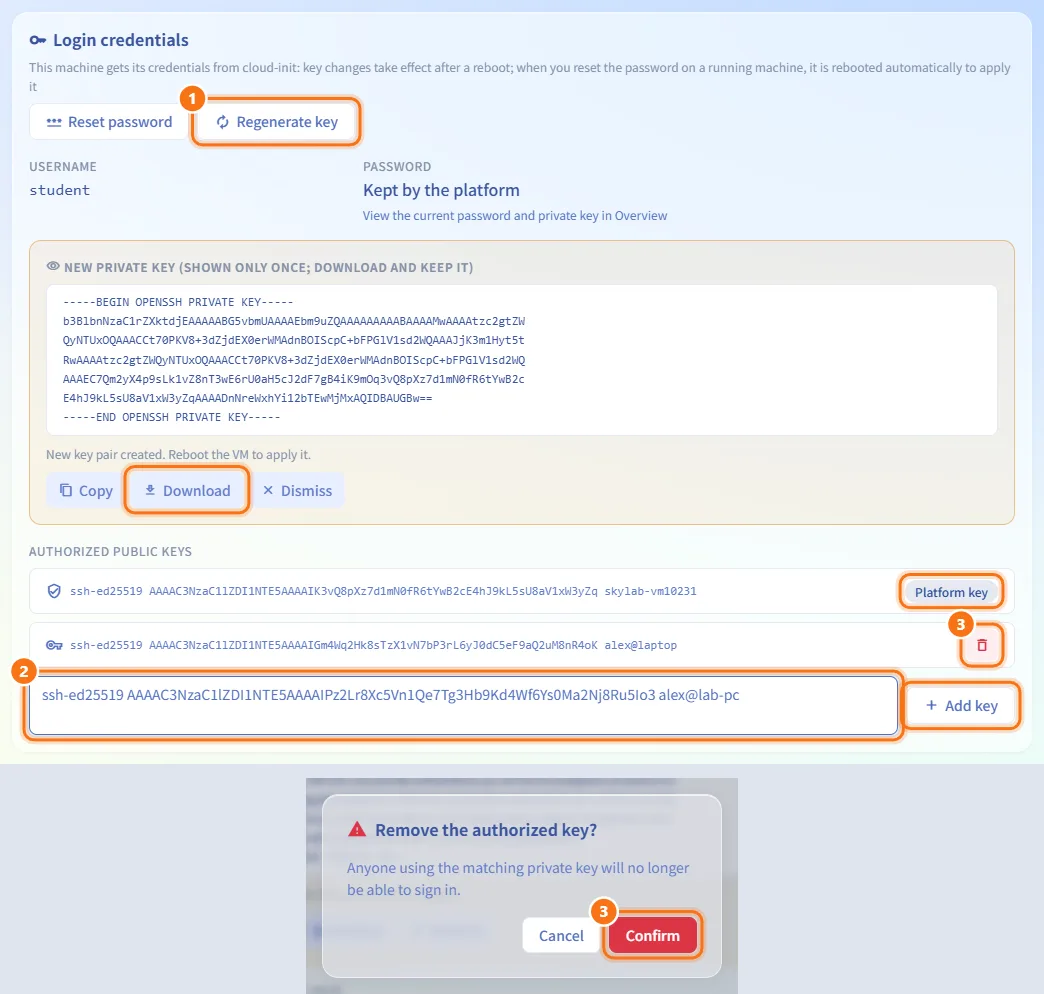
- Regenerate key (in the same card) creates a new platform key pair. The old private key stops working immediately. The new private key is shown once: click Download and keep it.
- Under Authorized public keys, paste your own public key (ssh-ed25519 or ssh-rsa) and click Add key.
- To remove a key, click its delete icon and confirm. The Platform key cannot be removed here.
On VMs, credentials are applied through cloud-init: key changes take effect after a reboot.
Share the machine or transfer ownership
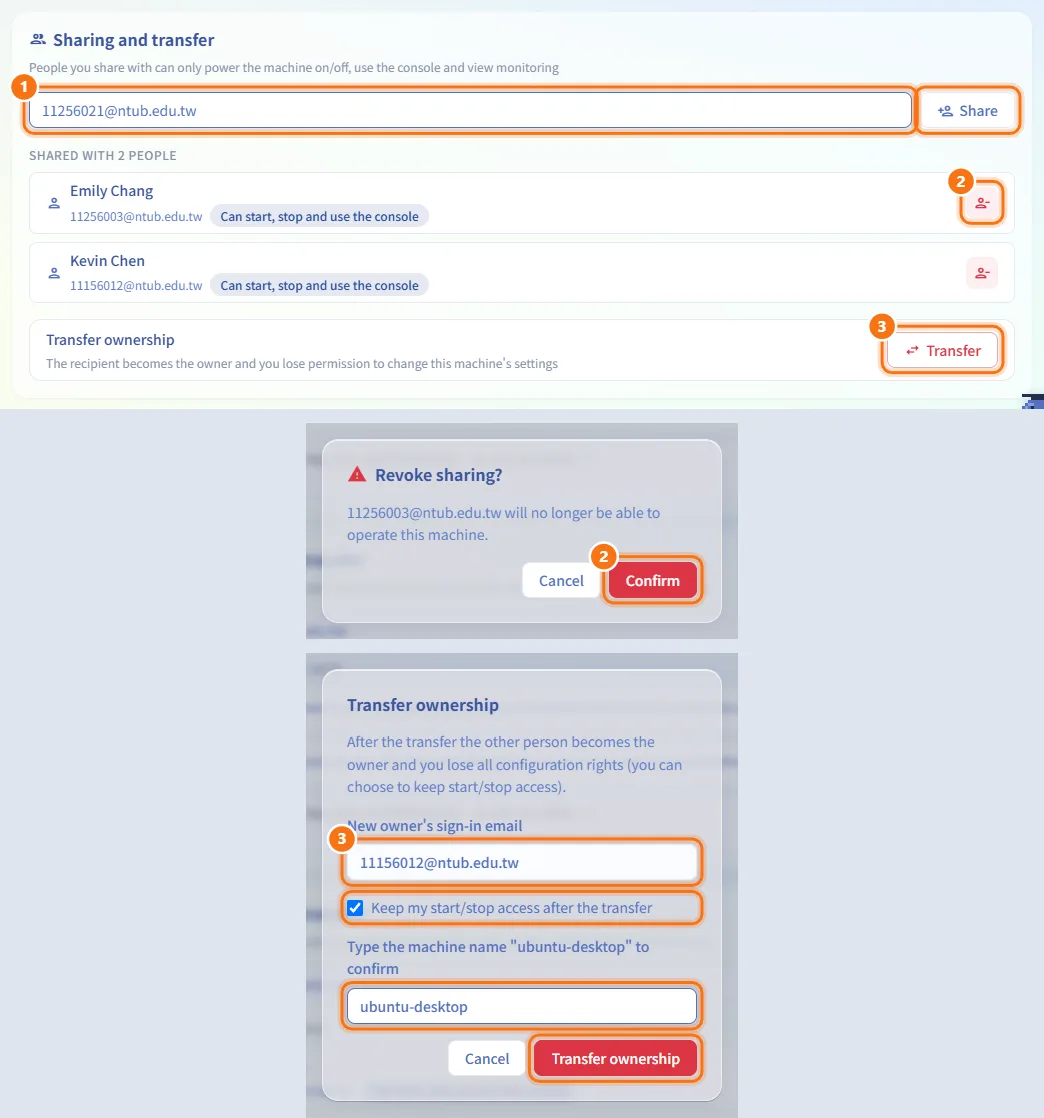
- In Advanced Settings › Sharing and transfer, type the other person's sign-in email and click Share. People you share with can only power the machine on and off, use the console and view monitoring.
- To stop sharing, click Revoke next to the person and confirm.
- To hand the machine over, click Transfer. Enter the New owner's sign-in email, optionally tick Keep my start/stop access after the transfer, type the machine name to confirm, and click Transfer ownership. You lose all configuration rights and return to the list.
Class machines cannot be shared or transferred. The new owner's quota must have room for the machine.
Fields and options
| Field | Meaning | Notes |
|---|---|---|
| Specifications: CPU Cores | Cores of the machine | 1–32. A container without a core limit shows "Unlimited"; moving the slider sets a limit |
| Specifications: Memory | RAM in GB | 0.5–64 GB in 0.5 GB steps |
| Specifications: Disk | Disk size in GB | Can only grow, up to 1000 GB |
| Specifications: Reason for Request | Why you need the change | At least 10 characters |
| Snapshot Name | Snapshot identifier | Required, up to 40 characters; skylab-init and names starting with mining- are reserved |
| Snapshot Description | Free text | Up to 255 characters |
| Backup Description | Free text | Up to 120 characters |
| Extension New expiry date | The date to extend to | Later than the current expiry, at most one year from today |
| Extension Reason | Why you need more time | At least 10 characters |
| New password | Your own login password | At least 8 characters, no spaces; Windows rules on Windows machines |
Limits and behaviour to know
- Your requested spec changes must fit in your remaining quota: each slider's maximum is your current value plus what is left. When the quota is used up you can only keep or lower the value. Administrators have no quota.
- A machine can have only one open spec change or extension request at a time.
- Class and quick practice machines are built from an environment version; their specs cannot be changed individually.
- The number of snapshots you can keep is limited by the administrator;
skylab-initand evidence snapshots do not count. Backups have their own limit. - If a snapshot or backup action fails because the storage no longer supports it, the page checks again and may hide the tab.
- A personal machine whose approved time window has ended is shut down and cannot be started, but it is not deleted; extend it from Lifecycle or submit a new request. A machine past its expiry date is stopped, then queued for deletion after a grace period.
- Idle machines (CPU stays low for a long time) are shut down after a grace period; Idle detection shows how long the machine has been idle.
Related
- My Resources — power actions, console and deletion
- My Requests — your spec change and extension requests in one list
- Firewall — the network topology and connection model
- Background Jobs — progress of resets, backups and deletions
- Resource Policies — expiry, idle and snapshot policies set by administrators