
Resource Policies
Resource Policies holds the platform's automatic rules and its quotas. The upper Governance section sets what the scheduler does on its own: resource alerts, expiry reclamation, idle shutdown, VM / LXC auto-detection, anti-mining, snapshot cleanup and clone concurrency. The lower Quotas section limits how many resources each user may use. Sidebar: Admin Settings → Resource Policies. Path: /governance (the old /quotas address opens this page too).
Who can use it
Administrators only.
Before you start
- The governance rules act on machines through the PVE connections set up on PVE Management.
- Email notifications (expiry warnings, idle notices, alert emails) need the platform's email settings to work; see the Deployment guide.
Step by step
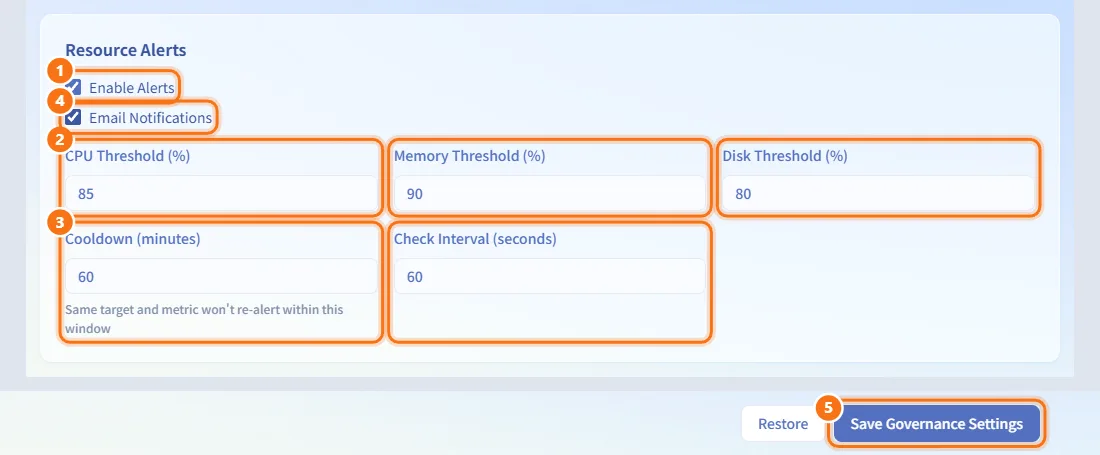
Configure resource alerts
- In the Resource Alerts card, tick Enable Alerts.
- Set CPU Threshold (%), Memory Threshold (%) and Disk Threshold (%).
- Set Cooldown (minutes) and Check Interval (seconds).
- Tick Email Notifications if administrators should also receive an email.
- Click Save Governance Settings.
When a node's or machine's CPU, memory or disk usage crosses its threshold, an alert event is created. The same metric on the same target is not raised again within the cooldown.
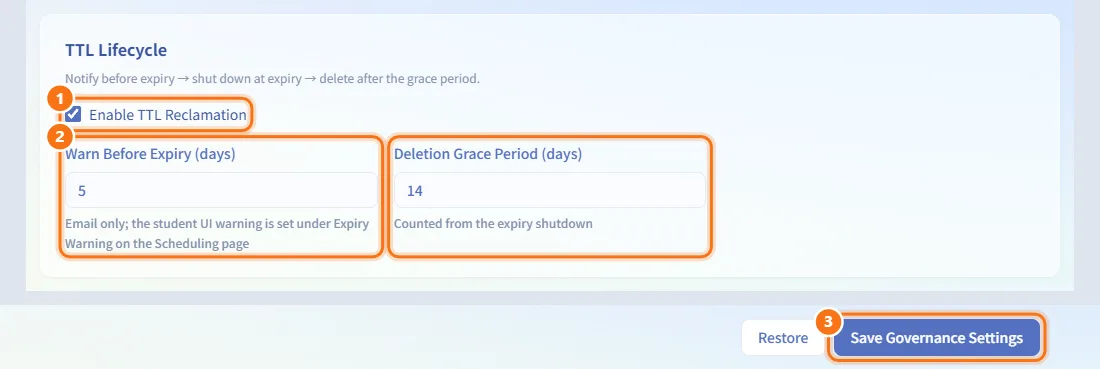
Configure expiry reclamation (TTL lifecycle)
- In the TTL Lifecycle card, tick Enable TTL Reclamation.
- Set Warn Before Expiry (days) and Deletion Grace Period (days).
- Click Save Governance Settings.
The lifecycle is: notify before expiry → shut down at expiry → delete after the grace period. Owners are emailed the set number of days before their machine expires; the machine shuts down automatically when it expires; it is deleted only after the deletion grace period, which counts from the expiry shutdown.
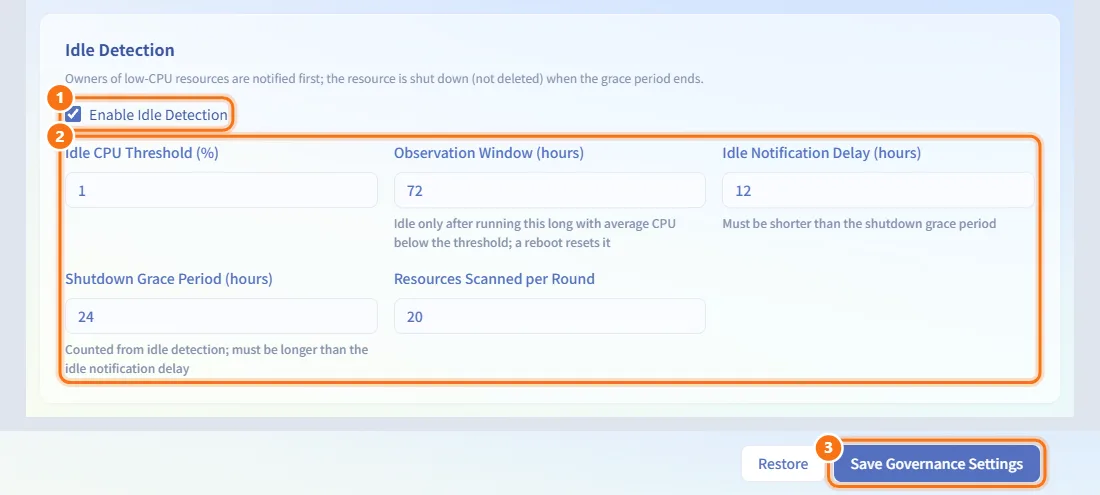
Shut down idle machines automatically
- In the Idle Detection card, tick Enable Idle Detection.
- Set Idle CPU Threshold (%), Observation Window (hours), Idle Notification Delay (hours), Shutdown Grace Period (hours) and Resources Scanned per Round.
- Click Save Governance Settings.
A machine counts as idle only after it has stayed on with average CPU below the threshold for the whole observation window; a reboot resets the count. The owner is notified after the notification delay, and the machine shuts down when the shutdown grace period ends. Idle machines are only shut down, never deleted.
Turn VM / LXC auto-detection on or off
- In the VM / LXC Auto-Detection card, tick or untick Enable Auto-Detection.
- Click Save Governance Settings.
When it is off, people filling in a request form must choose the machine type themselves.

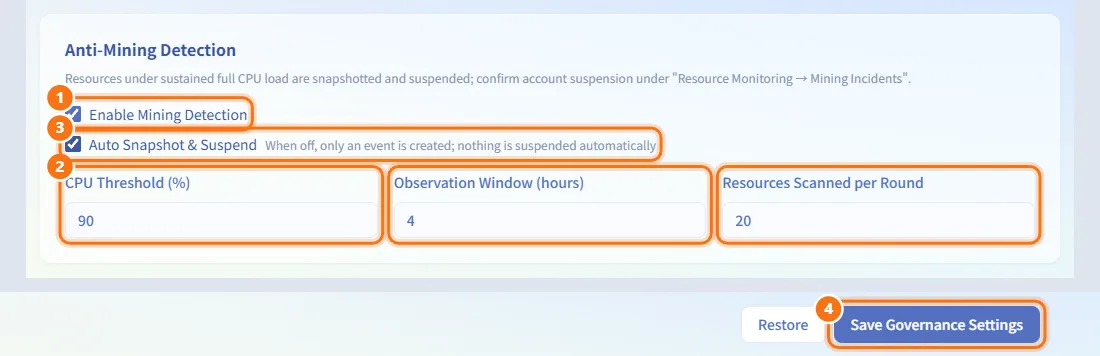
Configure anti-mining detection
- In the Anti-Mining Detection card, tick Enable Mining Detection.
- Set CPU Threshold (%), Observation Window (hours) and Resources Scanned per Round.
- Tick Auto Snapshot & Suspend to have suspected machines snapshotted and suspended; untick it to only record an incident.
- Click Save Governance Settings.
Machines whose CPU stays above the threshold throughout the observation window are treated as suspected mining. Accounts are never suspended automatically: an administrator reviews the incident and confirms any account suspension under Resource Monitoring → Mining Incidents (see Resource Monitoring).
Configure snapshot governance
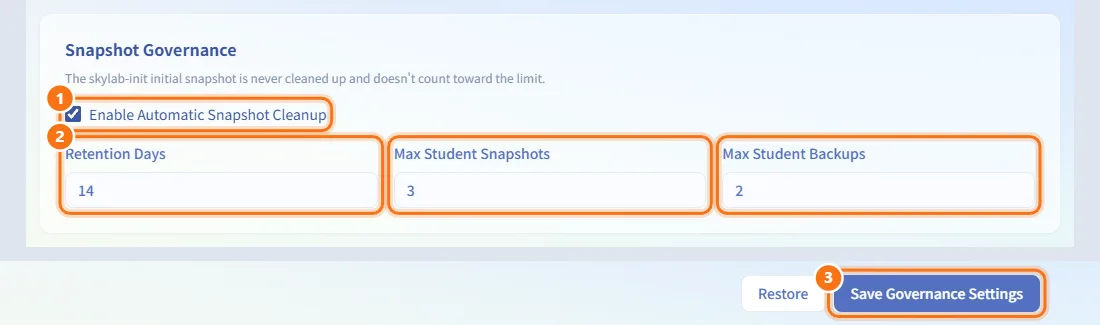
- In the Snapshot Governance card, tick Enable Automatic Snapshot Cleanup to have old snapshots deleted.
- Set Retention Days, Max Student Snapshots and Max Student Backups.
- Click Save Governance Settings.
Snapshots older than the retention period are deleted by the scheduler, and the owner is notified. The skylab-init initial snapshot is never cleaned up and does not count toward the limit. The two maximums apply per machine to every user except administrators (despite the "Student" in their names); anyone who reaches a limit must delete an old snapshot or backup before creating another.
Limit clone concurrency
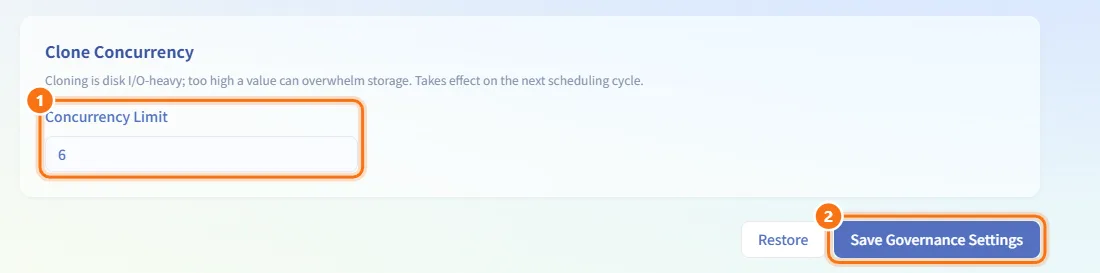
- In the Clone Concurrency card, set Concurrency Limit.
- Click Save Governance Settings.
This is the number of machine clones that may run at the same time. Cloning is heavy on disk I/O, so a value that is too high can overwhelm storage. The change takes effect on the next scheduler cycle.
Discard unsaved governance changes
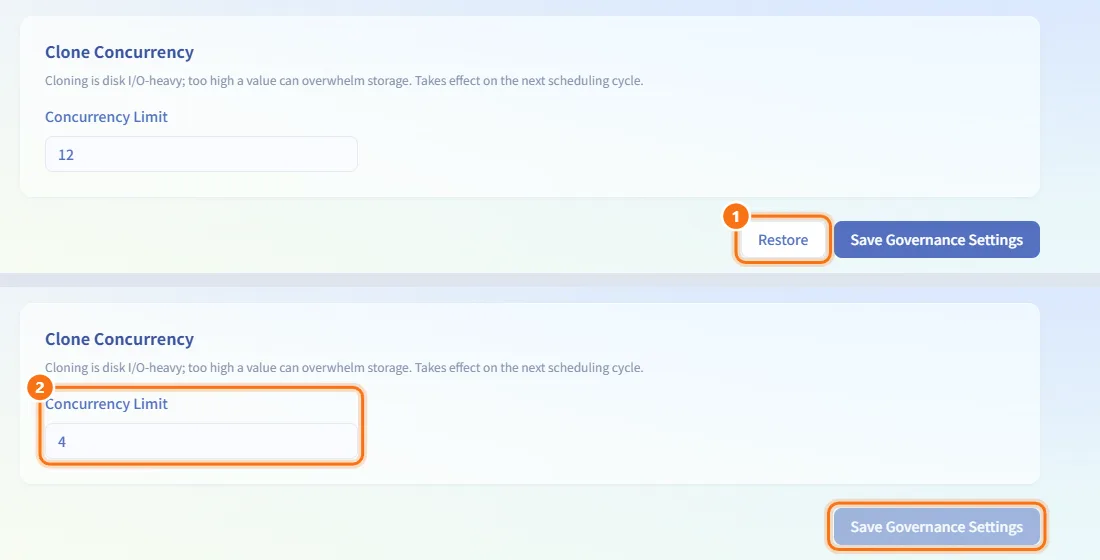
- Click Restore next to Save Governance Settings (shown only when something has changed).
- All governance cards return to the last saved values.
If you leave the page with unsaved changes, you are asked to confirm first.
Change the global default quota
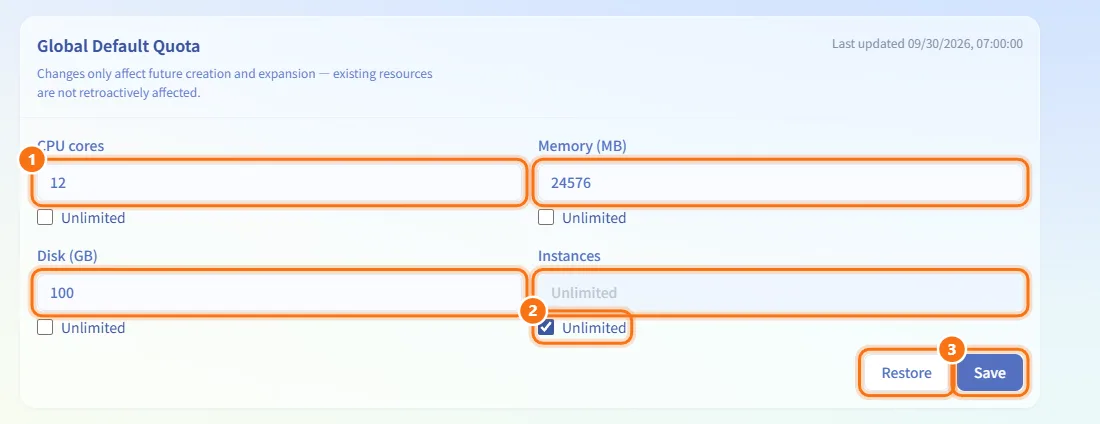
- In the Global Default Quota card under Quotas, set CPU cores, Memory (MB), Disk (GB) and Instances.
- Tick Unlimited under a field to remove that limit.
- Click Save in the card (or Restore to discard your edits).
Users without a personal override get these limits. Changes only affect later creation and expansion; existing resources are not changed. The card shows when it was last updated.
Give a user their own quota
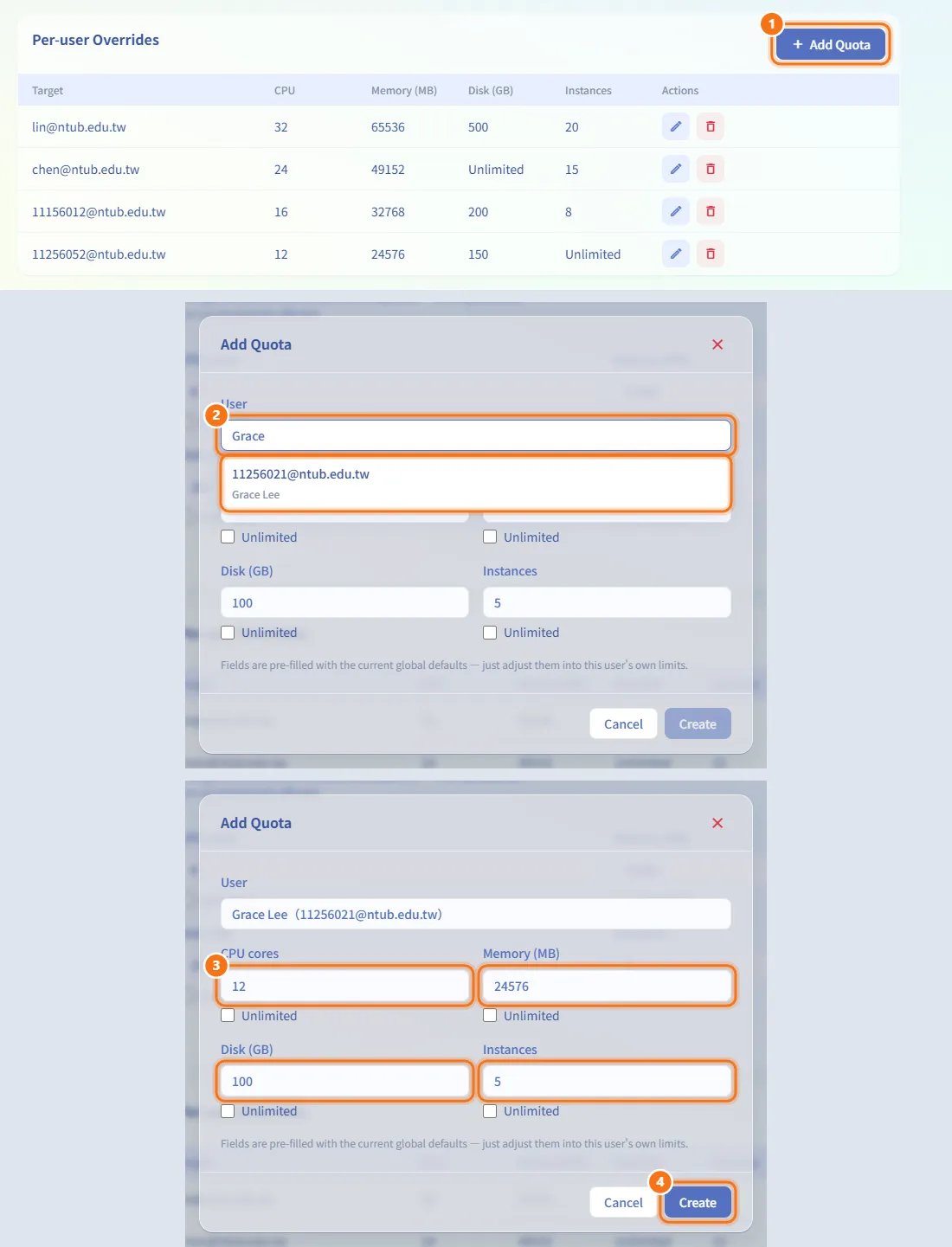
- In Per-user Overrides, click Add Quota.
- In User, type a name or email and pick the user from the list.
- Adjust the limits. The fields start from the current global defaults.
- Click Create.
Edit or delete a user's quota
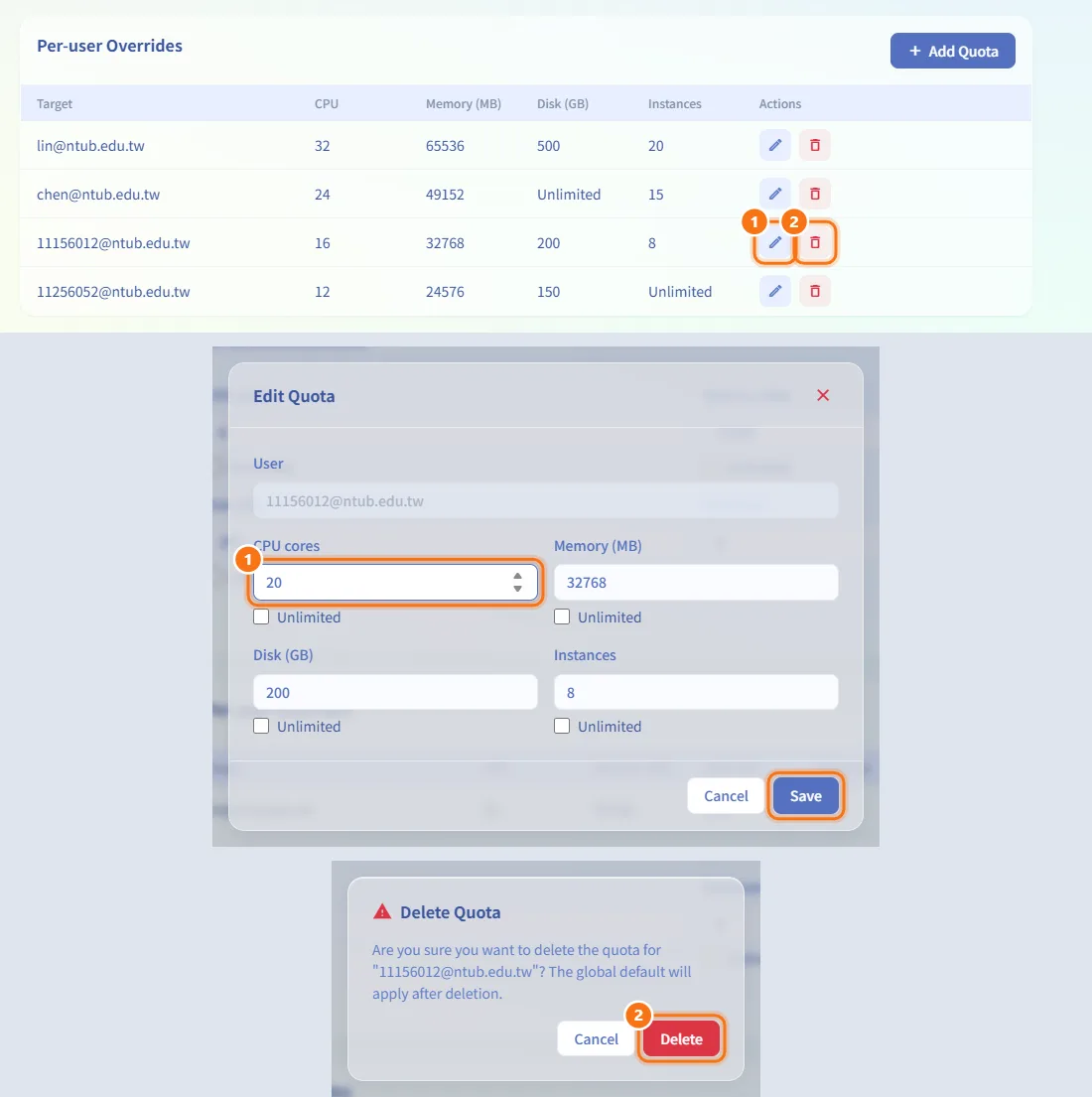
- In the overrides table, click the pencil icon (Edit Quota), change the limits and click Save.
- To remove an override, click the trash icon (Delete Quota) and confirm. The user then falls back to the global default.
Fields and options
| Field | Meaning | Notes |
|---|---|---|
| Enable Alerts | Create alert events when usage crosses a threshold | Default on |
| Email Notifications | Also email administrators when an alert is created | Default on |
| CPU / Memory / Disk Threshold (%) | Usage that triggers an alert | 50–100, default 90 |
| Cooldown (minutes) | No repeat alert for the same target and metric within this time | 1–1440, default 30 |
| Check Interval (seconds) | How often usage is checked for alerts | 15–3600, default 60 |
| Enable TTL Reclamation | Run the expiry lifecycle | Default on |
| Warn Before Expiry (days) | When the expiry email is sent | 1–30, default 3; email only, the student UI warning is set on Resource Scheduling |
| Deletion Grace Period (days) | Days after the expiry shutdown before deletion | 0–90, default 7 |
| Enable Idle Detection | Run idle detection | Default on |
| Idle CPU Threshold (%) | Average CPU below which a machine is idle | 0.1–20, default 1 |
| Observation Window (hours) | How long a machine must stay idle to count as idle | 1–720, default 48 |
| Idle Notification Delay (hours) | When the owner is notified | 1–720, default 12; must be shorter than the shutdown grace period |
| Shutdown Grace Period (hours) | When the idle machine is shut down, counted from idle detection | 1–720, default 24 |
| Resources Scanned per Round (idle) | Machines checked per scheduler round | 1–200, default 20 |
| Enable Auto-Detection | Suggest VM or LXC automatically on request forms | Default on |
| Enable Mining Detection | Run anti-mining detection | Default on |
| Auto Snapshot & Suspend | Snapshot and suspend suspected machines | Default on; off means an incident only |
| CPU Threshold (%) (mining) | CPU level treated as sustained full load | 50–100, default 90 |
| Observation Window (hours) (mining) | How long CPU must stay above the threshold | 1–72, default 6 |
| Resources Scanned per Round (mining) | Machines checked per scheduler round | 1–200, default 20 |
| Enable Automatic Snapshot Cleanup | Delete snapshots older than the retention period | Default on |
| Retention Days | Age at which snapshots are cleaned up | 1–90, default 7 |
| Max Student Snapshots | Snapshots a non-administrator may keep on one machine | 1–10, default 3 |
| Max Student Backups | Backups a non-administrator may keep on one machine | 1–10, default 2 |
| Concurrency Limit | Clones that may run at once | 1–16, default 4 |
| CPU cores | Quota: total CPU cores | 1–256, or Unlimited |
| Memory (MB) | Quota: total memory | 256–1048576, or Unlimited |
| Disk (GB) | Quota: total disk | 1–65536, or Unlimited |
| Instances | Quota: number of machines | 1–100, or Unlimited |
The overrides table shows Target (the user's email), CPU, Memory (MB), Disk (GB), Instances and Actions; an unlimited value shows Unlimited.
Limits and behaviour to know
- All governance cards share Save Governance Settings, which is only available after a change. The quota cards each have their own save button and are not affected by it.
- Saving is refused if Idle Notification Delay is not shorter than Shutdown Grace Period.
- All governance rules run inside the scheduler's 60-second round (see Resource Scheduling); the scan-per-round values cap how many machines each check looks at in one round.
- Administrators are not subject to quotas, and a personal quota cannot be set for an administrator; administrators do not appear in the user picker.
- Each user can have only one override; users who already have one are not offered again in the picker.
- If governance settings fail to load, the page shows an error with a retry button instead of the form.
Related
- Resource Monitoring — alert events and mining incidents
- Resource Scheduling — the expiry warning shown to students and the scheduler cycle
- User Management — the accounts that quotas apply to
- My Resources — where owners see expiry, snapshots and backups
- Audit Log — governance changes are recorded