
Create Class
Class setup is a five-step wizard that creates a class: its fixed weekly schedule, the student roster, the teaching environment every student gets, optional weekly topics, and a final capacity check before you submit the class for provisioning. Sidebar: Teaching → Class Management → Create class. Path: /class-setup (a saved draft continues at /class-setup?classId=<id>&step=<n>).
Who can use it
- Teachers create and set up their own classes.
- Administrators can do the same, and can open any class's draft.
- Students cannot open this page; opening the address sends them back to the home page.
Before you start
- Students must already have registered accounts with the student role. Emails of unknown accounts or non-student accounts are not added.
- You need a published teaching environment offered for formal courses. If there is none, you can create one from step 3 (see Teaching Environments).
Step by step
Move through the wizard
- The step bar at the top shows Class & Schedule, Student List, Teaching Environment, Weekly Tasks and Confirm Creation. A check mark means that step is saved on the server.
- Each step is saved only when you click Save and continue. Previous goes back one step.
- Class, students and teaching environment are required; later steps stay locked until they are saved. Weekly Tasks is optional, so once the required steps are saved you can go straight to Confirm Creation.
- If you switch steps (with Previous or the step bar) while the current step has unsaved changes, you are asked to confirm and the changes are discarded.
- On steps 1–4, the Class draft panel shows each step's progress, the Estimated machines (students × machines per student) and Ready to provision N/2 complete. Click a row to jump to any unlocked step.
- Back to class management leaves the wizard. Saved steps stay as a draft in Class Management.
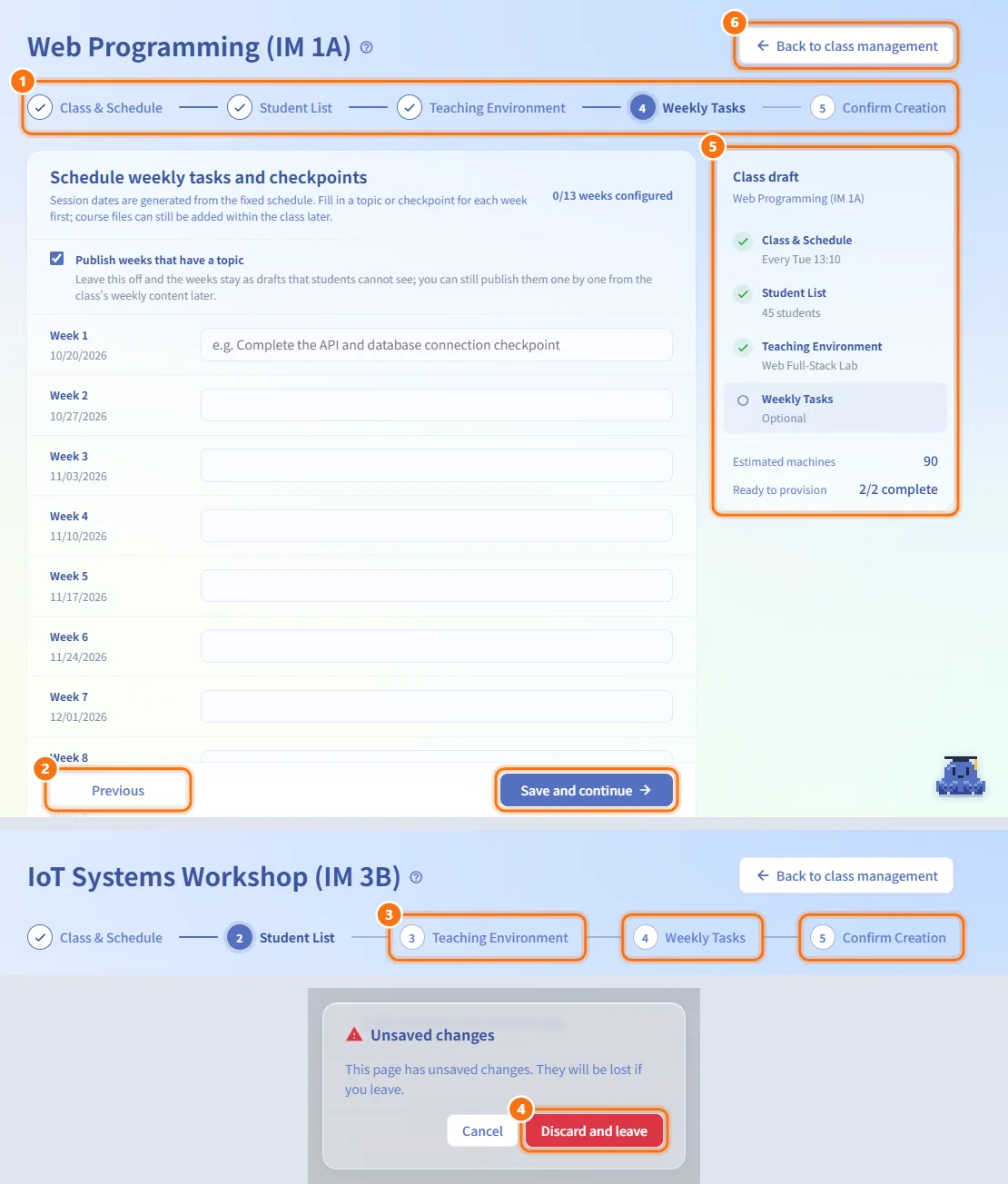
Step 1: Class and schedule
- Enter the Class name (required).
- Enter the Class location; it is shown on students' daily schedule.
- Set the Start date and End date, the Weekly class day and the Class time (start and end).
- Expand Advanced settings if needed:
- Term — filled in from the start date (for example
115-1). Left blank, it is saved as Unspecified. - Boot lead time — how early machines start before class: On time, 5, 10, 15 or 30 minutes.
- Shutdown after class — when machines shut down: At class end, or 10, 30 or 60 minutes after.
- Term — filled in from the start date (for example
- Click Save and continue. The class is created as a draft, and one session per week between the start and end dates is generated from the schedule.
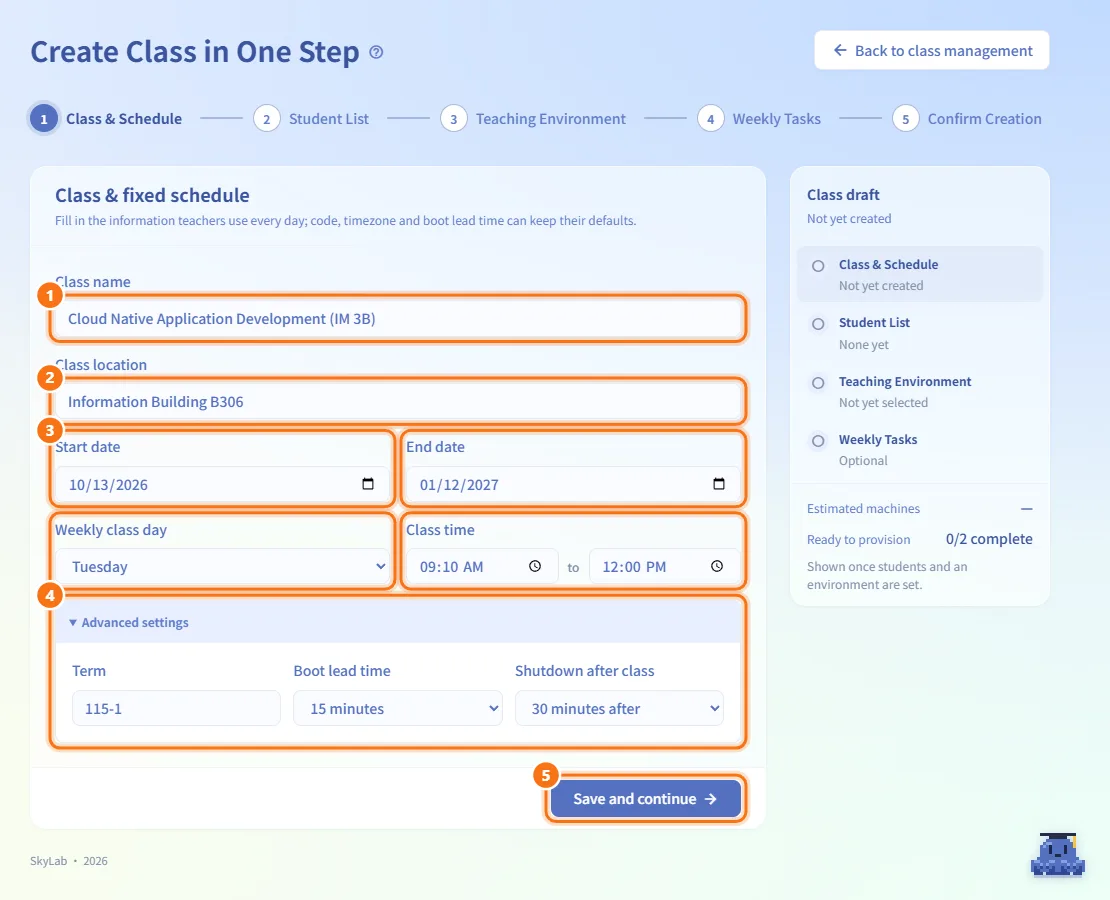
Step 2: Student list
- Paste student emails into Student email, separated by new lines, commas or semicolons. The label shows Ready to add N emails.
- Or click Import CSV and choose a file. It is imported immediately, without clicking save.
- Or click Import from group, choose a group an administrator has set up (for example one school class) and click Import. The menu shows how many students each group has. Only the group's students are added; teacher or administrator accounts in the group are listed in the notice and skipped.
- Current class students lists the students already saved to the class. Duplicate accounts are skipped automatically.
- To remove a student, click the icon next to them and confirm Remove student.
- Click Save and continue. Accounts that cannot be added stay in the box, highlighted in red, and a message lists which were not found and which are not student accounts. Fix or delete them, then continue.
You need at least one student to continue.
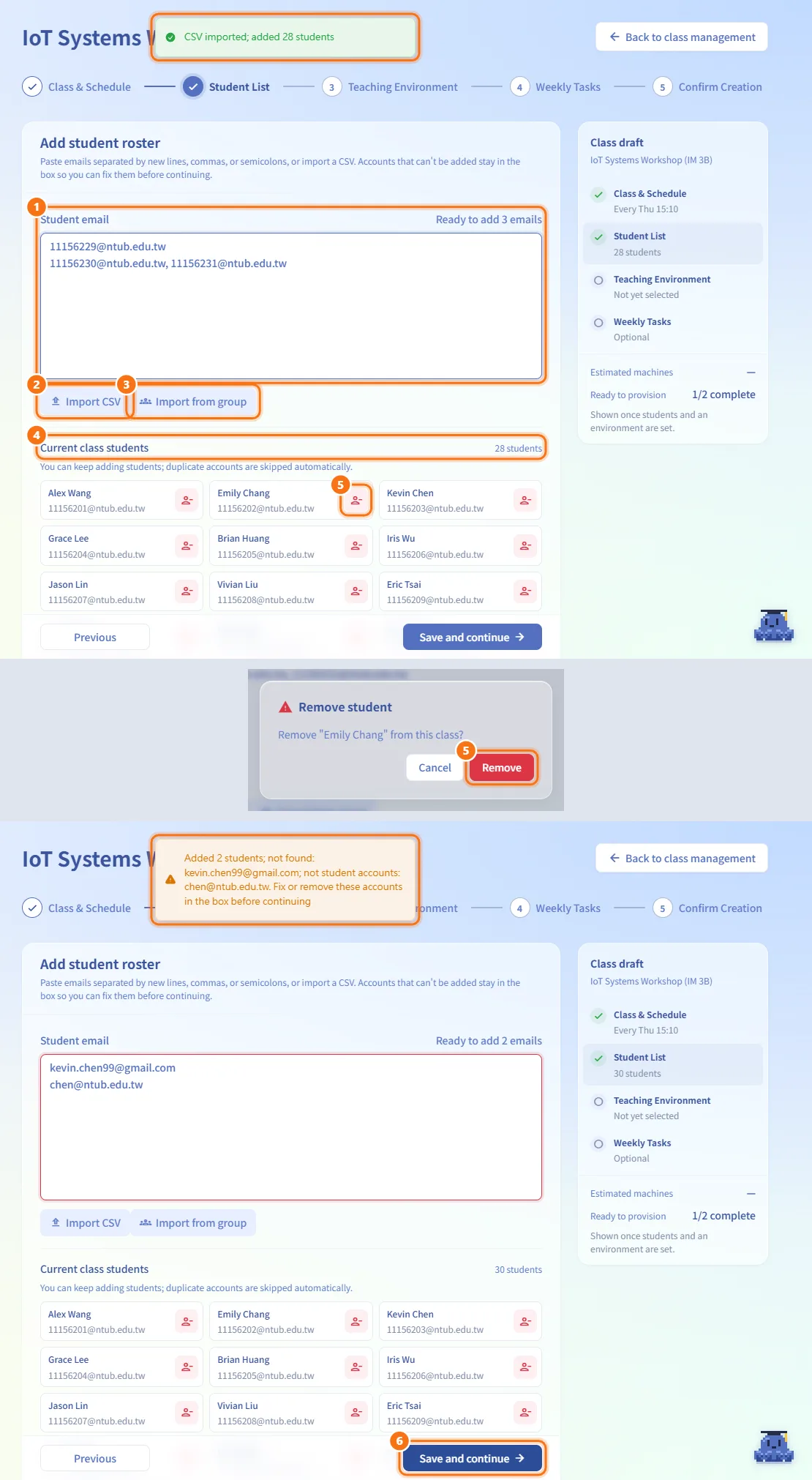
Step 3: Teaching environment
- Choose one card from the list. Only published environments offered for formal courses are listed (for a teacher, only the ones they created). Each card shows the name, version, purpose, machines per student and total CPU, RAM and disk.
- Click Save and continue. The button stays disabled until you select one (Select a class template to continue).
If no environment fits:
- Click Create a new class template. The first two steps are already saved as a draft.
- Build and publish the environment in the editor. After publishing you return to this step with the new environment selected (New teaching environment published. Confirm it to apply it to the class.).
- Or click Continue later to go back to class management; the class is kept as a draft.
When no environment has been published at all, the page shows No published class templates yet with Create a template now.
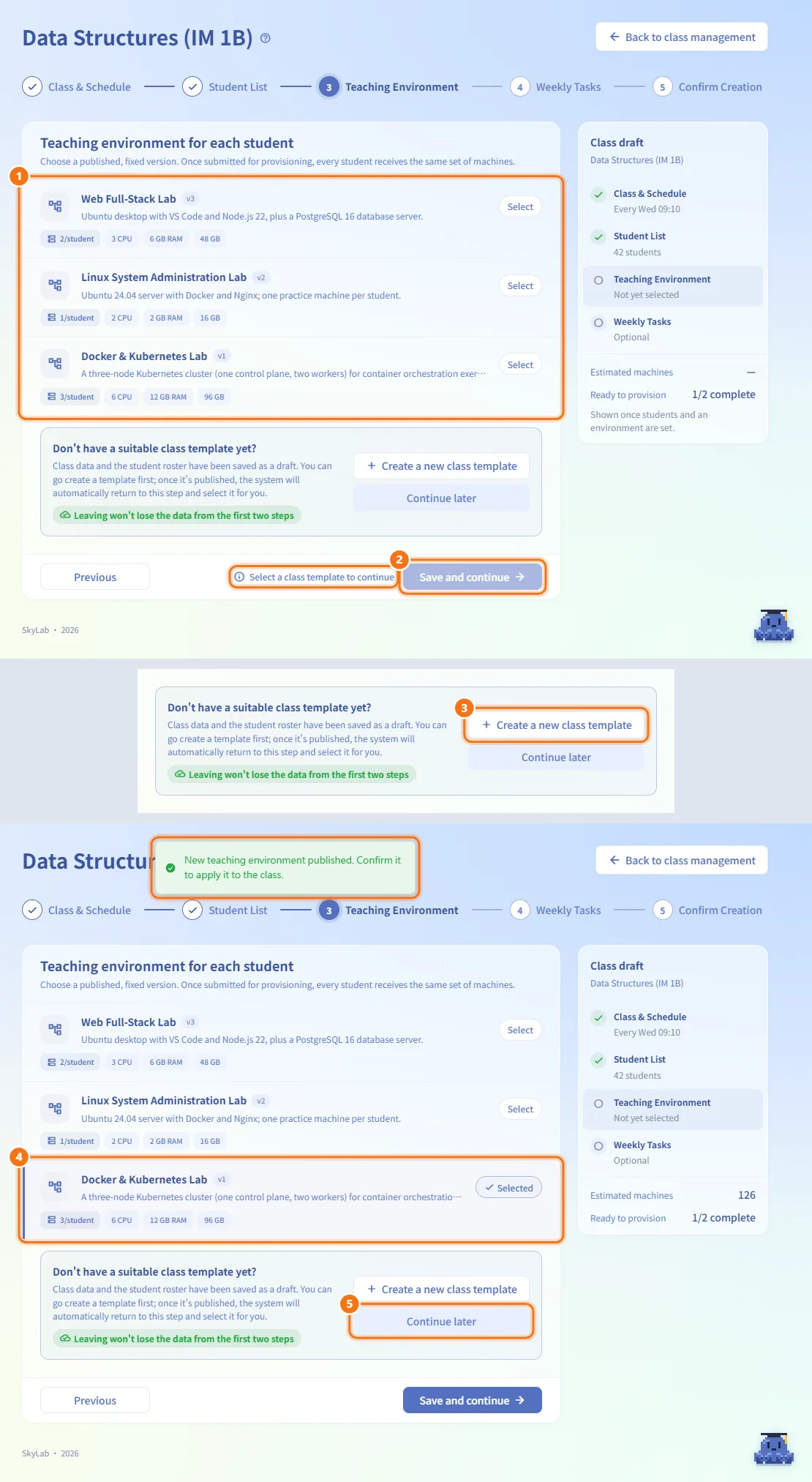
Step 4: Weekly tasks
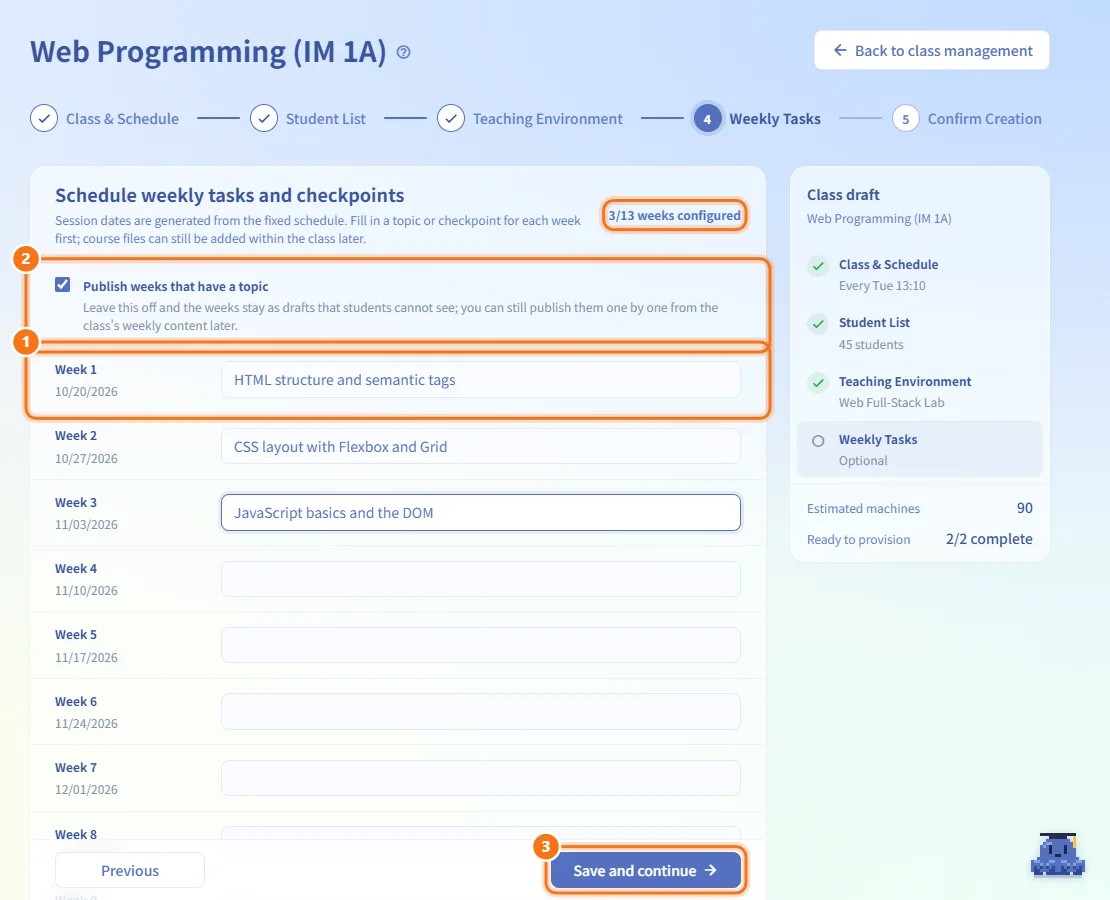
- Each row is one week, with its number and date taken from the schedule. Type a topic or checkpoint for the weeks you want; the header shows N/M weeks configured.
- Leave Publish weeks that have a topic ticked to make those weeks visible to students right away. Untick it to keep them as drafts; you can publish them one by one later in the class's Weekly Content.
- Click Save and continue. This step is optional, and course files can be added later in the class.
Step 5: Confirm and submit
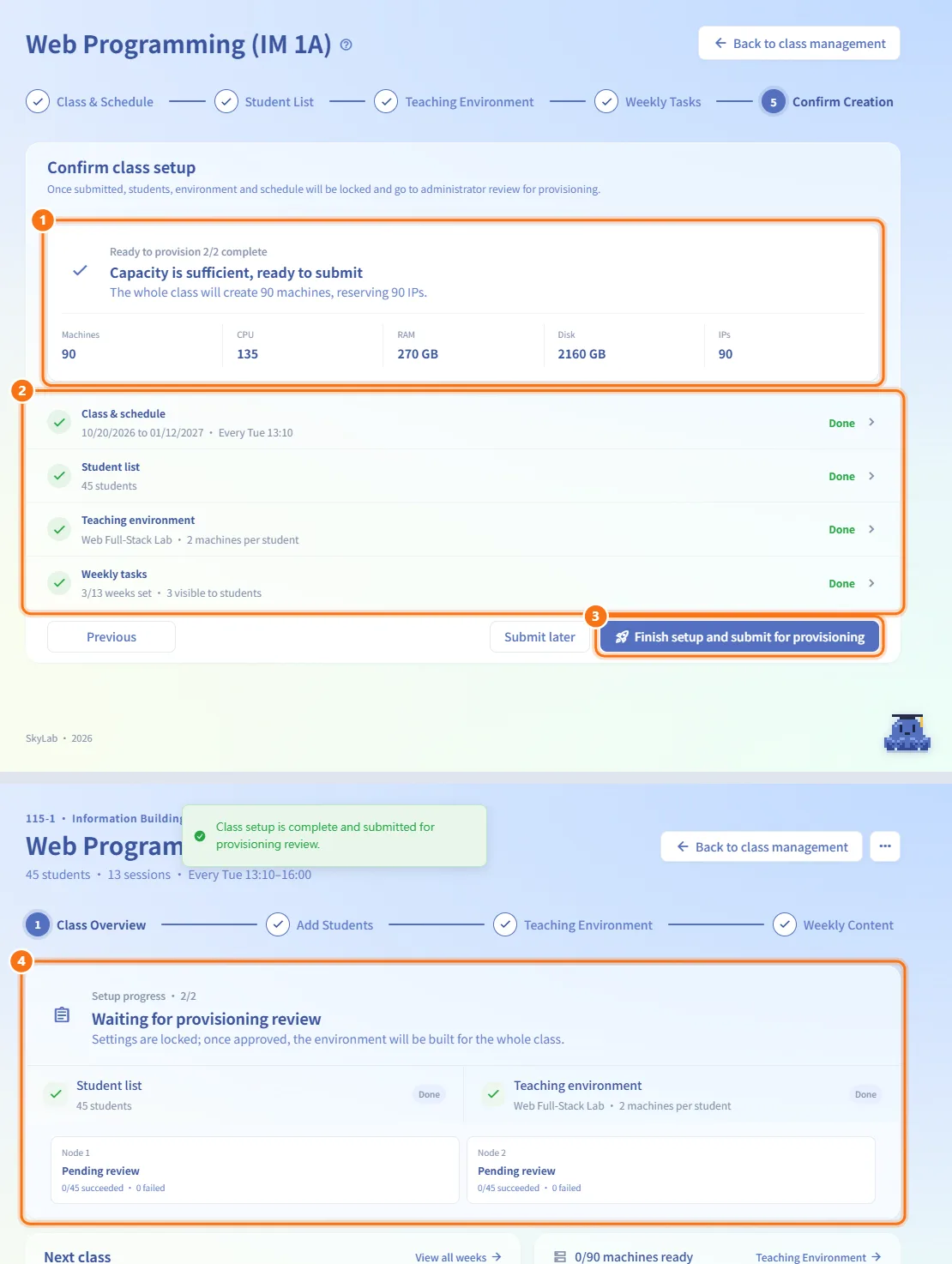
- The top card runs a capacity check based on the number of students, the environment specs and the course period:
- Running capacity check… while it runs.
- Capacity is sufficient, ready to submit with the totals to reserve: Machines, CPU, RAM, Disk and IPs.
- Capacity check not yet passed with the reasons.
- Some steps are not finished when students or an environment are missing; Go to
<step>takes you there.
- The four summary rows (Class & schedule, Student list, Teaching environment, Weekly tasks) show Done, Pending or Optional. Click a row to go back and change it.
- Click Finish setup and submit for provisioning. It is enabled only after the capacity check passes.
- The class opens in its Class workspace with the message Class setup is complete and submitted for provisioning review. An administrator then approves it in Class Review, and a machine set is built for every student.
If you are not ready, click Submit later; the class opens in its workspace and you can submit from there.
Use the AI Assistant
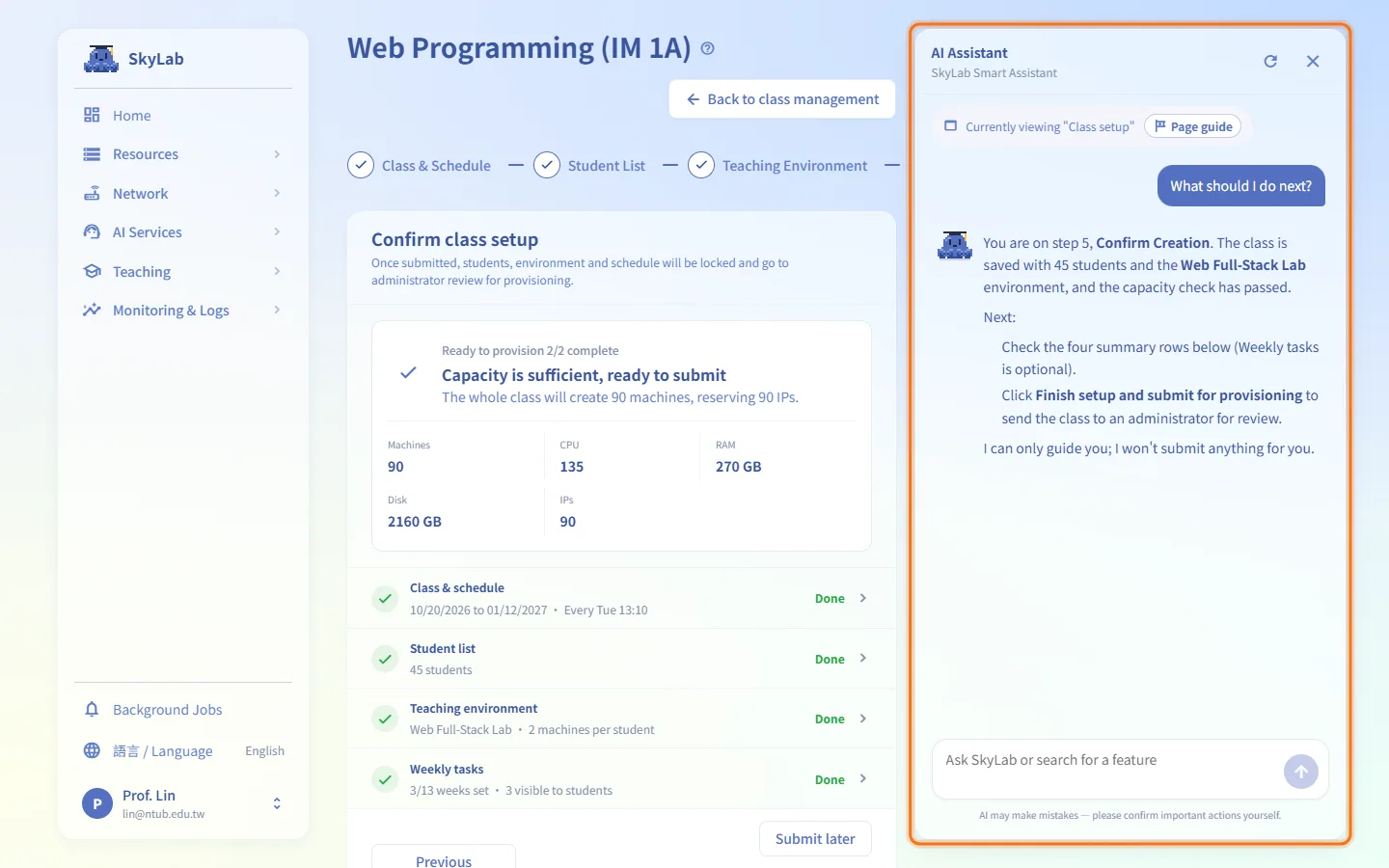
While you are on this page, the AI Assistant knows which step you are on, whether the class is saved, how many students it has, whether an environment is saved, how many published environments are available and, on the last step, why submitting is blocked. Ask it what to do next and it answers from that state. It only guides you; it never saves, creates or submits anything for you. See Navigation AI: teaching workflows.
Fields and options
| Field | Meaning | Notes |
|---|---|---|
| Class name | Name of the class | Required, up to 255 characters |
| Class location | Room shown on students' daily schedule | Optional, up to 255 characters |
| Start date / End date | Course period | End not before start; at most 104 weeks |
| Weekly class day | Day of the weekly session | Monday to Sunday |
| Class time | Start and end time | End must be after start; default 13:10–16:00 |
| Term | Academic term | Up to 80 characters; default from the start date |
| Boot lead time | Minutes machines start before class | On time, 5, 10, 15, 30; default 10 |
| Shutdown after class | Minutes machines run after class | At class end, 10, 30, 60; default 30 |
| Student email | Emails to add | New lines, commas or semicolons |
| Import CSV | File of students | First column only; see below |
| Import from group | A group set up by an administrator | Adds the group's students as they are now |
| Publish weeks that have a topic | Make filled-in weeks visible to students | On by default |
Limits and behaviour to know
- CSV import reads the first column of each row. A header row of
email,學號or帳號is skipped. A value without@is treated as a student ID and@ntub.edu.twis added. The file must be UTF-8 or Big5 and at most 1 MB. - Importing from a group copies its students at that moment. Adding people to the group or deleting it later does not change the class roster. Only administrators can create groups and change their members (see User Management).
- Students can be added only while the class is still being set up.
- A new class starts on the coming Monday and runs for four months by default; change the dates as needed.
- Submitting locks the students, the environment and the schedule. After that, opening the class's setup address takes you to the class workspace instead.
- If the class cannot be opened (someone else's class, deleted, or a network error), you see Can't open this class with Retry or a way back to class management.
Related
- Class Management — your class list and drafts
- Teaching Environments — create and publish the environment a class uses
- Class workspace — manage the class after setup
- Class Review — administrators approve class provisioning
- Multi-machine environment SOP — planning multi-machine classes