
Audit Log
The Audit Log records who did what and when: sign-ins, machine operations, requests and reviews, user changes, firewall and Gateway changes and other settings, each with the user, details, VMID and source IP. Sidebar: Monitoring & Logs → Audit Log. Path: /audit.
Who can use it
Administrators only. The sidebar entry and the page are hidden from teachers and students.
Step by step
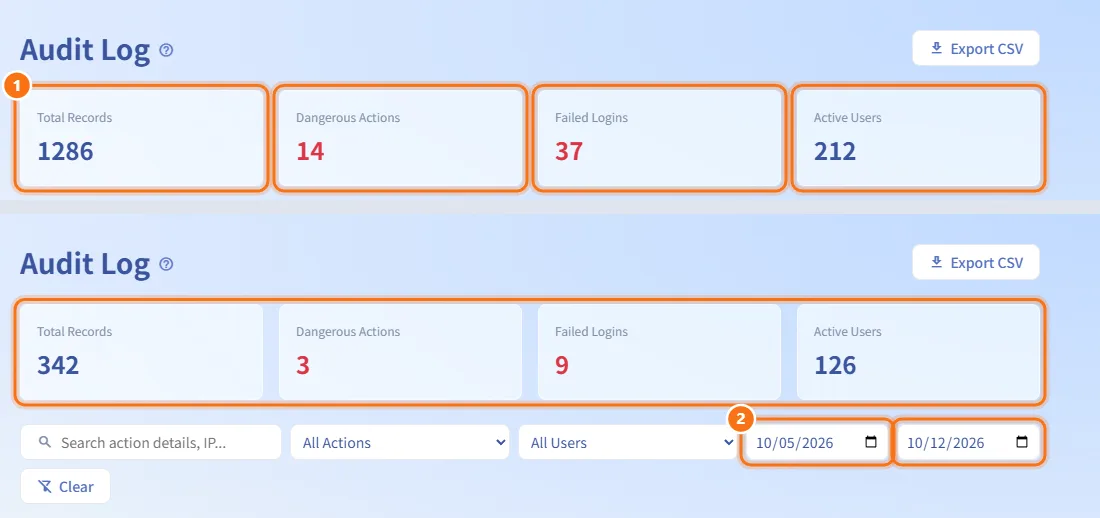
Read the summary for a period
- Look at the four numbers at the top: Total Records, Dangerous Actions, Failed Logins and Active Users.
- Set a Start date and an End date in the filter bar to see the numbers for that period. Only the dates change the summary; the search box, action and user filters do not.
If the summary cannot be loaded, the row is hidden instead of showing old numbers.
Find specific records
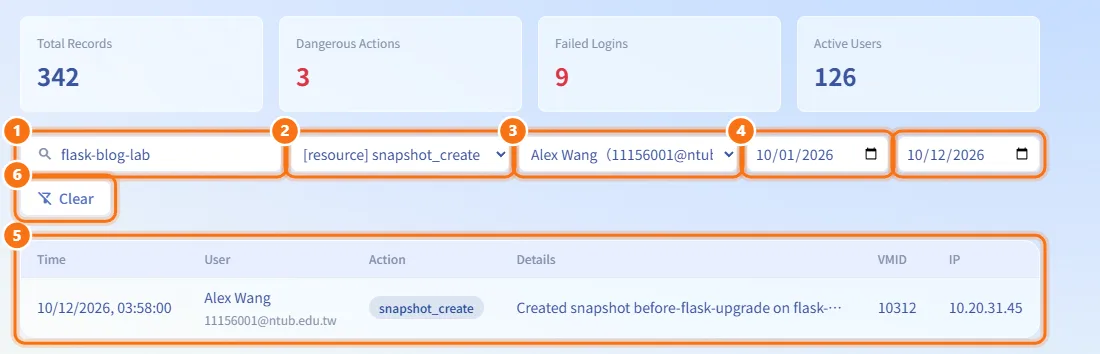
- Type in the search box ("Search action details, IP..."). It looks for your text in the Details column and runs on its own shortly after you stop typing.
- Choose an action in the All Actions list. Each action is shown with its category in brackets, for example
[auth] login_failed. - Choose a person in the All Users list. It only lists users who appear in the log.
- Pick a Start date and an End date.
- Combine any of these filters; the table updates as soon as you change one.
- Click Clear to remove every filter.
Read the records
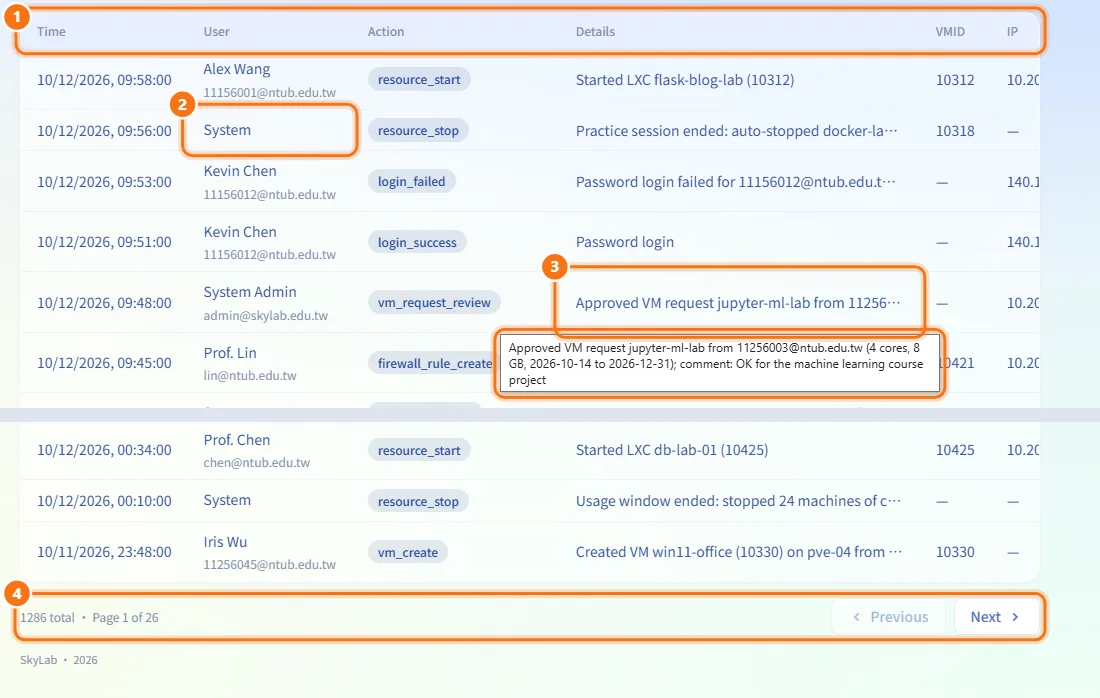
- The table lists records newest first, 50 per page, with Time, User, Action, Details, VMID and IP.
- Actions the platform runs on its own, such as scheduled jobs, show System as the user.
- Long Details are cut off; hover over the cell to read the full text.
- Use Previous and Next below the table to page through. The line next to them shows the total count and the current page.
Export to CSV
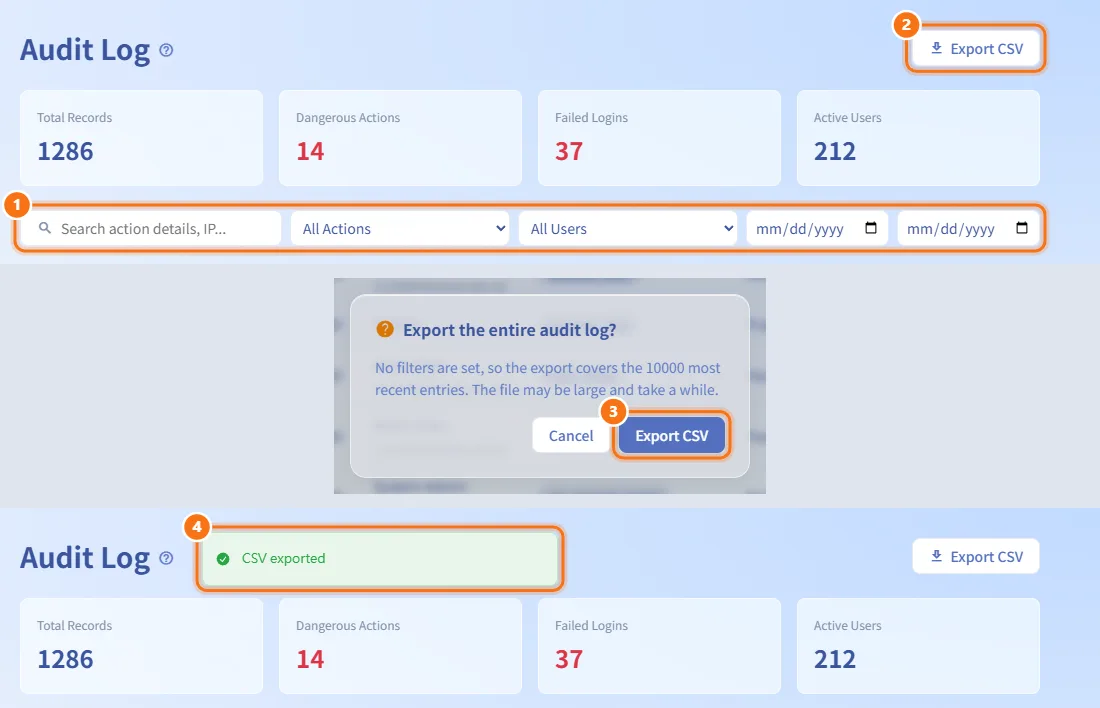
- Set the filters you want (or none).
- Click Export CSV in the page header.
- If no filter is set, confirm the "Export the entire audit log?" question; the export then covers the most recent 10000 entries.
- The browser downloads a file named
audit-logs-followed by today's date. A "CSV exported" notice appears.
Fields and options
| Field | Meaning | Notes |
|---|---|---|
| Search | Part of the text in Details | Not case-sensitive; runs automatically after a short pause in typing |
| All Actions | One action type, shown as [category] action | Categories: auth, resource, request, user, firewall, gateway, system, ai, other |
| All Users | One person who appears in the log | Automatic actions have no user |
| Start date / End date | Date range, inclusive | Cannot be later than today |
| Total Records | Number of records in the date range | Ignores search, action and user filters |
| Dangerous Actions | Resource deletions and resets, snapshot deletions, backup restores and deletions, user deletions | Same date range |
| Failed Logins | Failed password, Google, LDAP and two-step verification sign-ins | Same date range |
| Active Users | Distinct users with records in the range | Same date range |
The CSV file contains the columns id, created_at, action, user_email, user_full_name, vmid, ip_address, user_agent and details, and opens correctly in Excel, including Chinese text.
Limits and behaviour to know
- Dates cannot be in the future; a later date is changed to today. If the start date is moved after the end date (or the end before the start), the other date moves to the same day.
- One export holds at most 10000 entries, newest first. Narrow the date range to export older periods.
- The log is read-only; records cannot be edited or deleted from this page.
- The source IP is the address the platform saw for the request. If the platform is reached through the Gateway and is not set to trust it, every record shows the Gateway's address (see Gateway VM, platform entry).
Related
- User Management — act on suspicious accounts found in the log
- Resource Monitoring — live status and alerts
- Background Jobs — progress of the long-running operations that appear here