
Course Management
Course Management is where a teacher builds the online course of a class as a tree of Learning path › Room › Task, attaches questions to each task, publishes the path to the class's students and watches each student's progress live. This page has no sidebar entry; open it by its address. Path: /course-cms (the progress tab is /course-cms?tab=progress).
Who can use it
- Teachers see and edit the learning paths of their own classes.
- Administrators see and edit every learning path.
- Students cannot use this page; opening the address sends them back to the home page.
Before you start
- Create the class first in Class setup. Every class gets a learning path named after it automatically, so most classes already have one here.
- A class can be linked to only one learning path.
Step by step
Find your way around
- Open
/course-cms. The header has two tabs: Content editor and Student progress. - In Content editor, the left side is the Course content tree and the right side is the workspace for the selected item.
- In the tree, click a name to select it and click the arrow to expand or collapse it. Rooms and tasks are loaded when you expand their parent.
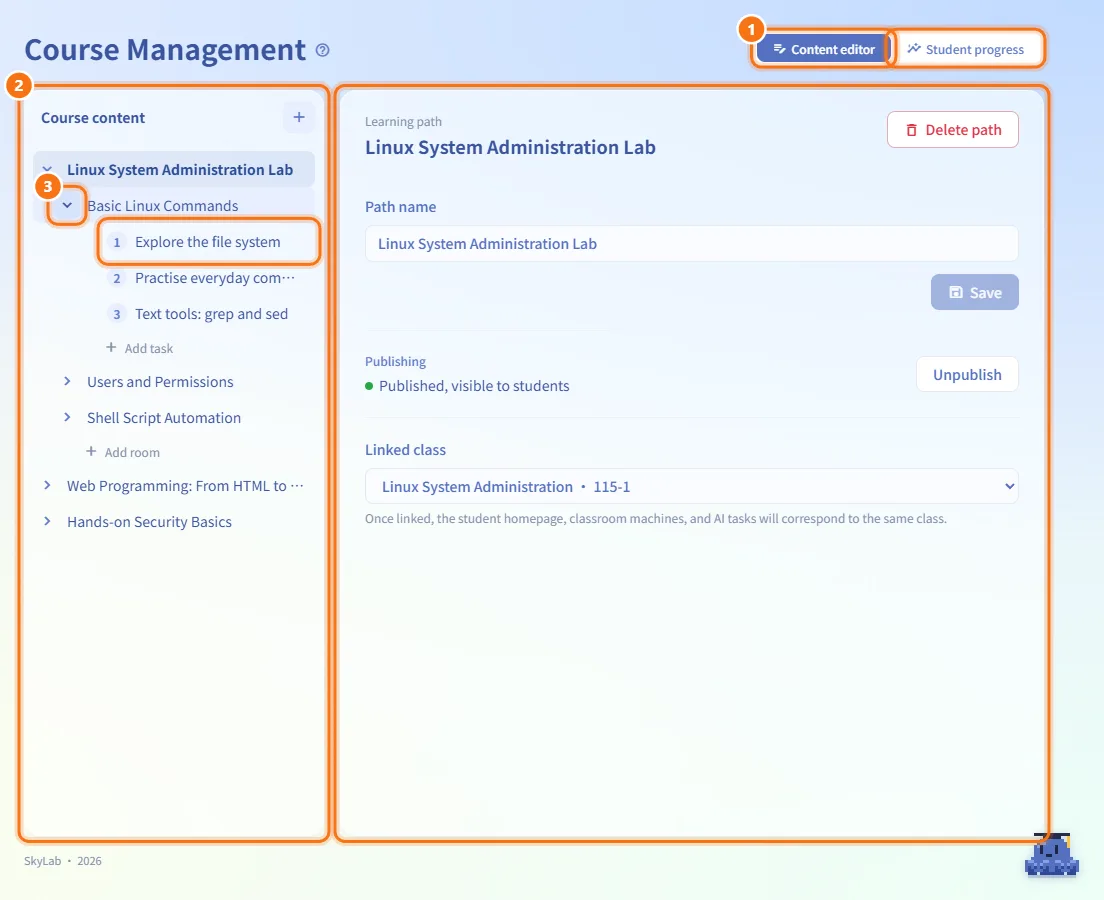
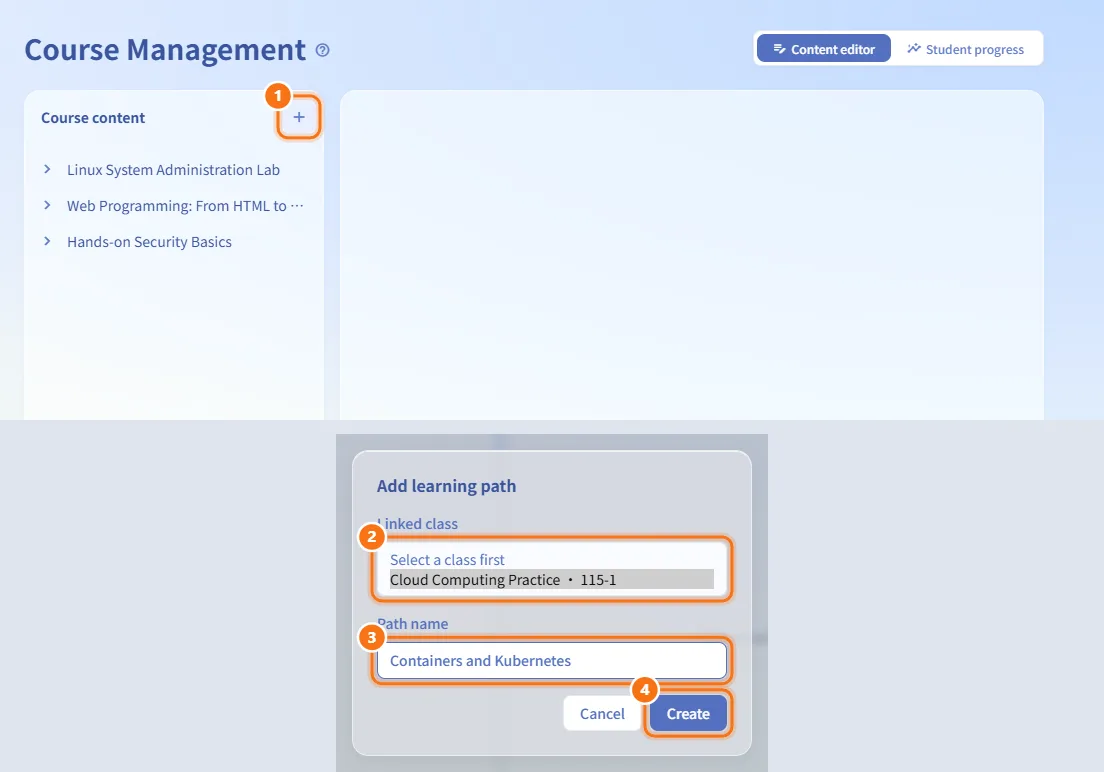
Add a learning path
- Click + next to Course content (or Add learning path when the tree is empty).
- In the Add learning path dialog, choose the Linked class. Only classes that do not have a path yet are listed; if none are left you see Every class already has a learning path. A class can link to only one.
- Enter the Path name.
- Click Create. The new path is selected.
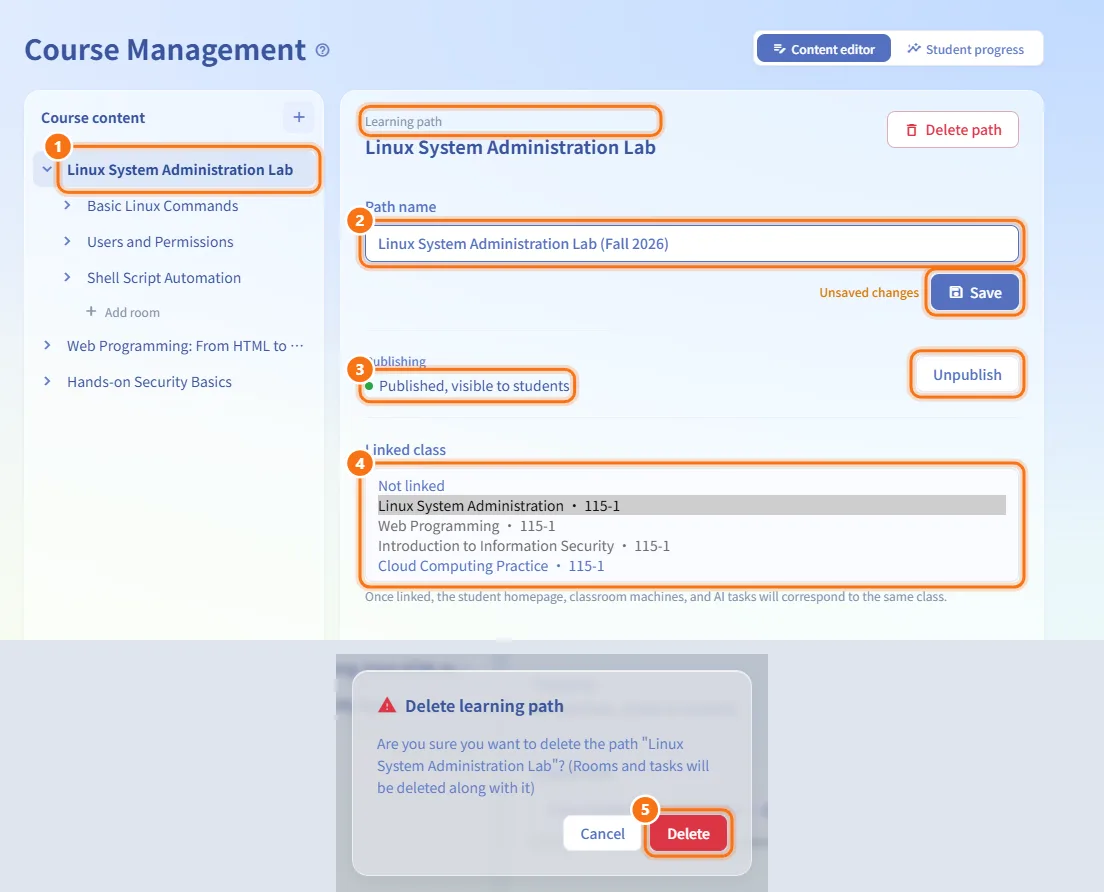
Edit a learning path
- Select the path in the tree. The workspace shows Learning path.
- Change the Path name and click Save.
- Under Publishing, the state reads Published, visible to students or Draft, hidden from students. Click Publish or Unpublish to change it; this takes effect at once.
- Use Linked class to link the path to another class or choose Not linked. Classes that already have a path are greyed out. This takes effect at once.
- Delete path deletes the path together with its rooms and tasks, after you confirm.
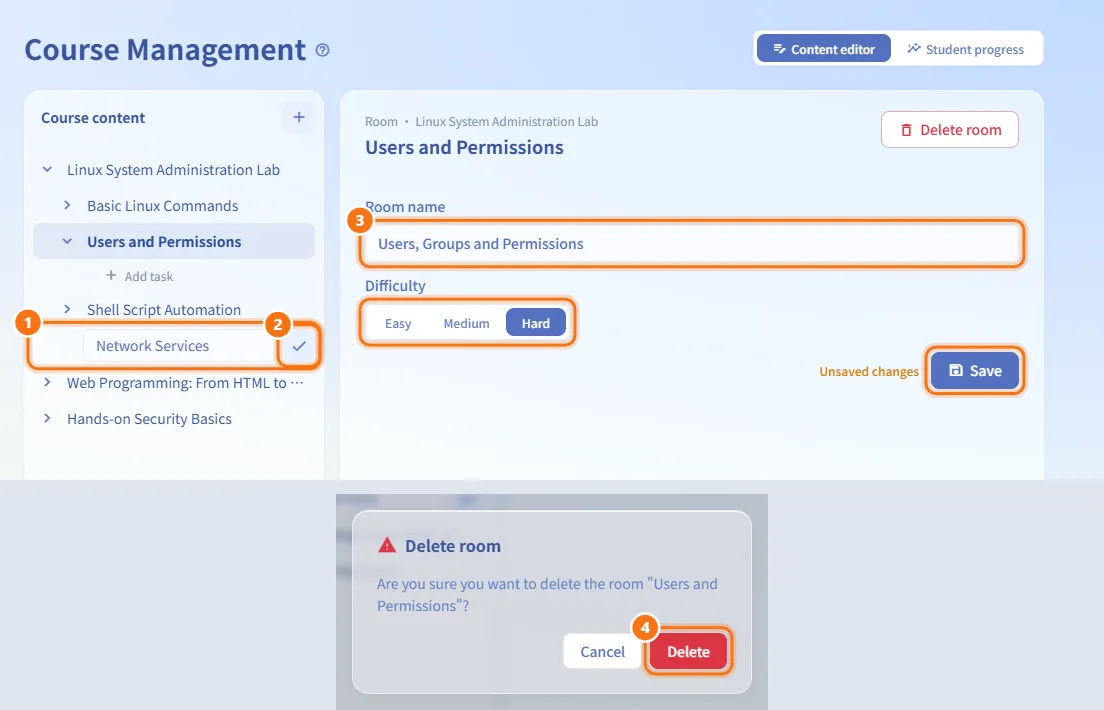
Add and edit rooms
- Expand a path. At the bottom of its rooms click Add room.
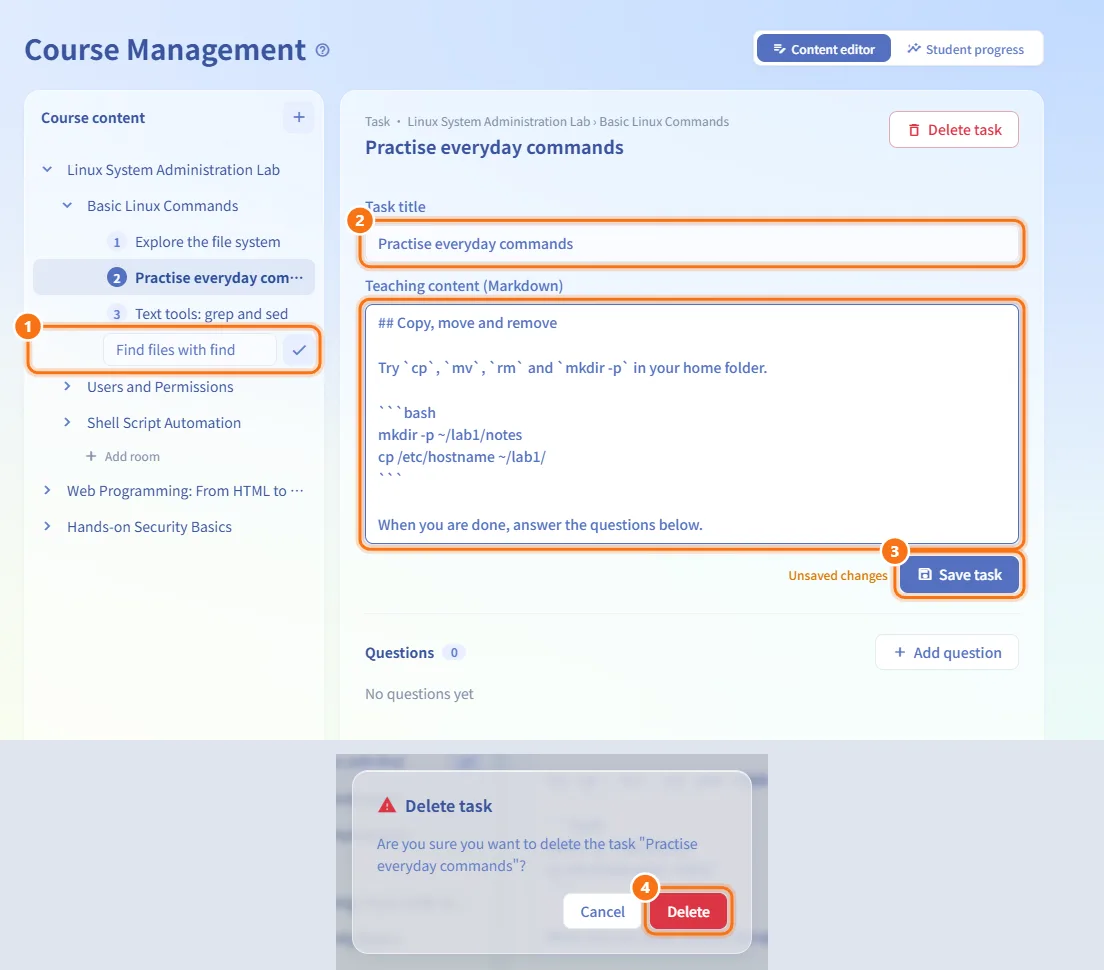
- Type the room title and press Enter (or click the check mark). Press Esc to cancel. The new room is selected.
- In the workspace, change the Room name and the Difficulty (Easy, Medium, Hard), then click Save.
- Delete room removes the room after you confirm.
Add and edit tasks
- Expand a room. At the bottom of its tasks click Add task, type the title and press Enter. The new task is selected.
- In the workspace, edit the Task title and the Teaching content (Markdown).
- Click Save task.
- Delete task removes the task after you confirm.
Add questions to a task
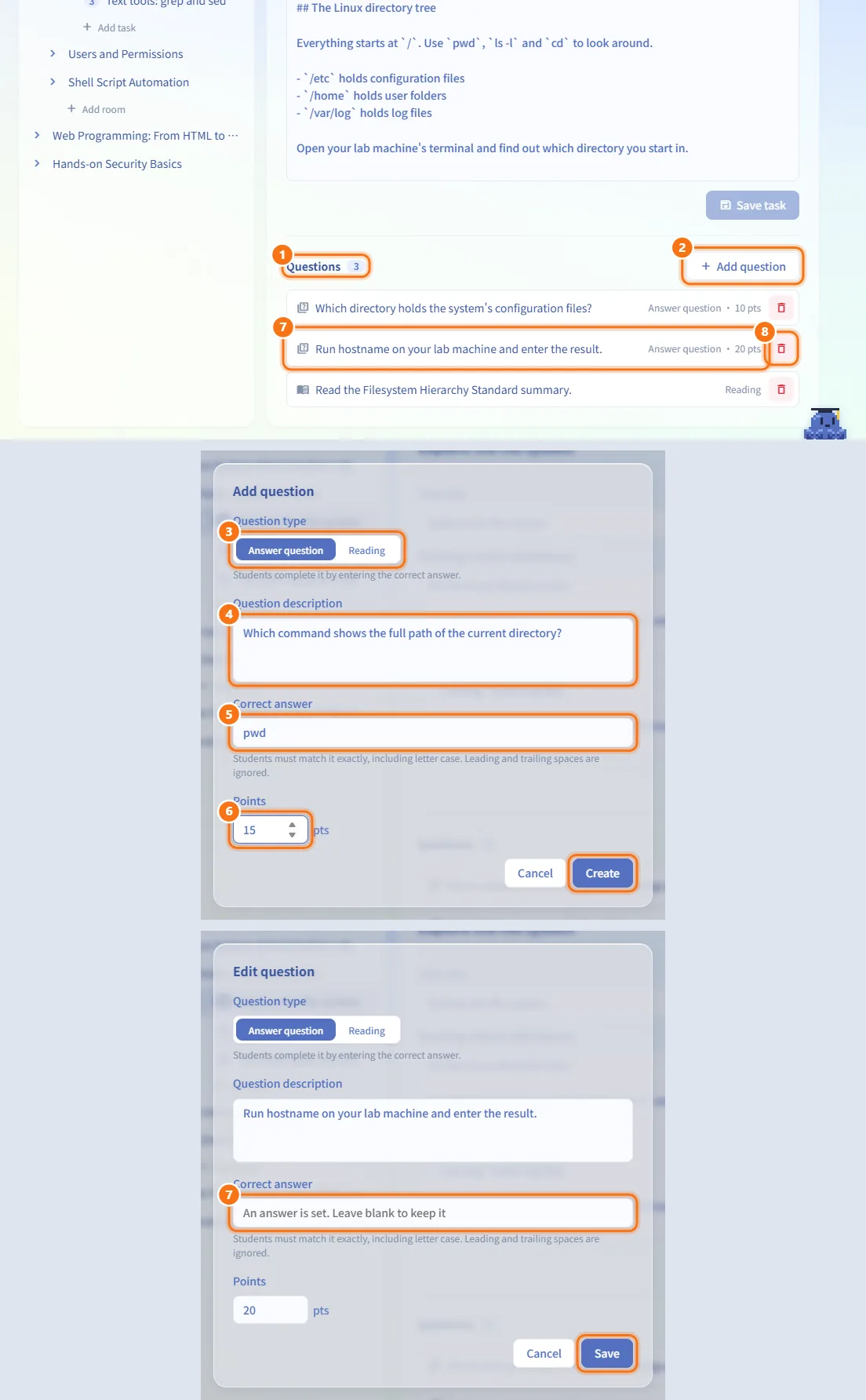
- Select a task. The Questions section shows how many questions it has.
- Click Add question.
- Choose the Question type:
- Answer question — students complete it by entering the correct answer.
- Reading — students complete it by marking it done; no answer is needed.
- Enter the Question description.
- For an answer question, enter the Correct answer. Students must match it exactly, including letter case; leading and trailing spaces are ignored.
- Set the Points and click Create.
- To edit a question, click it in the list. The stored answer cannot be shown again: leave Correct answer blank to keep it, or type a new one. Click Save.
- To delete a question, click its trash icon and confirm. Students' completion records for it are deleted too.
Watch student progress
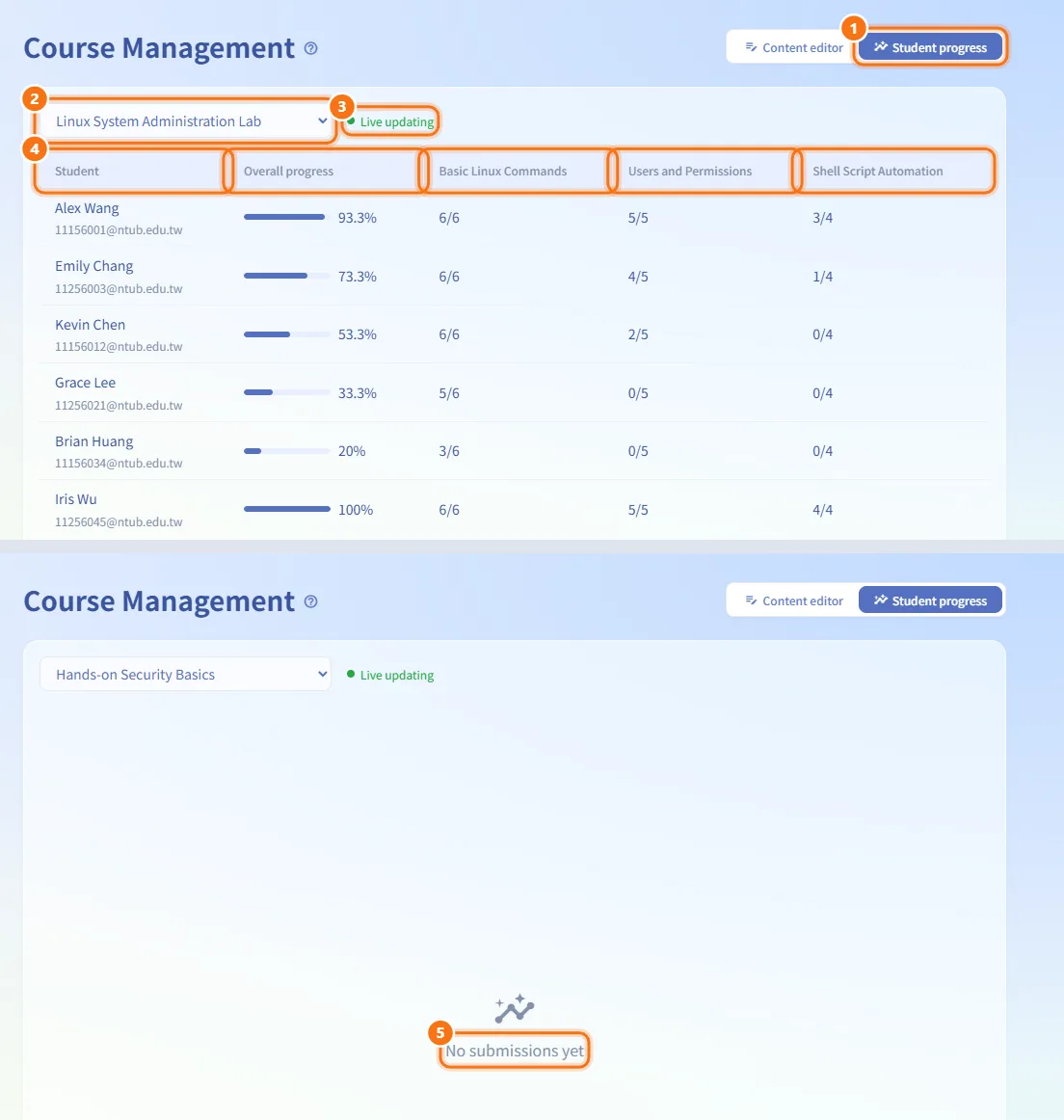
- Open the Student progress tab.
- Choose a path from Choose a learning path….
- The badge next to it reads Live updating while the page receives updates; the report refreshes shortly after a student answers. Connection lost means the numbers may be out of date; the page reconnects by itself.
- The table lists each Student (name and email), the Overall progress percentage for the whole path, and one column per room with completed questions out of the total.
- Until anyone answers you see No submissions yet.
Fields and options
| Field | Meaning | Notes |
|---|---|---|
| Path name | Title of the learning path | Required, up to 255 characters |
| Linked class | The class whose students see the path | One path per class |
| Publishing | Whether students can see the path | Publish / Unpublish, takes effect at once |
| Room name | Title of a room | Required, up to 255 characters |
| Difficulty | Room difficulty | Easy, Medium, Hard; new rooms start as Easy |
| Task title | Title of a task | Required, up to 255 characters |
| Teaching content (Markdown) | The text of the task | Saved with Save task |
| Question type | How a question is completed | Answer question or Reading |
| Question description | The question text | Required, up to 1000 characters |
| Correct answer | The answer students must enter | Up to 500 characters; required for a new answer question |
| Points | Score of the question | 0–1000, default 10 |
Limits and behaviour to know
- Names, difficulty and teaching content are sent only when you click Save (or Save task). Unsaved changes appears next to the button while you have edits.
- With unsaved changes, selecting another item, switching tabs or leaving the page asks you to confirm first.
- Publish/Unpublish, Linked class and questions take effect as soon as you click them.
- A draft path is hidden from students. Once published, the course appears under Courses for the students of the linked class, and the question count is shown on their course ticket.
- Deleting a path also deletes its rooms and tasks; deleting a question also deletes students' completion records. These cannot be undone.
Related
- Class Management — the classes a path can be linked to
- Class workspace — weekly content, checks and machines of a class
- Courses — what students see